CT Mobile Control Panel: Presenter
- Location
- Remote Detailing Settings
- Video Streaming Enabled
- Text Chat Enabled
- Text Chat History Enabled
- CRM Data Streaming Enabled
- Detailed Statistics Enabled
- Call Repeat Allowed
- Audio Record Enabled
- Scheduled Activity Audio Cleanup
- Delete After (days)
- Terms of Use on the Welcome Screen
- Session Timeout (in seconds)
- Applications List Field
- Endpoint URL
- Email Required Field
- Login URL
- Self-Detailed User
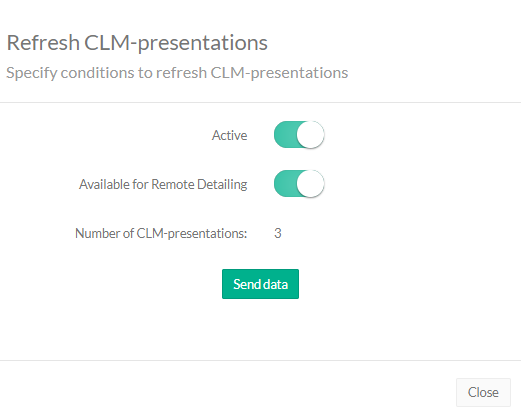
- Refresh CLM-presentations
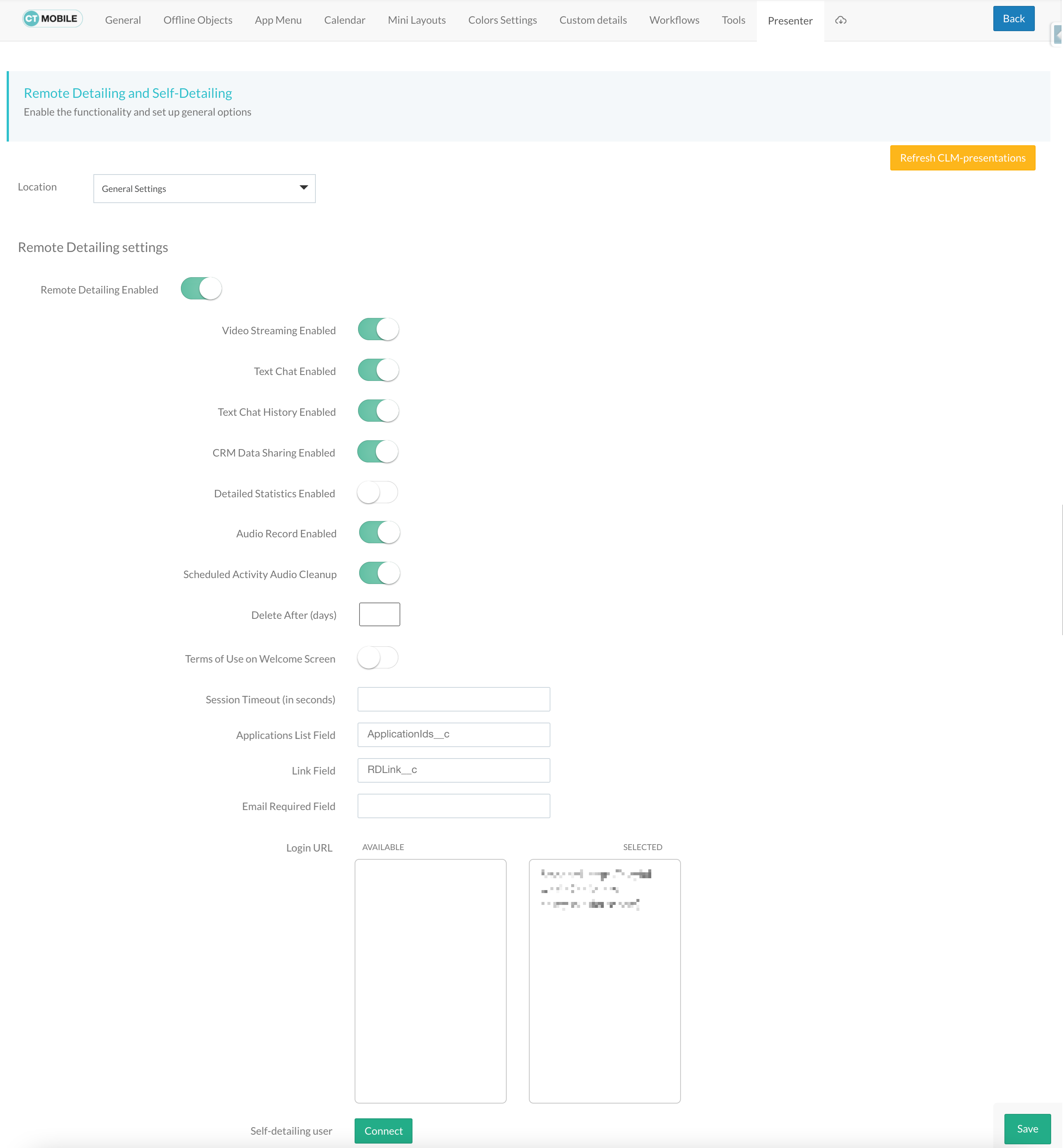
The Presenter tab is intended to configure the Remote Detailing functionality.
| According to the selected profile, several settings on this tab will be saved in the corresponding fields of the CLM Settings record. |
Click to view the interface
Location
Location is a picklist containing all configured and unconfigured profiles available in your Salesforce org.
General Settings will be applied to all the profiles without individual settings.
To get started, select the desired profile in the Location field to
configure it. To delete the configuration for the selected profile,
click the
 icon.
icon.
Remote Detailing Settings
Switch to enable the Remote Detailing functionality and display available options.
Video Streaming Enabled
If enabled, the participants are allowed to stream video and audio during the Remote Detailing meeting.
Text Chat Enabled
If enabled, the participants are allowed to communicate with each other on the Chat tab during the Remote Detailing meeting.
Text Chat History Enabled
If enabled, the chat history of the Remote Detailing meeting will be saved as the .html file in the Attachment section of the Activity record.
CRM Data Streaming Enabled
If enabled, certain JS Bridge methods will be available on the CLM presentation slides during the Remote Detailing meeting. Please, refer to JS Bridge Methods Availability.
Detailed Statistics Enabled
If enabled, the statistics per each slide will be gathered not only for the presenter but also for each participant too.
Call Repeat Allowed
If enabled, the presenter can resume the finished Remote Detailing session. The statistics will be collected for the resuming meeting too. Use the same link to enter the previously finished meeting.
Audio Record Enabled
If enabled, audio of the Remote Detailing meeting may be recorded and saved as a Lightning compinent to the corresponding Activity record.
| For more information, refer to Remote Detailing 2.0: Audio Recording. |
-
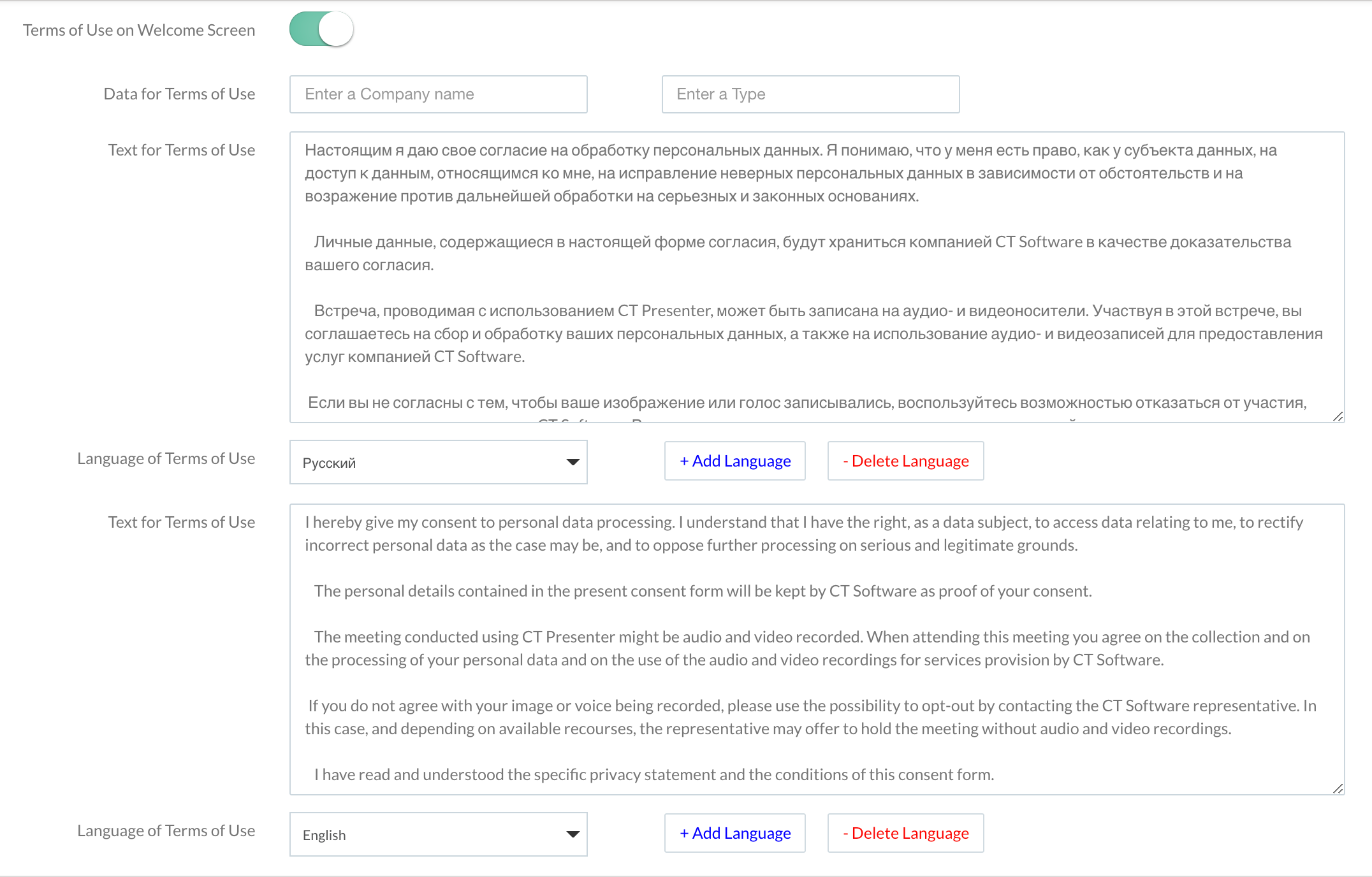
The presenter should receive the participant’s permission to record audio using the Terms of Use on the Welcome Screen.
-
If a guest didn’t accept, she cannot participate in the Remote Detailing meeting.
-
A notification will be sent to the administrator when the audio record exceeds available space and cannot be saved.
Scheduled Activity Audio Cleanup
If enabled, the audio of the Remote Detailing meeting will be automatically deleted from the Activity record according to the expiration date in the Delete After (days) field.
Delete After (days)
The number of days to keep an audio recording in Salesforce if the Scheduled Activity Audio Cleanup attribute is enabled.
-
The default value is 30 days.
-
After the expiration date, the audio recording is deleted from the Activity record.
-
Participant permissions are still in the Activity record.
Terms of Use on the Welcome Screen
If enabled, you can specify the terms of use that will be displayed on the Welcome screen. If a user does not accept the terms of use, she will not be able to participate in the Remote Detailing or Self-Detailing meeting.
Session Timeout (in seconds)
For the Remote Detailing meeting, the session timeout is the time interval after the presenter left the meeting, for example, in case of internet connection loss. When the timeout is reached, all participants will be automatically logged out.
For the Self Detailing meeting, the session timeout is the time interval when a participant does not perform any action. When the timeout is reached, the inactive participant session expires, a participant is automatically logged out, and their statistics at the meeting are sent to Salesforce.
Applications List Field
The field API name of the Activity object for the Application IDs storing, for example, ApplicationIds__c.
-
The field to store Application IDs should have the same API name on any Activity object for the Remote Detailing or Self Detailing session.
-
The same field will be automatically entered for all available profiles.
The field API name of the Activity object for the invite link storing, for example,RDLink__c.
-
The field to store an invite link should have the same API name on any Activity object for the Remote Detailing or Self Detailing session.
-
The same field will be automatically entered for all available profiles.
Endpoint URL
Not applied since CT Mobile package v. 3.63.
Specify the active site URL for logging in, viewing the CLM presentation, and collecting the statistics of the CLM presentation via the Self Detailing functionality.
Email Required Field
Available since CT Mobile package v. 3.66.
Enter the API name of a checkbox of the Activity object, for example,IsRequiredEmail__c. If the checkbox is active, the participant should fill out an email on the Welcome screen to access the Remote Detailing meeting.
Login URL
In the Available section, there are domains, for example, the instance or community URL, that can be used to connect with the Remote Detailing session. If several URLs are added in the Selected section, the presenter should select the appropriate URL to launch the Remote Detailing session.
Refresh CLM-presentations
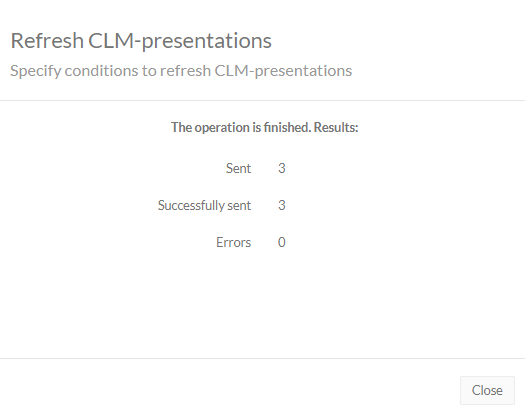
For the Self Detailing mode, click the Refresh CLM-presentations button to send JSON files of appropriate CLM-presentations and specified session timeout to the Customertimes server. Also, when the Self Detailing meeting is finished, the participant’s statistics will be sent to Salesforce.
Select CLM presentations to send, for example, only active CLM presentations or only available for the Remote Detailing session, click the Send data button, wait for the confirmation, and click Close.
Click to view the interface