Plain Application Editor
The Plain Application Editor is intended to create CLM presentations with the Plain Application record type. CLM presentations can be created without HTML programming. Import a PowerPoint file or create a CLM presentation using templates, slides with images, texts, videos, etc.
| Markups for all slides will be stored in the first slide record. We recommended creating no more than 25 slides. |
| Before the CLM presentation creation, read Requirements and Media File Formats and set up remote sites. |
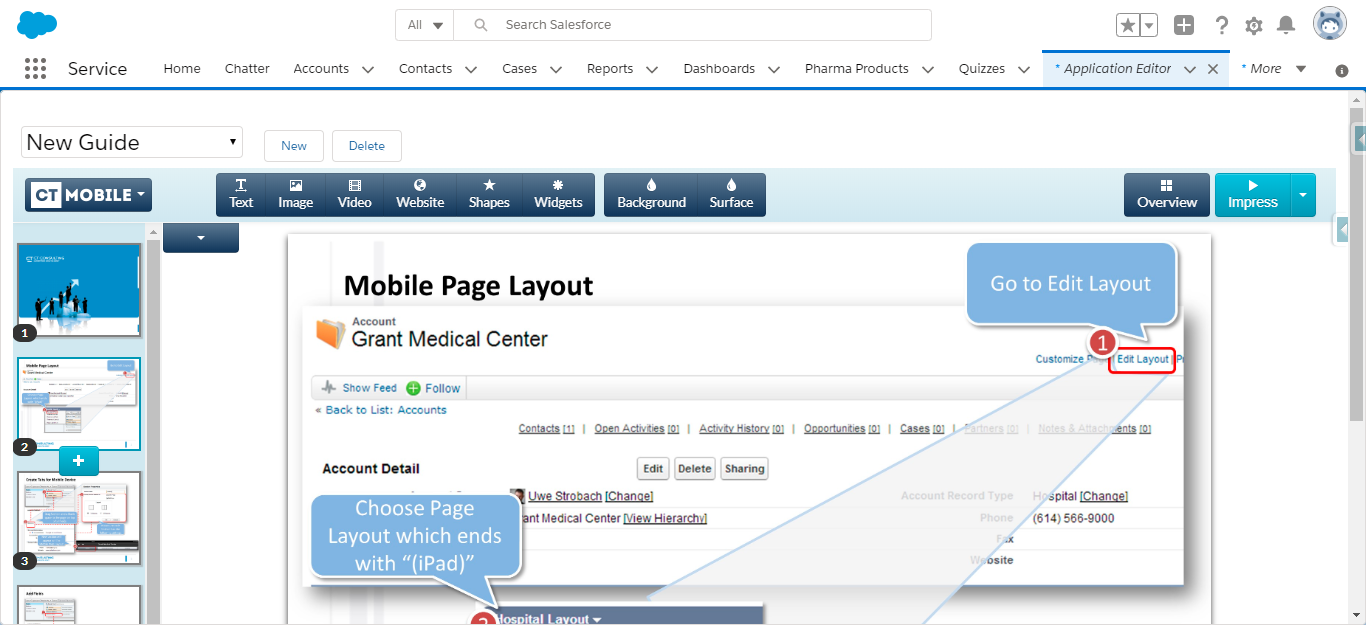
Create a CLM-presentation
To create the new CLM presentation with the Plain Application record type:
-
Go to the Application Editor tab and click New.
-
In the New Application window, select the Plain Application record type.
-
Specify fields:
-
Enter the CLM presentation name.
-
Set Active to make the CLM presentation available for users.
-
Select the Slide reordering enabled checkbox if you plan to create a custom scenario.
-
Check the required boxes to track actions and collect statistics in the ApplicationStats record.
Read the description of each parameter here. 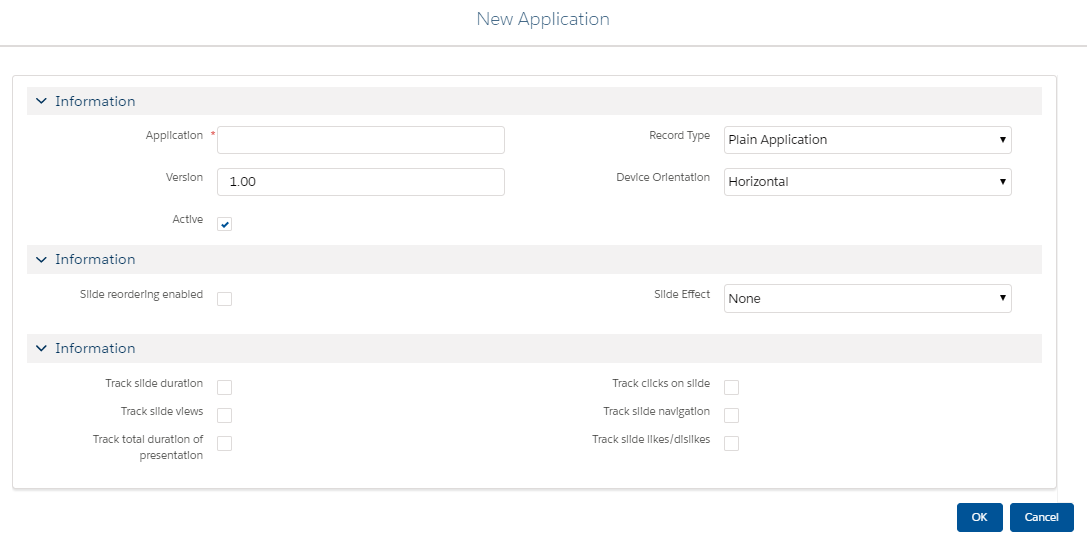
-
-
Click OK.
The new CLM-presentation record is created.
| Also, you can create a CLM presentation from the Application tab. Click New, select the Plain Application record type, specify all required fields, and click Save. |
Add Slides to the CLM Presentation
Select the CLM presentation in the picklist.
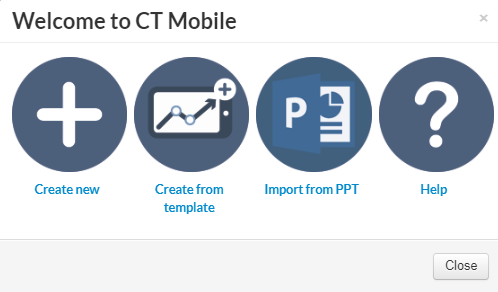
After the CLM presentation creation, it is needed to fill it out with the slides.
-
Create a CLM presentation by adding slide by slide, and configure template placeholders and widgets.
|
The Application Editor creates slides of the CLM presentations by taking screenshots of .ppt(x) slides. If a .ppt(x) file contains any interactive elements, such as videos, gifs, and links, they will not be available in the converted CLM presentation. |
After creating the CLM presentation:
-
Renew slides, wait 2–3 minutes, and publish the CLM presentation.
-
Perform fast or mixed synchronization on the mobile device to download the CLM presentation.
CLM presentation should be activated. If a CLM presentation should be available for Remote Detailing, check tthe Available for Remote Detailing field and set up Remote Detailing. Renew slides, wait 2-3 minutes, and publish the CLM presentation. Perform fast or mixed synchronization on the mobile device to download the CLM presentation.