Publishing CLM Presentations
When all the necessary information is placed on slides and widgets, the CLM presentation is ready to publish. Publication of the CLM presentation is a confirmation for all changes to be visible to the users of the CT Mobile app and a command for the CT Mobile app to upload an updated CLM presentation.
Applications Tab
To publish a CLM presentation:
-
Go to the Applications tab.
-
Click the required CLM presentation.
-
Click the Publish Application button.
-
Click the Forced Load Date field and select the appropriate date.
-
Click Save.
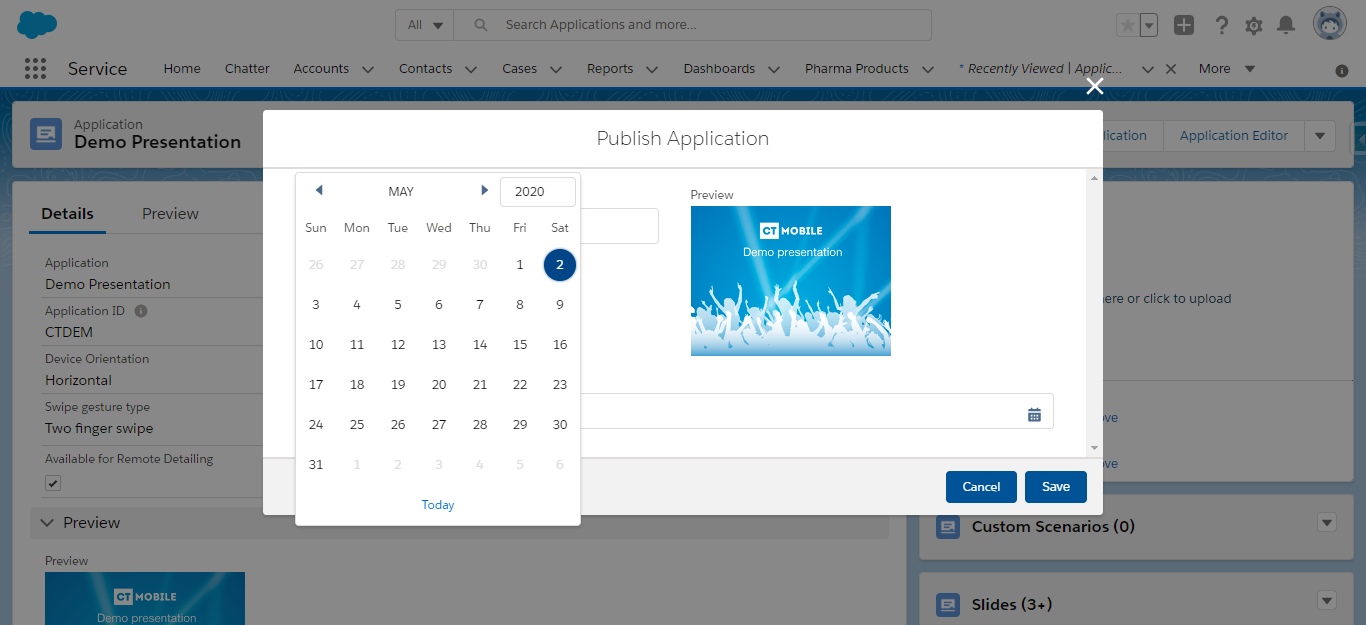
After the publication is confirmed, the CLM presentation is marked as Active, and the current version of the CLM presentation is updated.
During fast or mixed synchronization, the CT Mobile app compares the current version of the CLM presentation with the one previously saved. If any discrepancies are found, only those slides and attachments will be loaded that have been updated after the last synchronization.
-
In case of the future date is set in the Forced Load Date field on the CLM presentation record, the CT mobile app asks the current user to download the CLM presentation or not.
-
In the case of the past date or an empty value being set in the Forced Load Date field the CLM presentation will be downloaded.
Renew Slides
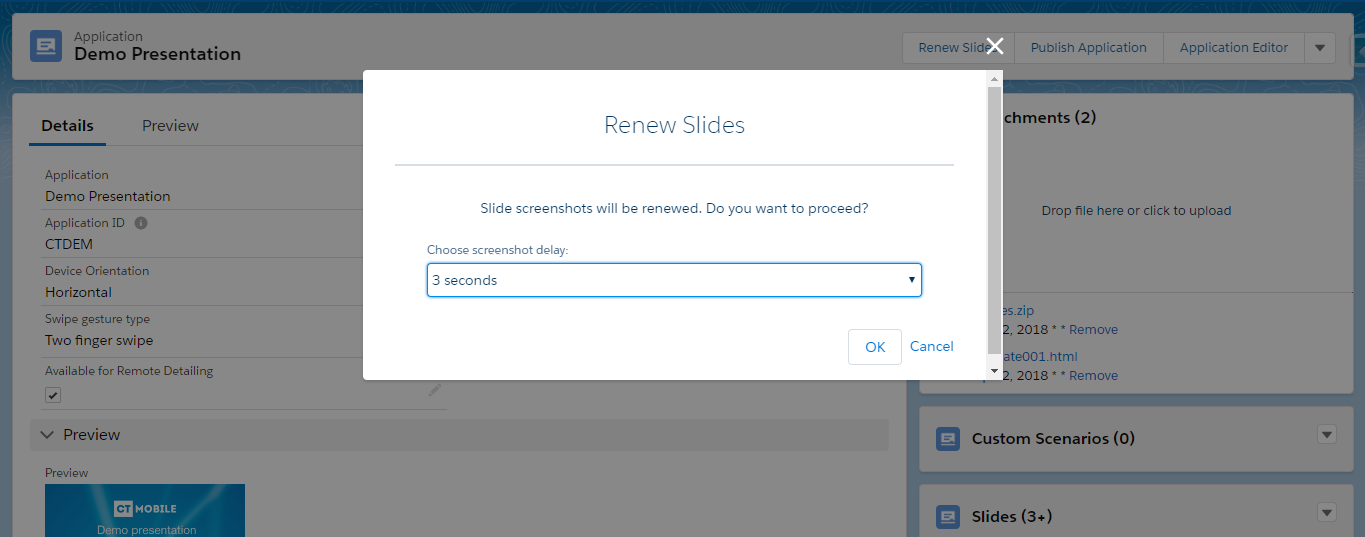
To view slides in the navigation feed on the Applications module, on the mobile layout of a record, Home Screen, or during a co-browsing session with the Remote Detailing functionality, it is necessary to take slide screenshots. The Renew Slides functionality creates or replaces the screenshots, for example, if some information was changed or the animation was added. Taking a slide screenshot with a delay helps to capture all animating details.
Currently, the screenshots of slides that use the following HTML features are taken incorrectly:
-
csstransforms3d
-
WebGL
-
geolocation
-
indexeddb
-
video
-
audio
The process of preparing slide screenshots may take up to 10-15 minutes, depending on the current service load.
To renew slide screenshots:
| If the required remote sites are not activated, slides will not be updated and the error message will be shown. |
-
Go to the Applications tab.
-
Click the required CLM presentation.
-
Click the Renew Slides button.
-
Select the delay: 3, 7, or 15 seconds.
-
Click OK.
Slides screenshots will be replaced. Wait for 2-3 minutes to publish the CLM presentation.
| If an error occurs, check the numbering and order of slides and branches. |
Application Editor Tab
To publish a CLM presentation right through the Application Editor:
-
On the Application Editor tab, select the required CLM presentation.
-
Click the Publish button.
-
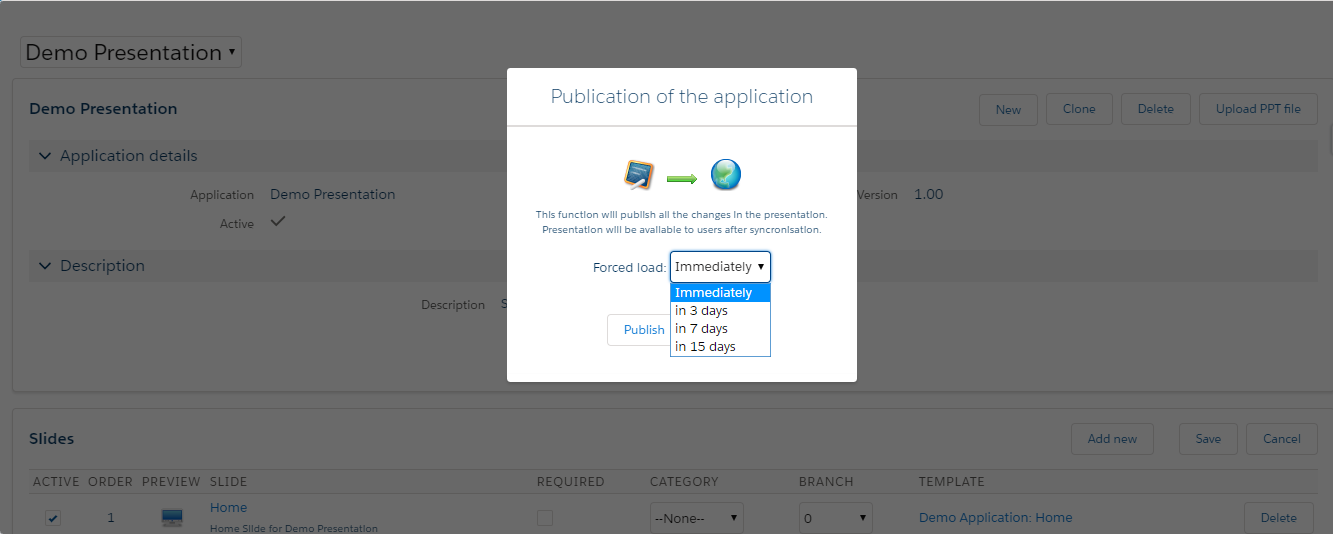
Select the Forced Load date from available values such as immediately, in 3, 7, or 15 days.
-
Click the Publish button.
After the publication is confirmed, the CLM presentation is marked as Active, and the current version of the CLM presentation is updated.
During fast or mixed synchronization, the CT Mobile app compares the current version of the CLM presentation with the one previously saved. If any discrepancies are found, only those slides and attachments will be loaded that have been updated after the last synchronization.
-
In case of the future date in the Forced Load Date field on the CLM presentation record, the CT mobile app asks the current user to download the CLM presentation or not.
-
In the case of the past date or an empty value being set in the Forced Load Date field, the CLM presentation will be downloaded.