Remote Detailing 2.0: Audio Recording
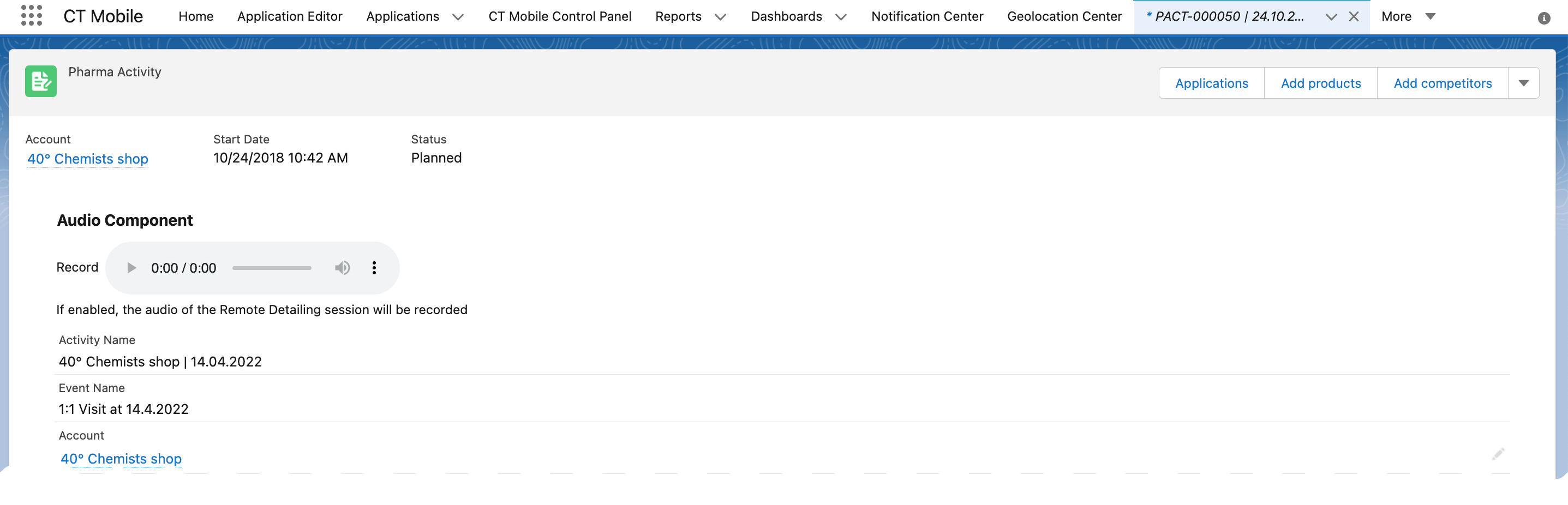
The presenter can make the audio recording of the Remote Detailing meeting that will be attached to the corresponding Activity record.
Currently, only one audio record can be stored.
To set up an audio recording for the Remote Detailing meetings:
-
Go to Setup → Security → CSP Trusted Sites.
-
Click New Trusted Site:
-
In the Trusted Site Name field, enter any name.
-
In the Trusted Site URL field, enter https://api.rd.ctclm.com.
-
-
Click Save & New.
-
In the Trusted Site Name field, enter any name.
-
In the Trusted Site URL field, enter https://rd-presentations.s3.eu-west-1.amazonaws.com.
-
-
Click Save.
-
Go to Setup → User Interface → Lightning App Builder → click Edit next to the desired record page, for example, Pharma Activity Record Page.
-
In the Lightning App Builder, drag the Audio Component section from the components tab on the left to the record page layout.
-
Click Save.
-
Go to the CT Control Panel: Presenter tab and enable the Audio Record Enabled checkbox.
-
Click Save.
The setup is complete.
During the meeting, tap the Record On/Off button to start the audio recording. The record will be available on the corresponding Activity record page.