Remote Detailing: Apex Trigger, Classes and Quick Action
One of the steps in setting up the Remote Detailing and Self Detailing functionality is to create Apex classes and trigger to be able to generate an invitation link and collect statistics. Also, add a quick action so that Lightning Experience users can specify sets of CLM presentations to be shown during the meeting.
Apex Classes and Trigger to Create an Invitation
Add Apex trigger and classes:
-
Get the Apex classes:
-
Go to Setup → Custom Code → Apex Classes → click New and add separately the afore Apex classes.
-
Go to Setup → Object Manager → click an Activity object.
-
In the Triggers section, click New and add ActivitySetLinkProcess.trigger to generate invite links on the Activity record for Remote Detailing or Self Detailing meetings.
-
Check that the object selected for the Apex trigger is specified as the Activity object on CT Mobile Control Panel: Calendar.
-
Please beware that API names of objects and fields in this trigger should be aligned with API names of objects and fields used in your Salesforce org for the Remote Detailing functionality. Replace API names in the code if needed:
API Name in the Code Description Event
Depending on the Activity object, specify its API Name instead of Event in this line: trigger EventSetLinkProcess on Event (after insert, after update).
You can specify several triggers for different Activity objects. In this case, use a unique name per each trigger. By default, an invite generated after creating a new record or updating an existing one (after insert, after update). In the trigger code, you can specify other events to generate an invite Timeoff
Specify the API name of a record type of the Activity object to generate an invite link for Self Detailing.
The same record type cannot be simultaneously used for Self Detailing and Remote Detailing. Visit
Specify the API name of a record type of the Activity object to generate an invite link for Remote Detailing.
The same record type cannot be simultaneously used for Self Detailing and Remote Detailing.
-
The Apex trigger and classes are added.
The Applications Button for Several CLM presentations Selection on Activity Record
| Available for the Lightning Experience users. |
It is possible to demonstrate several CLM presentations along with the available custom scenarios during a single Remote Detailing meeting.
-
Add the Applications button on the Activity layout.
Currently, for Salesforce Classic users, the Applications button cannot be added. It is necessary to manually specify CLM presentation IDs in the specific field on the Activity object (separated by a comma, without blank space), e.g.,ApplicationIds__c. -
Select available CLM presentations for the Remote Detailing meeting on the appropriate Activity record. The custom scenario available for users will be also added to the set.
To add a CLM presentation to the set, the CLM presentation should be active and available for the Remote Detailing functionality.
On the CLM presentation record, check the Active and Available for Remote Detailing fields.
Add the Applications Button
To add the Applications button on the Activity tab for the creation of the CLM presentation set:
-
Get the archive with components here.
-
Unzip the archive.
-
Click src and then classes to get Apex classes.
-
Specify the following in the Apex classes:
-
ActivityApplications.cls
Please beware that API names of objects and fields in this class should be aligned with API names of objects and fields used in your Salesforce org for the Remote Detailing functionality.
Replace API names in the code if needed:
API Name in the Code Description CTPHARMA__Activity__c
Specify the API name of an Activity object, for which an invite link will be created.
ApplicationIds__c
Specify the API name of the field on the Activity object that stores CLM presentations IDs: a field with the Text type to store a few IDs (separated by a comma, without blank space).
The Lookup type is not supported. -
TestActivityApplications.cls
Please beware that API names of objects and fields in this class should be aligned with API names of objects and fields used in your Salesforce org for the Remote Detailing functionality.
Replace API names in the code if needed:
API Name in the Code Description CTPHARMA__Activity__c
Specify the API name of an Activity object, for which an invite link will be created.
ApplicationIds__c
Specify the API name of the field on the Activity object that stores CLM presentations IDs: a field with the Text type to store a few IDs (separated by a comma, without blank space).
Fields with the Lookup type are not supported.
-
-
Click src and then quickActions.
-
Rename the file for the appropriate Activity object.
For example, for the CustomActivity__c write CustomActivity__c.Applications.quickAction.
-
Zip the src folder. The ZIP archive can have any name.
-
Log in as the administrator on Workbench.
-
Click migration → Deploy → add the ZIP archive from step 3 → click Next → click Deploy.
-
In Salesforce, go to Setup → Object Manager → click the appropriate Activity object → Page Layouts → click the appropriate page layout → add the Applications button → click Save.
| Currently, the Applications button can be added for only one Activity object. |
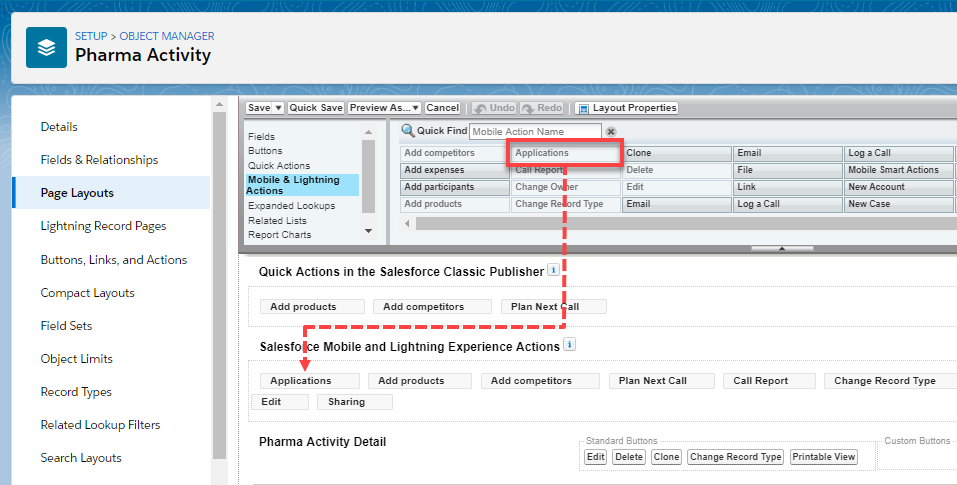
The Applications button is added to the Activities tab.
Create the CLM Presentation Set for the Remote Detailing Meeting
To form the CLM presentation set for the Remote Detailing meeting on the appropriate Activity record:
-
Click the Activities tab.
-
Select the appropriate Activity record.
-
Click the Applications button.
-
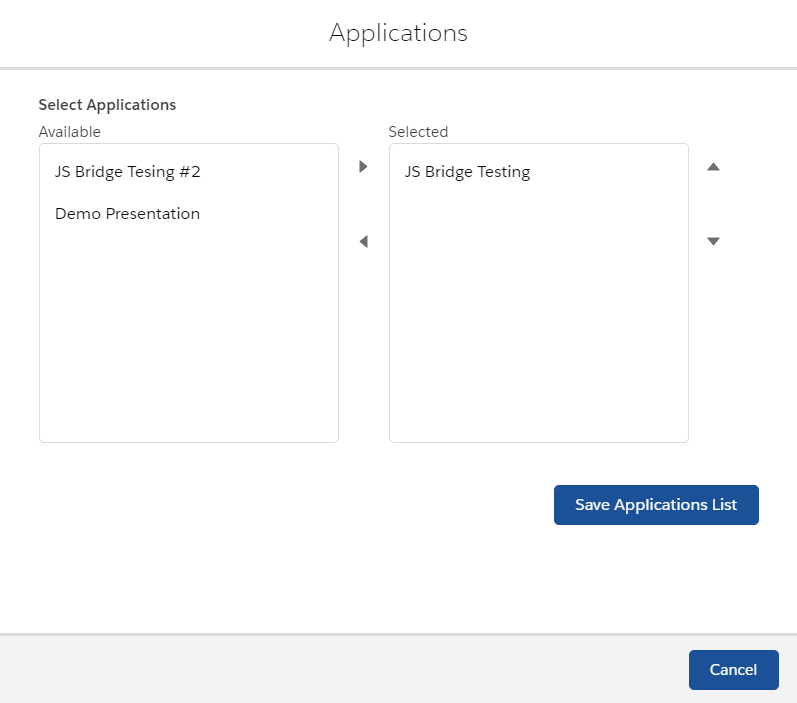
In the Applications window, select the available CLM presentations for the Remote Detailing meetings.
-
Click Save Applications List.
The CLM presentation set is formed.