Application Permission Settings
| Pay attention that the profile settings may be displayed in two different modes. For more information, go to Salesforce Help. |
CT Mobile users should be divided by their roles, for example, admins, supervisors, and field forces. For this purpose, define profiles for various user types and assign permission sets or use permission set groups to extend user access. Also, manage sharing rules to define access exceptions.
Profiles
| We kindly ask you to set up a separate profile for a user who configures the system. The user should have the Modify All Data and Modify Metadata Through Metadata API Functions permission and access to all fields and objects. |
|
To use the mobile logo, a mobile user should have access to the Documents folder. Please check the following:
|
A profile is an array of settings and permissions that define what a user can do in the CT Mobile app.
-
A profile controls object permissions, field permissions, user permissions, tab settings, app settings, Apex class access, Visualforce page access, page layouts, record types, login hours, and login IP ranges.
-
A profile can be assigned to many users, but a user can be assigned to a single profile at a time.
-
A user’s profile should be specified on some CT Mobile Control Panel tabs to define the required user’s permissions.
There are two types of profiles:
-
Standard profiles are provided by default. These profiles cannot be deleted.
-
Custom profiles are user-defined profiles. These profiles can be deleted if no users are assigned to them.
Set Up a New Profile
Define profiles by the user’s function. You can create and assign a new profile to a user or change the profile for another one. Changing the user’s profile may cause access issues to records in the CT Mobile app and errors during the synchronization.
For example, access to an object has been withdrawn from the mobile user’s profile after the last full synchronization. During the next fast synchronization, the INVALID_TYPE error may occur because some records are no more available.
To create and set up a new profile:
-
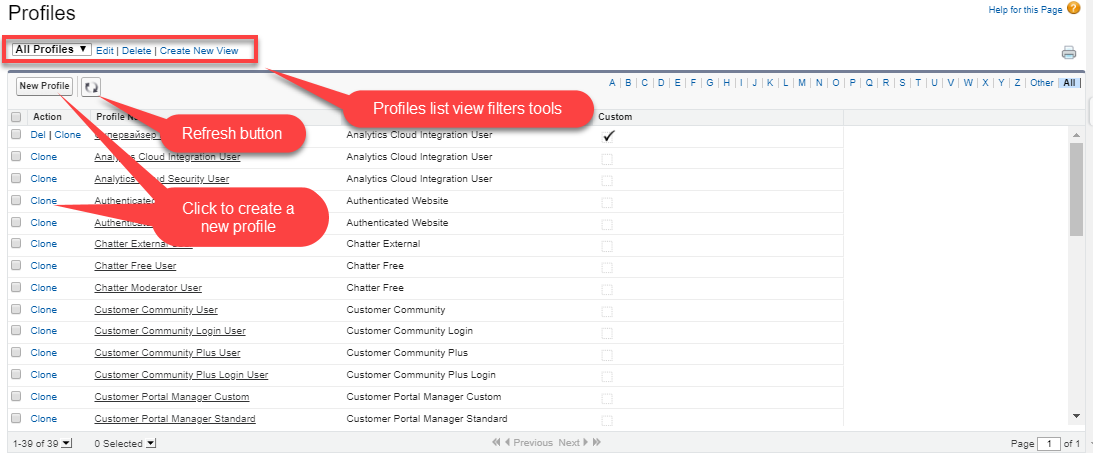
Go toSetup → Users → Profiles.
-
Click New Profile.
Also, you can click Clone next to the desired profile to copy all its settings to a new one. -
Select the Existing Profile from the drop-down list.
-
Enter the new profile name and click Save.
-
Click Edit and set up permissions.
-
Click Save.
The profile is ready to use. Assign desired users to a profile.
Permission Sets and Permission Set Groups
A user can be assigned to a single profile at a time, but can also have multiple permission sets. A permission set is a collection of settings and permissions that give users access to various tools and functions.
-
A profile gives minimum permissions and settings access for a user or specific user groups.
-
A permission set extends a user’s permissions and grants more access without changing a user’s profile.
-
A permission set group helps to assign several permission sets together based on user job functions. Users with assigned the permission set group receive the combined permissions of all the permission sets in the group.
Required Permission Sets
| We kindly ask you to assign the preconfigured permission sets to all users in your system according to their roles. |
For your convenience, we create two permission sets that include configured access to all required objects and fields depending on the user type.
-
CT Mobile Administrator should be assigned to admins. It contains all required permissions and access to all required Apex classes for the correct operation of the CT Mobile package and CT Mobile app.
-
CT Mobile User should be assigned to users who will work with the CT Mobile app as field forces, supervisors, etc. according to your business purposes.
Sharing Rules
Sharing rules are used to control user access at the record level. Currently, the CT Mobile app cannot correctly handle records with the Public Read-Only access.
For example, the Public Read-Only access is specified for the Account object, and the mobile user’s profile has permission to edit and delete records of the Account object. In the CT Mobile app, the mobile user can edit and delete all downloaded Account records, but errors will occur during the synchronization if the mobile user has deleted or edited records that they do not own.
Restriction Rules
Restriction rules are used to allow certain users to access only specified records. They prevent users from accessing records that contain sensitive data or information that isn’t essential to their work.
After setting restriction rules, the user does not see certain records in Salesforce, and the same records will not be able to the user in the CT Mobile after synchronization.