Managing Visits to Retail Stores
In this article, learn how to create visits, perform tasks, and work with the CG Cloud objects in the CT Mobile app.
Basic CT Mobile Functionalities
Mobile users can work with the Relate Store and Visit records in the same way as with records of any other offline objects.
-
use mini-layouts to create new records;
-
working with Retail Stores and Visits objects in the Nearby Accounts and Routes modules.
-
Retail stores are present in the Retail Stores tab.
-
Manage retail stores using list views and list view filters.
-
Creating Required Records to Complete Tasks
To work with CG cloud tasks, administrators should configure the process of creating an Action Plan record with the Visit Execution action plan type based on the selected template. Assessment tasks should be linked to the Action Plan and current Visit records, and the related Retail Visit KPI records should be created for the Inventory Check, Planogram Check, Promotion Check, and Other task types to store the actual values achieved as a result of the retail execution.
When configured, mobile users can create a visit:
-
Go to the Visit menu item.
-
Tap the desired Visit record or create a new one.
-
Tap the
 button to link the Action Plan record to the current Visit record.
 -
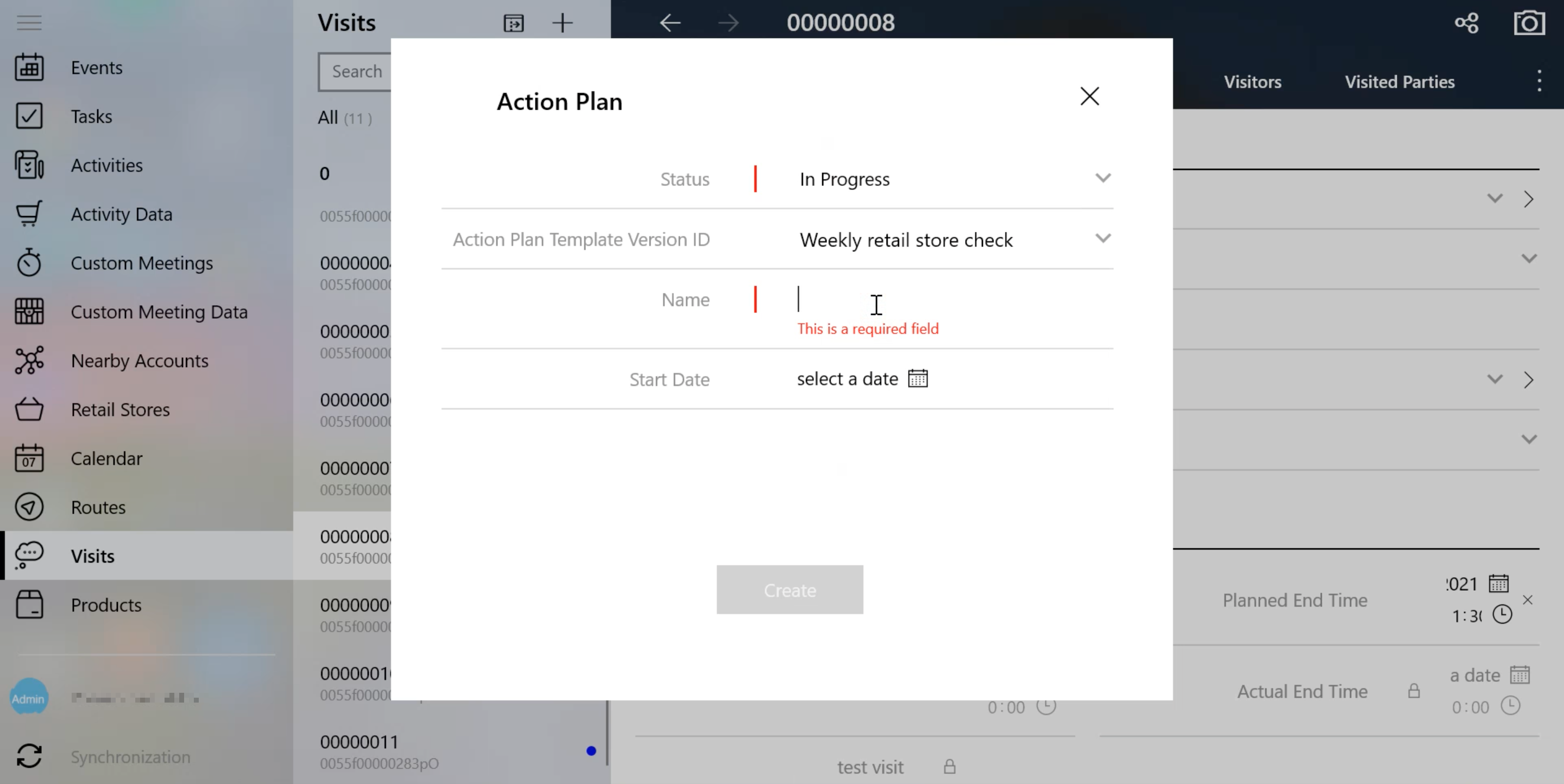
In the mini-layout, fill out the required fields.
-
Select the Status.
-
Add Action Plan Template Version.
-
Enter the name.
-
Select a date.
-
-
Tap Create.
The Action Plan record is linked to the current Visit record. Tap the Detailing tab to work with CG Cloud tasks.
Viewing Upcoming Visits in the Nearby Accounts Module
Reps can track retail stores on the map and create new visits with the help of the Nearby Accounts module.
-
The Retail Stores tab is available in the left menu.
-
To view retail stores on the map, the Account geolocation field should be specified on the CT Mobile Control Panel: General tab. Alternatively, add the Account Full Address field.
-
Retail stores are presented with a square icon on the map. The color for the retail store icon can be customized on the CT Mobile Control Panel: Color Settings tab.
-
To create a new visit, tap the mark.
Build Routes to Retail Stores in the Routes Module
In the Routes module, mobile users can work with retail stores the same way as with accounts.
-
To view retail stores on the map, the Account geolocation field should be specified on the CT Mobile Control Panel: General tab. Alternatively, add the Account Full Address field.
-
The visits to the retail stores are displayed on the map.
-
Routes to retail stores can be built both on Apple or Google maps.
Performing Tasks during the Visit
| We recommend learning more about prerequisites for creating an assessment task definition. |
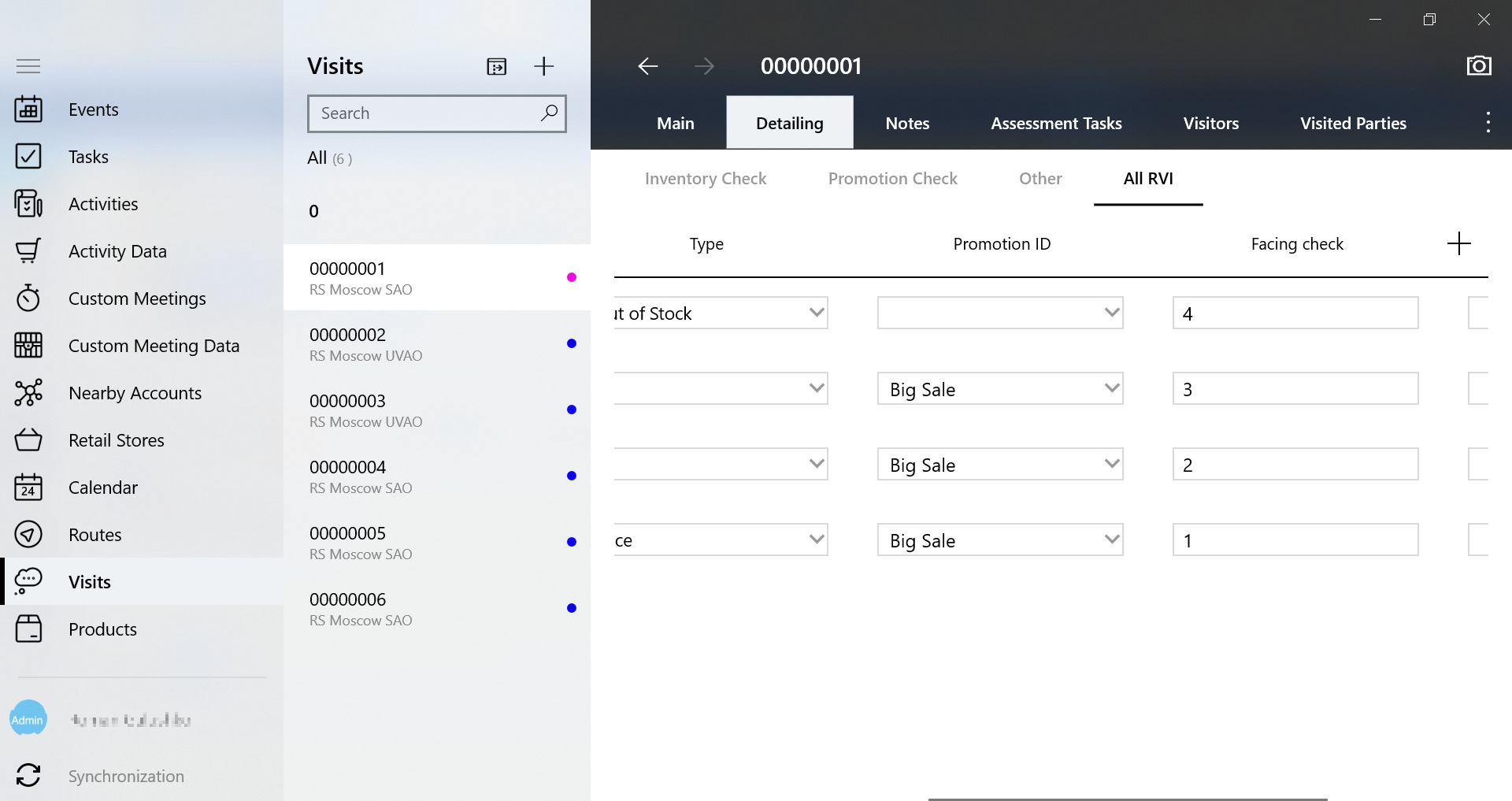
Work with CG Cloud records the same way as with the custom related lists.
Inventory Check
To perform an assessment task with the Inventory Check type, for example, to count inventories of a product category:
-
Create a CTM Settings record of the CG Cloud record type with the following parameters.
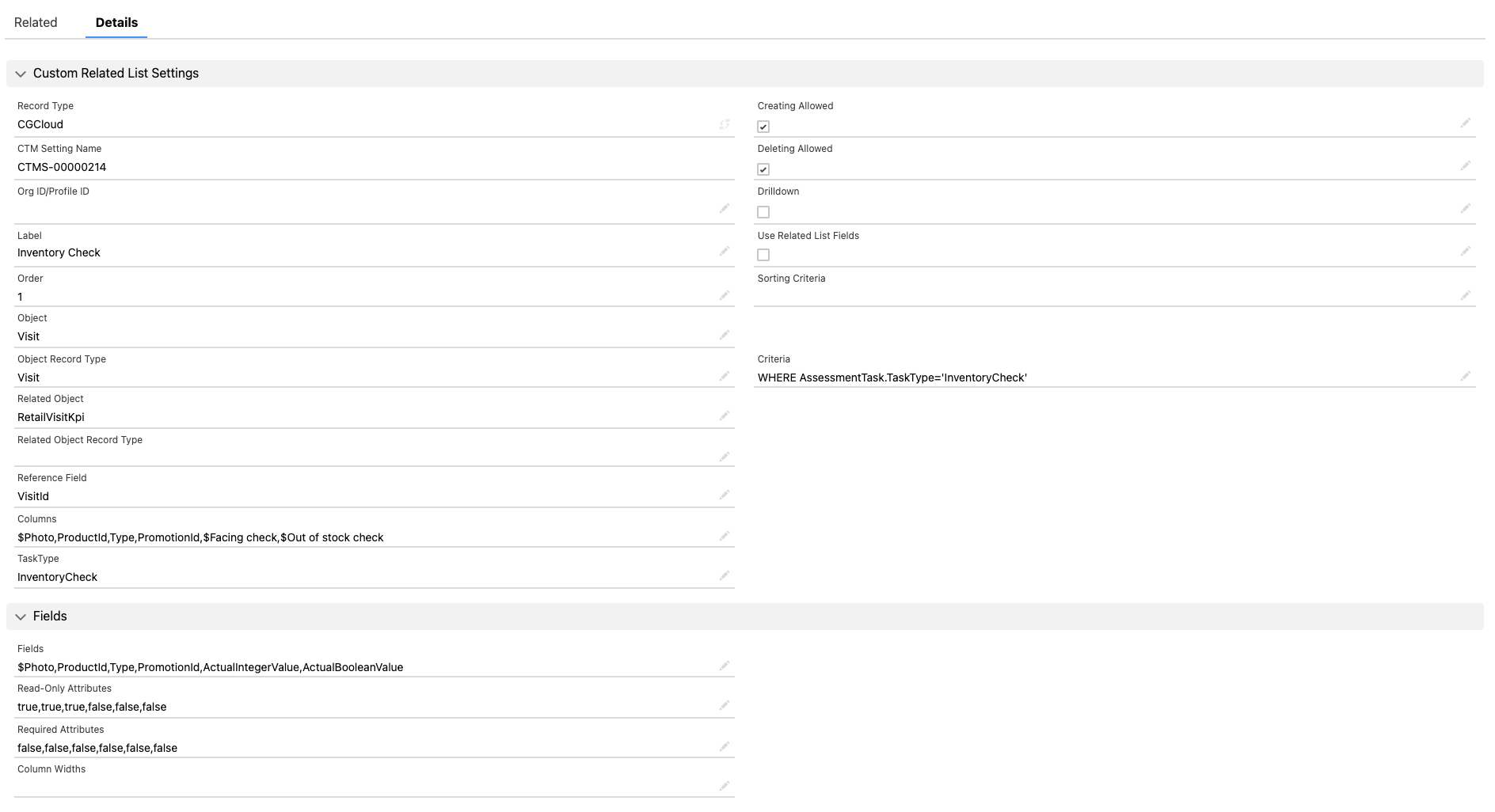
When a mobile user adds actual values, the Status field of the related Assessment Task record has the Not Started value that will be changed to In Progress and then, when all actual values are specified, to Completed.
Planogram Check
To perform an assessment task with the Planogram Check type, for example, to check share of shelf:
-
Create a CTM Settings record of the CG Cloud record type for the Promotion Check task type.
-
The Planogram field will be filled out on the related In-Store Location record.
When a mobile user adds actual values, the Status field of the related Assessment Task record has the Not Started value that will be changed to In Progress and then, when all actual values are specified, to Completed.
Promotion Check
To perform an assessment task with the Promotion Check type, for example, to track customer reaction on new promotional offers:
-
Create a CTM Settings record of the CG Cloud record type with the following parameters.
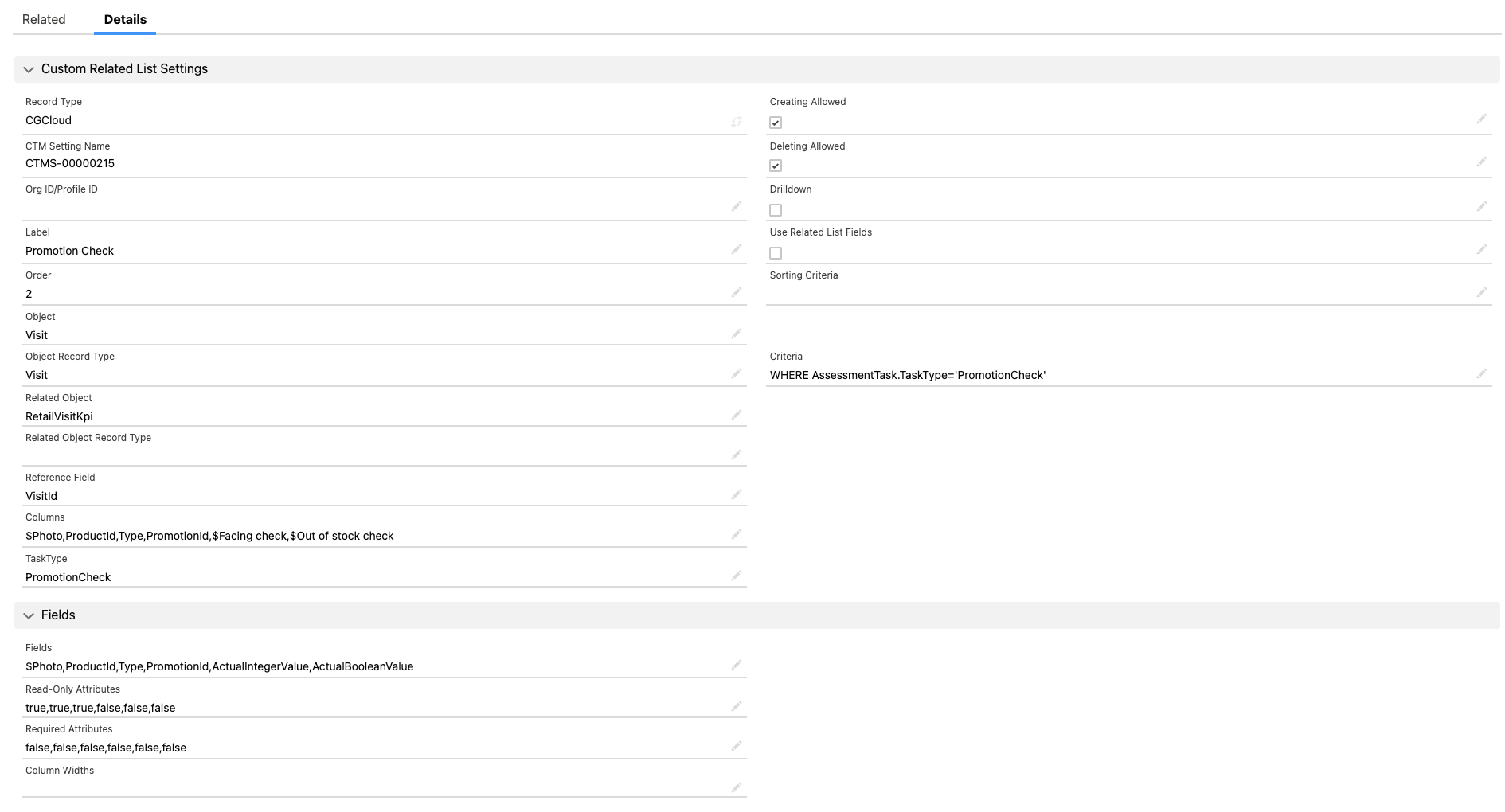
When a mobile user adds actual values, the Status field of the related Assessment Task record has the Not Started value that will be changed to In Progress and then, when all actual values are specified, to Completed.
Other
To perform an assessment task with the Other type, for example, to perform asset checks for refrigerator displays and shelves:
-
Create a CTM Settings record of the CG Cloud record type with the following parameters.
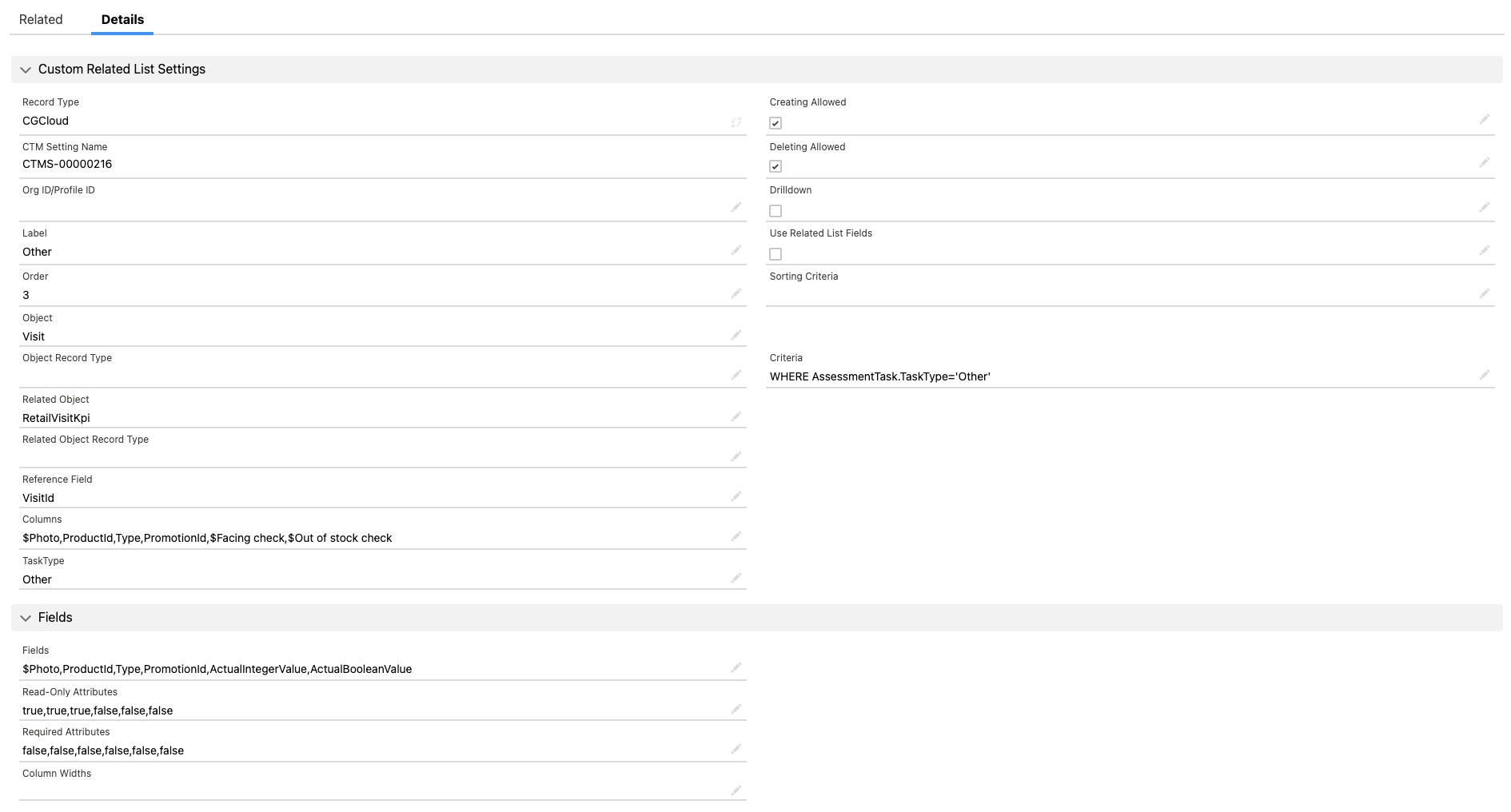
When a mobile user adds actual values, the Status field of the related Assessment Task record has the Not Started value that will be changed to In Progress and then, when all actual values are specified, to Completed.