Application PIN Code
Use PIN security to log in to the CT Mobile app.
-
If the mobile application is sent to the background or closed, the clock starts to tick. If the mobile application isn’t used for a specified number of minutes, the mobile user should unlock it to resume working.
-
If several users logged in to the CT Mobile app, the CT Mobile asks for the PIN Code when you switched to the user that set the PIN Code in Salesforce.
| Available since CT Mobile Windows 1.1. |
To enable PIN protection:
-
In Salesforce, enable PIN protection, customize timeout duration, and set PIN length;
-
In the CT Mobile app, set up an app-specific PIN code.
Configuring PIN Protection in Salesforce
To configure the PIN security for the CT Mobile Windows application:
-
Go to Setup → Apps → Connected Apps → Manage Connected Apps.
-
Click Edit next to CT Mobile.
-
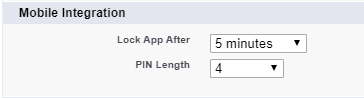
In the Mobile Integration section, set the following options:
-
Lock App After
Select a time that can pass before the app locks itself and requires the PIN code. Allowable values are none (lock the application immediately after it was collapsed or closed), 1, 5, 10, and 30 minutes. This policy is only enforced if a corresponding PIN Length is configured.
-
PIN Length
Specify the length of the identification number. The length can be from 4 to 8 digits.
-
-
Click Save.
The PIN code is configured.
Using the PIN Code in the CT Mobile app
To set a PIN code:
-
Run the CT Mobile app.
-
Enter your Salesforce username and password.
-
CT Mobile suggests creating a new PIN code. Set a PIN code.
CT Mobile warns a mobile user if the PIN code and the confirmation do not match or if the PIN code has fewer characters than it is specified in Salesforce.# -
Tap or left button click Create.
The PIN Code is set.
-
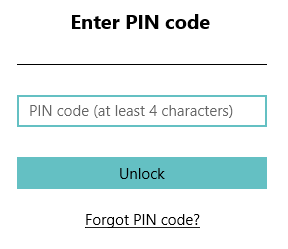
When a mobile user sends the CT Mobile app to the background or closes and reopens it after the specified time, CT Mobile asks him to type a PIN code to unlock the mobile app.
-
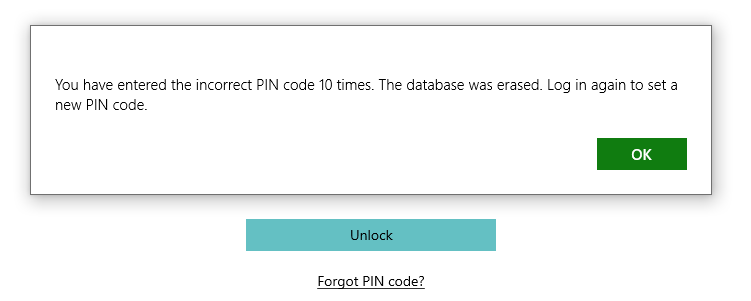
When a mobile user entered the incorrect PIN code, CT Mobile displays the warning.
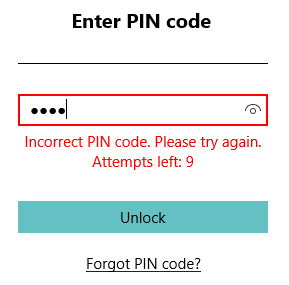
After 10 failed attempts, the database will be reset. Log in again to create a new PIN code.
-
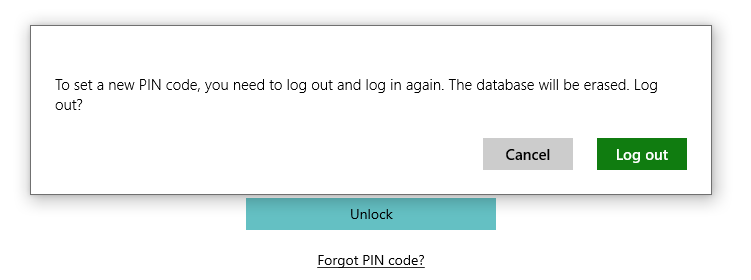
When a mobile user forgot the PIN code, she can click Forgot PIN code? to create a new one.