Remote Detailing Launch: Microsoft Teams
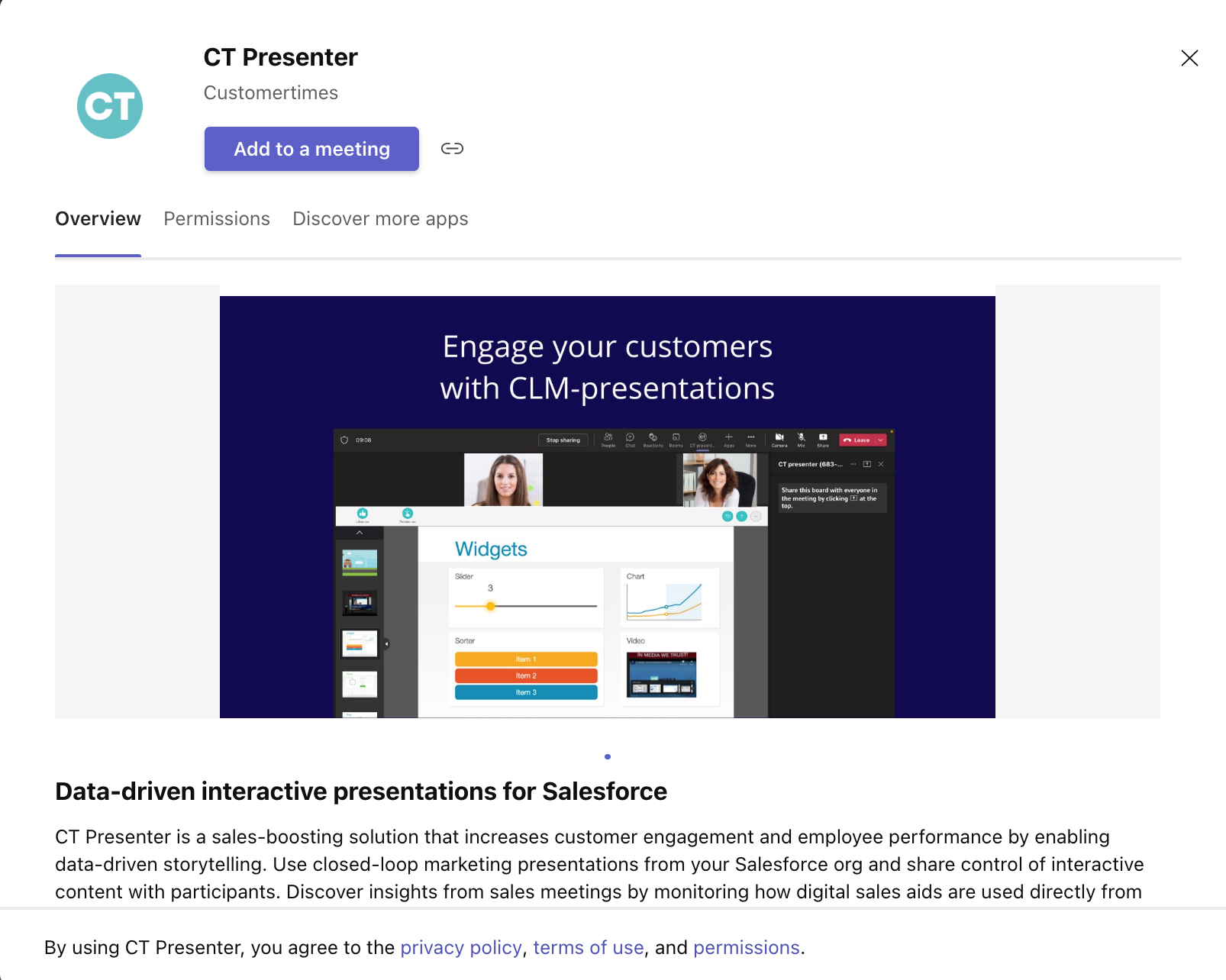
Add the CT Presenter app to share CLM presentations during the Teams meeting.
Teams Meeting: Presenter
Adding the CT Presenter app
| Due to Microsoft restrictions, the presenter has to use the Teams desktop app. Click here to download the app. |
To add the CT Presenter app:
| For more details, refer to Use apps in Teams meetings. |
-
To add an app before a Teams meeting, send the Teams meeting invite and then open the Teams meeting. Select Add
 → and choose the CT Presenter app. Next, open the CT Presenter app,
click Login via Salesforce, enter your Salesforce credentials, and
click Log In.
→ and choose the CT Presenter app. Next, open the CT Presenter app,
click Login via Salesforce, enter your Salesforce credentials, and
click Log In. -
To add an app during a Teams meeting, select More actions
 → Add an app → and choose the CT Presenter app.
Sharing CLM Presentations
To share CLM presentations during the Teams meeting:
| Before the Teams meeting, the presenter should create the invite link, add the desired CLM presentations, and copy the Metting ID. For more information, refer to Remote Detailing Launch: Salesforce Side. |
-
Click the CT Presenter app.
-
Click Login via Salesforce, enter your Salesforce credentials, and click Log In. Next, click Allow in the pop-up to allow CT Presenter access to your Salesforce org.
If you added the CT Presenter app to Teams before the meeting and already logged in to Salesforce, this step is skipped. -
Enter the Meeting ID and click Select.
-
Click Save to start sharing CLM presentations.
-
Wait for attendees to join and click Admit to add an attendee from the lobby to the Teams meeting.
-
When all attendees are at the meeting, click
 on the sidebar menu to share CLM presentations.
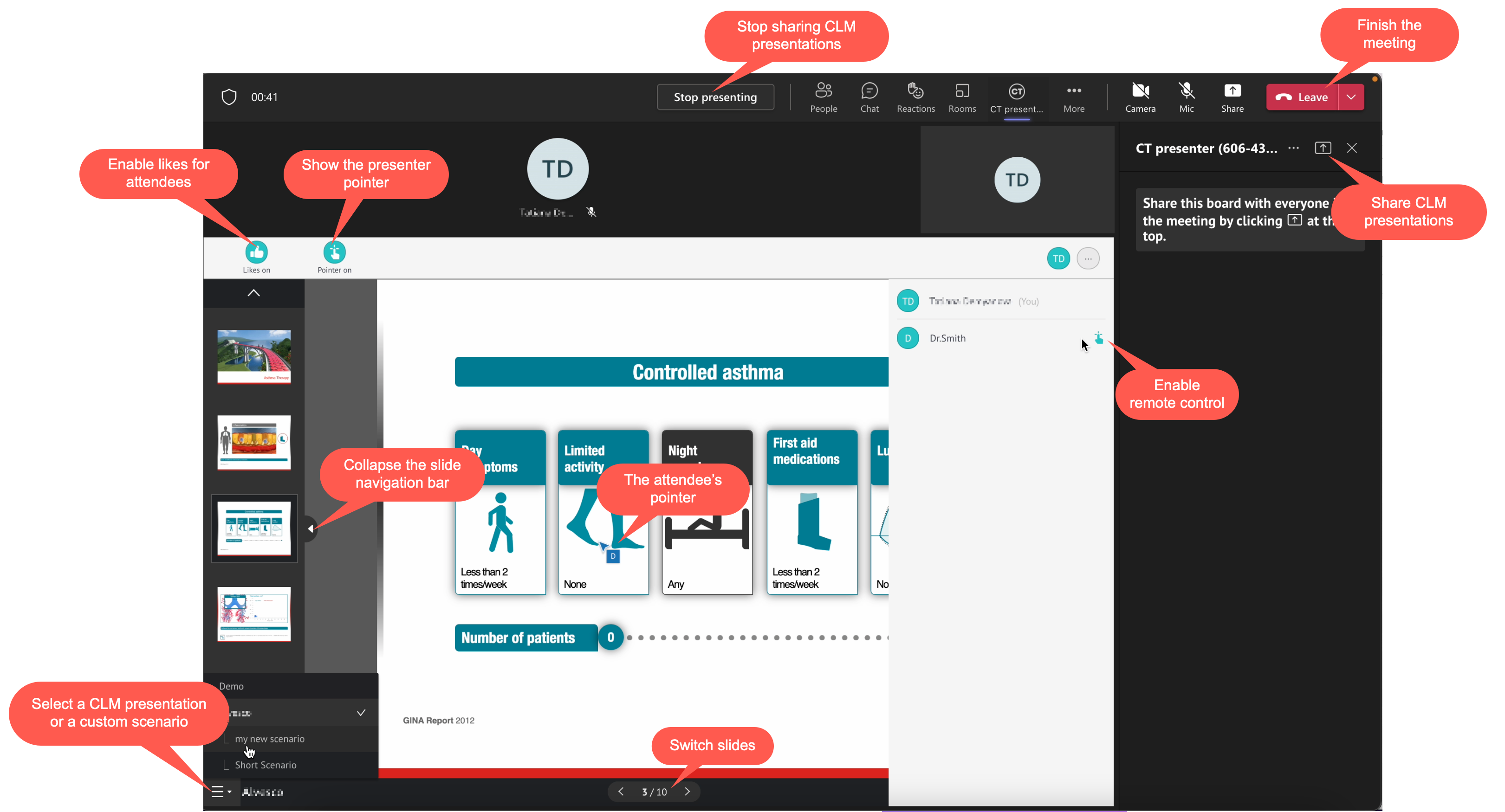
To finish the Teams meeting, click Leave. All statistics will be saved on the corresponding Activity record.
Teams Meeting: Guest
| Due to Microsoft restrictions, attendees have to use the Teams desktop or mobile app. Click to download the app. |
To view CLM presentations:
-
Accept and open the Teams meeting.
-
Wait in the lobby till the presenter admits your access.
-
Teams for Desktop
-
Teams for Mobile
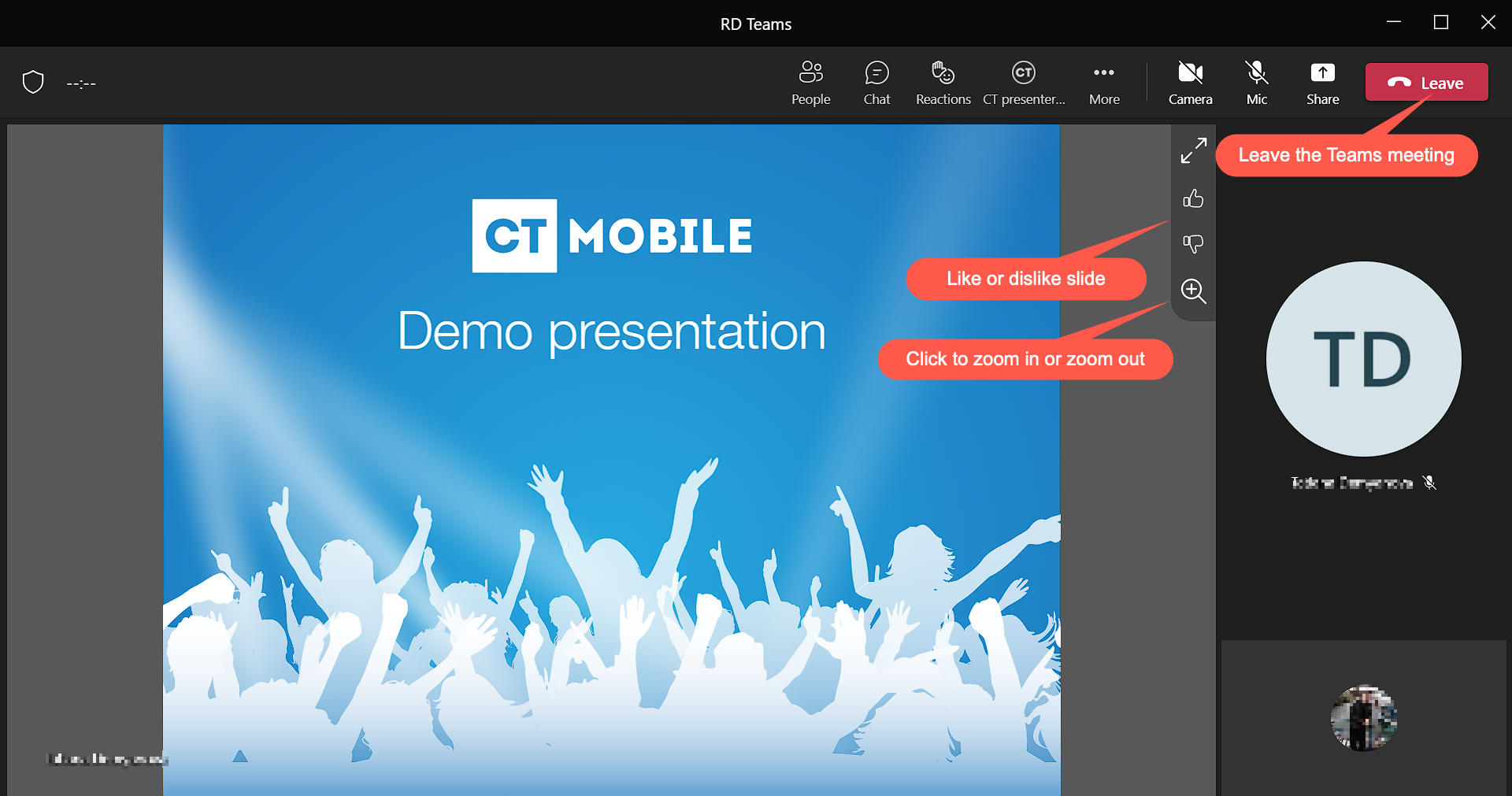
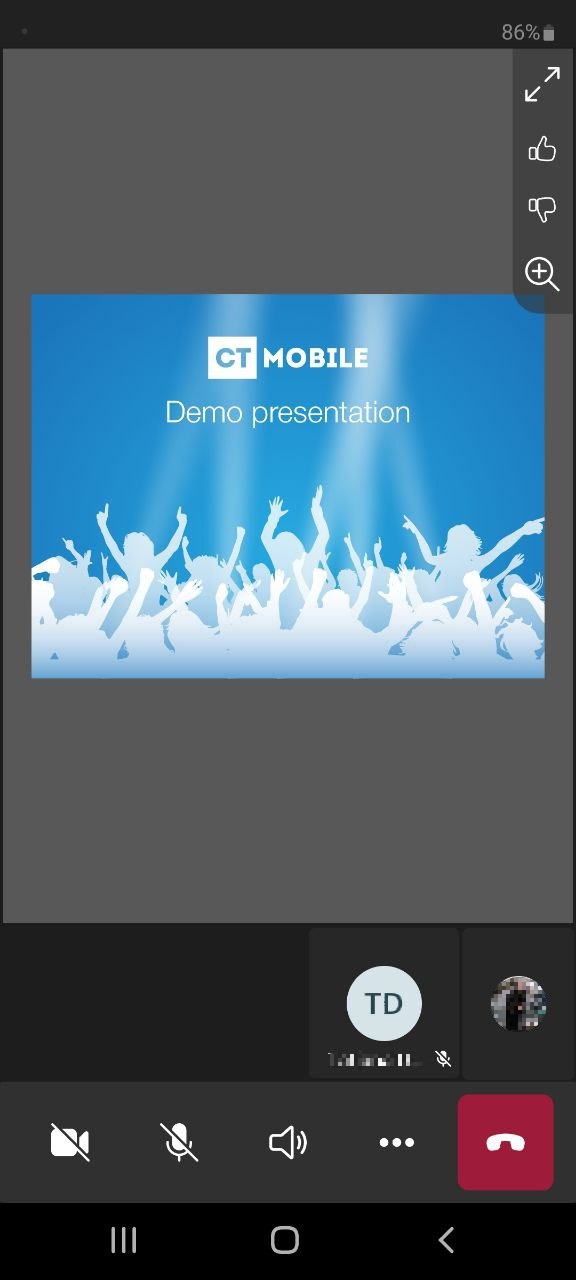
To finish the Teams meeting, click Leave.