Remote Detailing 1.0: UI for Presenter
A presenter can launch the CLM presentation from Salesforce or the CT Mobile app.
| Read Detailing: F.A.Q.] to check supported browsers, recommended bandwidth, and CLM-presentations features availability. |
Start a Remote Detailing session
To start the meeting:
-
Click the invite link to start the CLM presentation.
-
Click the Presenter Login button.
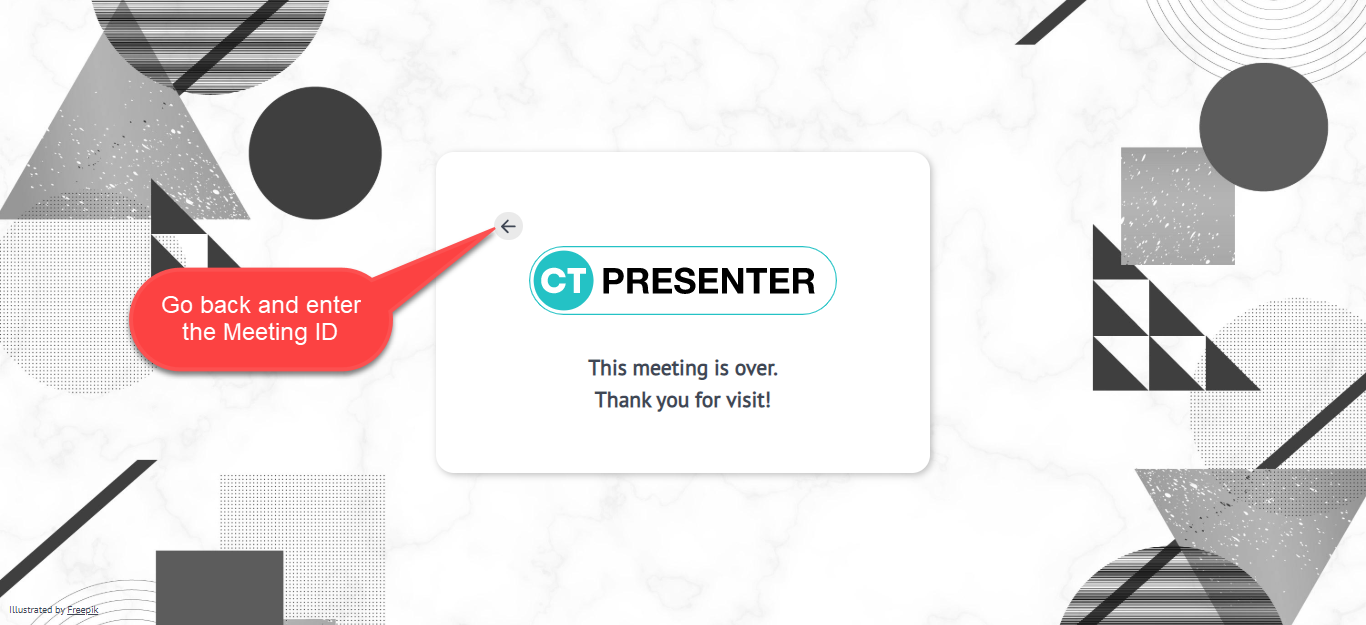
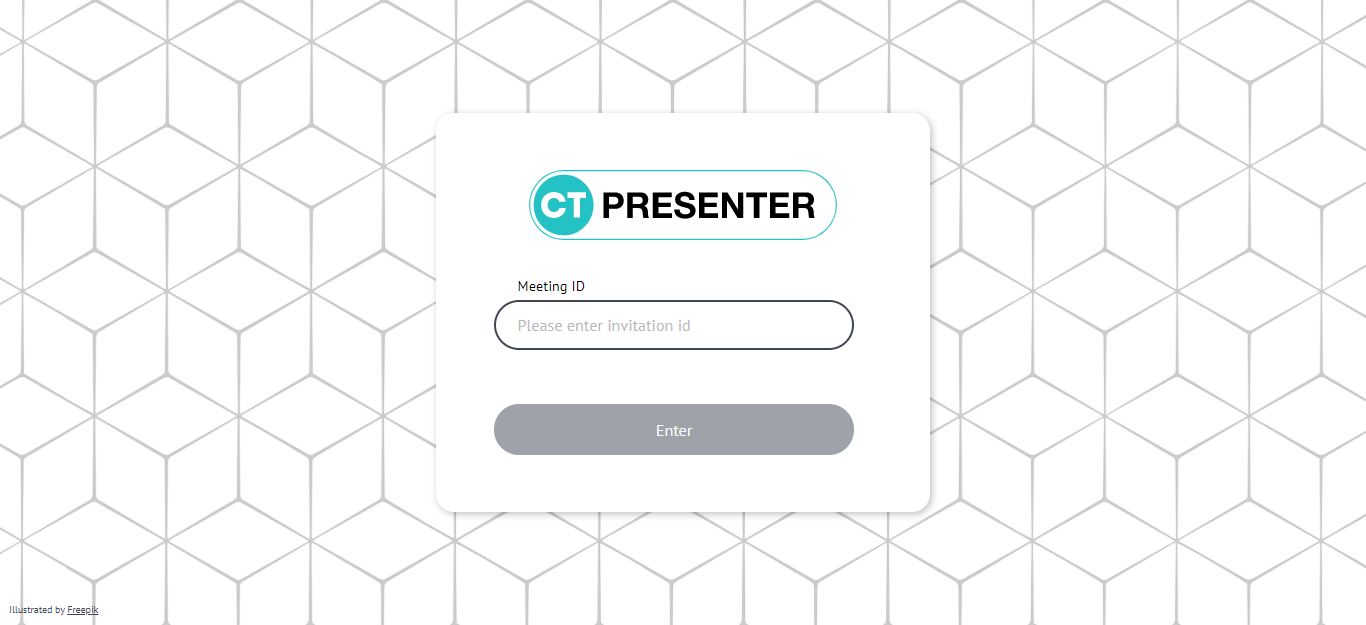
If you enter participant details and click Join, you can log out on the next screen and re-enter as the presenter. Also, you can return to the CT Presenter site and join the meeting by entering the Meeting ID. 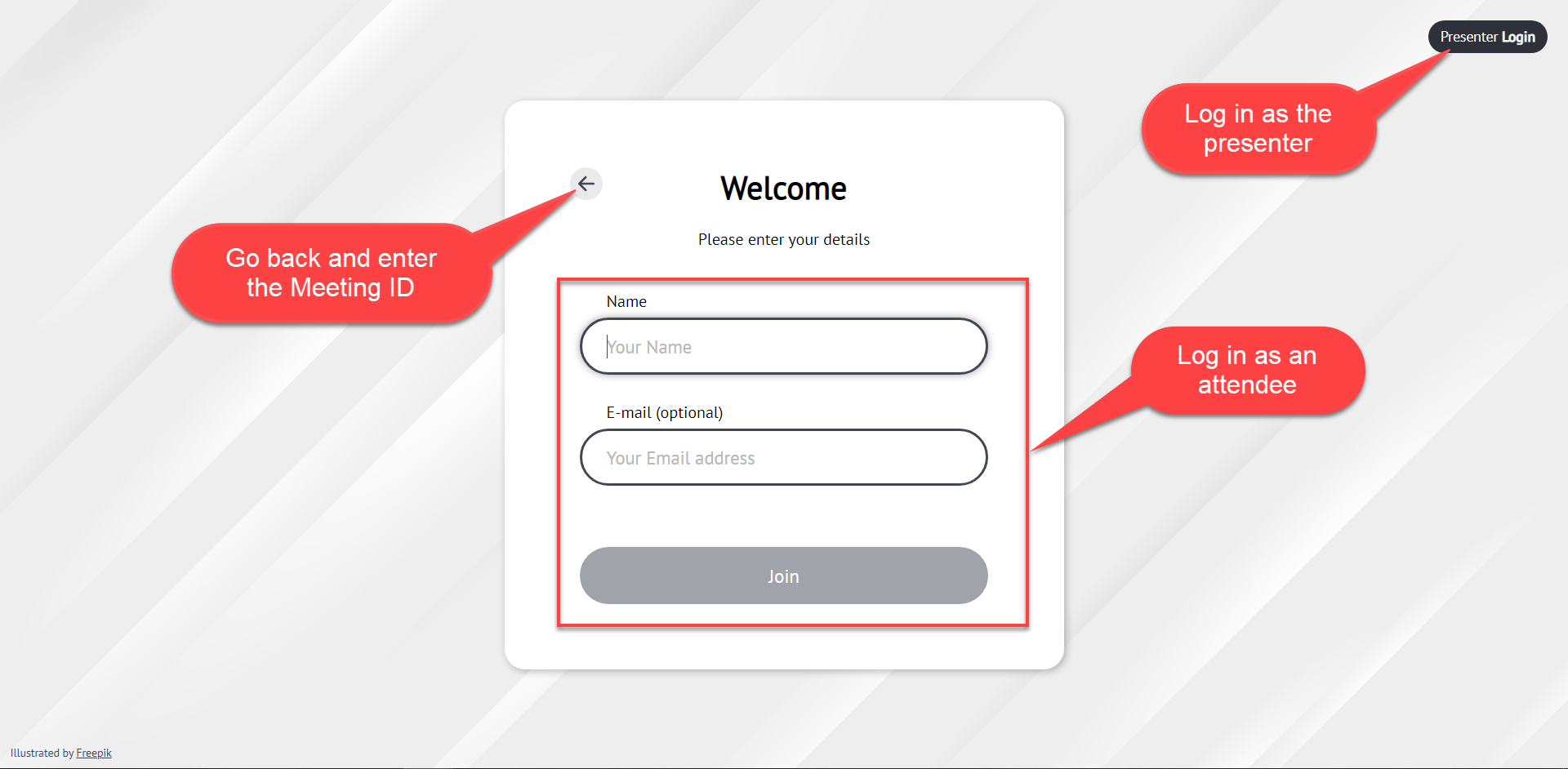
-
Allow the request access.
The browser will ask you at the first presenter login. 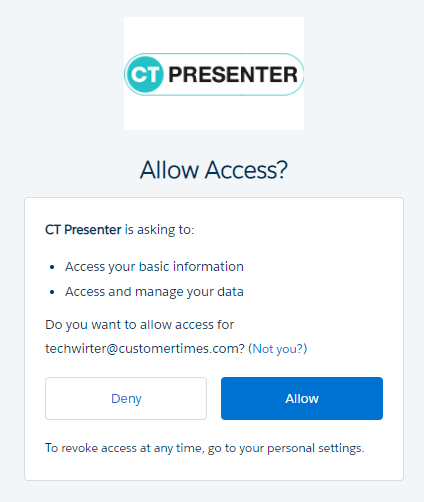
You’re logged in and the meeting is started.
Manage a Remote Detailing session
When you started the meeting, participants can join and participate.
-
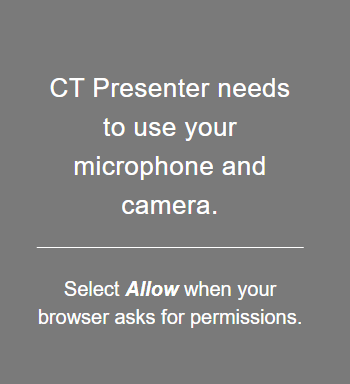
If you did not allow the camera and microphone access, the browser asks the permission.
-
In the case of several CLM presentations, select a CLM presentation or its custom scenario if available.
-
Zoom in or out with the slider for a comfortable view or use the pinch gesture on tablets.
-
Activate the full-screen mode or maximize the sidebar.
-
You can hide/show the slide navigation bar and the sidebar.
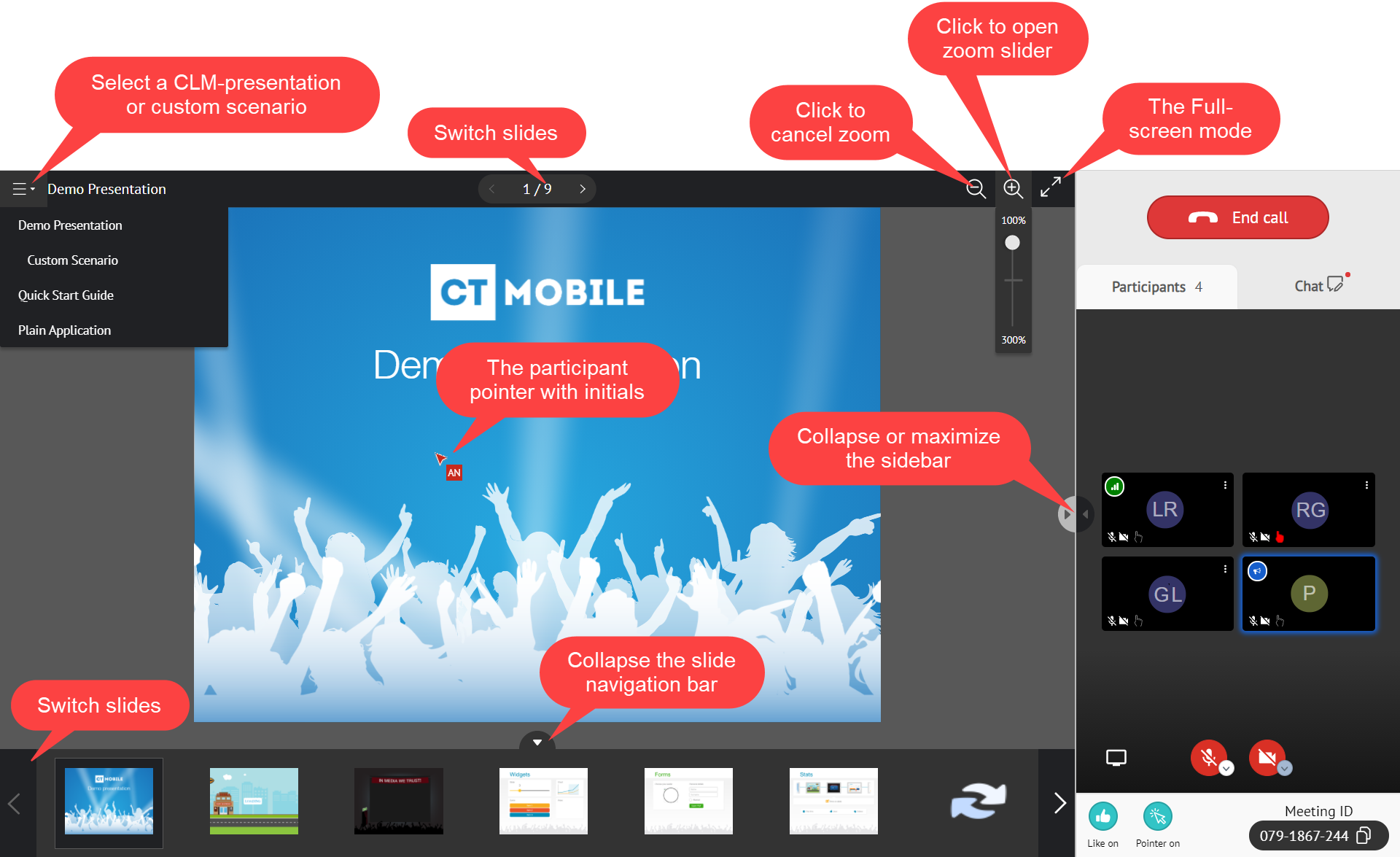
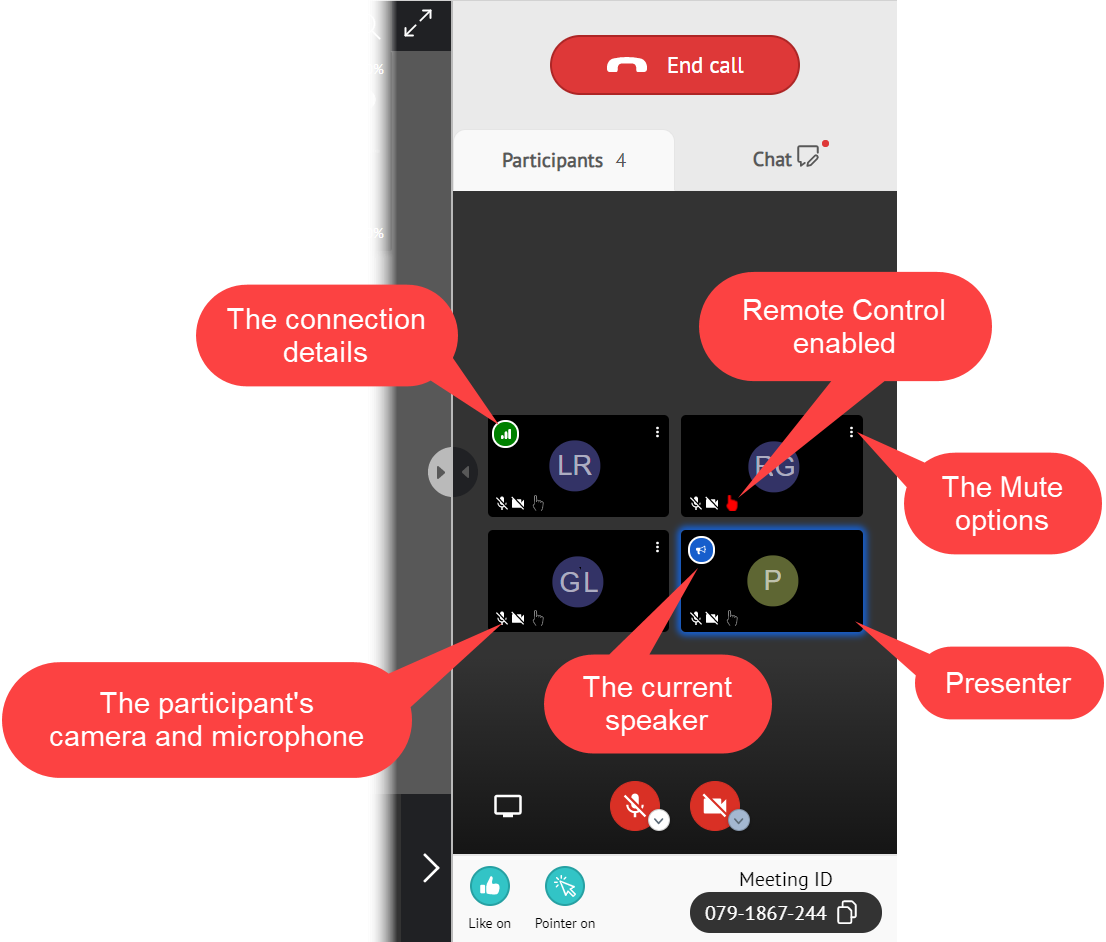
On the Participants tab of the sidebar, set up options for participants and meeting settings.
-
The Chat tab and video streaming may be enabled on the CT Mobile Control Panel: Presenter tab.
-
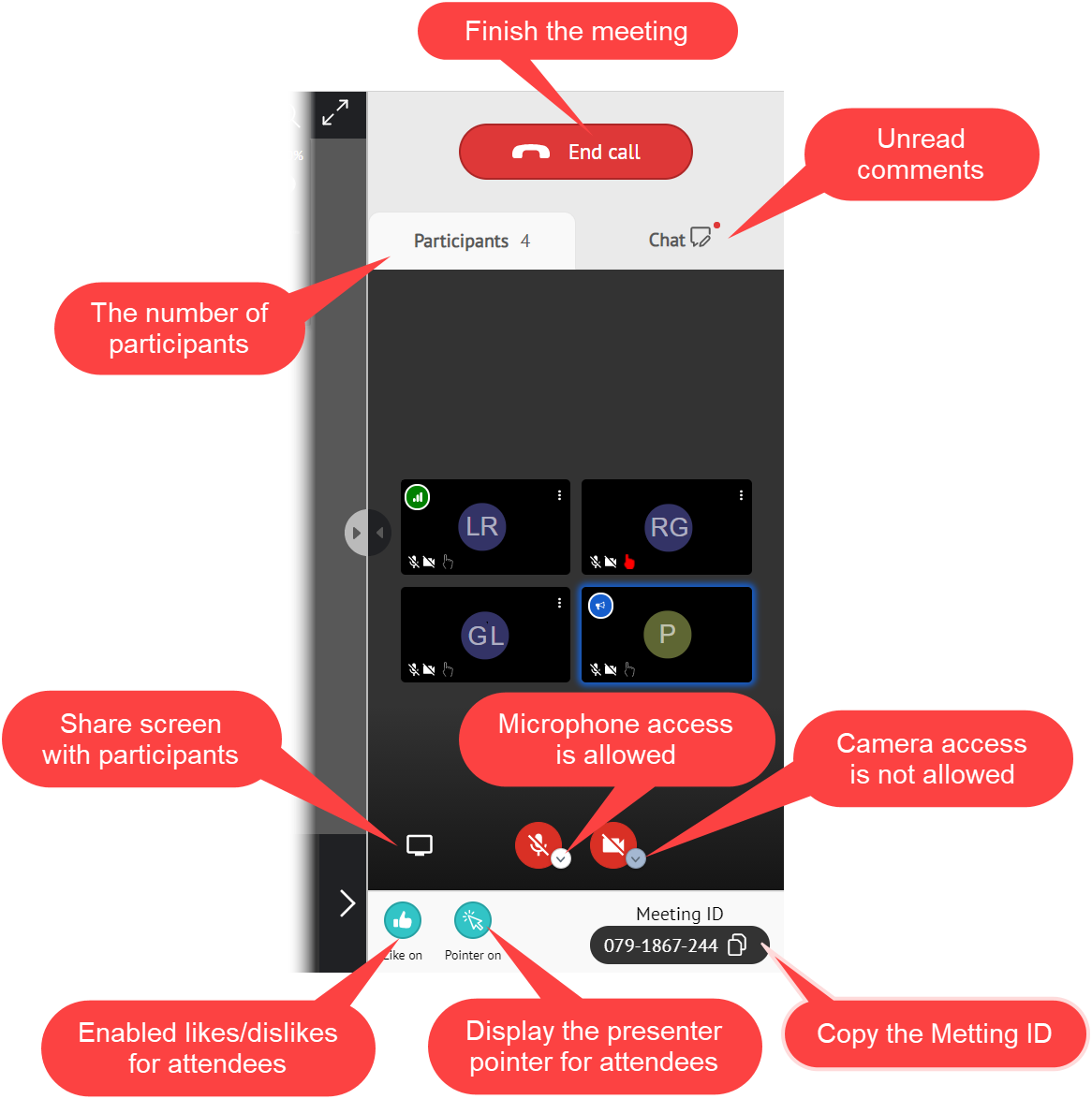
Click to enable the presenter’s microphone and camera. The warning will be displayed if permission is not granted.
-
If selected, the presenter pointer will be displayed for all participants.
-
If selected, permission for likes/dislikes will be granted to all participants.
| To view the likes/dislikes of participants in the statistics, the Track slide likes/dislikes option should be enabled on the CLM presentation record. |
-
Share your screen with the participants if needed.
-
Click the End call button to finish the meeting.
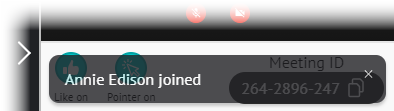
The pop-ups tip you about the newly joined users and users who left the meeting.
View the participant’s on the sidebar.
-
Check their network details.
-
Grant the remote control if needed. If a participant has the remote control, the participant pointer will be displayed for all participants.
-
Open the Mute options and use the slider to set up a microphone volume for the selected participant. Mute the participant or mute all participants including yourself except for the selected participant.