Logging In
The first step of using the CT Mobile app, logging in with your Salesforce credentials to your Org.
Click to view the Login screen for users of CT Mobile below v. 1.3
To log in to the CT Mobile application:
-
Run the CT Mobile app.
-
Click
 to select the Production environment or the Sandbox instance.
Click
and then click
 if you want to use a custom domain. Enter Server Name and Server
Address.
if you want to use a custom domain. Enter Server Name and Server
Address.
-
Enter your Salesforce username and password.
-
Click Log in.
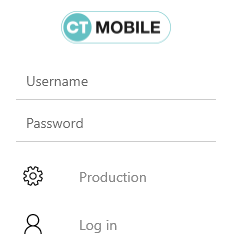
You are logged in to CT Mobile. The Home Screen displays.
-
Perform the first/full synchronization of the application in order to begin your work.
-
Click the User icon → click the Change user button → click the
button to add a new user if needed.
Click to view the Login screen for users of CT Mobile v. 1.3 or higher
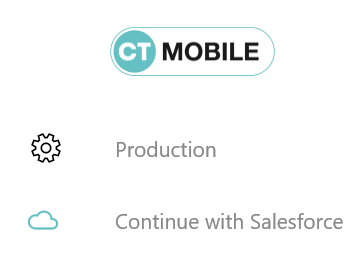
Since CT Mobile1.3, the Login screen is implemented with the OAuth 2.0 protocol and standard Salesforce UI.
To log in to the CT Mobile application:
-
Run the CT Mobile app.
-
Click
to select the Production environment or the Sandbox instance.Click
and then click
if you want to use a custom domain. Enter Server Name and Server
Address.
-
Click Continue with Salesforce.
-
In the in-app browser window, enter your Salesforce username and password. Select the Remember me checkbox to save the entered credentials for further use.
-
In the in-app browser window, allow access to requested data.
The first synchronization started. After the synchronization, the CT Mobile is ready to use.
-
Click the User icon → click the Change user button → click the
button to add a new user if needed.