Remote Detailing 2.0: UI for Participants
| Available since CT Mobile package 3.63. |
Participants can view the remote CLM presentations on their PC, tablet, or mobile phone.
| The supported browser list is available here. |
Join the Remote Detailing session
To join the meeting:
-
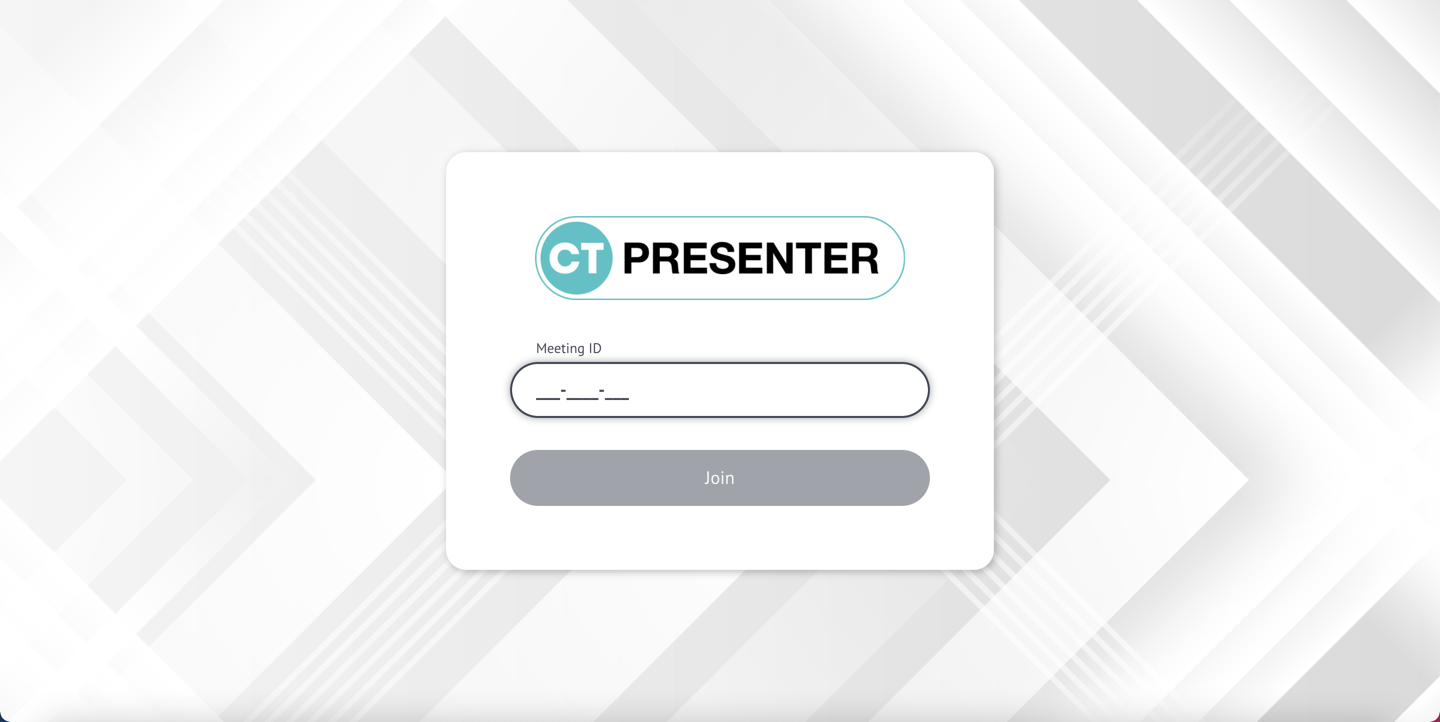
Click the invite link to join the CLM presentation.
-
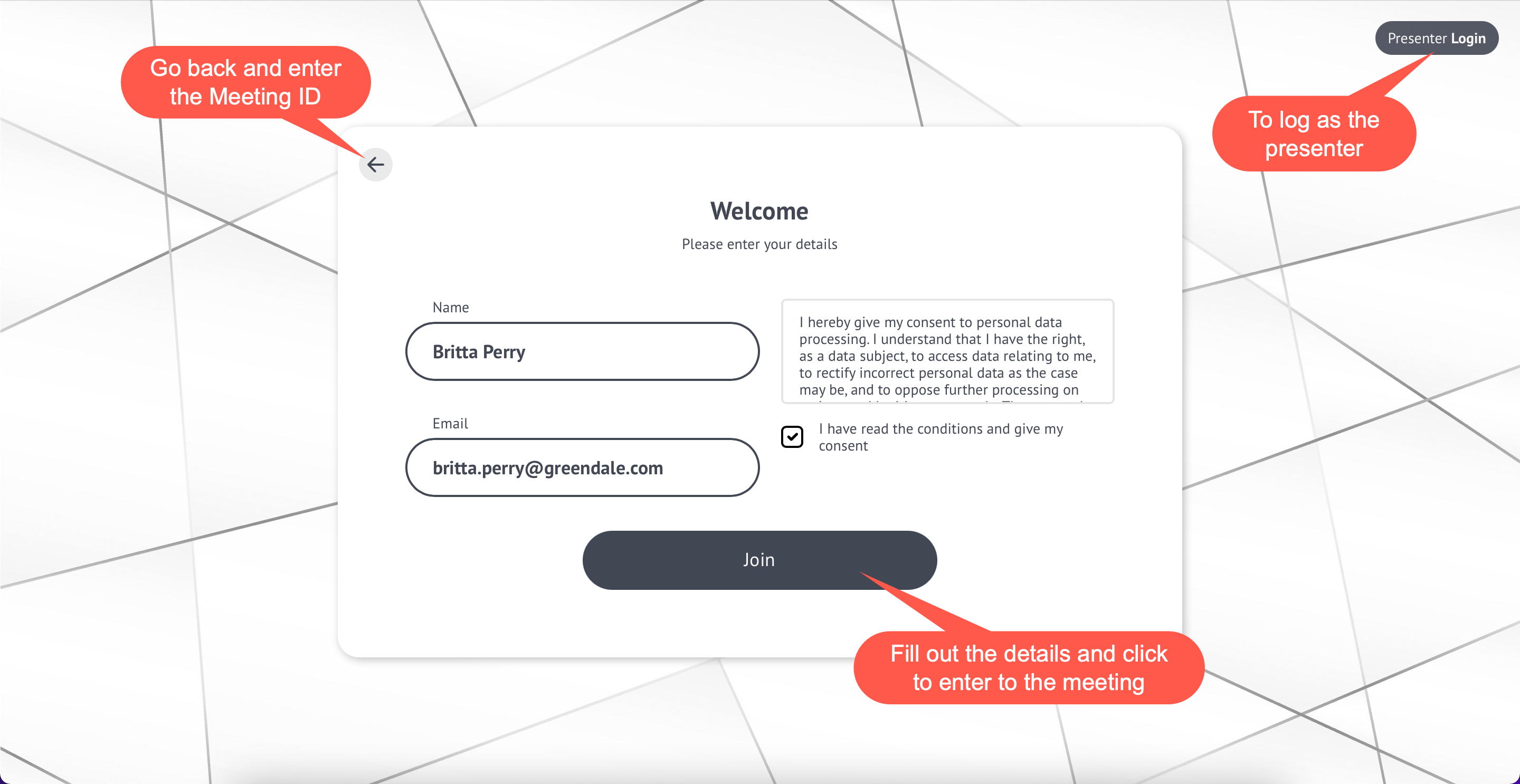
Enter your username and e-mail and click Join.
-
If specified, a participant should agree with the Terms of Use.
-
An email address may be required.
-
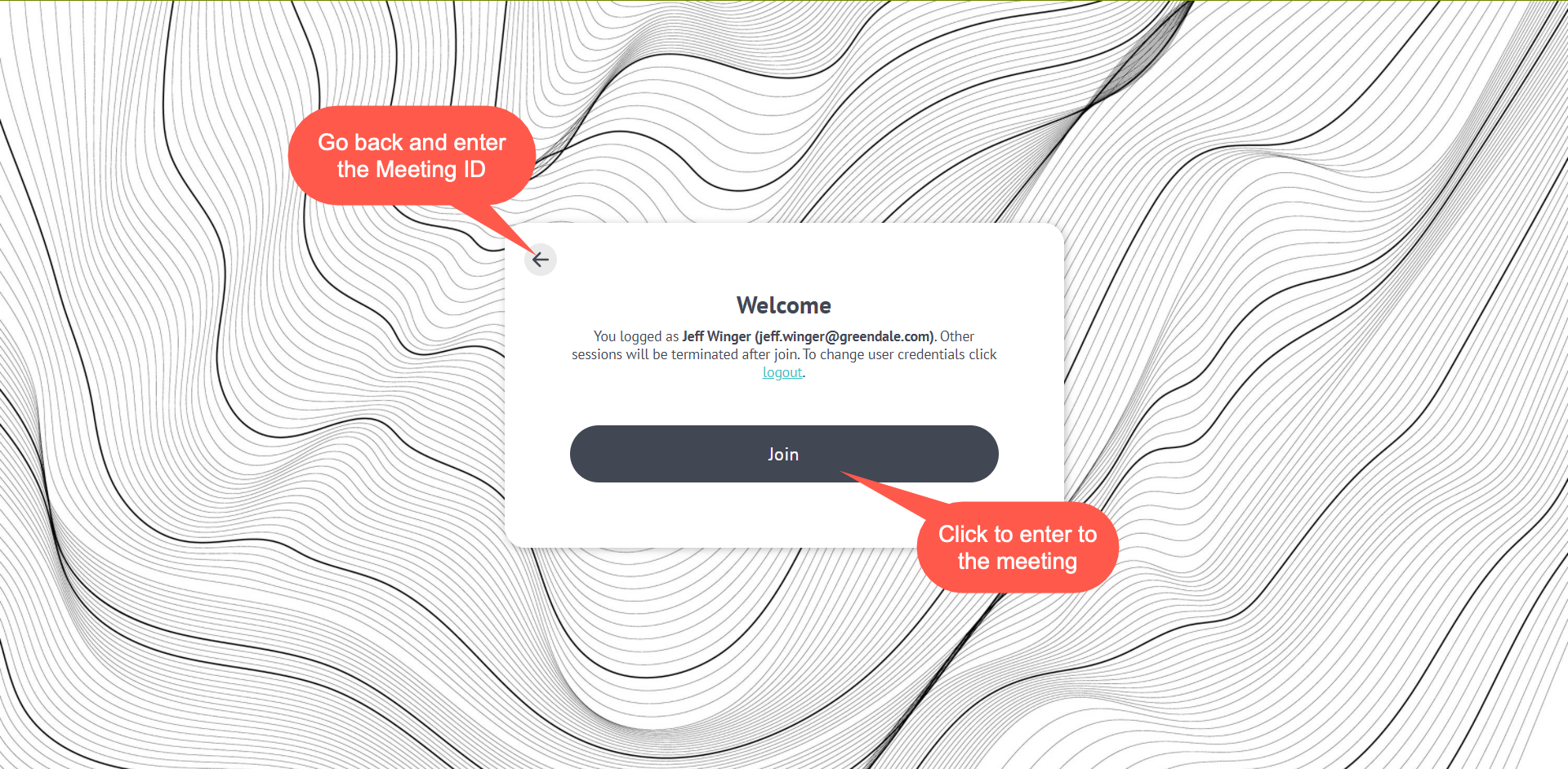
If a participant has ever joined the meeting in this browser, she can join the meeting with no need to enter details.
-
-
If the presenter did not start the Remote Detailing meeting, the Waiting… screen is displayed.
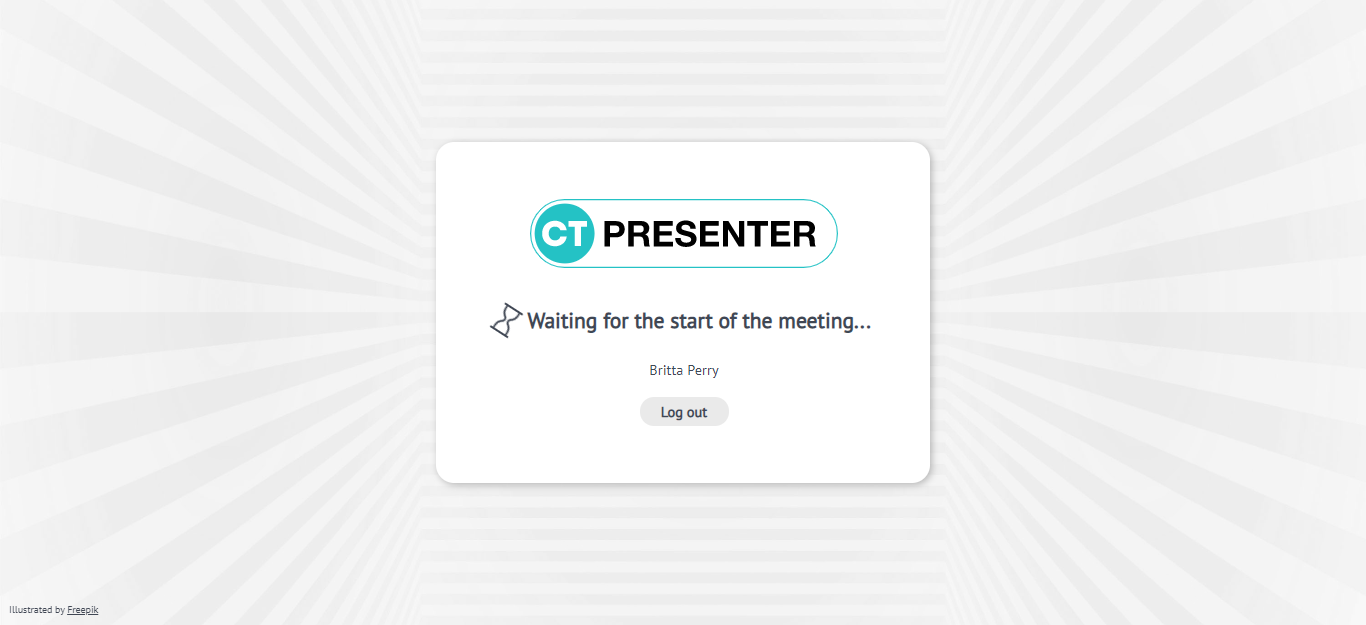
When the presenter joined, participants will be redirected to the Remote Detailing meeting.
Participate in the Remote Detailing session
Main Screen
When the meeting starts:
-
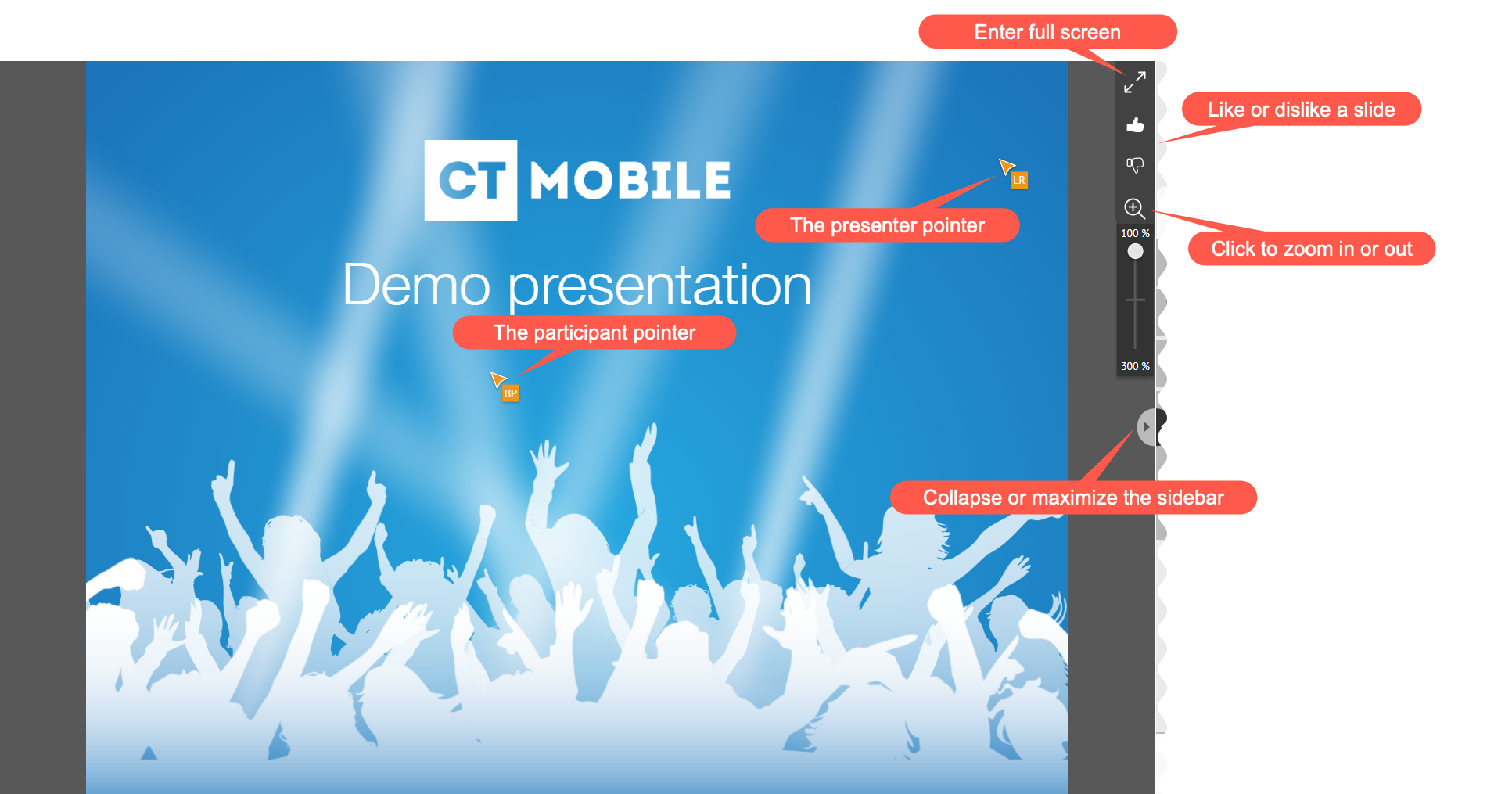
Zoom in or out a slide for a comfortable view or with the pinch gesture on tablets.
-
Enter full-screen mode.
-
Collapse the sidebar with the participants or maximize it.
-
Like or dislike slide.
The Track slide likes/dislikes option should be enabled on the CLM presentation record and the presenter should allow like/dislike for participants. -
If the presenter allowed the remote control for the participant, the participant can interact with slides and use JS Bridge methods.
-
The participant pointer is displayed for all participants.
-
The slide navigation bar and the ability to select a CLM presentation are disabled for participants.
-
Sidebar
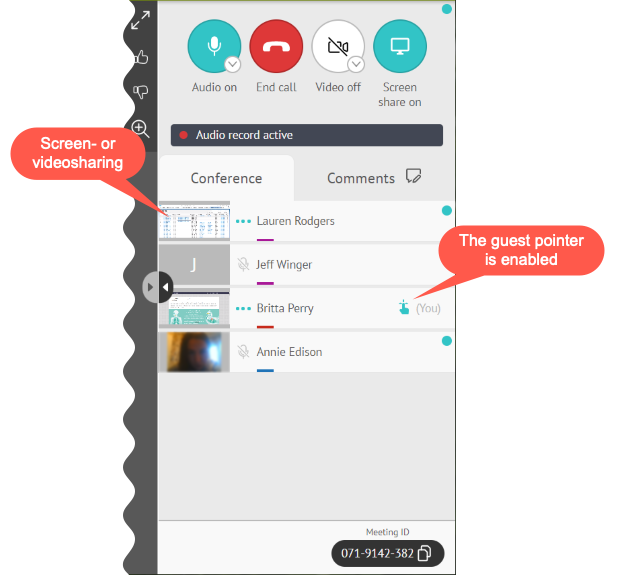
The sidebar has the Conference tab to view participants and available actions.
If specified, the Comments tab will be displayed and all users can leave a comment. The red dot indicated the unread messages. If audio is recording, the warning is displayed. Audio/Video On/Off
Screen Share On/Off
End Call Click to leave the meeting. If the meeting has been restarted, you can join it again. |
|
Leave the Remote Detailing session
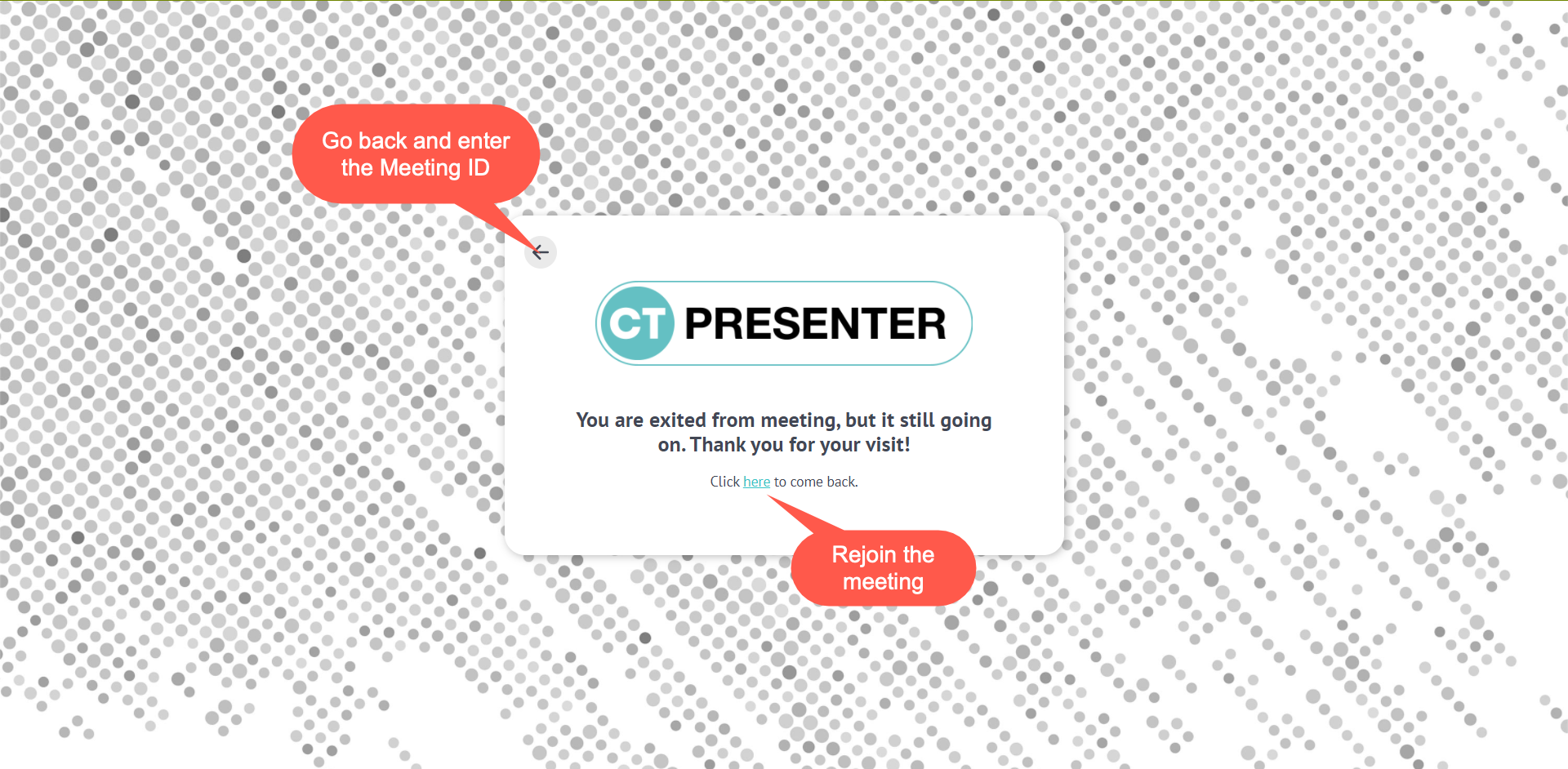
Click End call to leave the meeting. If the meeting is still on, you can rejoin it.
| When the Session Timeout option is set up and the Presenter is out of the meeting for more than the specified time, participants will be automatically logged out. |
If the Presenter finishes the meeting, participants will be automatically logged out.
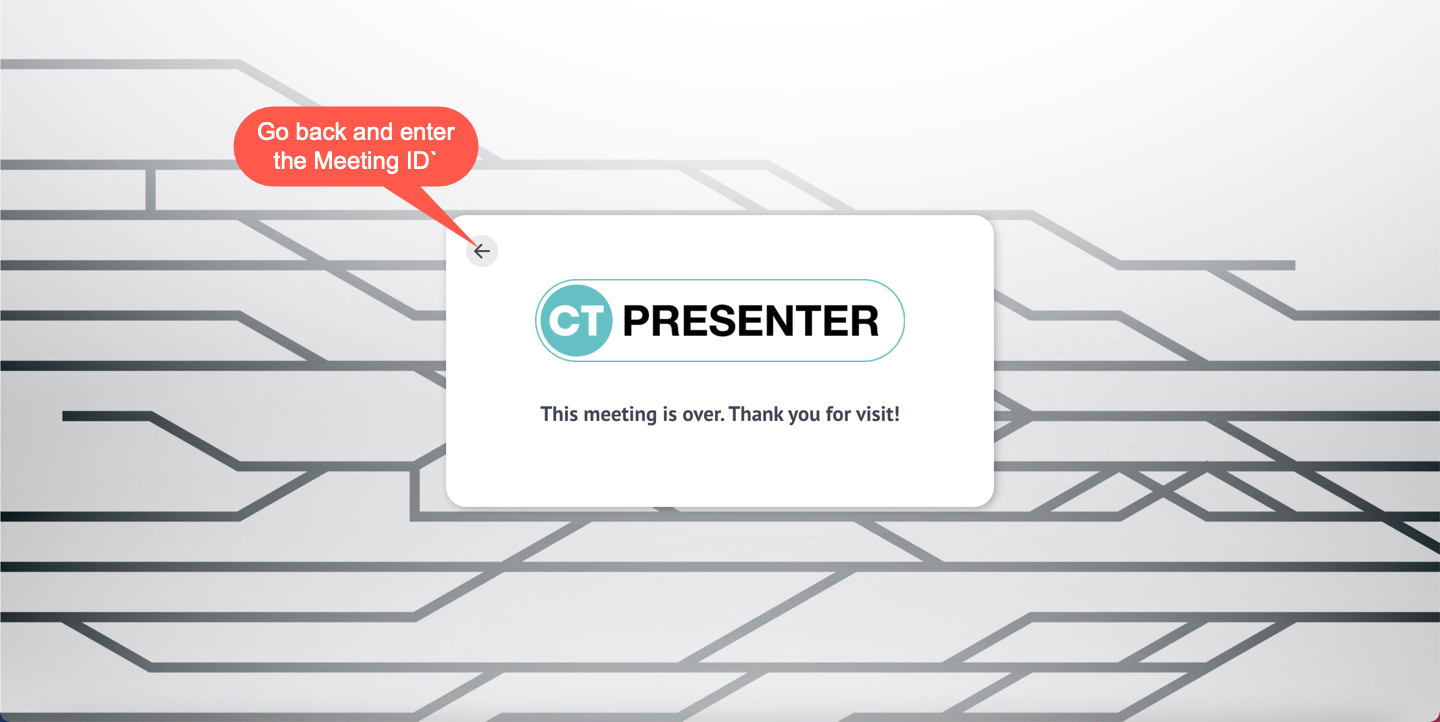
You can enter the Meeting ID and join as a participant in another Remote Detailing meeting.