Using Calendar
Add the Calendar module to the CT Mobile main menu, configure the calendar in CT Mobile Control Panel: Calendar, and optionally set up custom color settings to display activities on the calendar grid.
Permissions
The mobile user can create, update, and delete records if the permissions are granted.
| The object’s permissions specified on the CT Mobile Control Panel: Offline Objects cannot be over the profile’s permissions for objects. |
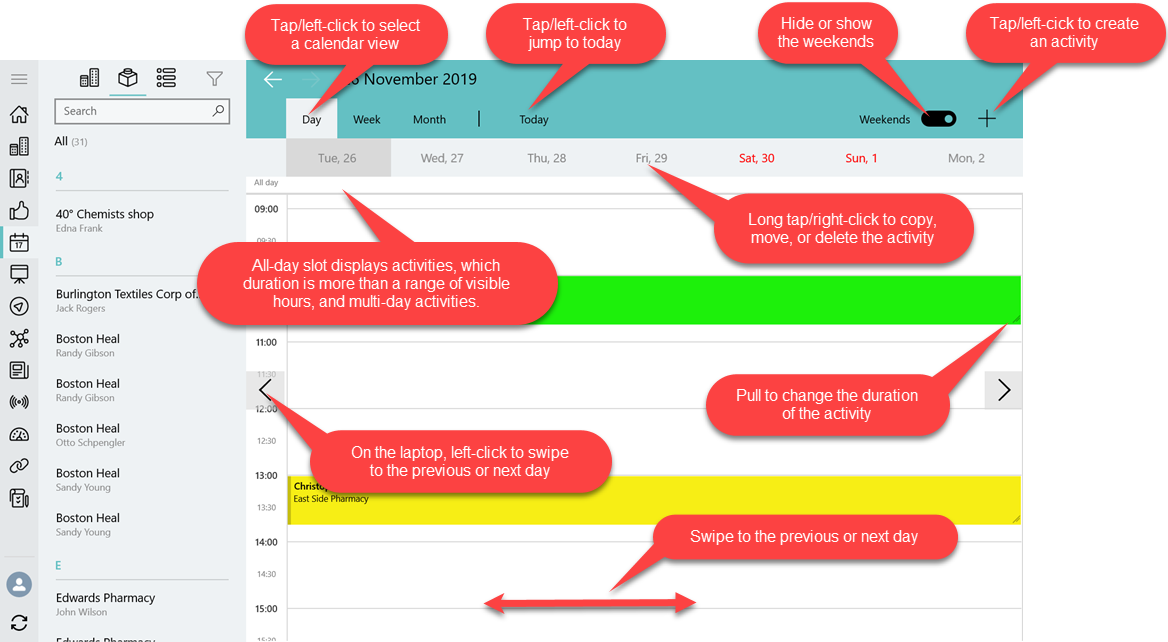
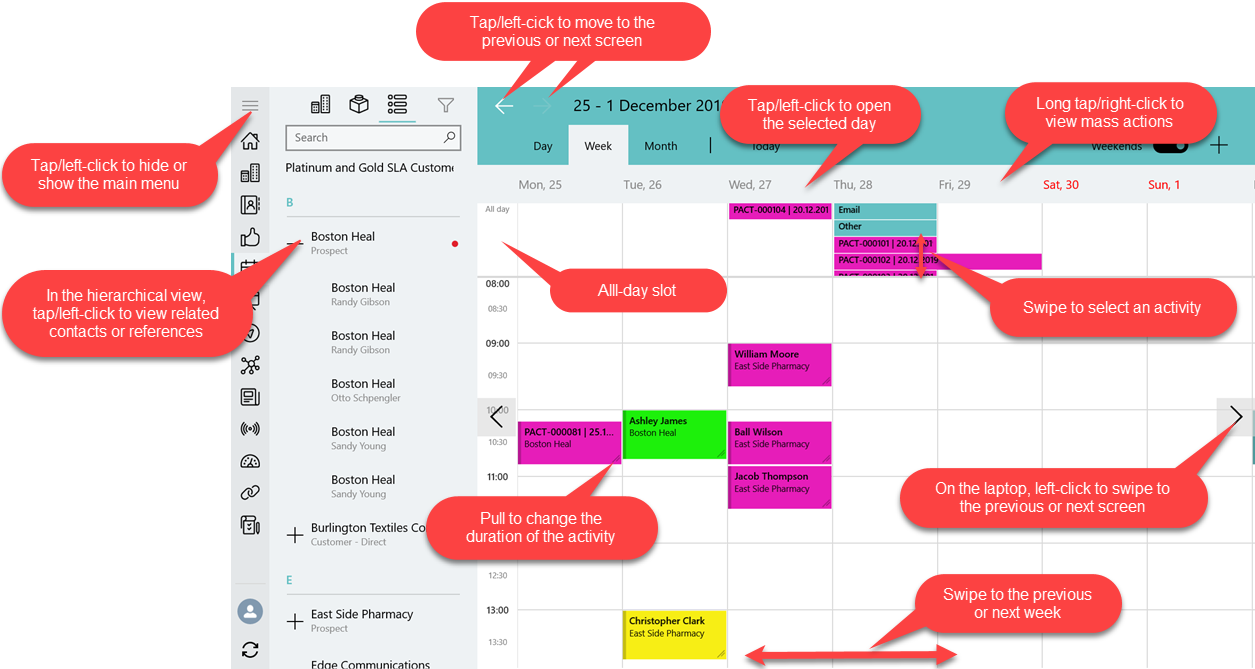
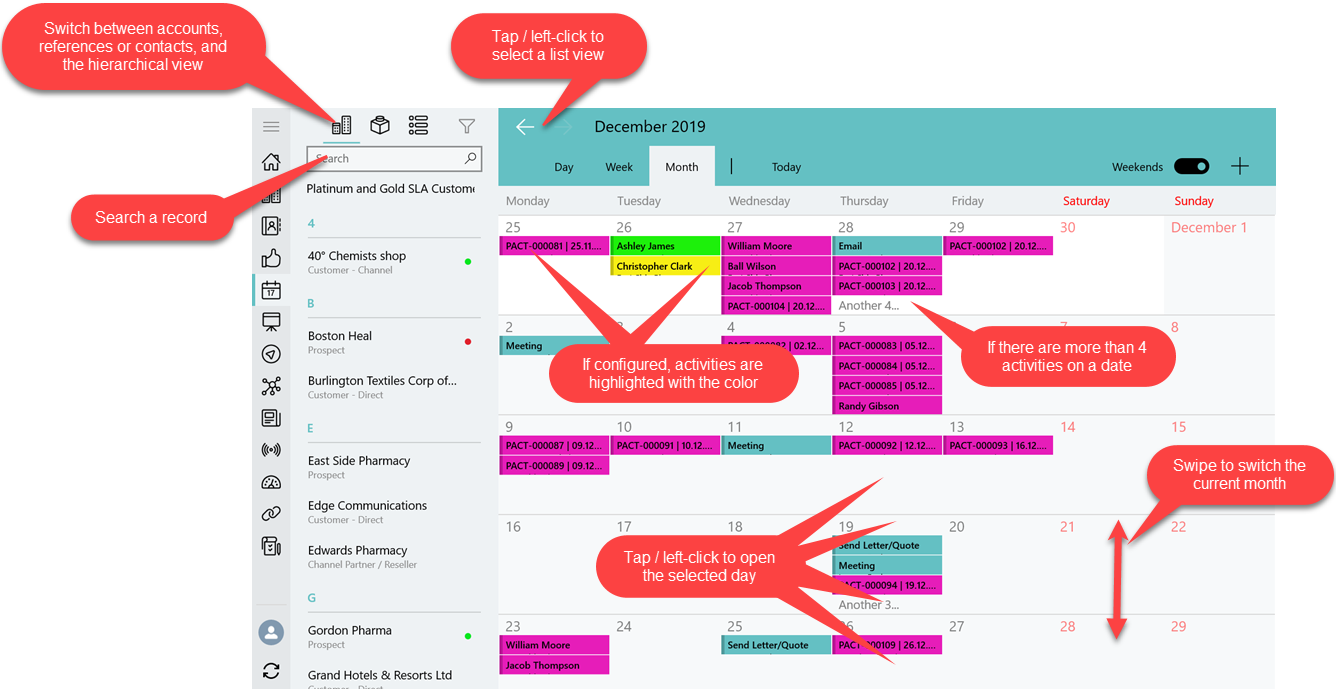
Activity Management
Actions with Activities
Manage activities using the following gestures and taps:
-
Create an activity. If applied, select the record type and fill in a mini-layout:
-
long tap/right-click the calendar area;
-
drag-and-drop/left-click one or several records from the list view on the calendar area. The activities will be created in the same order as they were marked;
-
tap/left-click the
 button.
-
-
Move an activity:
-
drag-and-drop/left-click the selected activity on the calendar area.
-
-
Pull the right bottom corner of the activity to change its duration. The functionality is available on the day and week view.
-
Tap an activity to view the additional information in the compact layout:
-
Tap/left-click the Open button to view the record details screen.
-
Tap/left-click the Delete button to remove the activity. Confirm the action on the confirmation box.
-
Important notes:
-
If custom colors for the activities are not set, the application theme will be used to display activities in the calendar grid.
-
Activities cannot be moved from and to the all-day slot.
-
The records, which have not been synchronized, may always be deleted no matter what access the profile is granted.
Mass Actions with Activities
Mass actions are available for all record types of objects that are available for the mobile user.
-
Tap/right-click the title of the week.
-
In the open pop-up, copy, move or delete all activities of a day or a week.
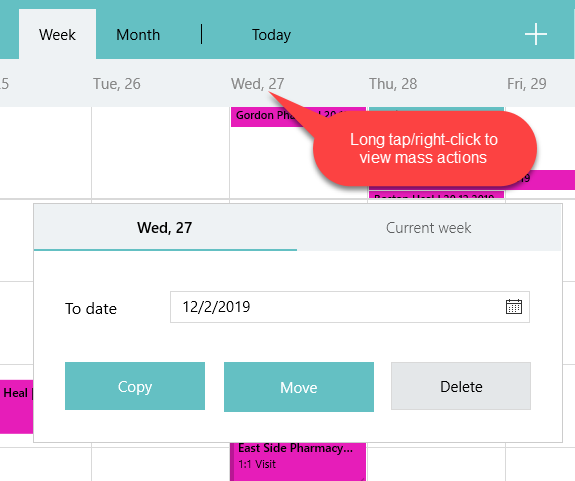
Copy Activities
-
All activities, which are available for the profile of the mobile user, can be copied if the mobile user has permission to create records.
-
If there is a mini layout for the selected record type of the object, the following will be copied:
-
values from required fields on the mini-layout;
-
values from the Start Date and End Date fields.
-
for the Task and Event objects, values from the Assigned To, Name, and Related To fields will be copied too.
-
-
If there is no mini layout for the selected record type of the object, the following will be copied:
-
values from reference fields;
-
values from the Start Date and End Date fields.
-
-
The next day is suggested when the mobile user copies a single activity.
-
The first day of the next week is suggested when the mobile user copies all activities of the selected week.
Move Activities
-
Activities with updateable the Start Date and End Date fields are available to move if the mobile user has permission to edit records.
-
Only values in the Start Date and End Date fields will be changed.
-
The next day is suggested when the mobile user reschedules a single activity.
-
The first day of the next week is suggested when the mobile user reschedules all activities of the selected week.