Creating a Slide
To create a slide:
-
Go to Applications and select a CLM presentation.
-
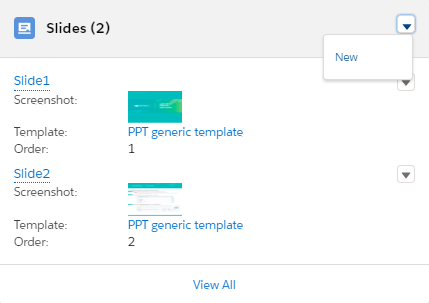
Click New in the Slides section.
-
Fill out the necessary fields.
The full description of slide attributes is available here. -
Enter the Slide name.
-
Specify the slide content using one of the options below:
-
Select the template with placeholders and widgets.
-
In the Markup field, specify a markup for a slide.
-
-
Specify the order and branch.
-
Set the Required attribute prevents mobile users from displacing or removing the slide from the scenario.
-
Set the Fixed attribute to disable slide scrolling using a double swipe.
The attribute use is recommended to be set to the slides that represent the menu. 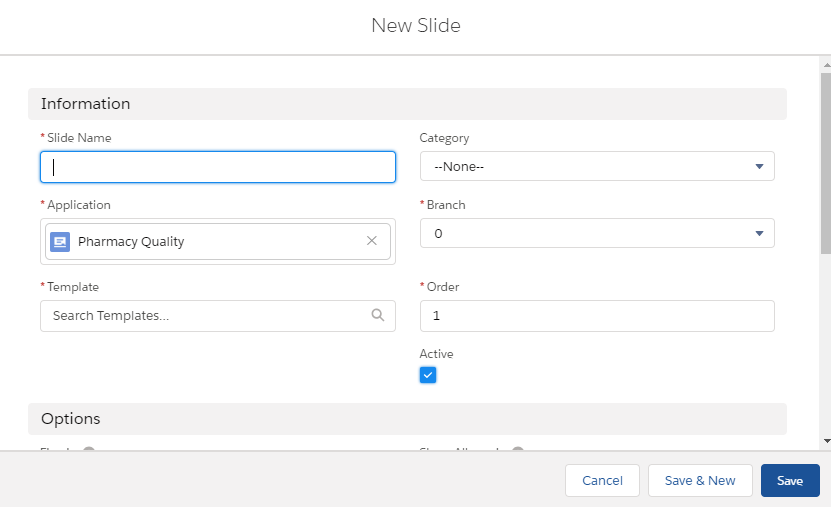
-
-
Click Save or Save & New to create another slide.
The slide is created.
It is also possible to add attachment files or notes to the slide.
-
Go to Applications and select a CLM presentation.
-
In the Slides section, click the slide name.
-
Go to the Related tab.
-
In the Notes & Attachment section, click the Upload Files button.
-
Select a file or drop it in the section.
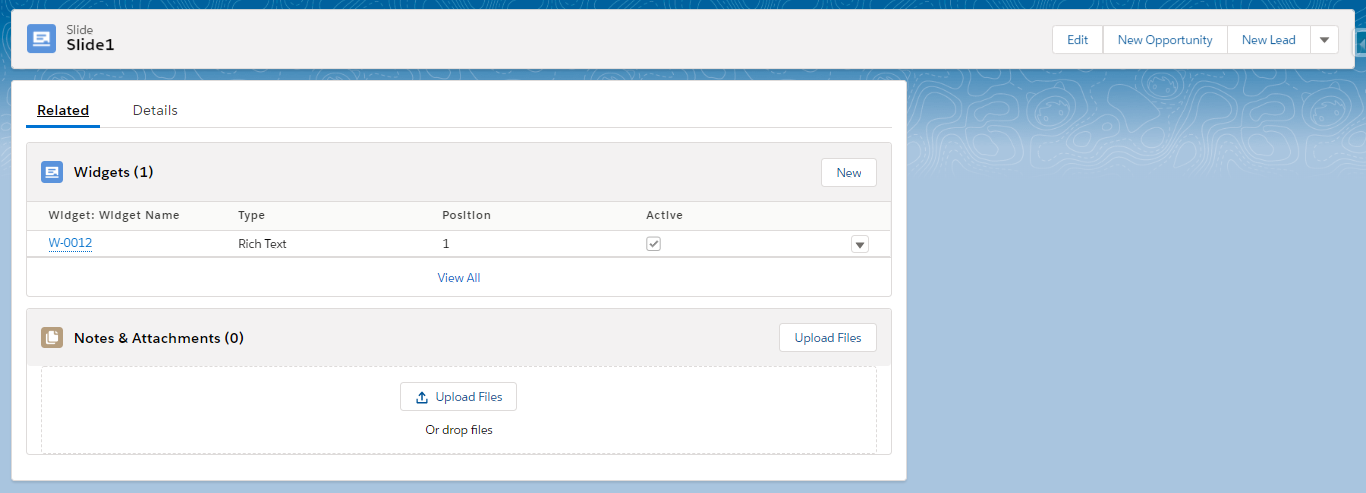
The side attachment is uploaded.