UI Basics
Get familiar with the UI basic elements of the iPad app version. The following topics are covered:
Main Menu
Main Menu is the list of objects and modules that are available for the current user. The set of items in the list can be configured in CT Mobile Control Panel.
-
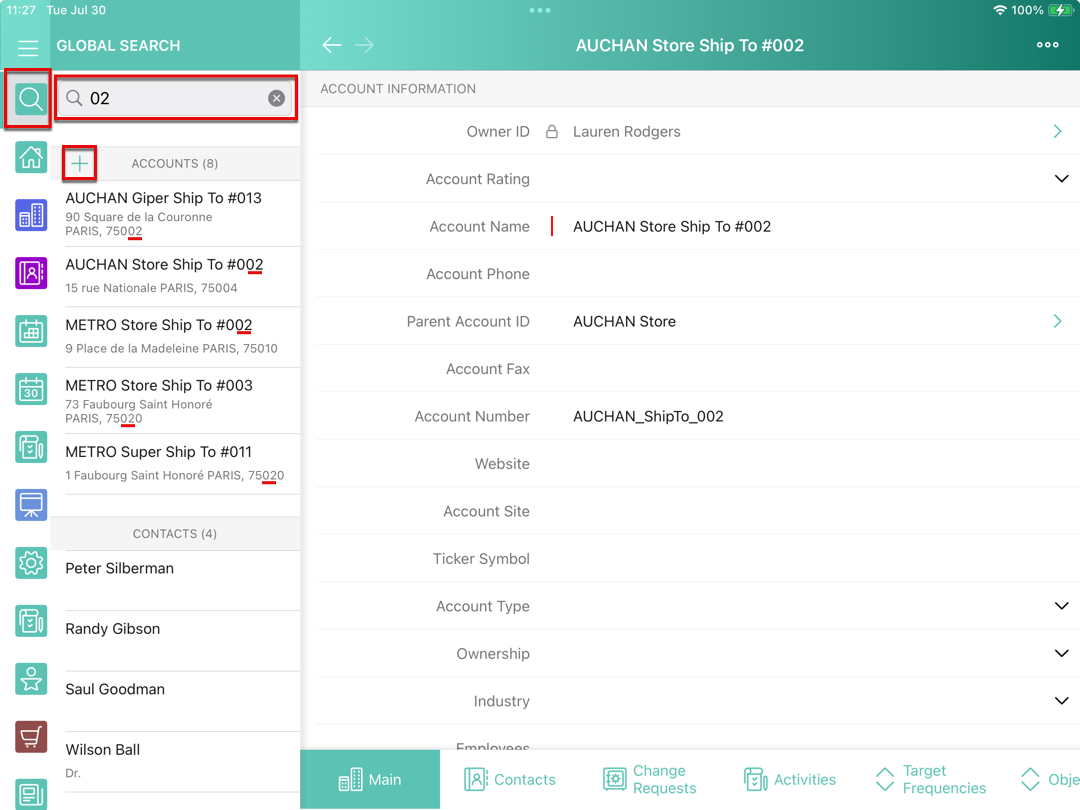
Tap a menu item to display the information on the main screen. Tapping an object or module without the records list (e.g., Home or Settings)will keep the main menu intact. Tapping an object or module with a records list replaces the main menu with the records list.
-
Display or hide the information by tapping the
 icon.
icon.If a module has only the main menu tooltips, the hamburger opens and hides them. If an object has a list of records, tapping the hamburger covers it with main menu tooltips.
-
On a screen with an opened list of records, swipe the main menu icons to the right to display the main menu tooltips. To go to the module or object, click whether an icon or a tooltip.
Global Search
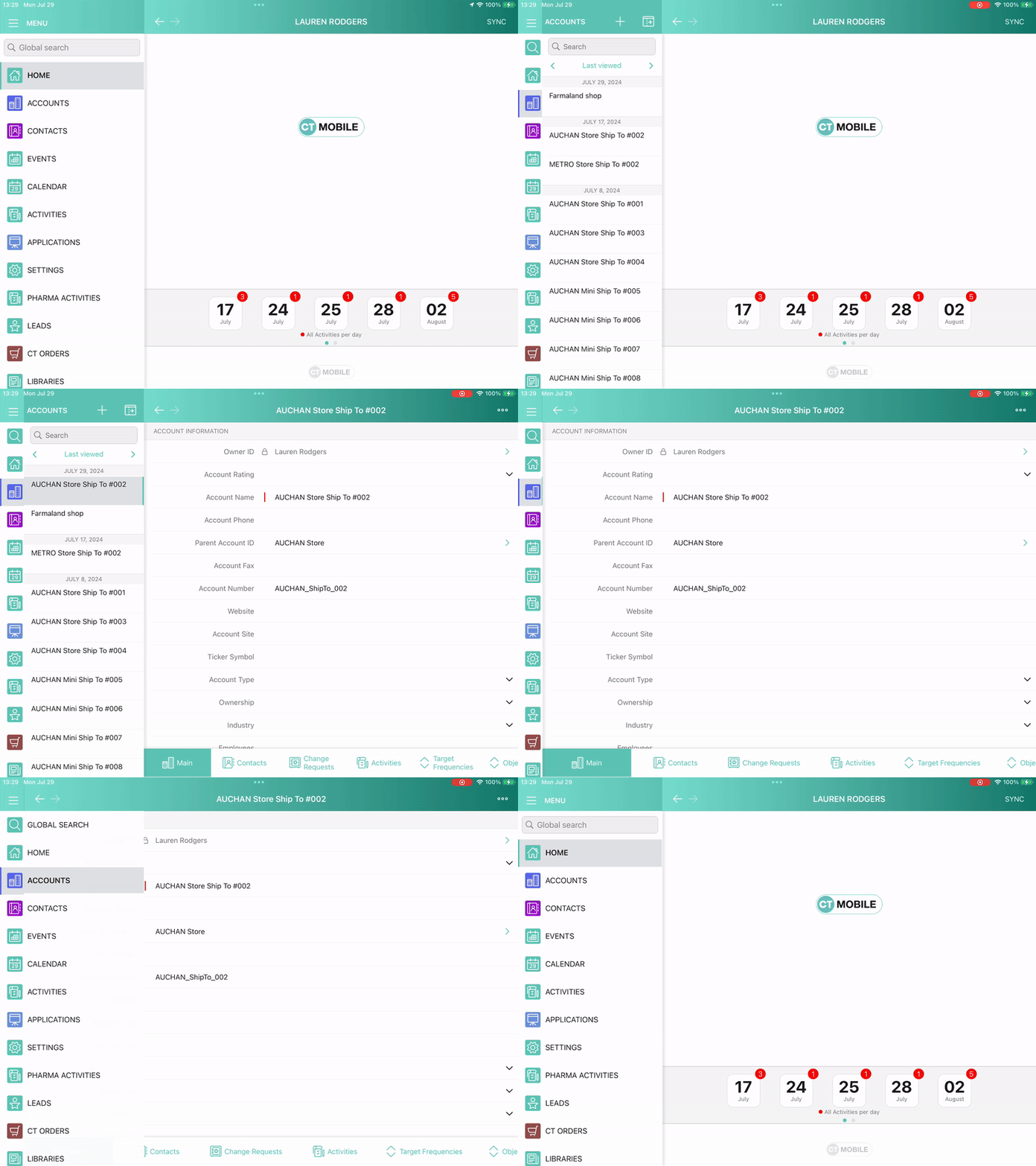
Global Search allows finding any available for the current user record loaded to the device.
-
Tap the Global search field or
 :
type in some symbols as search criteria and tap Search.
:
type in some symbols as search criteria and tap Search. -
The search results are grouped by objects.
-
Tap
 to expand the records list of an object.
Records List
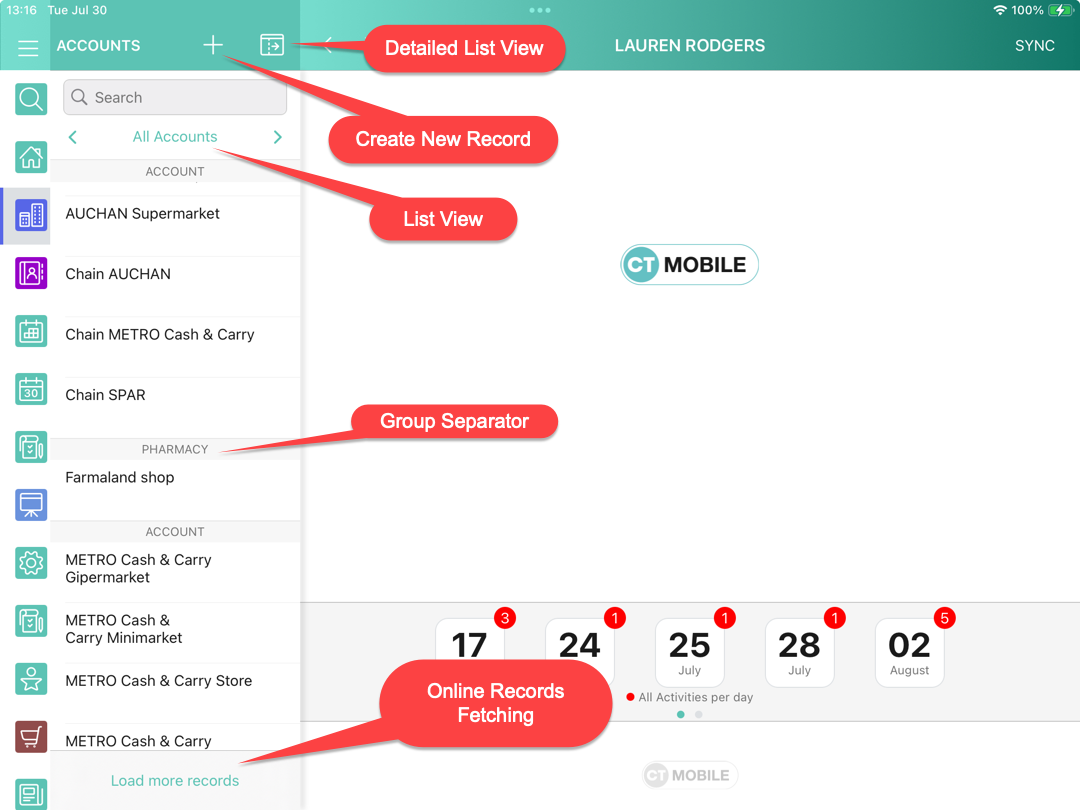
Records List contains all the selected object’s records that are uploaded to a device and matched by the selected filter.
-
Depending on the selected object, the records can be grouped by their field (e.g., name, date, etc.). You can customize the grouping of the records.
-
Records can be marked with custom colors.
-
Use Search to find a record in the current list.
-
Select a list view with
 and
and  or tap the current list view name to open the filter.
 -
Tap
 to create a new record, if the current user has permission to create records.
 -
If there is a setting in CT Mobile, tap Load more records to open the online records loading screen.
-
Tap
 to open the Detailed List View with records in a tabular representation.
Detailed List View
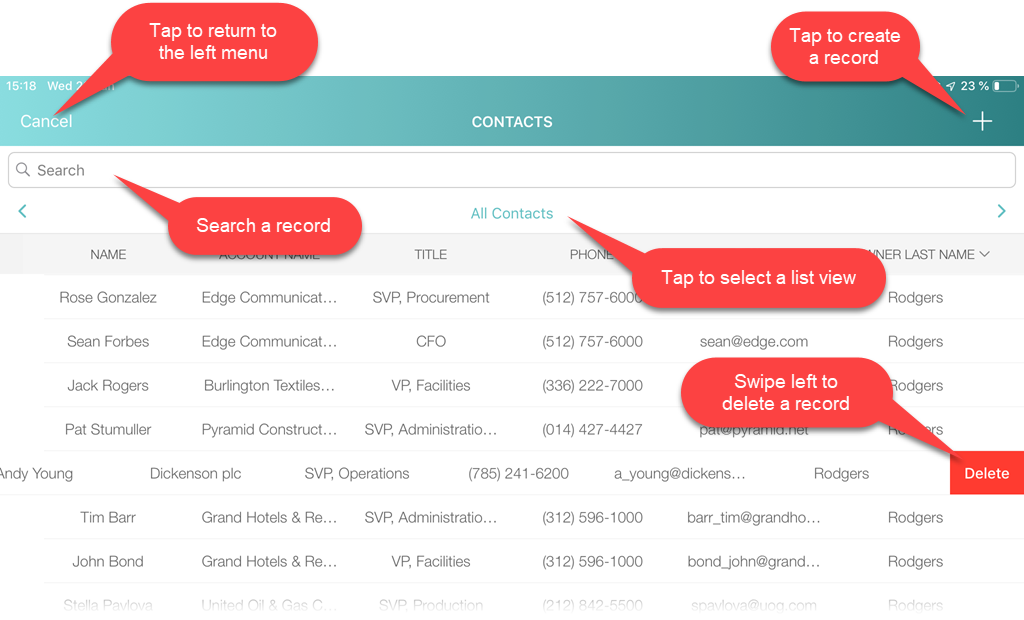
A detailed list view is the representation of the records as the Salesforce table in the mobile application. Tap to open it.
-
Select a list view with
and or tap the current list view name to open the filter. -
Tap
to create a new record, if the current user has permission to create records.Currently, the configured mini-layout is required for correctly creating a record in the detailed list view.
-
Swipe a record to the left to delete it, if the current user has permission to delete records.
-
Use Search to find a record.
-
Tap Cancel to go back to the left menu with the records list.
-
Tap a record to open the record details screen.
Record Details
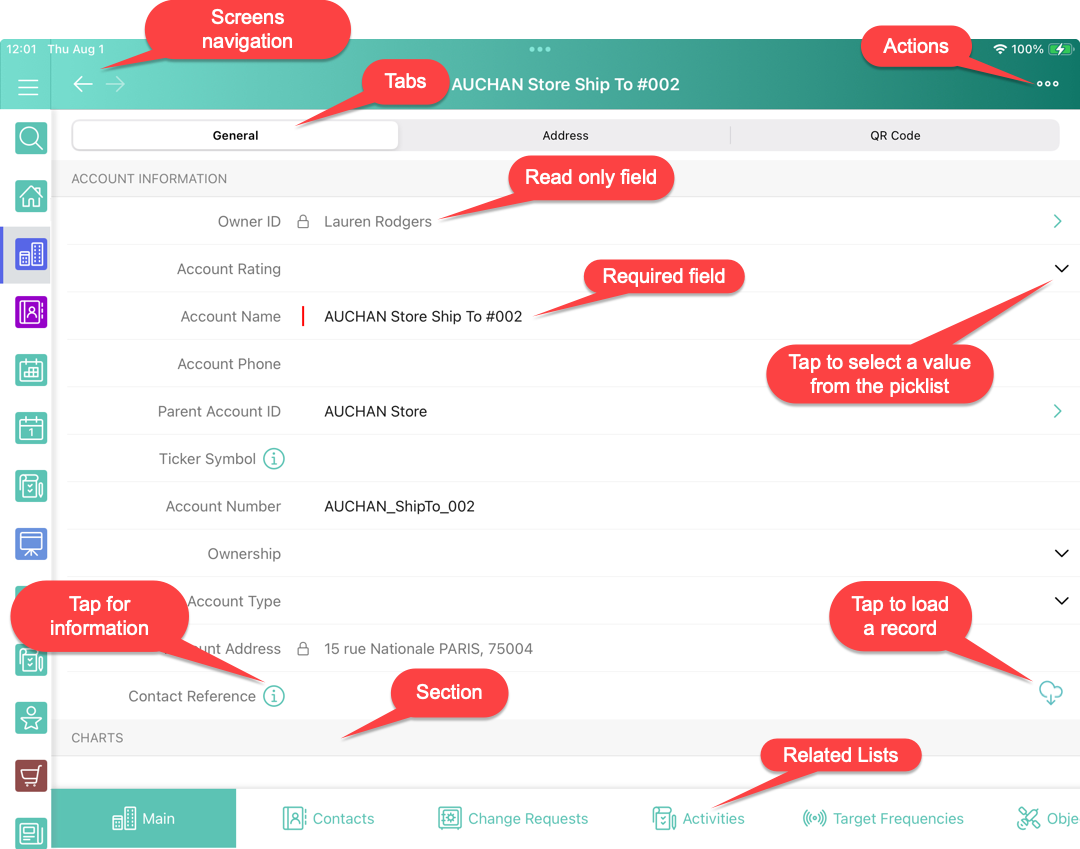
The record details screen displays the complete information of the selected record. It consists of fields of different types, switches, widgets, and related lists. The information can be organized and separated into tabs and sections.
-
All user changes will be saved and uploaded to Salesforce via synchronization.
-
Tap
 or
or  to navigate the screens back and forward.
 -
Tap and hold
or to open the Back / Forward screens timeline and select a screen from the list. -
Tap
 to open the Actions modal window.
 -
If a help text added for the field, tap the
 icon next to this field to see the help text.
 -
If the Online One Record Fetching is enabled for a reference field, tap
 next to this field to load its value.