CT Mobile Control Panel 2.0: Custom Details
The Custom tab is intended to configure custom related lists.
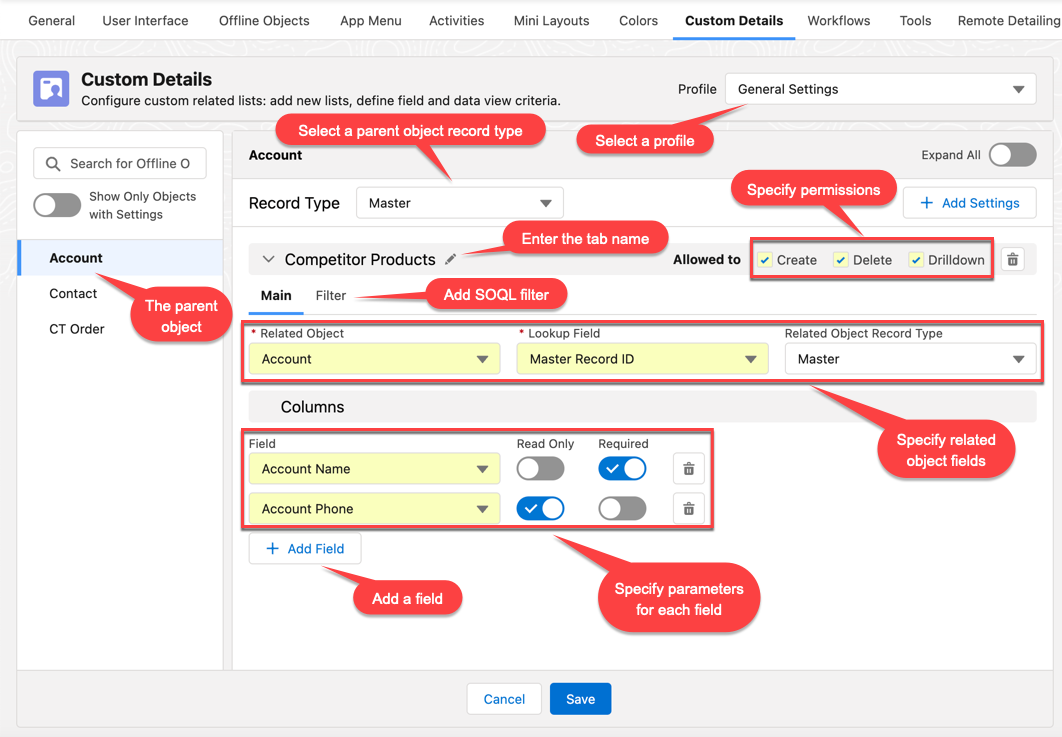
To create a custom related list:
-
Go to CT Mobile Control Panel: Custom Details.
-
Select the required profile in the Profile picklist. To apply settings to all the profiles, select General Settings.
-
On the left list, select an object. Toggle Show Objects with Settings if needed.
-
Click Add Settings.
-
Enter a name for related list and click
 .
. -
Select a record type for the object to apply the custom details setting.
If a record has no custom record type associated with it, then the Master record type will be used. -
On the Main tab, select values from the picklists:
-
Related Object: the object, which records will be displayed in the related list
-
Lookup Field
-
Related Object Record Type
-
-
Define the following:
-
Create/Delete permissions. Influence the ability to create and/or delete records on the custom related list tab.
-
Drilldown. Enable the setting to add the option of opening the record details screen.
-
-
In the Columns section, define fields for the related list:
-
Select a field from the drop-down list.
-
Click Add Field to add a new field.
-
Define the Read Only and the Required options for the fields.
-
If the updateable attribute has a false value, this field will be read-only even if the Read Only attribute has not been selected.
-
If the nillable attribute has a false value, this field will be required to fill in even if the Required attribute has not been selected.
-
-
-
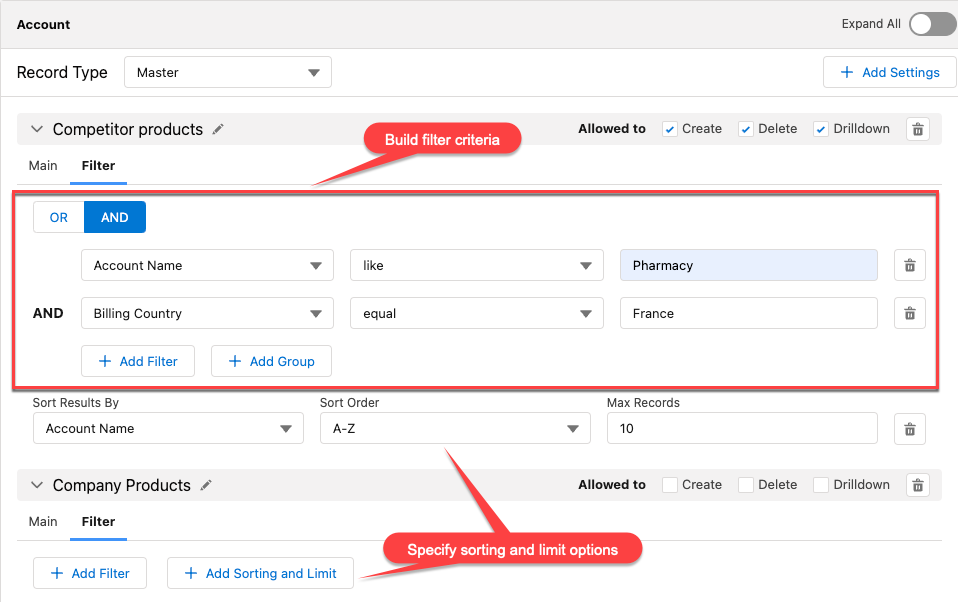
On the Filter tab, set up SOQL filters for using a toggle in the CT Mobile app to display all records or only records that match the criteria:
-
Use Add Filter and Add Group buttons to build the filter criteria.
-
Click Add Sorting and Limit button to specify sorting options for the filter results, configuring the fields:
-
Sort Results By
-
Sort Order
-
Max Records
-
-
-
Click Save to apply new settings.