Logging In with Single Sign-On
Single sign-on (SSO) lets users access authorized network resources with one login.
Salesforce uses the SAML protocol for single sign-on into Salesforce from a corporate portal or identity provider.
-
Your identity provider sends SAML assertions to Salesforce using the SAML web Single Sign-on Browser POST profile. Salesforce sends SAML responses to the identity provider login URL specified under Setup by entering Single Sign-On in the Quick Find box, then selecting Single Sign-On Settings. Salesforce receives the assertion, verifies it against your Salesforce configuration, and, if the assertion is true, allows SSO. For more information, go to Configure SAML Settings for Single Sign-On.
-
As an identity provider, you can use OneLogin, LastPass, Okta, etc.
Logging In with Single Sign-On
First way
To log in with a single sign-on:
-
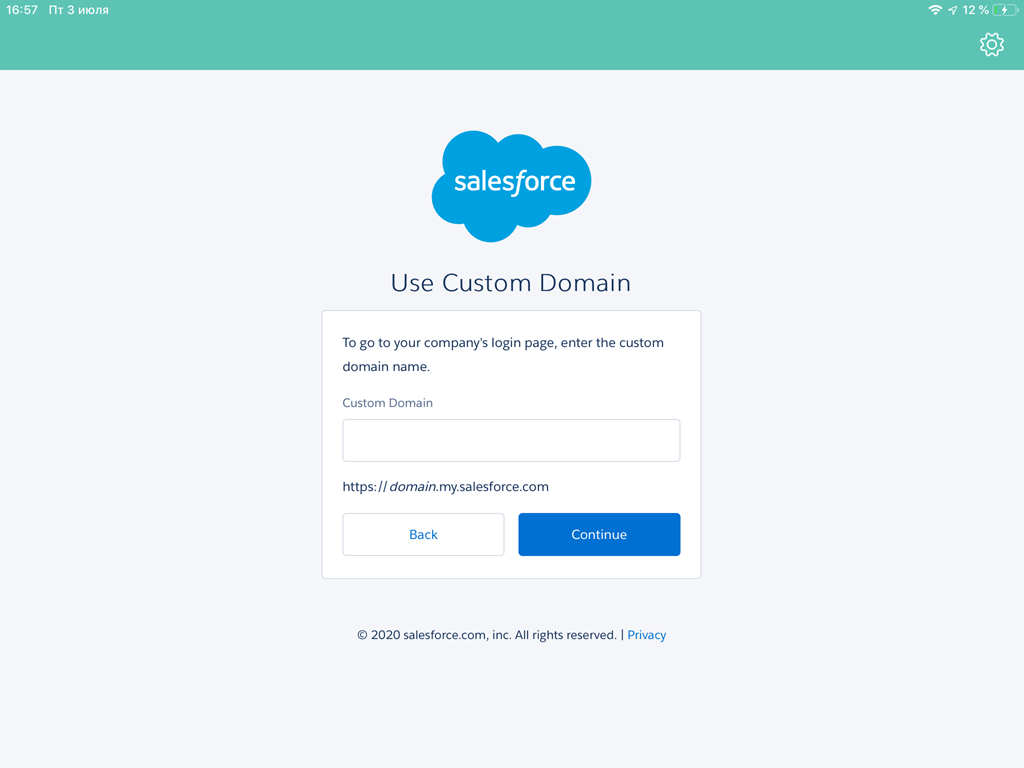
Open the CT Mobile app and tap Use Custom Domain.
-
Enter the custom domain and tap Continue.
-
Tap OneLogin.
The button label depends on the connected identity provider. 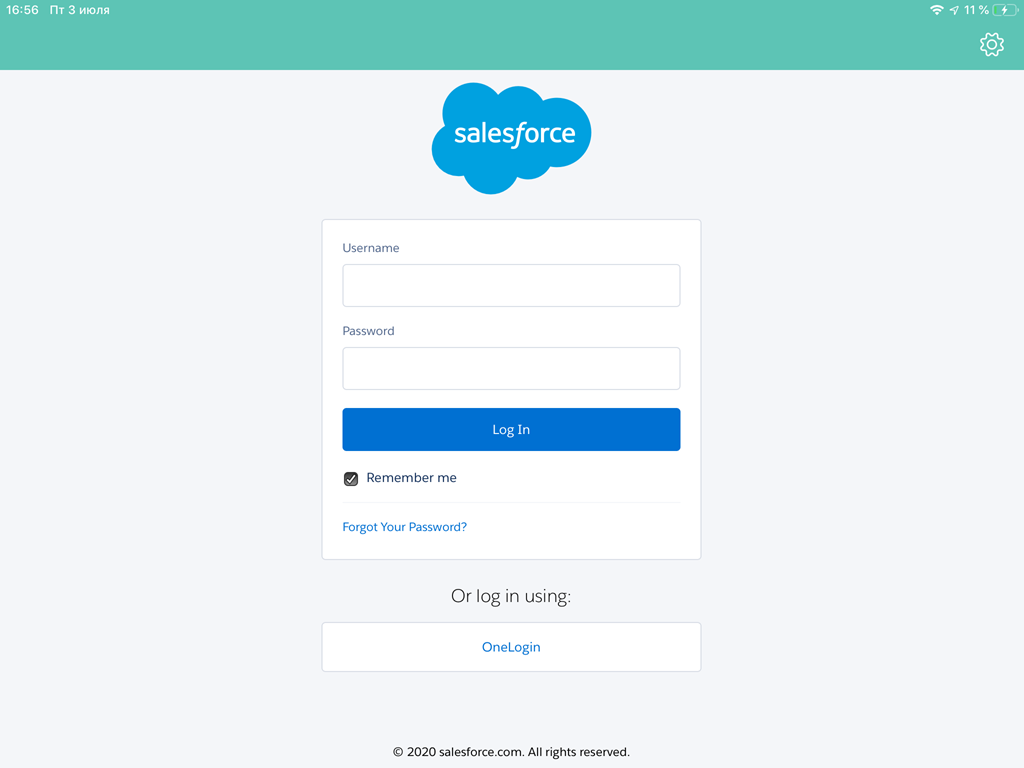
-
Enter credentials and tap Continue.
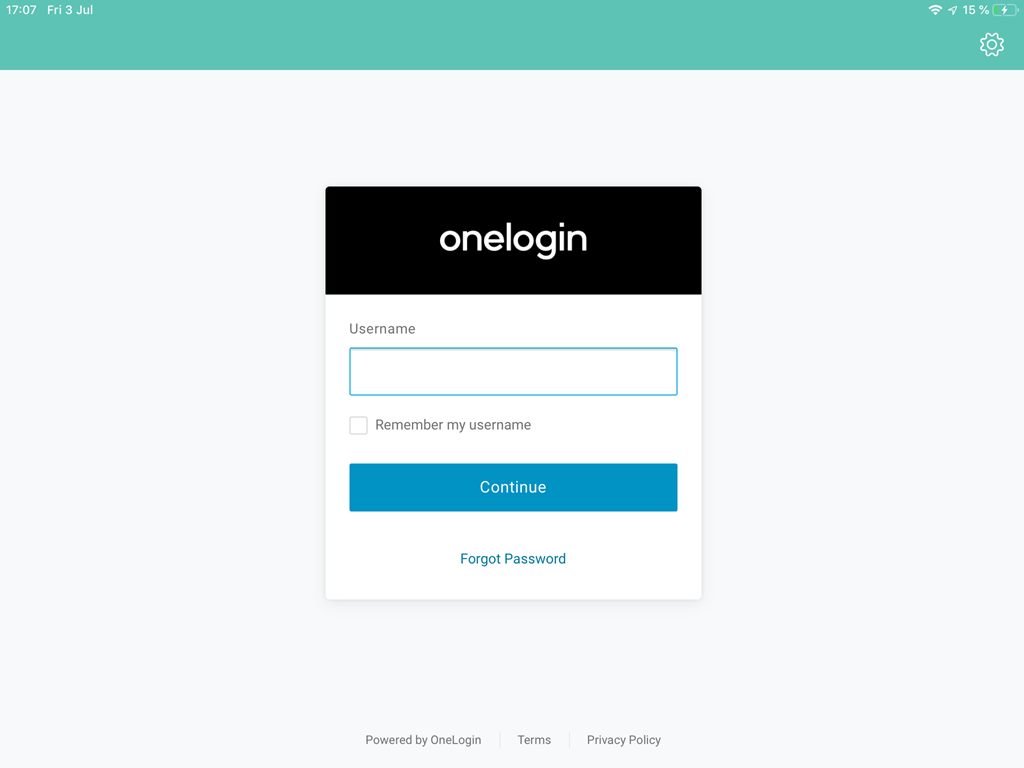
You logged in. Perform the full synchronization.
Second way
To log in with a single sign-on:
-
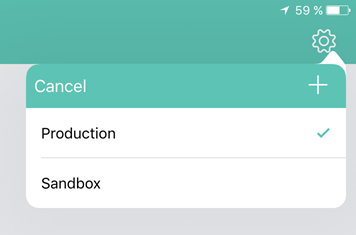
Open the CT Mobile app and tap Setup → the Plus button.
-
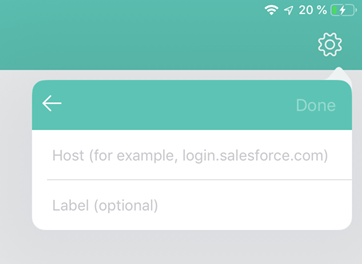
Enter the host URL and label (optionally) and click Done.
-
Tap OneLogin.
The button label depends on the connected identity provider. 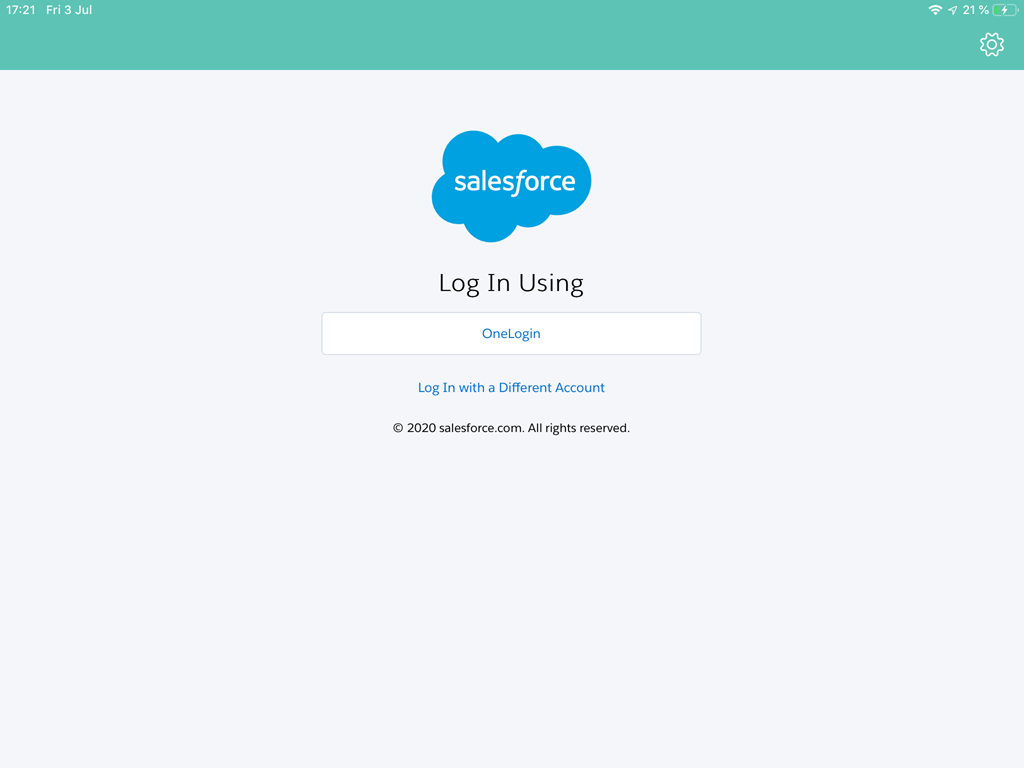
-
Enter credentials and tap Continue.
You logged in. Perform the full synchronization.