The CT Presenter app: Join the Remote Detailing Meeting
| This application is an outdated solution. It is recommended that you use the Safari browser. |
A participant could join the Remote Detailing meeting:
-
using the Meeting ID. Firstly, they open the CT Presenter app, enter the Meeting ID and then enter their name and e-mail (optionally) on the Participant Details screen.
-
using the invitation link. In this case, they tap the invitation link and automatically go to the Participant Details screen of the CT Presenter app, and enter their name and e-mail (optionally).
To join the Remote Detailing meeting launched by the presenter.
-
Open the CT Presenter app.
-
Enter the Meeting ID.
The Enter button will be available after all 10 digits are specified. 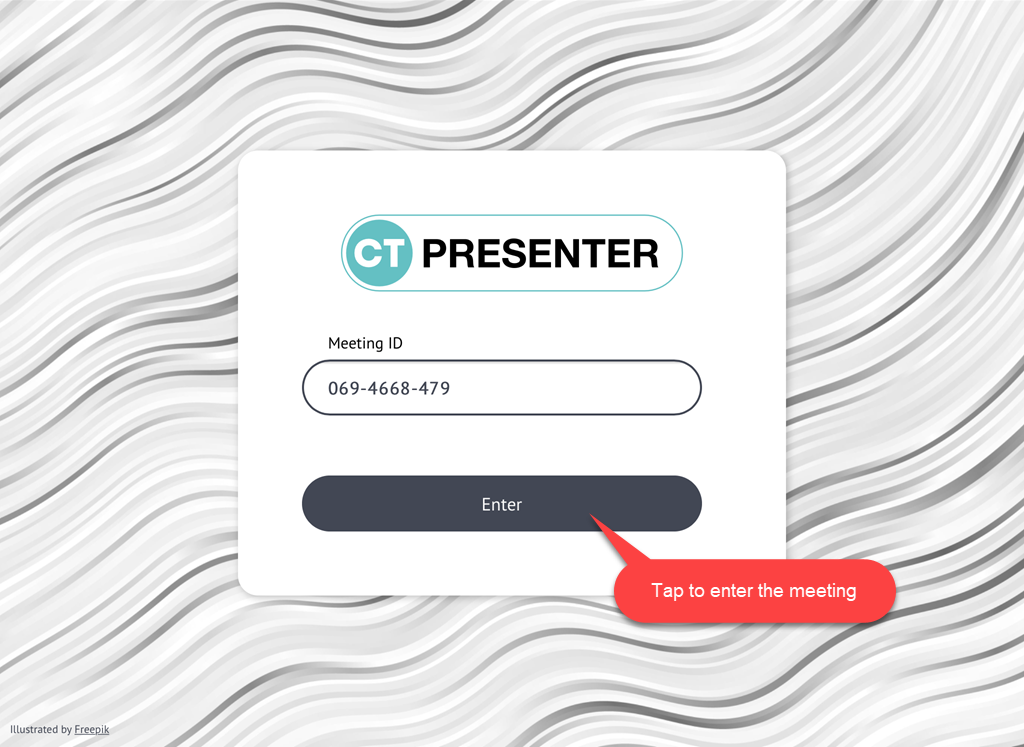
-
According to the Meeting ID:
-
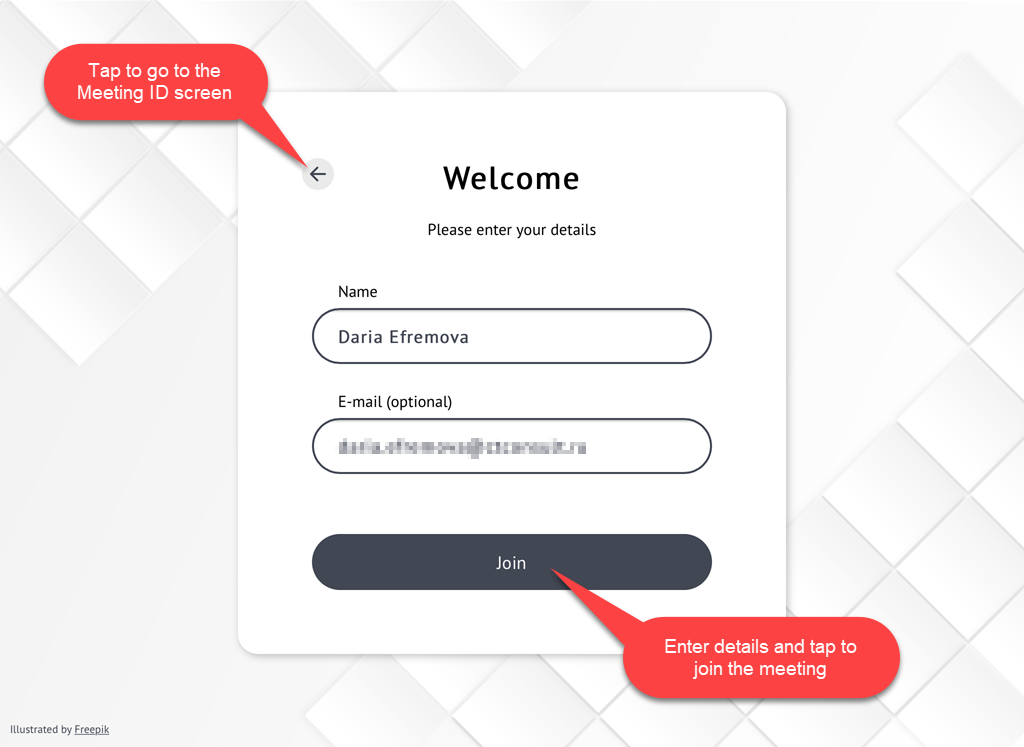
If the Meeting ID is correct, the Participant Details screen is open.
-
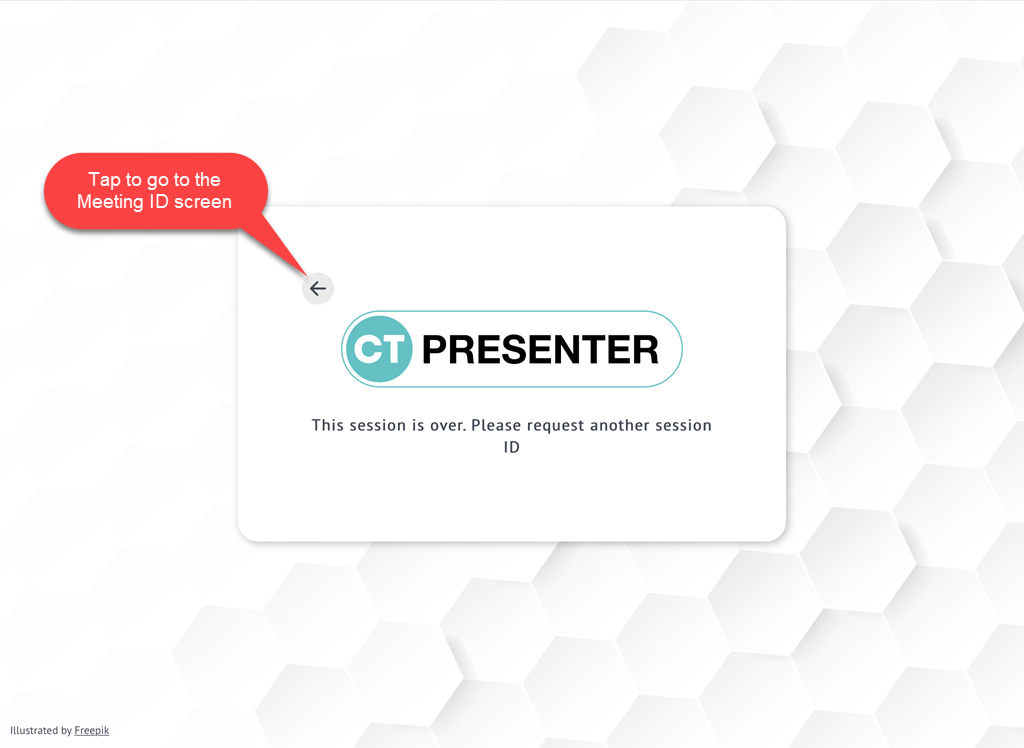
If the Remote Detailing session is expired, the following screen is open. Tap the arrow to go back to the Meeting ID screen.
-
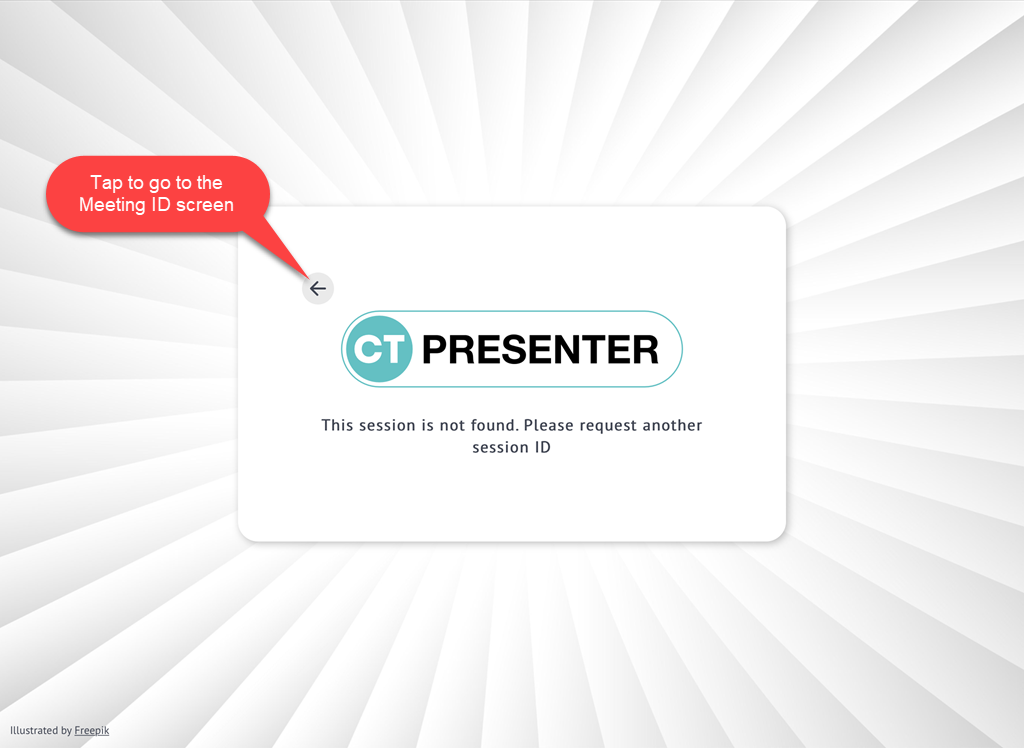
If the Meeting ID is not correct, the following screen is open. Tap the arrow to go back to the Meeting ID screen.
-
-
On the Participant Details screen, enter the name and e-mail address (optionally) and tap the Join button.
-
If a participant taps the invitation link, they will be redirected to the Participant Details screen.
-
The warning will be displayed in case of an incorrect e-mail (without @).
-
-
According to the Meeting ID and the presenter’s behavior:
-
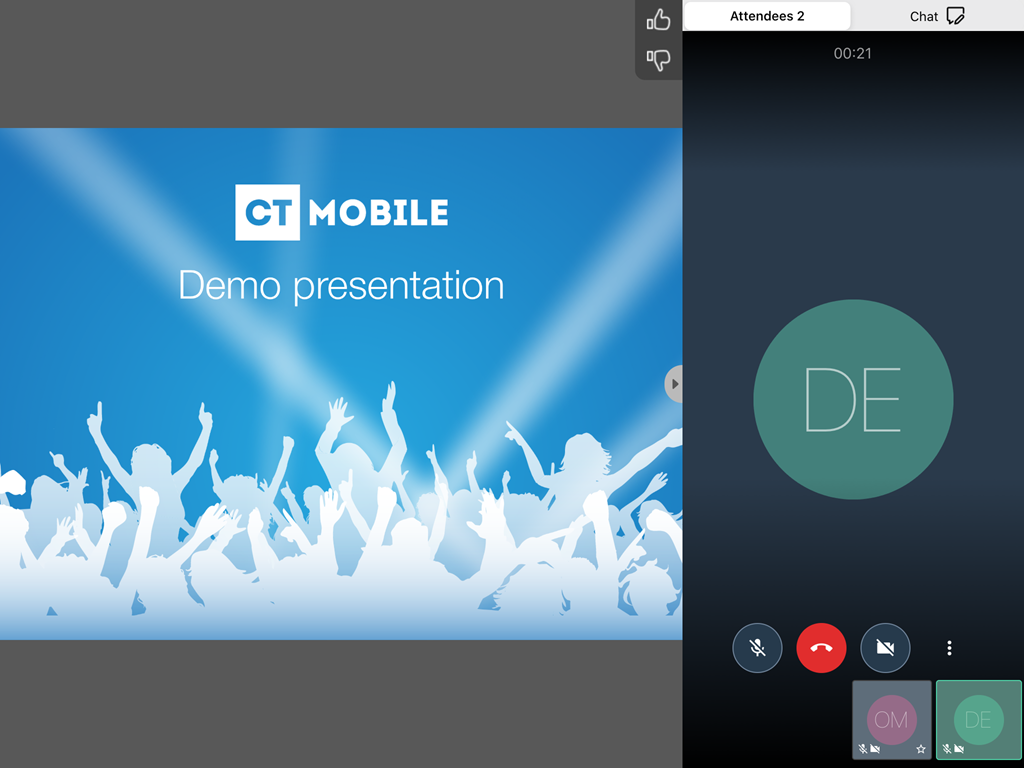
The Remote Detailing session screen with the presentation on the main screen and the sidebar on the right side of the screen. To get familiar with the actions during the meeting, read Interactions during the Remote Detailing meeting.
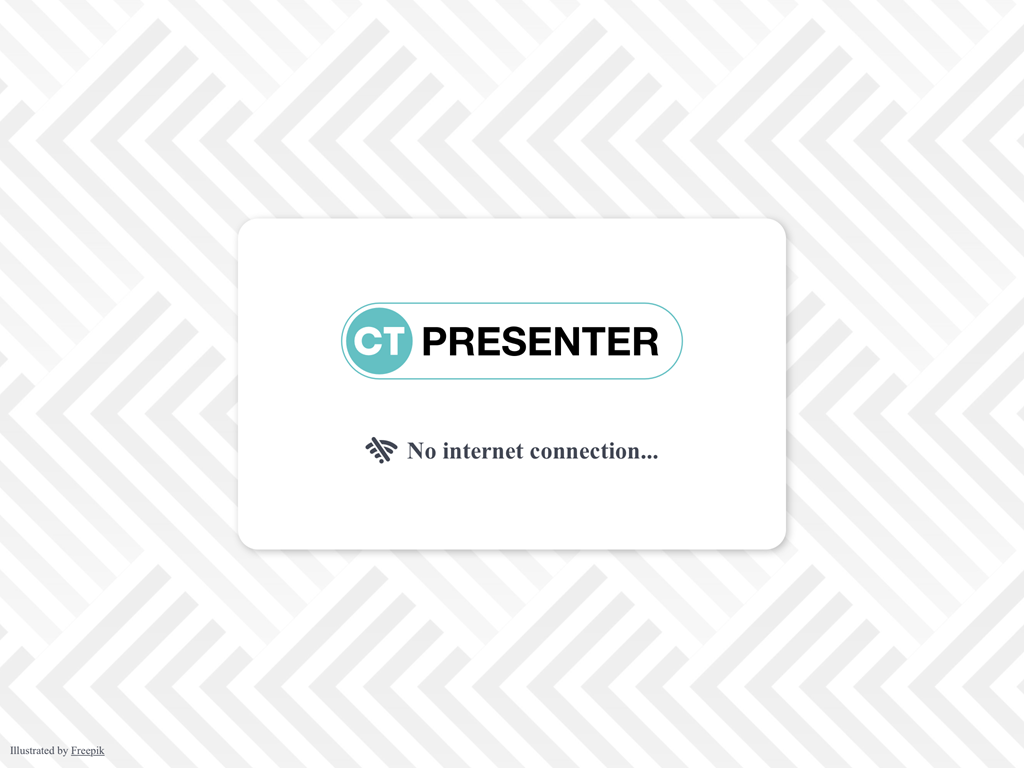
If the connection is lost, a notification will be shown.
-
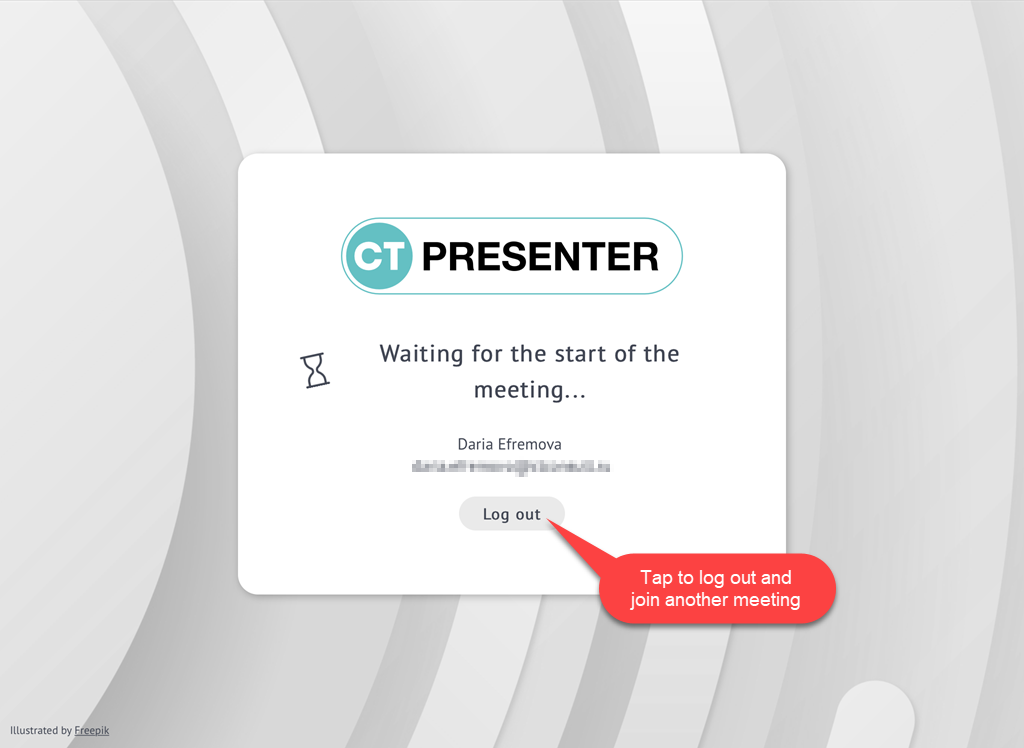
The Waiting… screen is displayed when the presenter has not started the meeting. Tap the Log out button to go back to the Meeting ID screen.
-
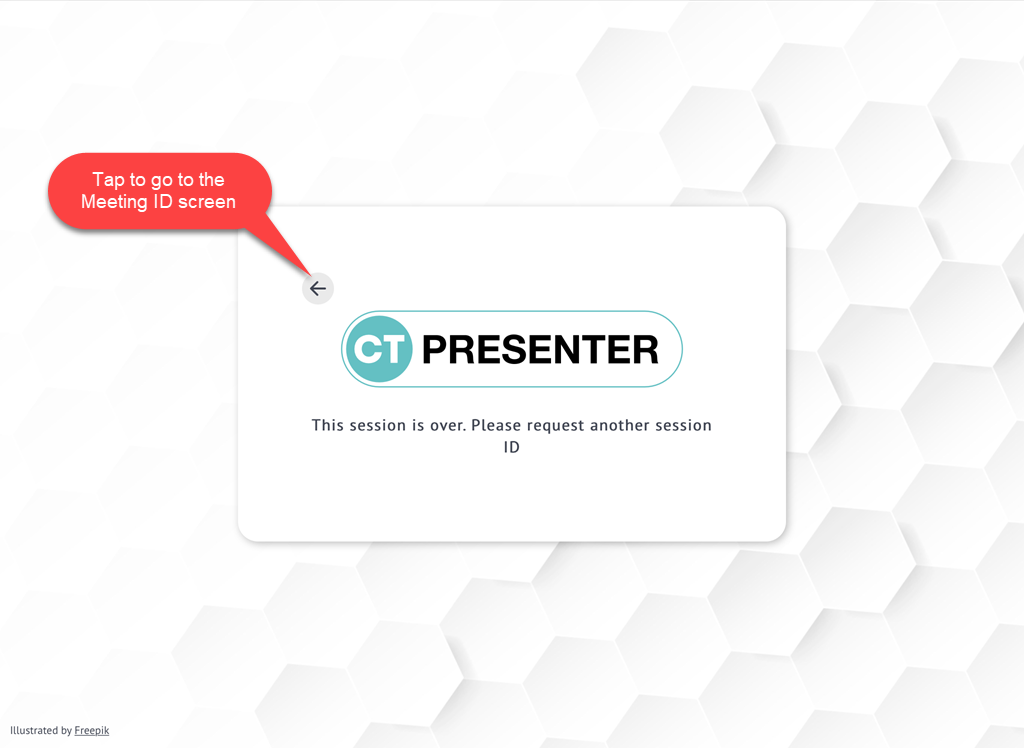
The End Session screen if the participant tries to join the already finished meeting. Tap the arrow to go back to the Meeting ID screen.
-