iCal Synchronization
iCal synchronization is intended to synchronize activities between your device and CT Mobile calendars.
| iCal synchronization settings are saved until the current user logs out. The sync process, the CT Mobile update and running in the background mode do not affect iCal settings. |
You can set up multiple calendars on iPad or iPhone The following calendars will be synchronized with CT Mobile: iOS calendars, Google calendars, and Microsoft Outlook (not including Microsoft Exchange integration).
To set up and view multiple calendars, go to Apple Support.
To use iCal synchronization:
-
Select one or both available options:
-
Sync Activities from CT Mobile Calendar to Device Calendar.
Select a device calendar to synchronize activities from the CT Mobile calendar.
-
Show Device Calendars Activities in CT Mobile Calendar.
Select device calendars to show their activities in the CT Mobile calendar.
-
Enable iCal synchronization
To enable iCal synchronization:
-
On a mobile device, open the CT Mobile app.
-
Tap Settings on the main menu.
-
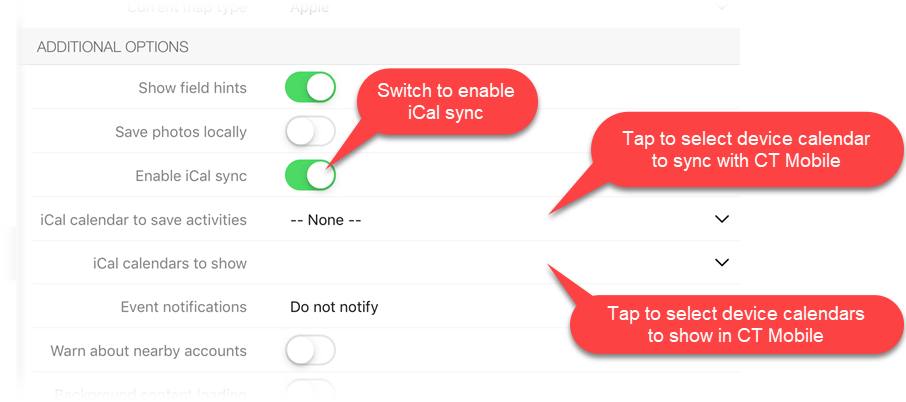
In the Additional options section, enable iCal sync.
Available iCal options are displayed.
Sync Activities from CT Mobile Calendar to Device Calendar
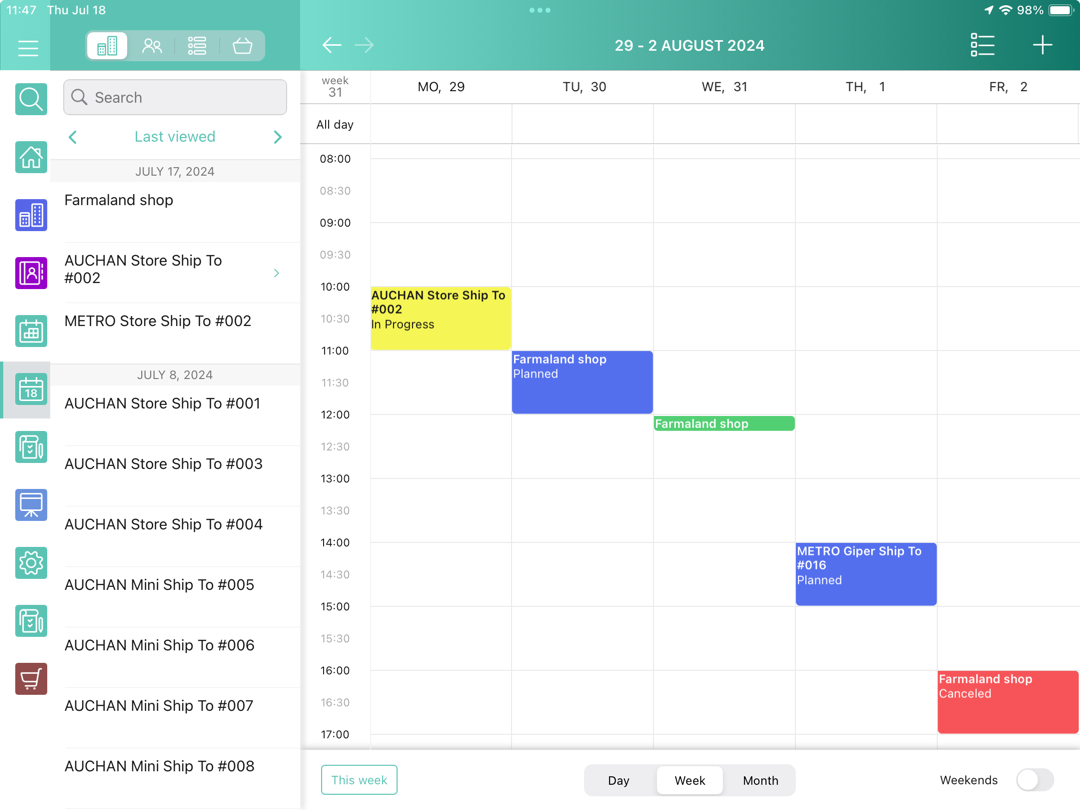
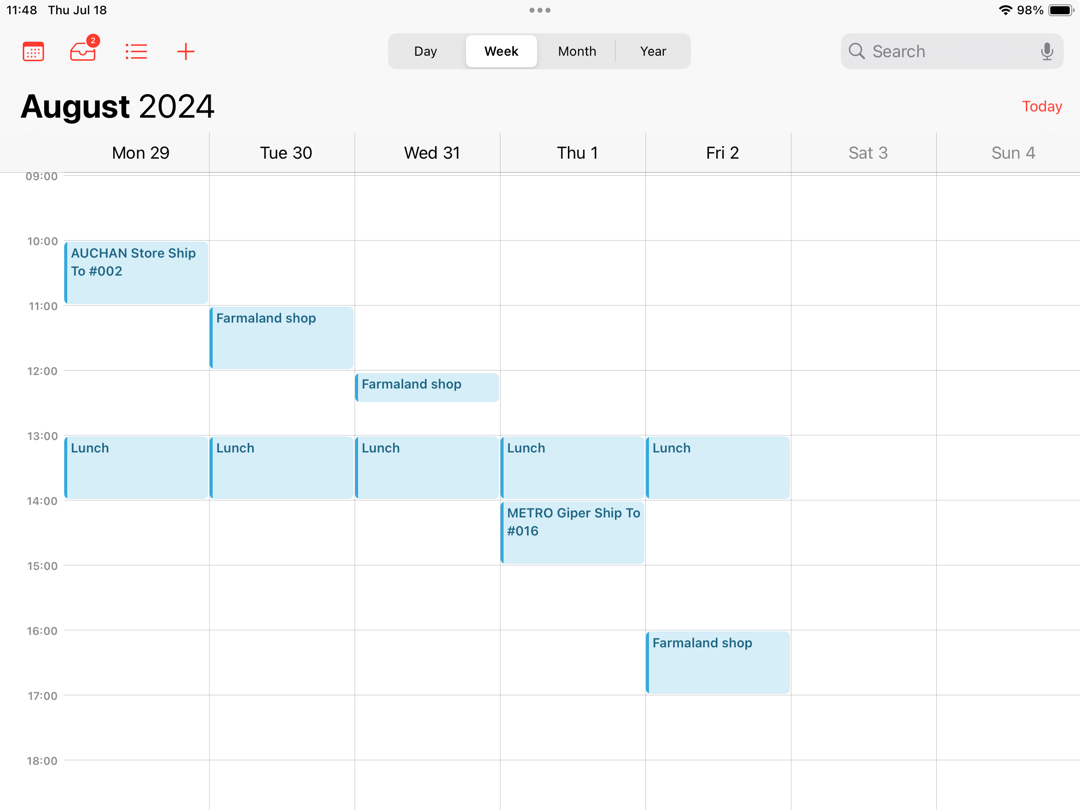
To synchronize activities from the CT Mobile calendar to the device calendar, in the iCal calendar to save activities, select a device calendar, e.g., Home or Work. As a result, in the selected device calendar, activities will be created identical to records in the CT Mobile calendar.
| For correct work of this functionality, please move, edit, and delete records only in the CT Mobile calendar. |
For custom and standard activities:
-
the title of a record is the same as the title of a compact layout;
-
the Notes section displays the subtitle of a compact layout.
| CT Mobile Calendar | Device Calendar |
|---|---|
|
|
Show Device Calendars Activities in CT Mobile Calendar
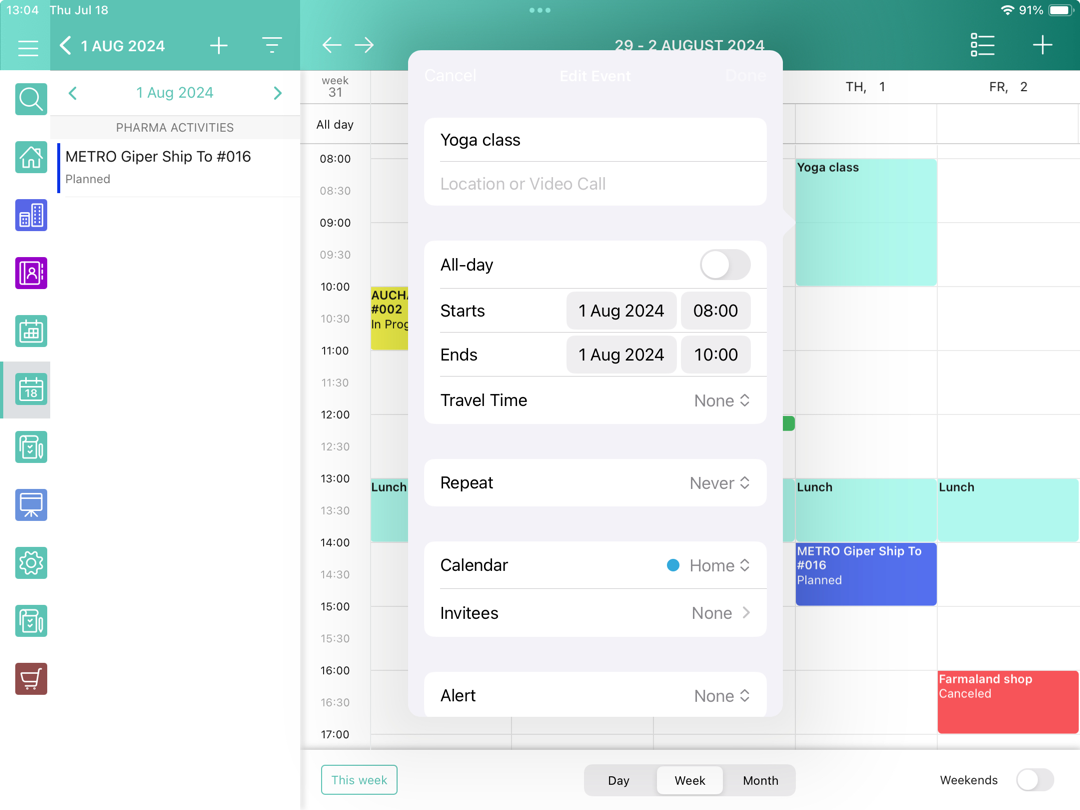
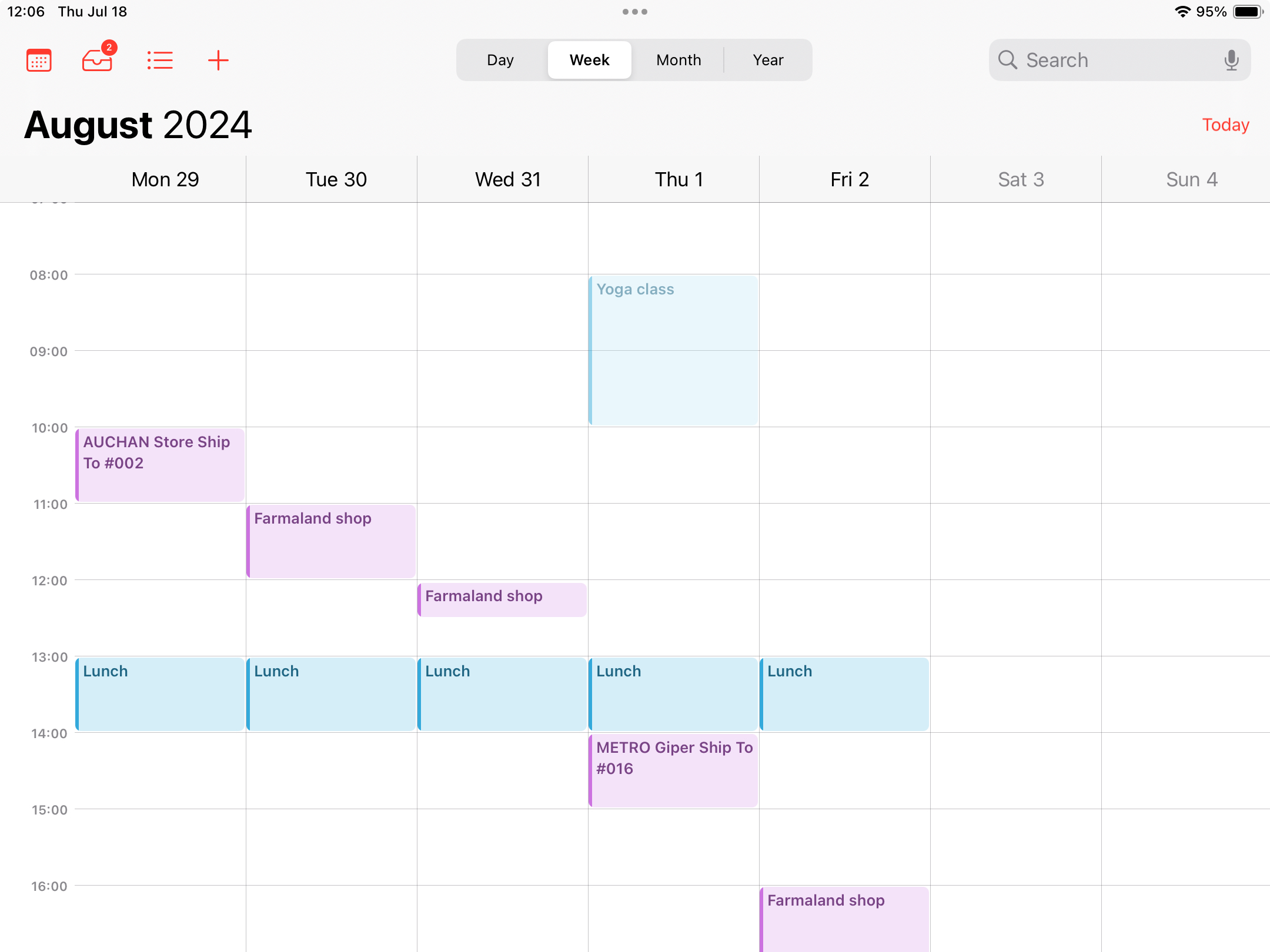
To show device calendars activities in the CT Mobile calendar, in iCal calendars to show, select one or more device calendars, e.g., Home and Work. As a result, activities from the device calendar(s) are displayed in the CT Mobile calendar (new records are not created). The color and name of each activity are the same as in the device calendar.
| Device Calendar | CT Mobile Calendar |
|---|---|
|
|

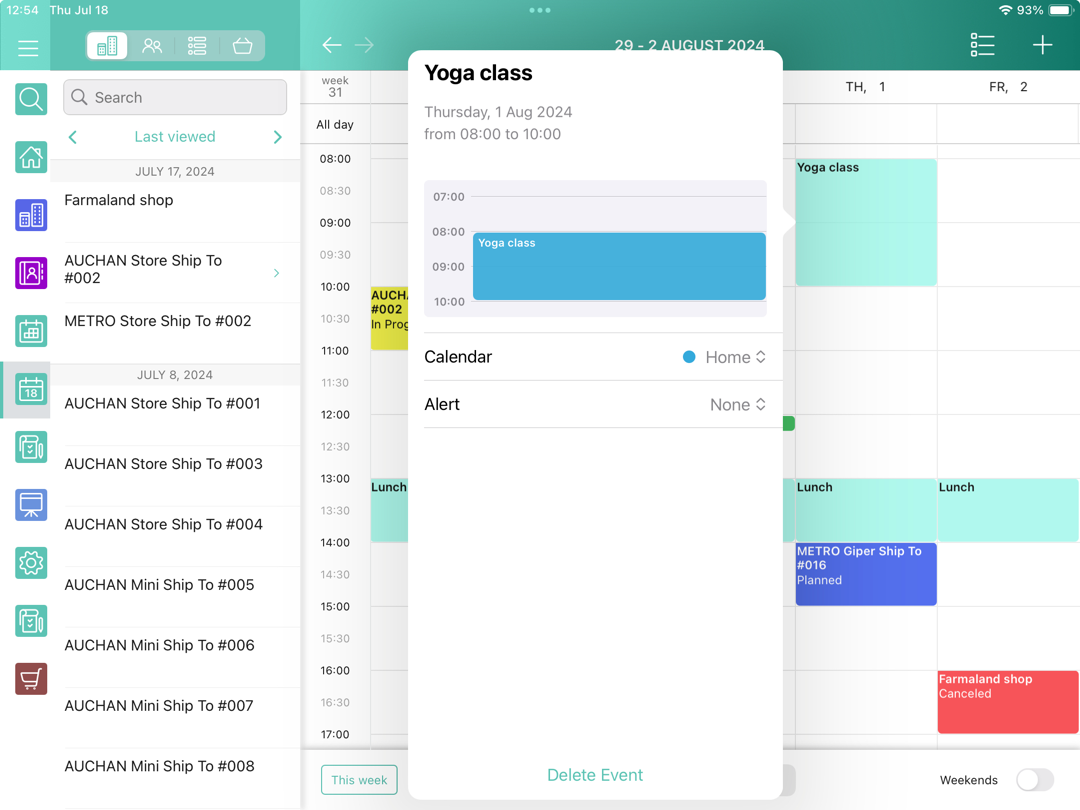
A mobile user can:
-
tap the activity to edit and delete a record, specify an event notification, and change the device calendar in the open pop-up;
-
double-tap the activity to view or edit the record details.