CT Mobile Control Panel: Calendar
The Calendar tab is intended to enable planning activities, manage Activity objects, and specify the view of the Calendar module.
According to the selected profile, settings on this tab will be saved in the corresponding fields of the Mobile Application Setup record.
Click to view the interface
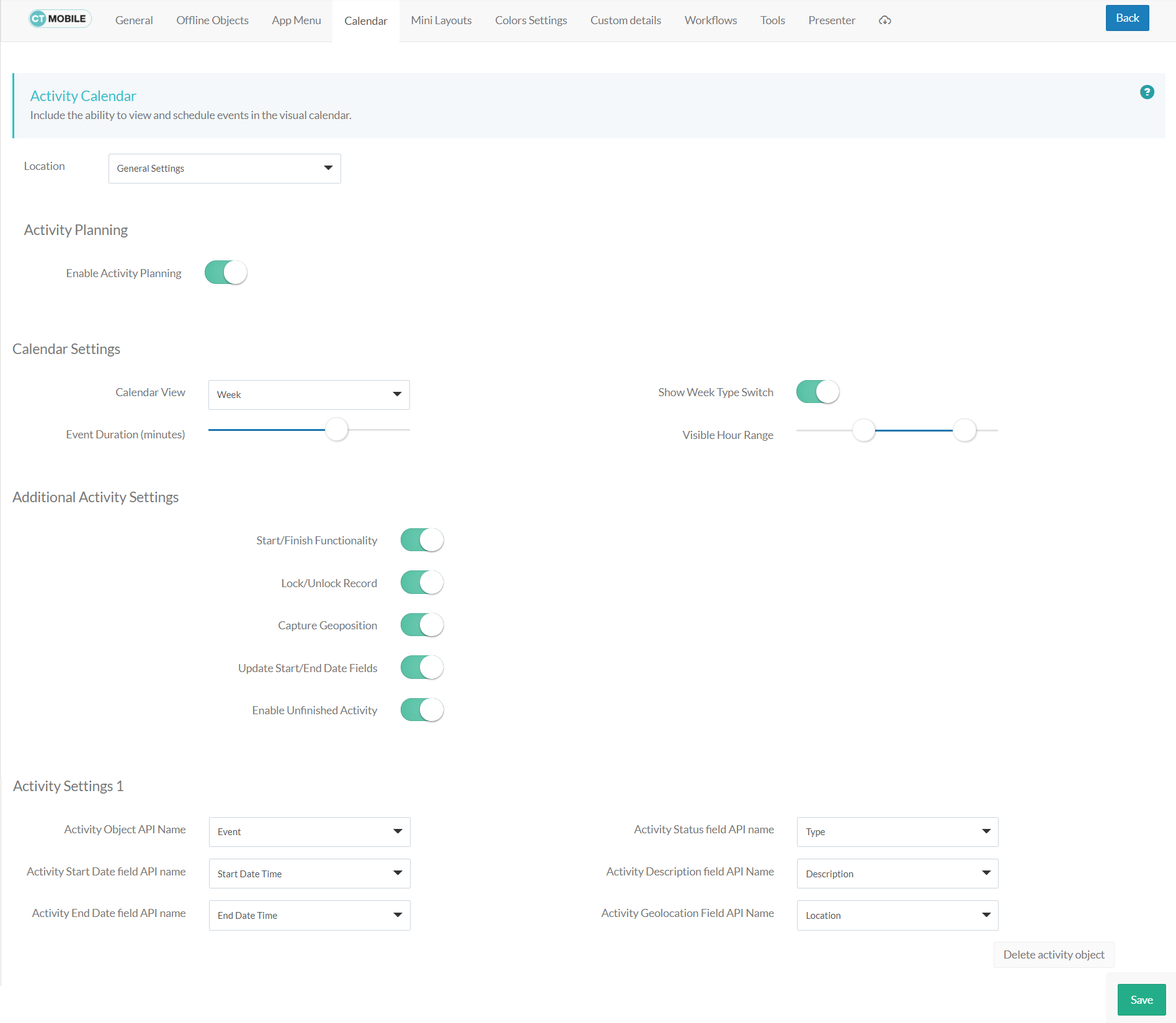
Location
Location is a picklist containing all configured and unconfigured profiles available in your Salesforce org. To apply settings to all the profiles, select General Settings.
To get started, select the desired profile in the Location field to configure it. To delete the configuration for the selected profile, click the  icon.
icon.
Activity Planning
If enabled, a user can create and manage activities in the Calendar, Nearby Accounts, and Routes modules.
Calendar Settings
Specify the view of the Calendar module.
Calendar View
From the Calendar View picklist, select the default calendar view. The available options:
-
Month
-
Week
-
Day
Event Duration (minutes)
Use the slider to specify the default duration in minutes for scheduled activities. Hover over the slider to see the value:
-
5 minutes: the leftmost position, the minimum default duration.
-
1 hour: the rightmost position, the maximum default duration.
Show Week Type Switch
If enabled, mobile users can use the toggle to display or hide weekends on the calendar grid.
Visible Hour Range
Use the slider to customize visible working hours. Hover over the slider to see the default visible hour range in the following format 8:20, where 8 is the earliest hour to show and 20 is the latest hour to show on the calendar grid.
-
0 hour: the leftmost position.
-
24 hours: the rightmost position.
Additional Activity Settings
Start/Finish Functionality
If enabled, the mobile user can start and finish an activity using the additional logic that may be applied to a started activity.
| If you have a CT Mobile Workflow using the Start or Finish buttons, the additional functionality listed below will be disabled even if these settings are applied. |
Lock/Unlock Record
If enabled, a record of the Activity object will be available for editing only after tapping the Start button. Tapping the Finish button will lock the record for any modifications.
Capture Geoposition
If enabled, tapping the Start button will record the current geolocation of the Activity record in the Activity Geolocation Field API Name field.
Update Start/End Date Fields
If enabled:
-
Tapping the Start button will update the value in the Start Date field of the Activity record.
-
Tapping the Finish button will update the value in the End Date field of the Activity record.
Enable Unfinished Activity
Enable this option, and the mobile user will be able to leave the started Activity record and then come back to finish the Activity record.
Activity Settings
Specify one or more Activity objects.
-
Click the Add new Activity object button to add and customize the required Activity object, such as Activity, Task, Event, and custom Activity objects. Each object has a title in the Activity Settings Number format, where the Number is the order number of the added Activity objects.
-
Click the Delete activity object button to remove the required Activity object and its settings.
Activity Start Date Field API Name
Specify the API name of the field with the Date/Time type that contains information on the start date of the Activity record.
Activity End Date Field API Name
Specify the API name of the field with the Date/Time type that contains information on the end date of the Activity record.
Activity Status Field API Name
Specify the API name of the field with the Picklist type that is responsible for the status of the Activity record.
Activity Description Field API Name
Specify the API name of the field with the Text type that will be used to store the description of the Activity record.
Activity Geolocation Field API Name
Specify the API name of the field with the Geolocation type where the geolocation data of the Activity record will be written.