Start/Finish Functionality
Enable the Start/Finish functionality to add the Start and Finish buttons to the Activity details screen.
Enable the Start/Finish Functionality
To enable the Start/Finish functionality:
-
In CT Mobile Control Panel
-
In CT Mobile Control Panel 2.0
-
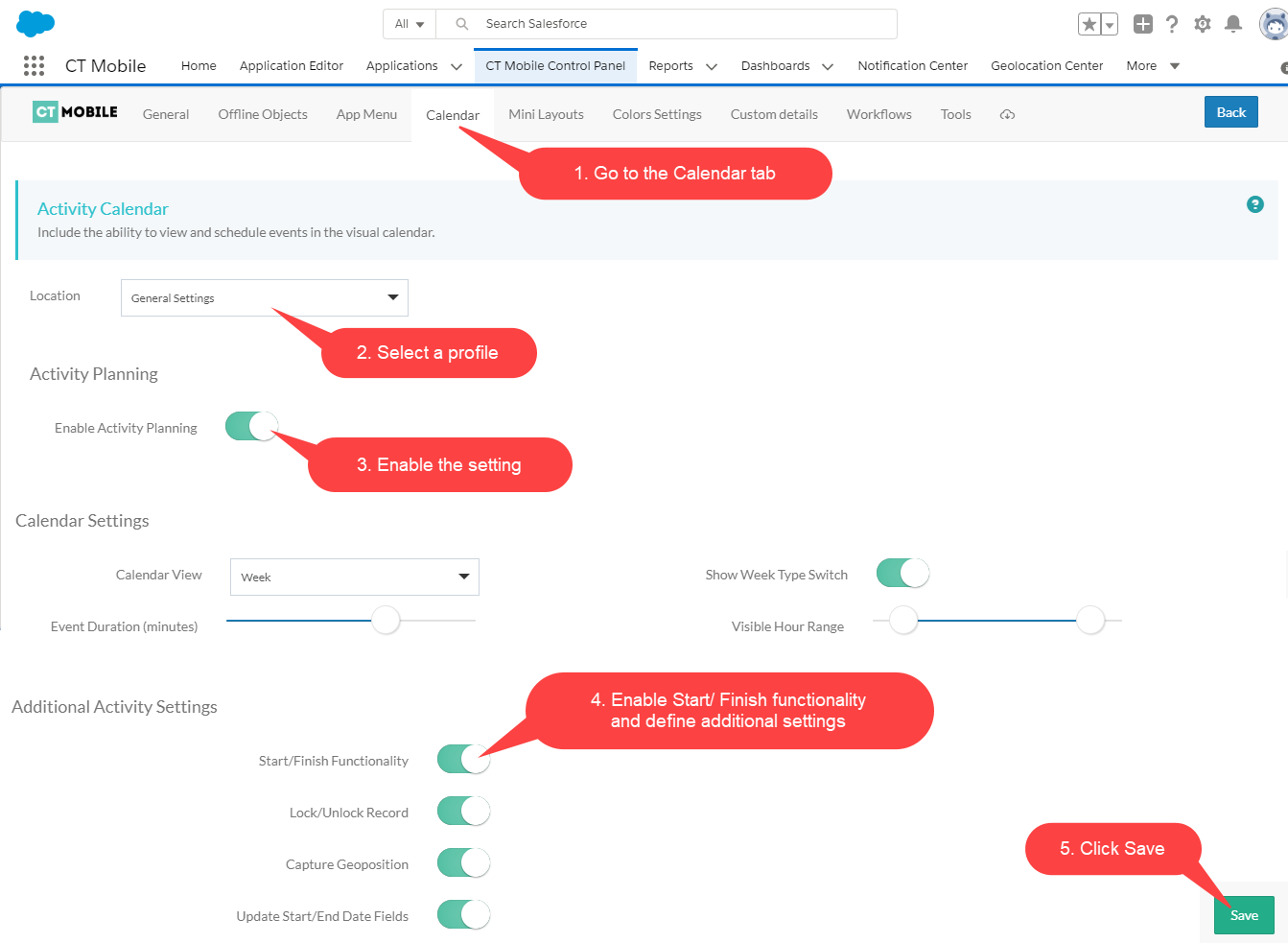
Select the required profile in the Location picklist. To apply settings to all the profiles, select General Settings.
-
Turn on the Enable Activity Planning.
-
Enable the Start/Finish Functionality. Select required options:
-
Lock/Unlock Record
If enabled, the Activity record will be available for editing only after tapping Start. When a mobile user taps Finish, the Activity becomes uneditable.
-
Capture Geoposition
If enabled, when a mobile user taps the Start button, the current geolocation will be written in the Activity Geolocation Field API Name field.
-
Update Start/End Date Fields
If enabled, when a mobile user taps the Start or Finish buttons, the Activity Start Date field and Activity End Date field will be updated.
If you assign a CT Mobile Workflow to the Start or Finish buttons, the Capture Geoposition and Update Start/End Date Fields functionality will be disabled even if these settings are applied.
-
-
Click Save.
-
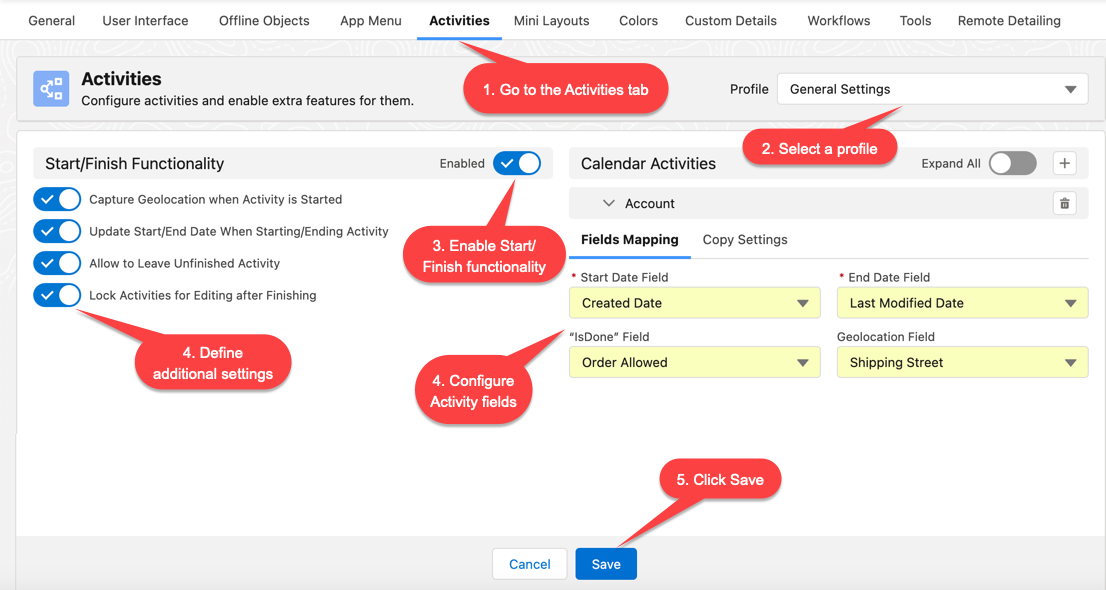
Select the required profile in the Profile picklist. To apply settings to all the profiles, select General Settings.
-
Switch on the Enabled toggle in the Start/Finish Functionality section.
-
Select required options:
-
Capture Geolocation when Activity is Started
If enabled, when a mobile user taps the Start button, the current geolocation will be written in the Geolocation Field.
-
Update Start/End Date when Starting/Ending Activity
If enabled, when a mobile user taps the Start or Finish buttons, the Start Date field and End Date field will be updated.
If you assign a CT Mobile Workflow to the Start or Finish buttons, the Capture Geolocation when Activity is Started and Update Start/End Date when Starting/Ending Activity functionality will be disabled even if these settings are applied. -
Allow to Leave Unfinished Activity
If enabled, the mobile user will be able to leave the started Activity record and then come back to finish the Activity record.
-
Lock Activities for Editing after Finishing
If enabled, the Activity record will be available for editing only after tapping Start. When a mobile user taps Finish, the Activity becomes uneditable.
-
-
Click Save.
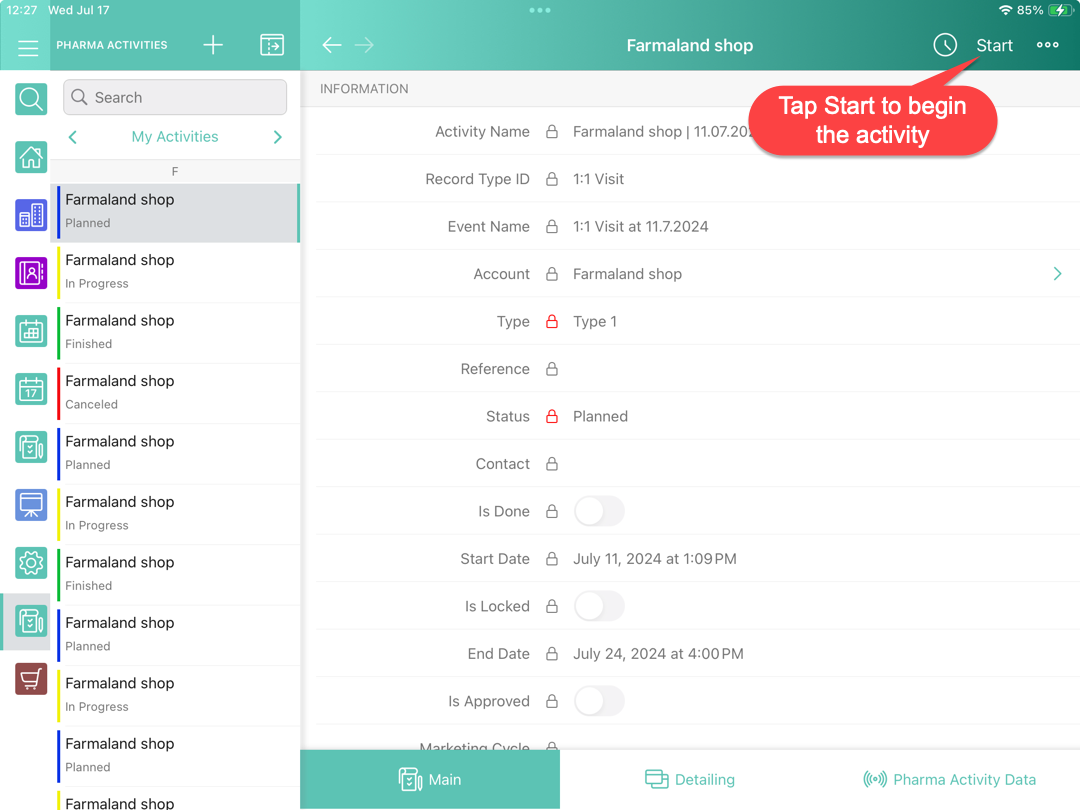
Now, the Start and Finish buttons are added to the Activity record screen.
Leave the Unfinished Activity/Allow to Leave the Unfinished Activity
-
In CT Mobile Control Panel
-
In CT Mobile Control Panel 2.0
The mobile user can leave the started Activity record when the Unfinished Activity Allowed field is selected on the corresponding Mobile Application Setup record.
-
Select this option on the CT Mobile Control Panel: Calendar.
-
The mobile user will be able to leave the started Activity record and then come back to finish the Activity record.
The unfinished Activity records will be synchronized. To restrict the unfinished record synchronizing:
-
Create the Started Activity checkbox with the default false value on the Activity object.
-
Create the CT Mobile Workflow on the Start button to change the false value of the checkbox to true.
-
Create the CT Mobile Workflow on the Finish button to change the true value of the checkbox to false.
-
Add the validation rule, which will be triggered when the Started Activity checkbox will have the true value. For example, «We remind you that the activity will not sync until it is completed».
The mobile user can leave the started Activity record when the Allow to Leave Unfinished Activity option is enabled.
-
Select this option on the CT Mobile Control Panel: Activities.
-
The mobile user will be able to leave the started Activity record and then come back to finish the Activity record.
The unfinished Activity records will be synchronized. To restrict the unfinished record synchronizing:
-
Create the Started Activity checkbox with the default false value on the Activity object.
-
Create the CT Mobile Workflow on the Start button to change the false value of the checkbox to true.
-
Create the CT Mobile Workflow on the Finish button to change the true value of the checkbox to false.
-
Add the validation rule, which will be triggered when the Started Activity checkbox will have the true value. For example, «We remind you that the activity will not sync until it is completed».
The setup is complete.