Email Templates
Email templates are the standard Salesforce functionality that can be used for sending files from Libraries and slides and attachments of CLM presentations.
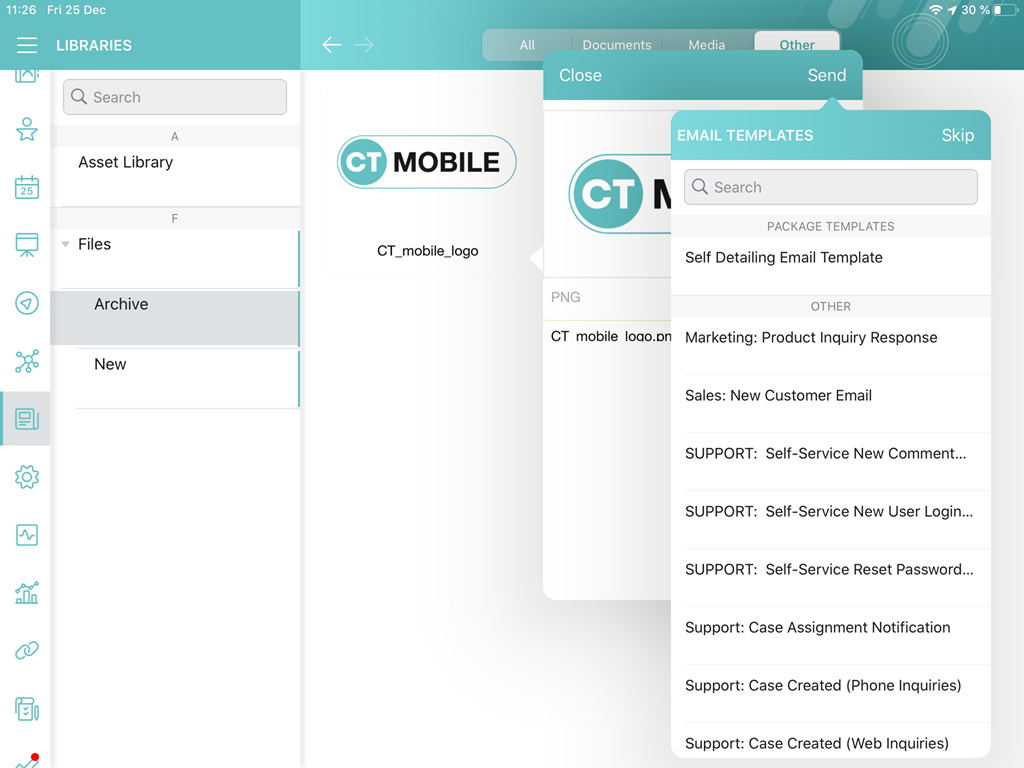
Using Email Templates
To use email templates in the CT Mobile app, they should be active, and the mobile user should have access to appropriate email templates.
Specify markers in the {!Object.Field} format to display CRM data, for example, {!User.Name}, {!User.LastName}, {!User.MobilePhone}.
Add images in templates:
A mobile user can send an email only to contacts who have a specified email address in Salesforce:
-
fill out the standard Email field for the desired Contact record;
-
if you use Person Accounts, fill out the standard Email field for the desired Person Account record.
Limitations
| Get familiar with the considerations and guidelines when using Email Template Builder. |
-
In the Salesforce Classic, the Visualforce email templates are not supported.
-
In the Lightning Experience, all email templates are supported except for the {{{Recipient.FirstName}}} markers.
-
The attached files are not supported.
-
Images used in a template and stored in the static resources or documents (without the selected Externally Available Image option) may not be downloaded during the sync process.
-
You can send an email using a third-party mail client (like Microsoft Outlook), if it is set as default in your iOS settings. In this case:
-
The recipient’s address will not be inserted automatically. Please copy and paste it manually.
-
The subject string will be duplicated in the message body.
-
If your email template includes HTML tags, they may not render correctly in Gmail client.
-
-
It may be needed to add the sender’s email to the trusted list of the mail service. For example, if you view the following:
