Remote Detailing 1.0: UI for Participants
Participants can view the remote CLM presentations on their PC, tablet, or mobile phone. The supported browser list is available here.
Join the Remote Detailing session
To join the meeting:
-
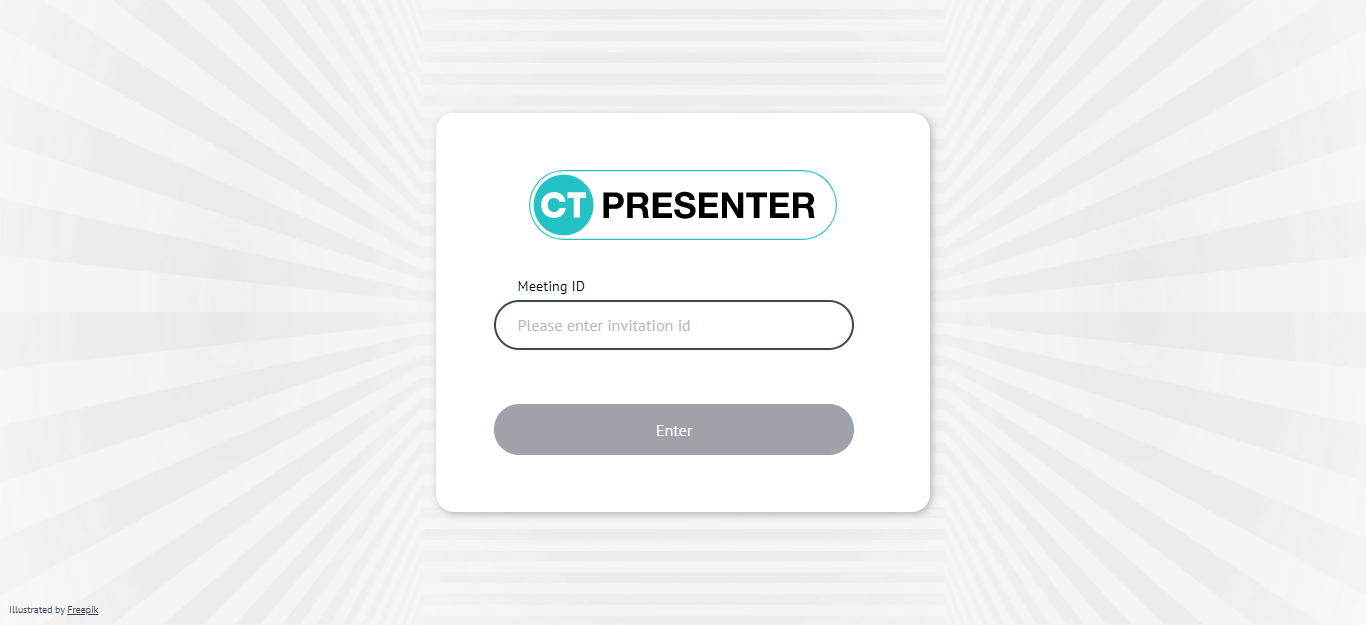
Click the invitation link to join the CLM presentation.
-
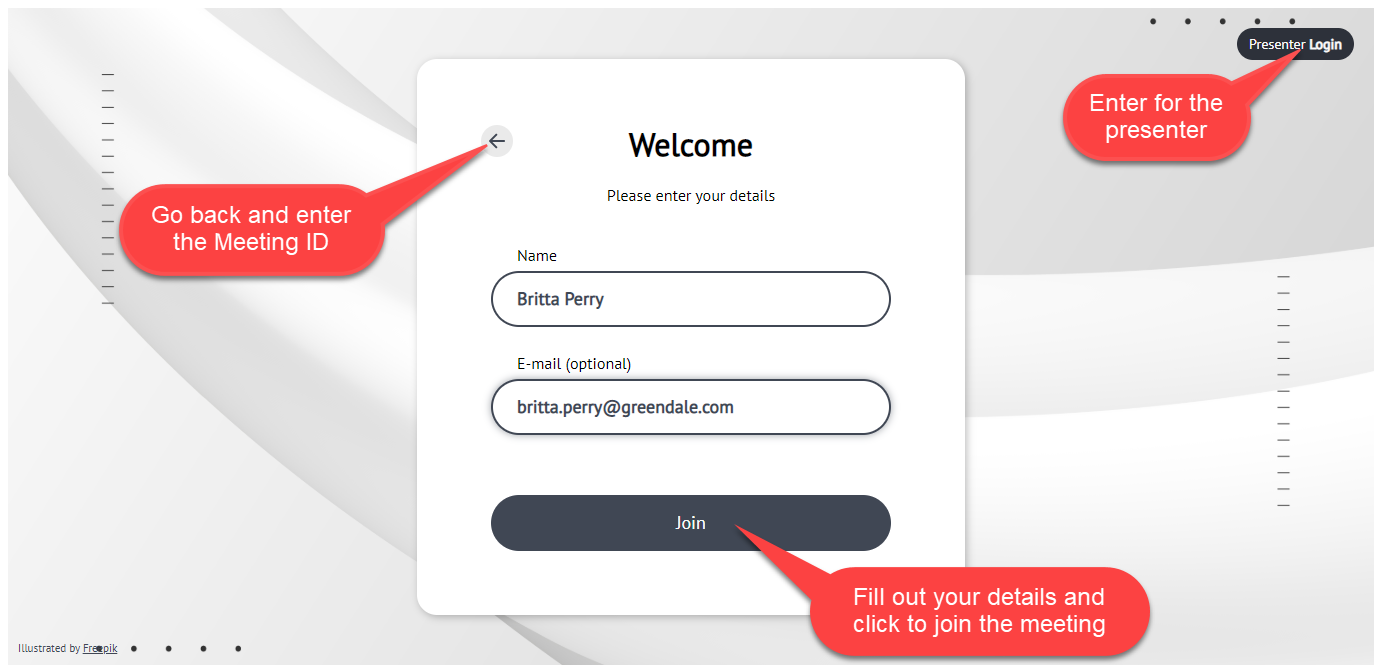
Enter username and e-mail (optionally) and click Join.
-
If the presenter did not start the Remote Detailing meeting, the Waiting… screen is displayed.
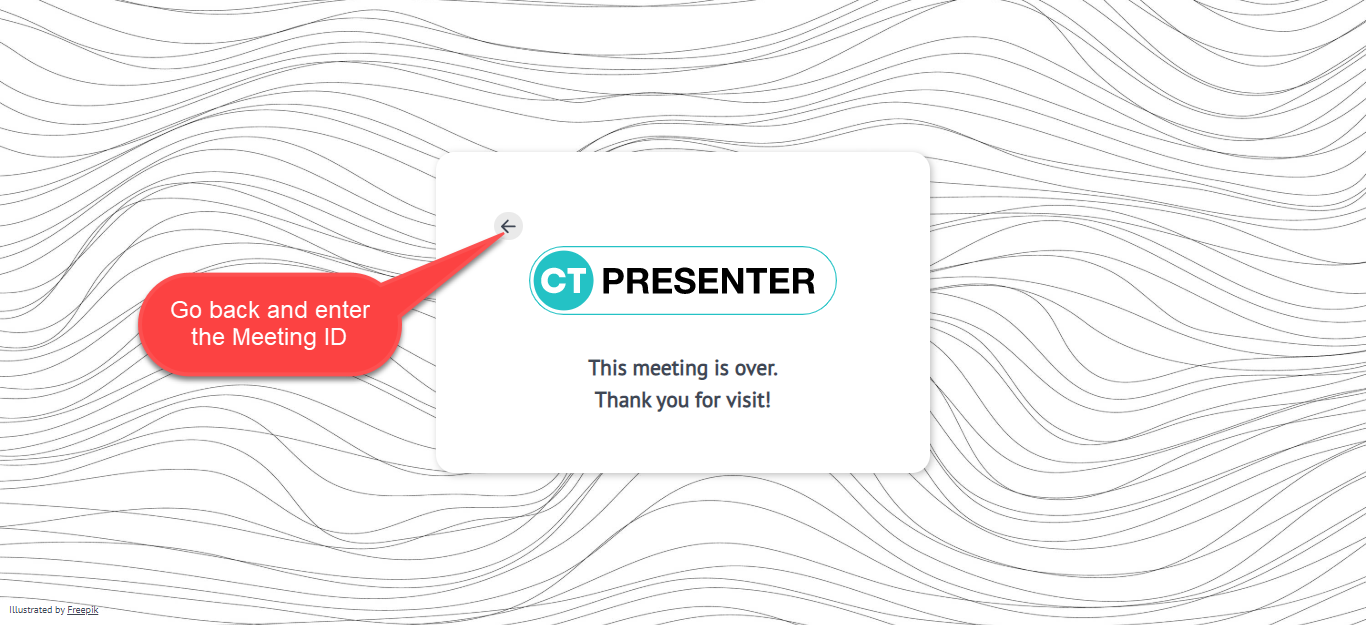
When the presenter joined, participants will be redirected to the Remote Detailing meeting window.
Participate in the Remote Detailing session
When the meeting starts:
-
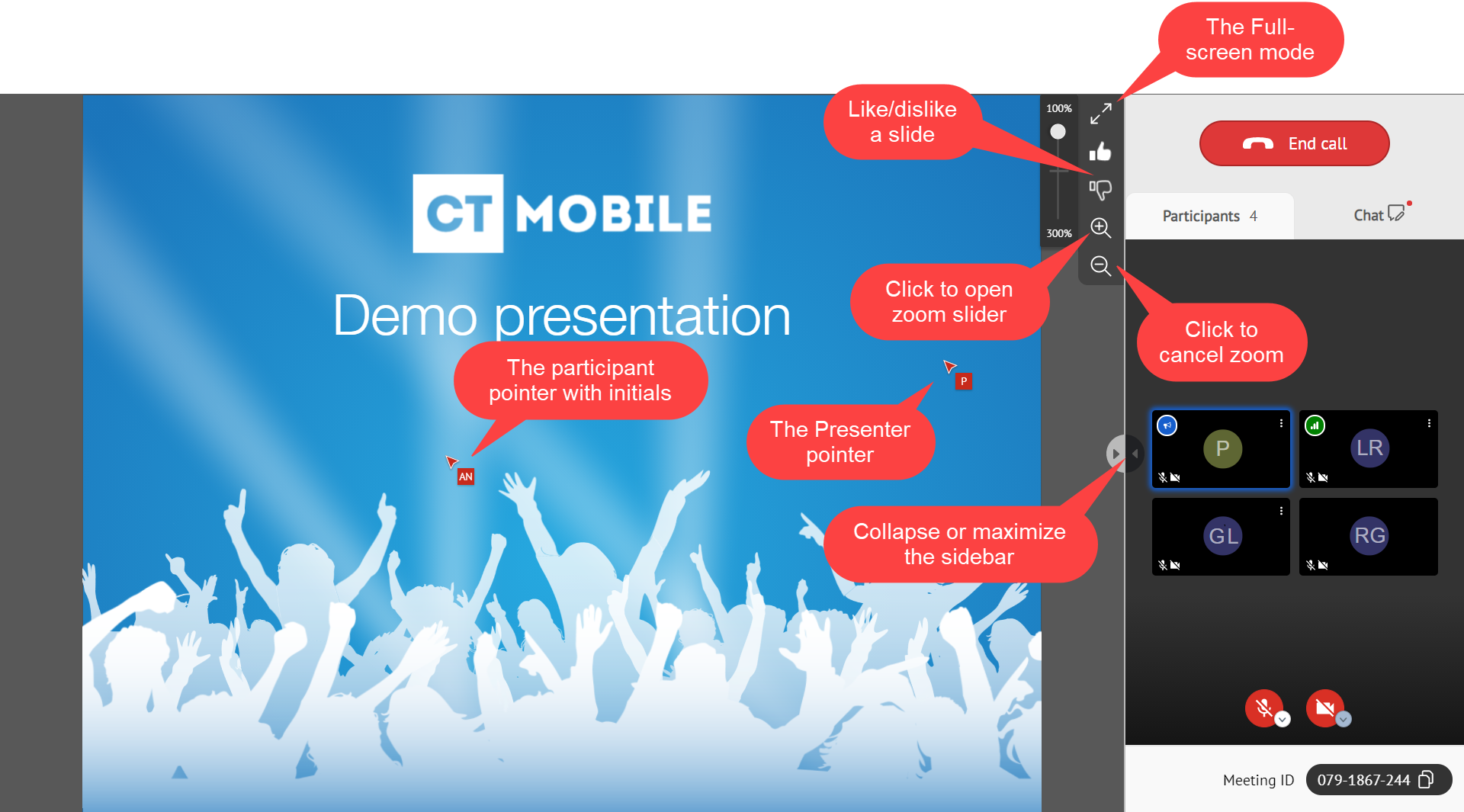
Zoom in or out with the slider for a comfortable view, or with the pinch gesture on tablets.
-
Activate the full-screen mode or maximize the sidebar if needed.
-
Like or dislike slide.
The Track slide likes/dislikes option should be enabled on the CLM presentation record and the presenter should allow like/dislike for participants. -
If the presenter allowed the remote control for the participant, the participant can interact with slides and use JS Bridge methods. The participant pointer is displayed for all participants. The slide navigation bar and the ability to select a CLM presentation are disabled.
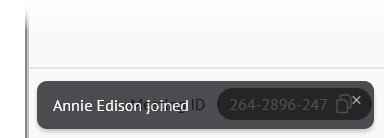
The pop-ups tip the participant about the newly joined users and users who left the meeting.
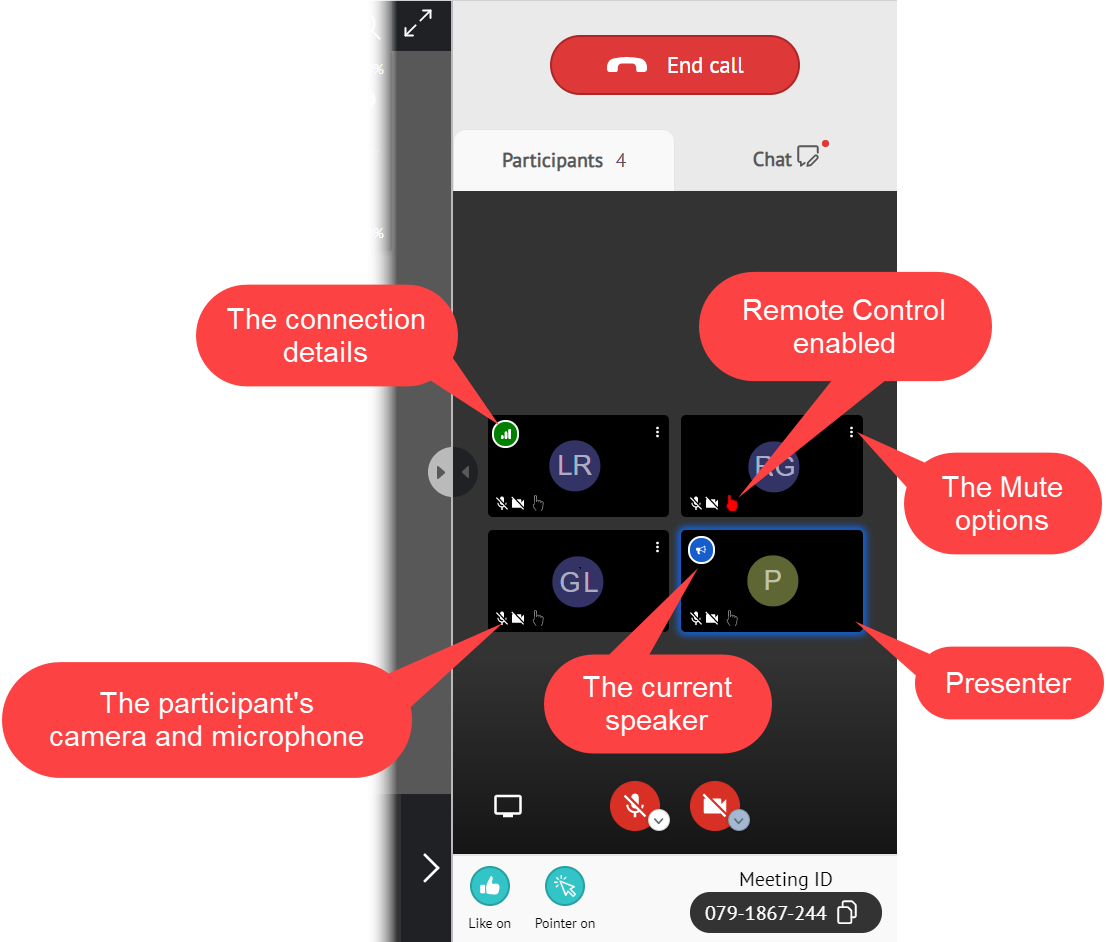
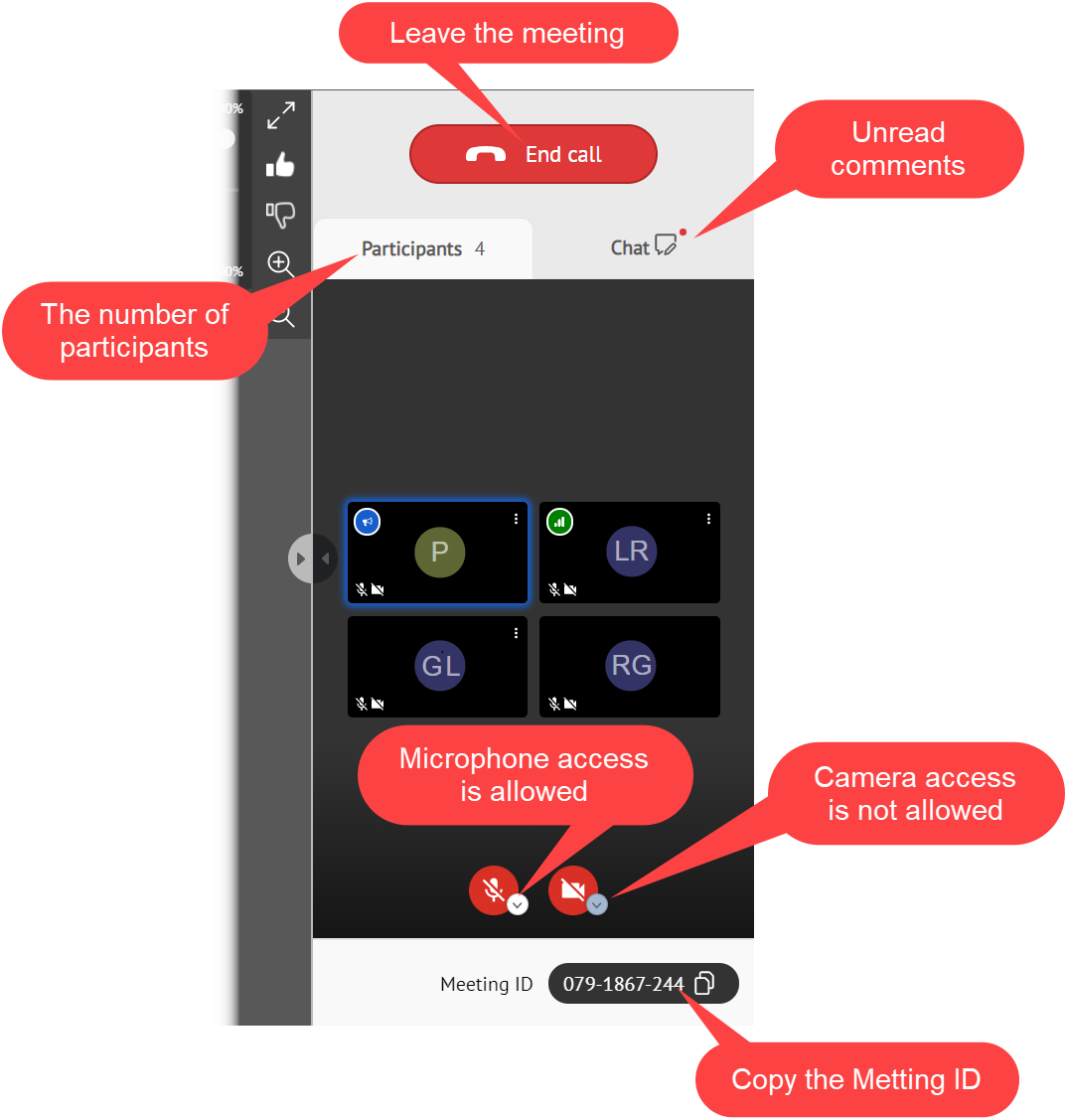
On the Participants tab of the sidebar, set up the view.
-
The Chat tab and video streaming may be enabled by the administrator on the CT Mobile Control Panel: Presenter / CT Mobile Control Panel 2.0: Remote Detailing tab.
-
Click to enable the microphone and camera. The warning will be displayed if permission is not granted.
-
Click the End call button to leave the meeting.
For each participant, the participant is allowed to:
-
Check their network details.
-
Open the Mute options and use the slider to set up a microphone volume for the selected participant. Mute the participant or mute all participants including yourself except for the selected participant.