CT Mobile Control Panel 2.0: App Menu
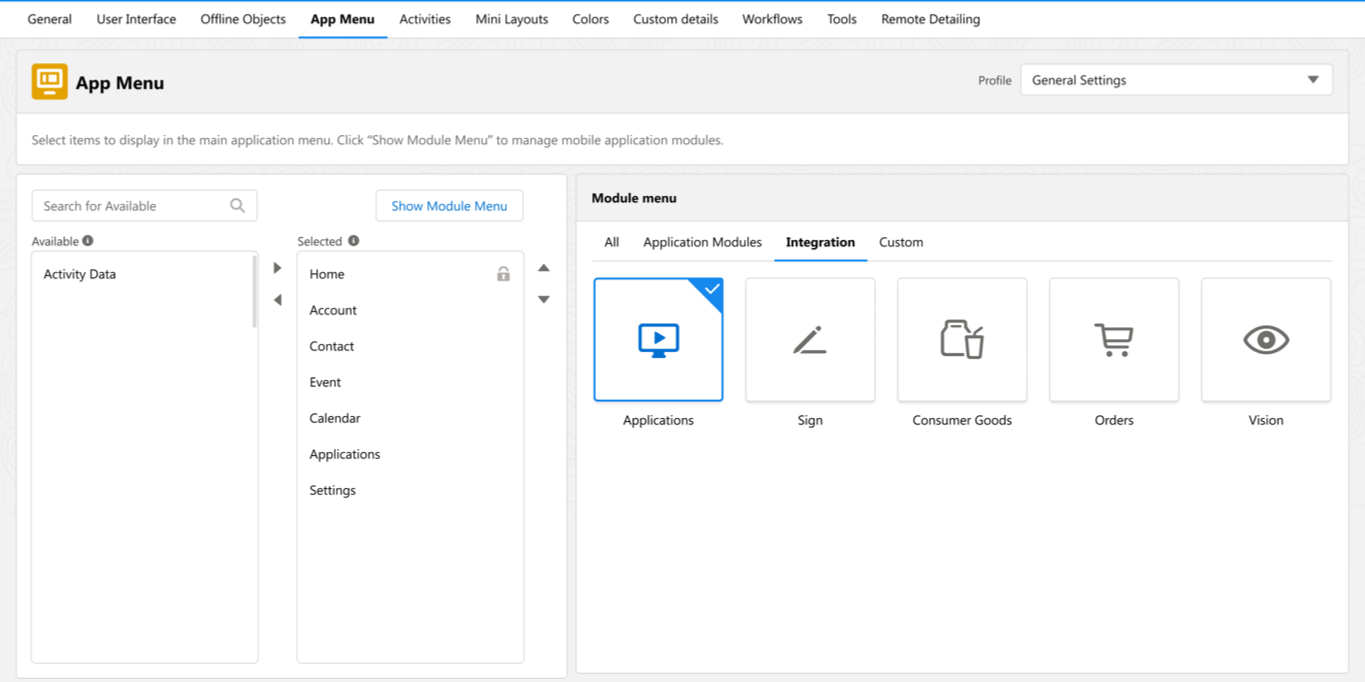
The App Menu tab is intended to set up menu items and their order in the main menu.
According to the selected profile, settings on this tab will be saved in the records of the CTM Settings object with the Menu record type.
Menu Items List
-
In the Search box, find the object that should be added to the main menu.
-
Click the object name in the Selected list to set up options for the object.
-
Use
 and
and  arrows to move items between Available and Selected lists. The Home item cannot be moved. Module items can be added and removed only by using the Module menu.
 -
Use
 and
and  arrows to reorder items in the Selected list. The Home item cannot be moved and is always on top.
Menu Items Options
According to the selected menu item in the Selected list, the available options are displayed on the right:
Home Screen
-
Enable the Customizable Screen option.
-
Click Add Widget to add a new widget; resize and arrange widgets.
Refer to Home screen for more details.
Offline Objects
-
Group records by the criterion and ascending or descending order of records.
-
Define fields available for filtering in mobile list view.
Refer to Managing Offline Objects for more details.
Calendar
Configure the Calendar options:
-
Activity Duration (min): specify the default duration in minutes for scheduled activities.
-
Default View: select the default calendar view. The available options:
-
Month
-
Week
-
Day
-
-
Visible Hour Range Start: specify the earliest hour to show on the calendar
-
Visible Hour Range End: specify the latest hour to show on the calendar
-
Show "Weekends" Switch: if enabled, mobile users can use the toggle to display or hide weekends on the calendar grid.
Refer to CT Mobile Control Panel 2.0: Activities to learn about calendar activities.
CT Orders
-
Product Object: select an object that will be used as a product.
-
Group records by the criterion and ascending or descending order of records.
Salesforce Content
Define the way how files uploaded to the Libraries module must be downloaded during synchronization. Available values:
-
Download As Preview: only preview images will be downloaded. Tap on the preview image to download the entire file.
-
Full Size: the entire file will be downloaded.
Module Menu
Add Module
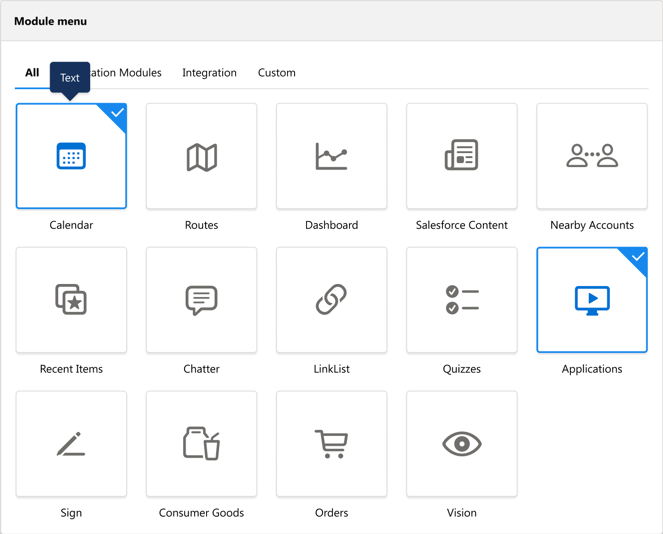
Click Show Module Menu to view the icons of the modules that can be added to the CT Mobile app. The modules' availability depends on the device platform.
Hover the cursor over a module to see its short description.
-
Click the icon to select the module.
-
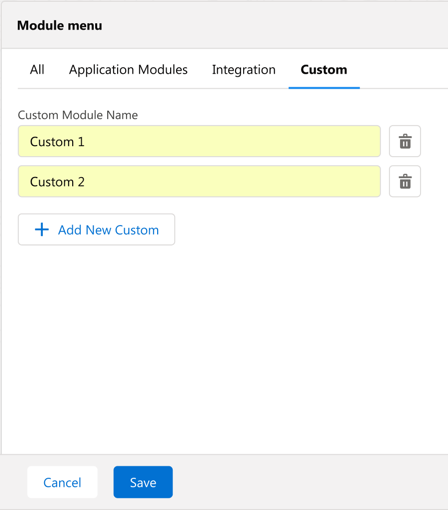
Switch between All, Application Modules, Integration, and Custom tabs to view appropriate modules.
-
Rearrange the menu items in the Selected list in the desired order.