Home Screen
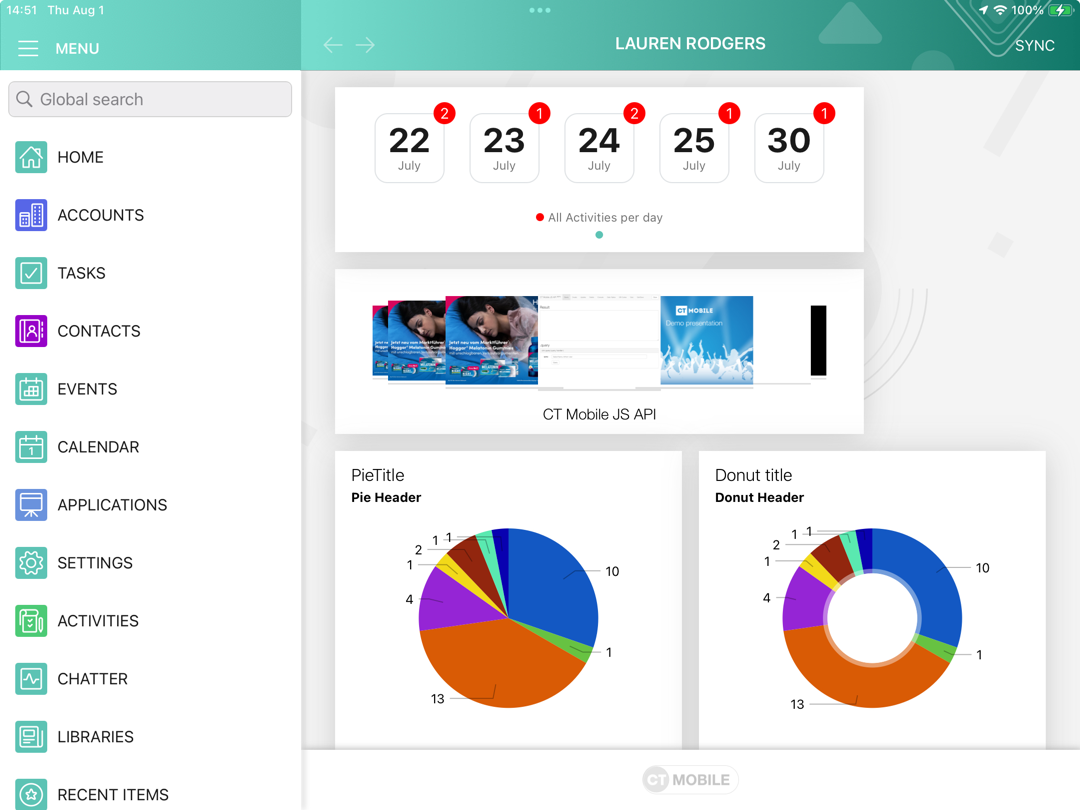
The Home Screen is the customizable starting page. By default, the customization is turned off and the Home Screen contains the logo, the carousel of CLM presentations if available due to proper permission settings, and the calendar widget. You can add, remove, and resize the elements on the Home Screen for each profile separately.
| Since CT Mobile 2.7, if there is no data for the added widget (e.g., CLM-presentations on the device or data for the reports), the widget icon is shown. |
Customize Home Screen
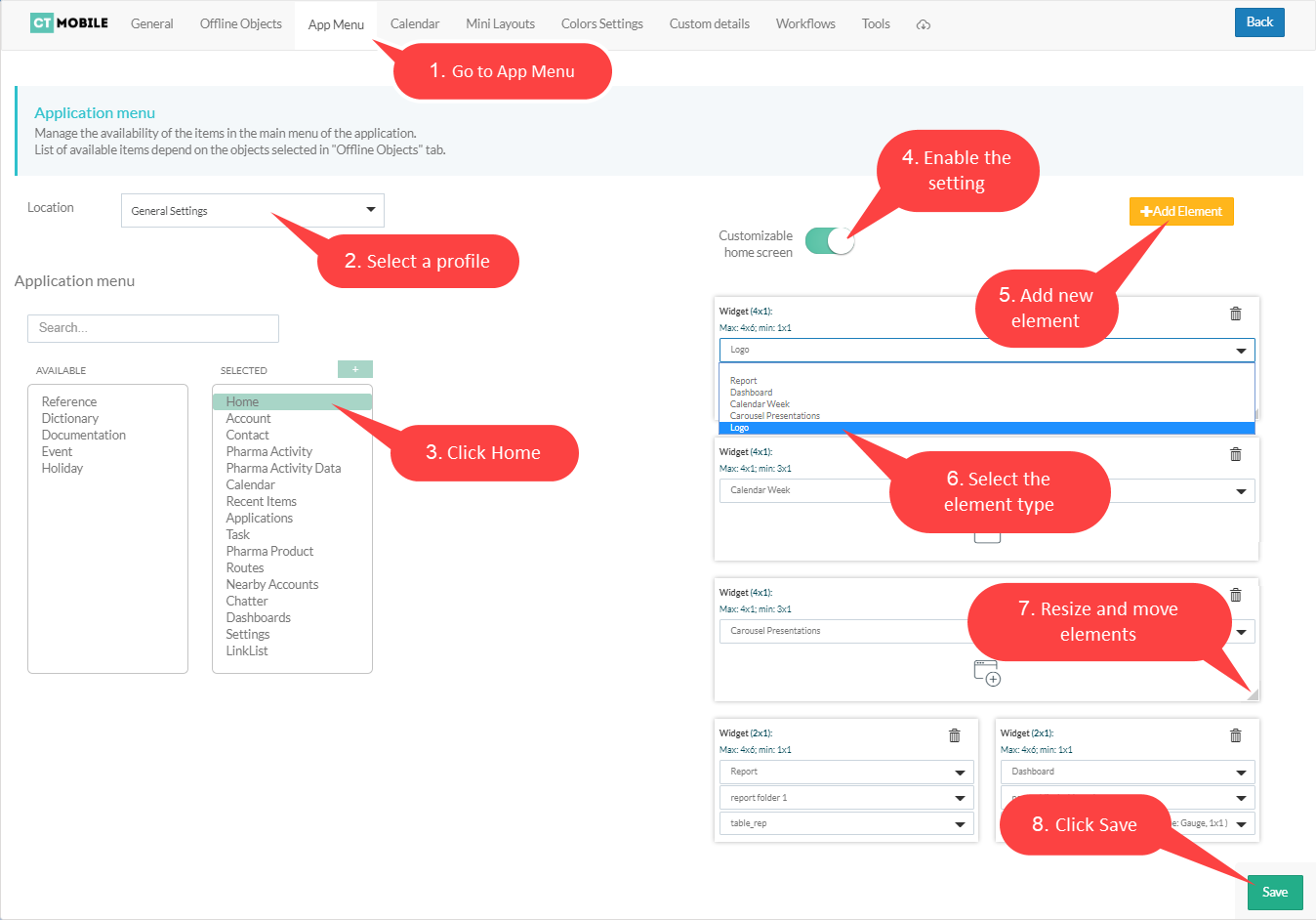
To customize the Home Screen:
-
In CT Mobile Control Panel
-
In CT Mobile Control Panel 2.0
-
Select the required profile in the Location picklist. To apply settings to all the profiles, select General Settings.
-
Click the Home item in the SELECTED list.
-
Enable the Customizable home screen setting.
-
Click Add Element.
-
Select the element type from the drop-down list.
-
Resize the element and define its position.
-
Click Save.
-
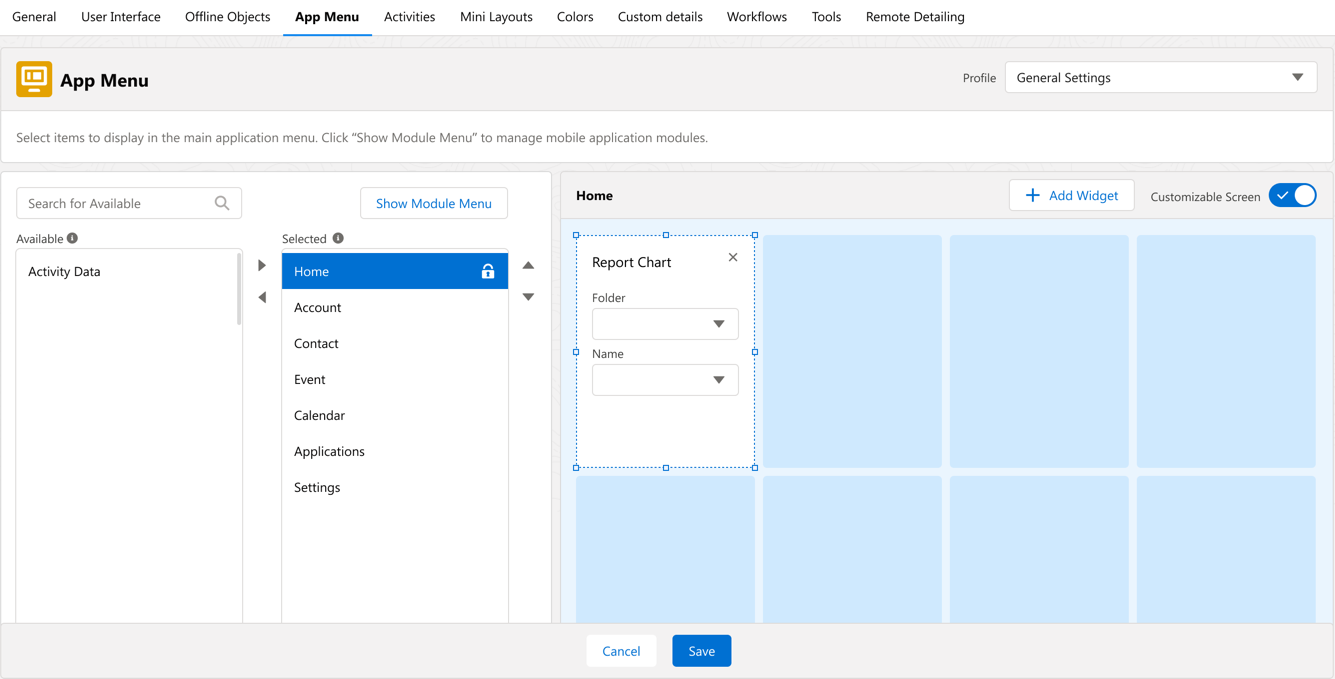
Go to CT Mobile Control Panel 2.0: App Menu tab.
-
Select the required profile in the Profile picklist. To apply settings to all the profiles, select General Settings.
-
Click the Home item in the Selected list.
-
Enable the Customizable Screen setting.
-
Click Add Widget.
-
Select the element type from the drop-down list.
-
Resize the element and define its position.
-
Click Save.
The Home Screen customization is completed.
-
The new record of CT Mobile Homepage Settings will be created. To view the file in Salesforce, switch Lightning Experience to Salesforce Classic, go to Documents and open the CT CLM folder.
-
If some changes were made to the customizable Home Screen, a mobile user can quickly update it by four times tapping. During the update of the Home Screen, the SYNC button is locked.
Widgets on the Home Screen
Logo
A logo can be specified per profile. Select a profile on CT Mobile Control Panel: General / CT Mobile Control Panel 2.0: User Interface and add a new logo.
Calendar
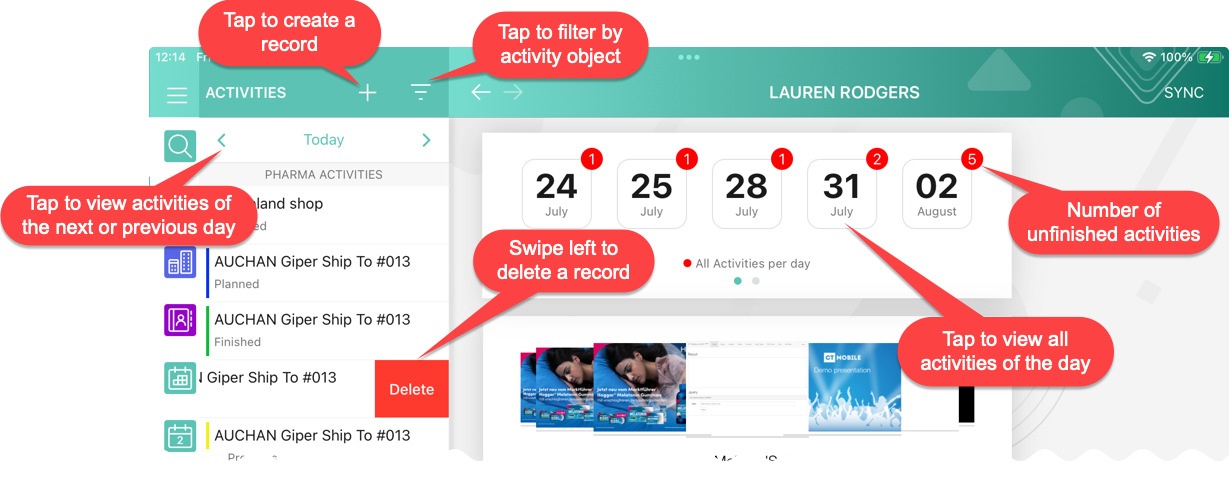
Starting from today, the widget shows activities of the two last and two next weeks.
-
When a user taps a day, all Activity records started on the selected day will be displayed in the left record list.
-
Tap the filter icon to select the Activity object and display its records.
-
Use arrows to view the Activity records of the previous or next day.
-
In the left records list of all activities of the selected day, the maximum number of records is 20.
In CT Mobile 2.5 the restriction has been removed. -
If the Start/Finish functionality is enabled, on activity is unfinished when the IsDone__c checkbox on the Activity object is not activated. If the user of the mobile device taps the Finish button on the activity screen, the IsDone__c checkbox will automatically be selected.
The API names of the checkboxes on the Activity objects, for example, the IsDone__c field, should be specified (separated by a comma, without blank space) in the clm__ActivityDoneAPI__c field on the Mobile Application Setup.
-
-
Tap the icon to view and manage all activities of that day if permission to create and delete records is granted.
-
To modify the All activities per day hint, create the CalendarWidget custom label with desired text label.
Carousel of CLM-presentations
Display the standard scenario and favorite custom scenarios of CLM presentations.
-
In the Applications module, add CLM-presentation(s) or scenario(s) to favorites. The favorite CLM presentations will be displayed in the carousel.
-
Scroll the carousel and tap on the CLM presentation to open it. In the presentation mode, use gestures and buttons.
-
If the CLM presentation was republished, the red dot will appear next to its screenshot in the carousel and next to the Applications label on the menu. Review the CLM presentation on your device.
Reports and Dashboards
| After creating or editing a dashboard or report, refresh the metadata archive to ensure that reports and dashboards have been included correctly. |
A mobile user can view dynamic report charts and dashboards:
-
The charts and dashboards should be available for the mobile user.
-
Since CT Mobile package version 4.8, we recommend creating dashboards and reports in Salesforce Lightning.
-
Reports, which are used for creating offline dashboards, should be located in custom folders, not in default package folders. If a report is based on an offline dashboard, the dashboard also should be located in a custom folder.
-
Objects used for chart building should be added to the list of the objects available offline (refer to CT Mobile Control Panel: Managing Offline Objects / CT Mobile Control Panel 2.0: Offline Objects).
On the Home screen, as well as on the mobile layout, only offline reports and dashboards are available. When a dashboard collects data that is not stored in the mobile application, for example, Sync Logs reports or CLM-presentation statistics, the message «No data to display» will be shown on the Dashboard widget. A mobile user can view these dashboards online in the Dashboards module if the module was added to the main menu.
-
To view or update dashboards and reports, launch a full synchronization. A valid cloud token is required.
-
Using the Fiscal year criterion in filters and in reports and dashboards criteria is working as the Calendar year.
Status Indicator
The Status Indicator in the lower part of the home screen informs you about the data relevancy and if the synchronization is required. The Indicator begins to blink if you have updated some records or haven’t performed the synchronization for a long time.
-
Tap the Indicator to see the number of such records and the synchronization age.
-
The Indicator has several statuses, which depend on the number of unsynchronized records and the date of the last synchronization.
-
Attachments also influence the Status Indicator. Each attachment counts for 25 records.
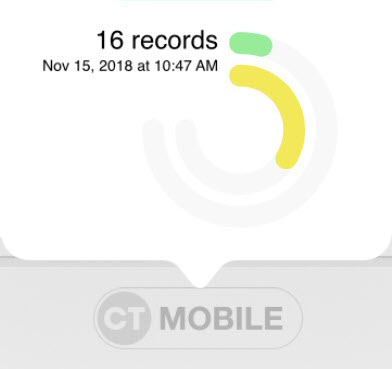
The statuses and their conditions are listed in the following table:
| Status | Number of Records | Synchronization Age, days |
|---|---|---|
|
0 |
0–2 |
|
1 |
3 |
|
2–150 |
4 |
|
151–300 |
5 |
|
301 and more |
6 and more |