Errors Screen
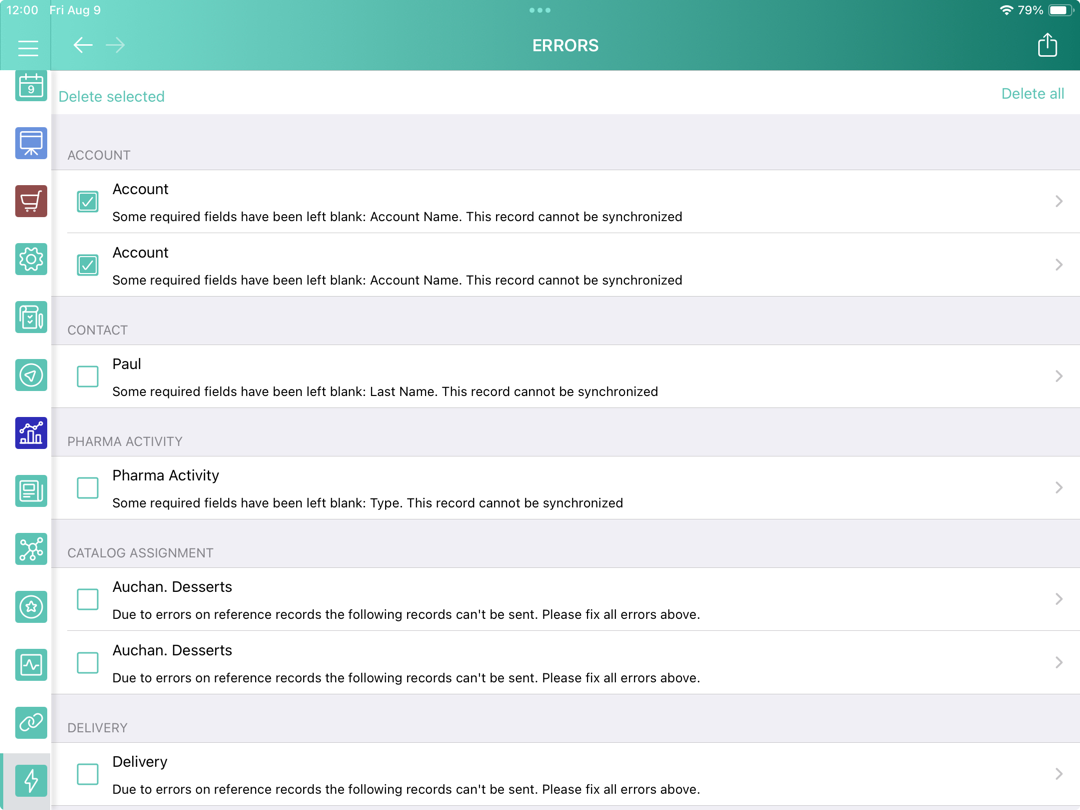
Errors occur due to violation of the validation rules and sharing rules or due to insufficient profile access. The Errors menu item is intended to manage errors in one place and will be displayed:
-
If the user postponed fixing errors on the record screen.
-
The validation rule is violated on a record, and the user leaves the record screen.
-
The start date of an activity record is later than the end date, and the user leaves the record screen.
-
The required field is blank on a record or within the custom related list, and the user leaves the record screen.
-
If, for any other reason, a record cannot be successfully synchronized with Salesforce (e.g., a required lookup filter rule has been violated), that record will also appear on the error screen.
-
-
If you launched the sync process and sending changes to some records fails due to:
-
Revoked access to some records.
-
Insufficient access to a record or a field of the record, the required field is empty, etc.
-
The list of error records is grouped by the object type. Each error record displays the text of the error.
Actions with Error Records
To view a record that was not synchronized and fix the issue, tap the error record.
-
The record layout opens.
-
The Custom Related List tab with an error on the parent record opens.
To delete error records from the list:
-
Select one or several records and tap the Delete selected button.
-
Tap the Delete all button to delete all error records.
All the changes made by the user are canceled. The previously synced records will be rollbacked to the state after the last successful synchronization. Unsynchronized records will be deleted.
Tap the  button to send the .csv file with all records from the Errors list including all filled-in fields on these records.
-
The file name and format: {Object Api-Name}.csv.
-
The .csv file will be packed in a ZIP archive as an attachment to the Sync Log record.
To use this option, the cloud token should be valid (refer to CT Mobile Control Panel: Tools / CT Mobile Control Panel 2.0: Tools). In the case the cloud token is not specified, the password will be ctmobile.
It is possible to enable the following functionalities to process the errors:
-
Sync Recovery: to send records as usual or as the JSON file for post-processing by the administrator.
-
CT Mobile Replication: to download related records and hide the no more available ones on the current user’s device due to changes in sharing rules.