CT Mobile Replication: Use Cases and Steps
CT Mobile Replication is intended to save the consistency of the records available for the current user. With the configured and enabled CT Mobile Replication, the fast synchronization will take longer.
The CT Mobile Replication Example
For example, 100 records of the Account object with related Contacts and Activities were downloaded via full synchronization. Then, sharing rules for Accounts were modified on the Salesforce side, and some records became inaccessible, but some other records are now available for the current user. Therefore, any changes in the no longer available Account records will lead to errors, and the newly available records will not be downloaded on the device.
Create a CT Mobile Replication setting to update Account and Contact records for the corresponding user during the fast or mixed synchronization. After performing the CT Mobile Replication setting, the appropriate records will be downloaded, and no longer available records will be hidden.
To create the CT Mobile Replication setting:
-
Go to Setup→ Custom Code → Custom Metadata Types.
-
Click Manage Records next to CT Mobile Replication.
-
Click New.
-
Fill the following fields in:
-
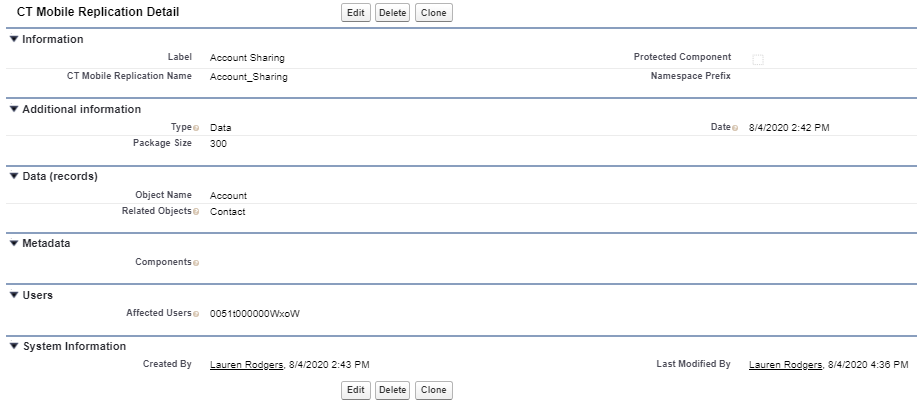
specify Label.
-
specify Data in the Type field.
-
by default, the package size is 300.
-
specify Account in the Object Name field.
-
specify Contacts in the Related Objects field.
-
specify user ID(s) to apply the CT Mobile Replication setting to appropriate users, or left the Affected Users field blank to apply the settings for all users.
-
-
Click Save.
The CT Mobile Replication is set up.
Steps of the CT Mobile Replication Process
Prerequisites
-
Create and update record settings:
-
The CT Mobile package does not have the logic of creating record settings when access rights to an object are updated in Salesforce. It is configured based on the customer’s requirements.
-
The CT Mobile package includes the logic of updating record settings when metadata is altered in Salesforce. No additional development is required.
-
-
To update nested parent records, create a CT Mobile Replication setting for each parent-child pair. For example, in the case of the parent 1 → parent 2 → child structure, create the CT Mobile settings for the parent 1 → parent 2 pair and for the parent 2 → child pair.
The steps
-
Create the CT Mobile Replication setting(s).
-
To update records of the specific object, fill the clm__ObjectAPIName__c field in with the API name of the required object.
-
To update records of parent and child objects with the master-detail relationship, add the API name of the parent object in the clm__ObjectAPIName__c field. Specify API name(s) of child objects in the clm__RelatedObjects__c field (separated by a comma, without blank spaces).
-
To update records of objects with the lookup relationship, create separate CT Mobile Replication settings, and fill in the clm__ObjectAPIName__c field with the API name of the required object.
-
-
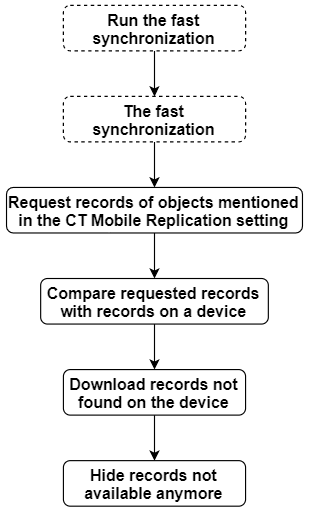
The CT Mobile app requests the ID of all records of the object specified in the clm__ObjectAPIName__c field from Salesforce given the conditions in Related List Filters.
-
The CT Mobile app compares the requested records with the records on the mobile device by ID.
-
The records of the parent object:
-
are downloaded by ID if they are not on the mobile device.
-
are hidden if their IDs haven’t been found in step 3.
-
-
The records of the child objects mentioned in the clm__RelatedObjects__c field:
-
are downloaded by ID, given the conditions in Related List Filters, and according to the ID of the records of the parent object if they were downloaded.
-
are hidden according to the ID of the records of the parent object if they were hidden.
-