Home Screen
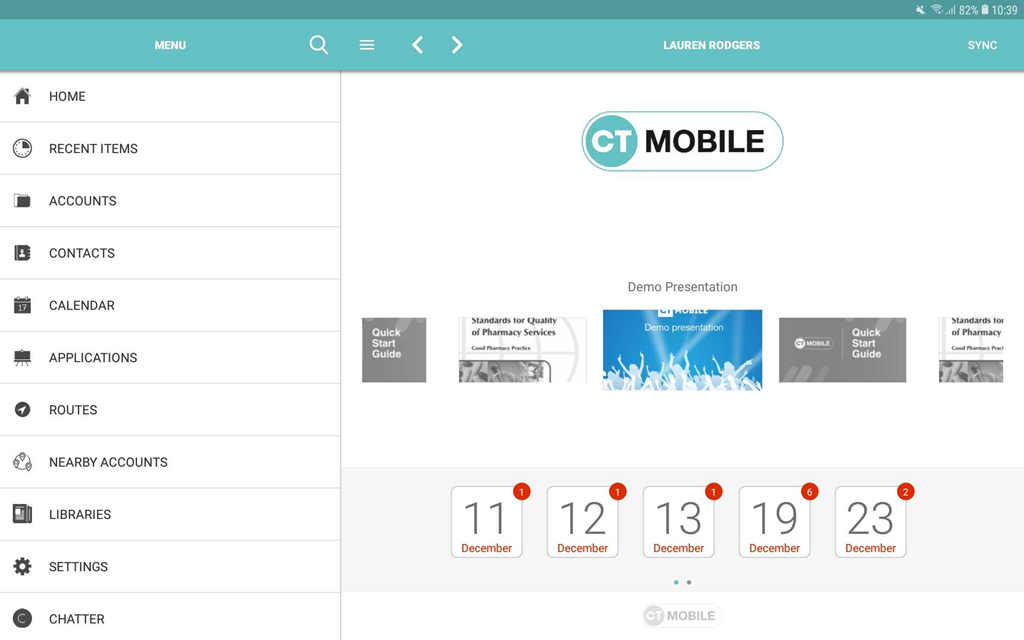
The Home Screen is the customizable starting page. By default, the customization is turned off and the Home Screen contains the logo, the carousel of CLM presentations if available due to proper permission settings, and the calendar widget. You can add, remove, and resize the elements on the Home Screen for each profile separately.
Customize Home Screen
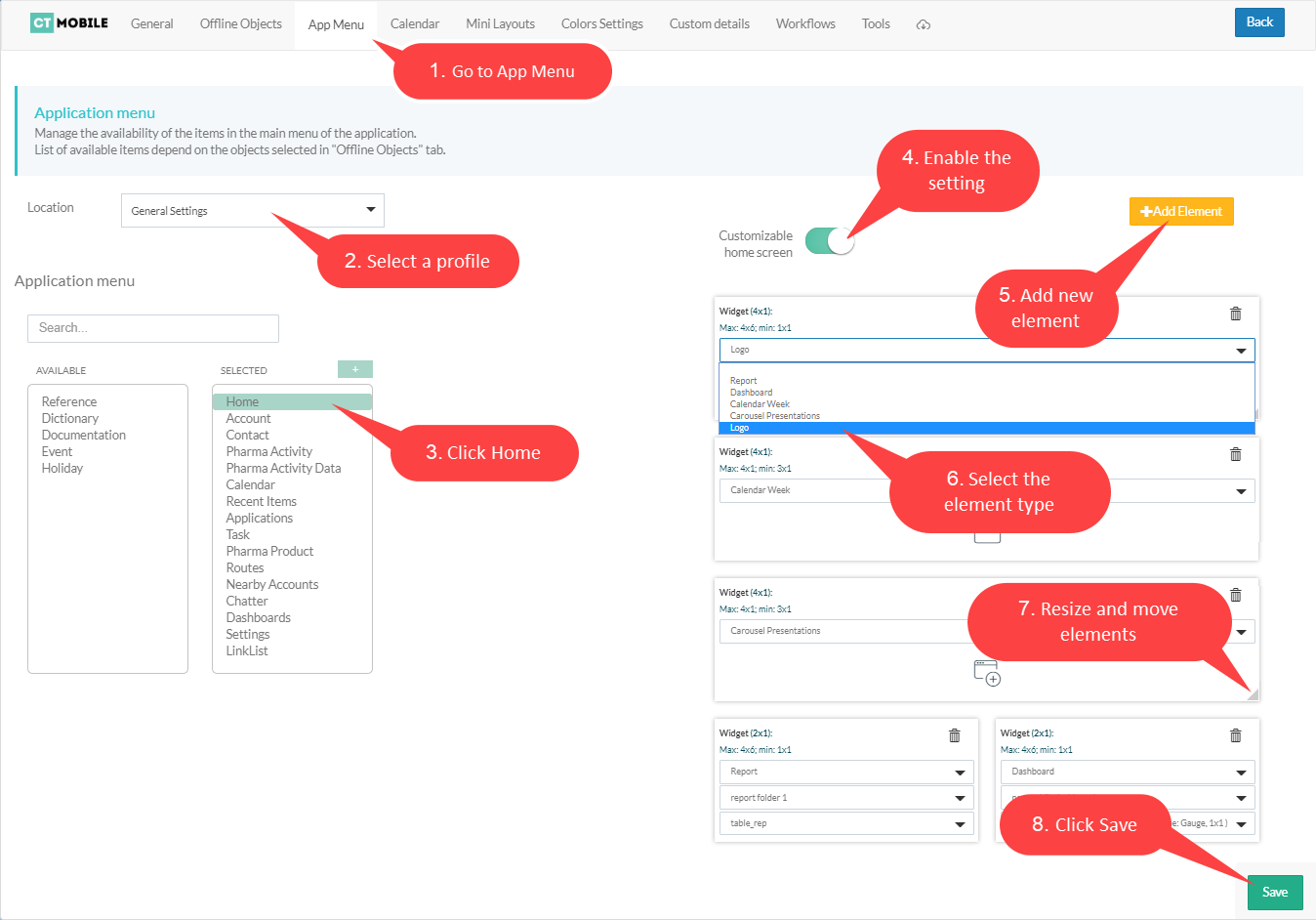
To customize the Home Screen:
-
Select the required profile in the Location picklist.
General Settings will be applied to all the profiles without individual settings. -
Click the Home item in the SELECTED list.
-
Enable the Customizable home screen setting,
-
Click Add Element.
-
Select the element type from the drop-down list.
-
Resize the element and define its position.
-
Click Save.
The Home Screen customization is completed.
-
The new record of CT Mobile Homepage Settings will be created. To view the file in Salesforce, switch Lightning Experience to Salesforce Classic, go to Documents and open the CT CLM folder.
-
If some changes were made to the customizable Home Screen, a mobile user can quickly update it by four times tapping.
Widgets on the Home Screen
Logo
A logo can be specified per profile. Select a profile on CT Mobile Control Panel: General and add a new logo.
Calendar
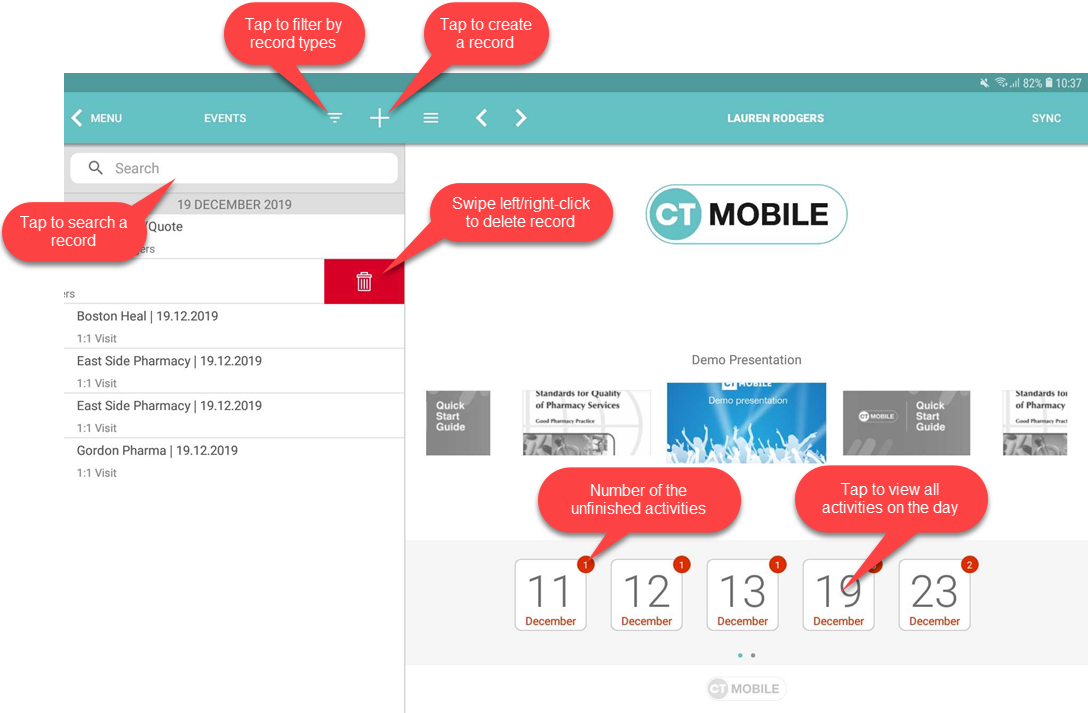
Starting from today, the widget shows activities of the two last and two next weeks.
-
When a user taps a day, all Activity records started on the selected day will be displayed in the left record list.
-
Tap the filter icon to select the Activity object and display its records.
-
-
Tap the icon to view and manage all activities of that day if permission to create and delete records is granted.
Carousel of CLM-presentations
Display the standard scenario and favorite custom scenarios of CLM presentations.
-
In the Applications module, add CLM-presentation(s) or scenario(s) to favorites. The favorite CLM presentations will be displayed in the carousel.
-
Scroll the carousel and tap on the CLM presentation to open it. In the presentation mode, use gestures.