Managing Offline Objects
Specify objects that should be available offline, customize user permissions, and add and configure standard related lists.
| This article describes how to configure offline objects and standard related lists. To configure a custom related list, refer to Custom Related Lists. |
| Remote site settings should be specified. |
Add Offline Objects
To add an object to work with it in the CT Mobile app:
-
Select the required profile in the Location picklist.
General Settings will be applied to all profiles without individual settings. -
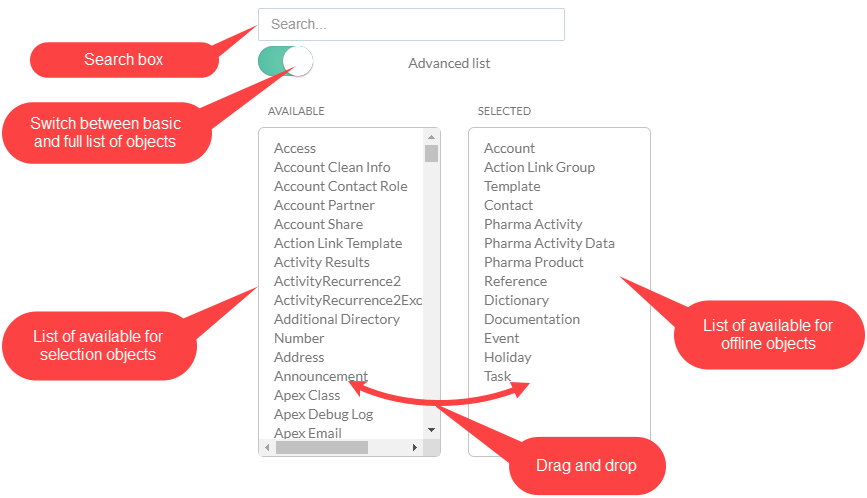
Using drag-and-drop add the desired objects from the Available list to the Selected list.
-
The Available list contains all objects, but only objects in the Selected list will be available offline.
Please make sure that the current profile has at least View permission for the selected objects. You can review the profile’s permissions in Setup → Users → Profiles. -
By default, the Available list contains only the objects with the page layouts. Enable the Advanced List option to also display objects without page layouts.
-
Enter the label or API name of the desired object in the Search box to find it in the Available list.
-
To display objects in the desired order in the CT Mobile app menu, re-order them in the Selected list.
-
-
Click Save.
The setup is complete.
Set up Permissions to Offline Objects and Standard Related Lists
| These settings cannot overcome the user’s profile permissions. |
To set up permissions for the offline object:
-
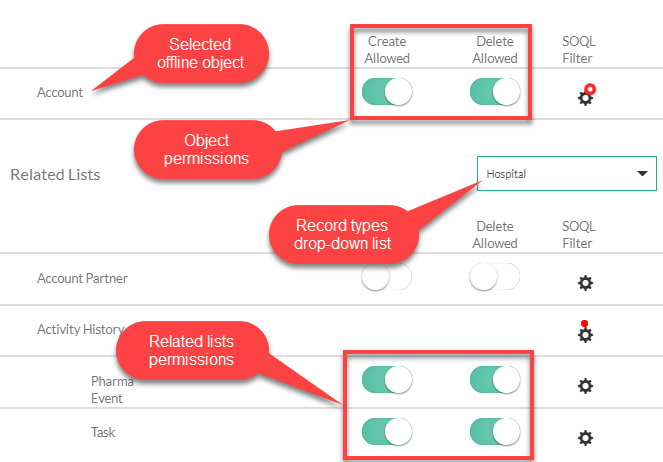
Click the offline object in the Selected list. The Object Permissions options appear on the right side of the screen.
-
In the Object Permissions section, use toggles to grant permission to create and delete records of the offline object.
This permission will not affect the ability to create or delete a record of the current object in the Related Lists section of another offline object. For example, if you restricted the creation of a Contact record in the Object Permission section, you may allow creating the Contact records in the Related Lists section of the Account object. -
In the Related Lists section:
For more information, refer to Standard Related Lists. -
Select the record type of the offline object from the drop-down list of record types available for the user profile.
-
Use toggles to grant permission to create and delete records of the standard related lists.
-
-
Click Save.
The permissions are set.
Set up SOQL Filters
SOQL filters are available both for offline objects and standard related lists.
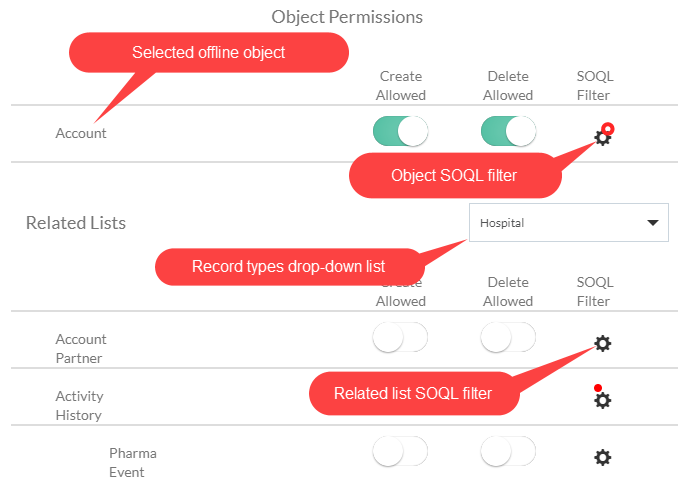
Click the SOQL filter icon to specify the required criteria.
Offline Objects
Use SOQL filters to sort the records of selected offline objects and download only those records that meet the criteria to your mobile device.
To set up a SOQL filter:
-
In the Object Permission section, click the setup icon
 next to the offline object.
 -
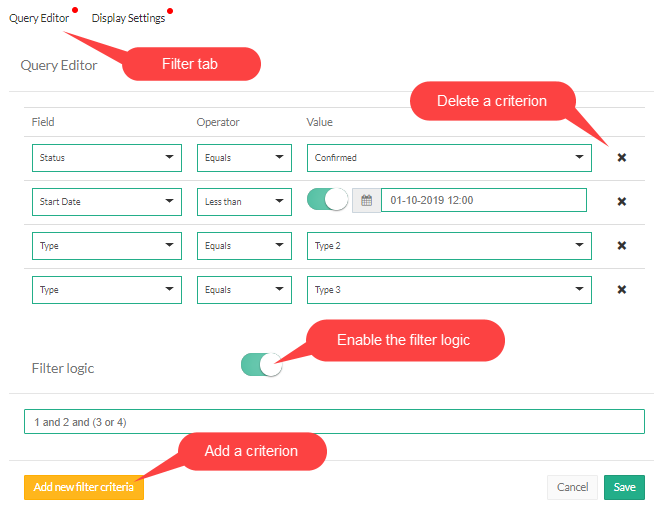
In the Query Editor window, add criteria by specifying a field, operator, and required value.
All SOQL syntax is supported. -
Click Add new filter criteria to add a new line if required.
-
Enable the Filter logic and define the criteria logic, e.g., 1 and 2 or 3.
-
Click Save.
The SOQL filter is configured. Here is an example with the SOQL subquery.
WHERE AccountId__c IN (SELECT Id FROM Account WHERE isActive__c = true)Standard Related Lists
Set up SOQL filters and use the toggle in the CT Mobile app to switch the display between all downloaded records of a standard related list and only those that meet the criteria.
To set up a SOQL filter:
-
Click the setup icon
next to the desired standard related list. -
In the Query Editor tab, add criteria by specifying a field, operator, and required value.
Filter criteria for related lists are carried out in the CT Mobile app and do not support full SOQL syntax from Salesforce. Specify the simple criteria. -
Click Add new filter criteria to add a new line if required.
-
Enable the Filter logic and define the criteria logic, e.g., 1 and 2 or 3.
-
Click Save.
The SOQL filter is configured. Here are some examples:
WHERE Boolean__c = true limit 10order by StarDate__c desc limit 10