Navigation in CLM Presentations
There is a list of management tools to control CLM presentations:
-
The Application module, Carousel of CLM presentations on the mobile layout and Home Screen.
Branches
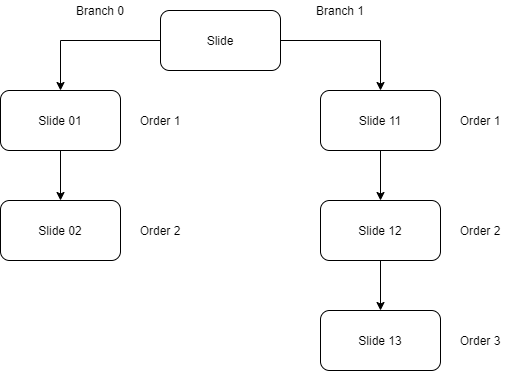
Slides from one or several CLM presentation(s) may be organized in the branches, and each branch will be launched depending on the choice of the user.
| Double tap on the bottom of the screen to display slides in a branch for rapid switching between the slides. To jump to another branch, use one of the JS Bridge methods for navigation. |
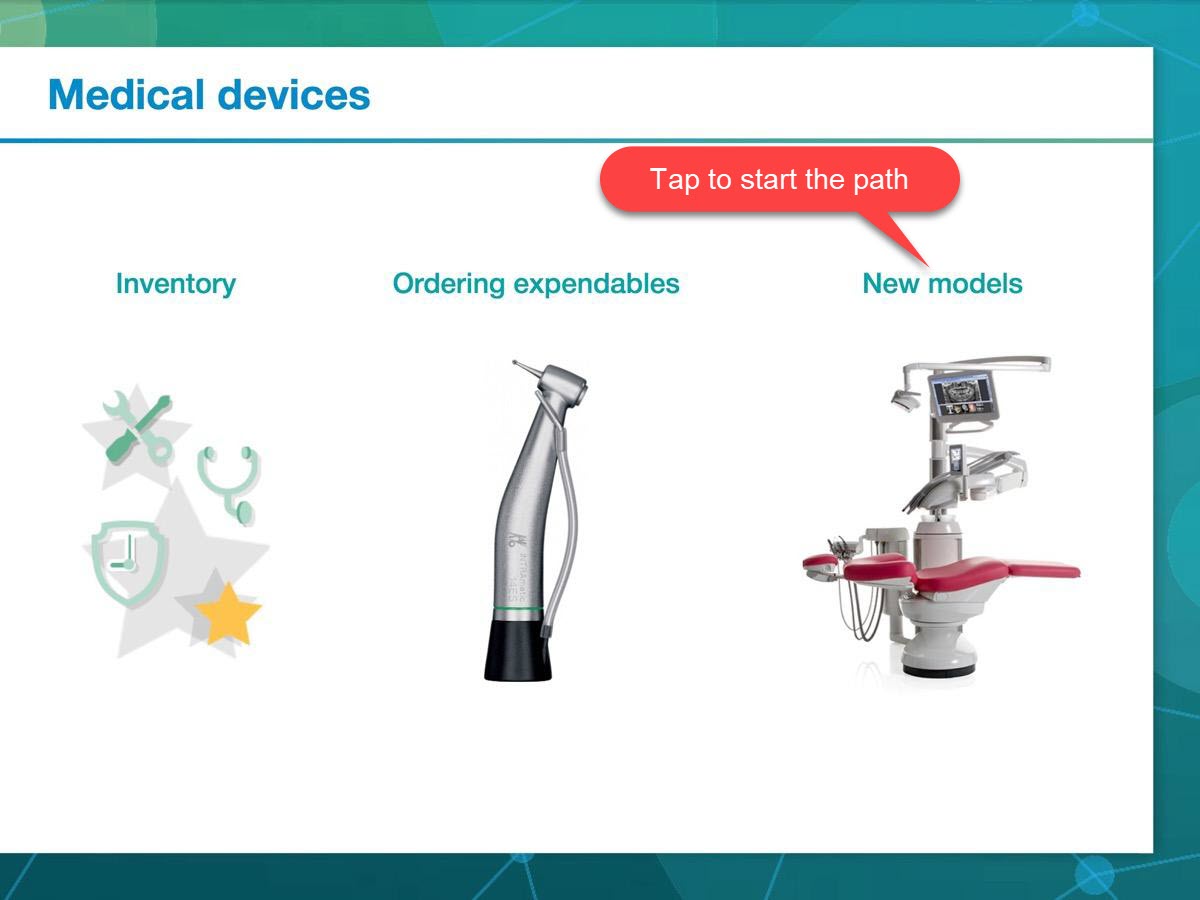
For example, the presentation may include a home page that contains buttons for navigating through the presentation. On this slide, a user can choose what path of the presentation to take by tapping one of the headers.
Each slide should have a unique order number.
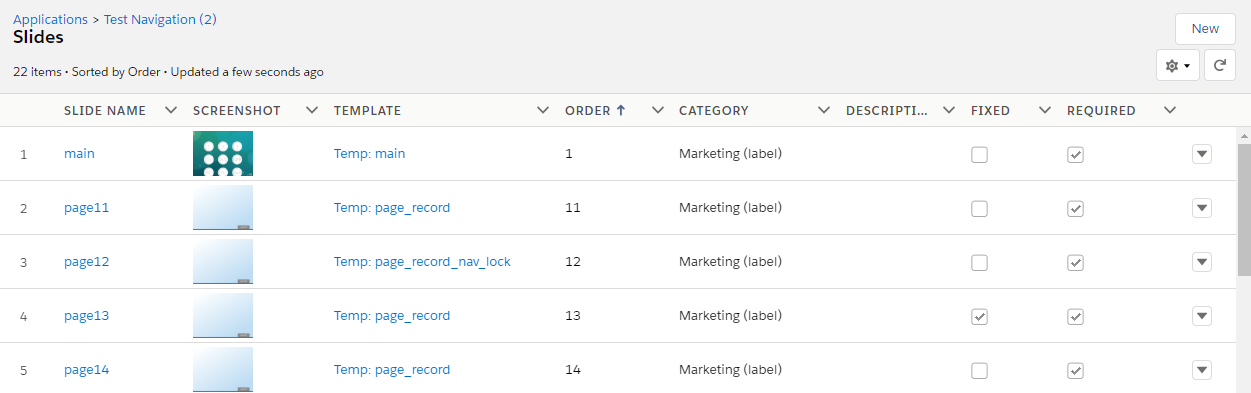
It is recommended to number branches as 0, 1, 2, etc., and number slides as 01, 02, …, 11, 12, etc., where a first number is a branch number, and a second is an order slide number in this branch.