Creating Plain CLM Presentation
Use the built-in Plain Application Editor to create CLM presentations.
Create a CLM Presentation
To create the new CLM presentation:
-
Go to Application Editor.
-
Click New to create a new CLM presentation with the Plain Application record type or click Clone to add a new CLM presentation identical to the selected one.
-
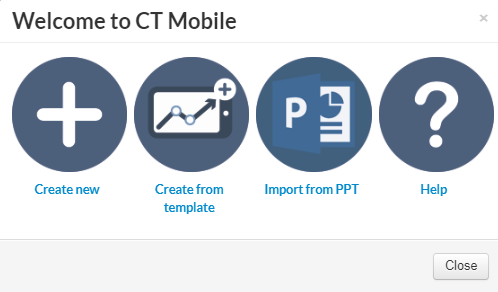
In the Plain Application Editor window, click Create new.
-
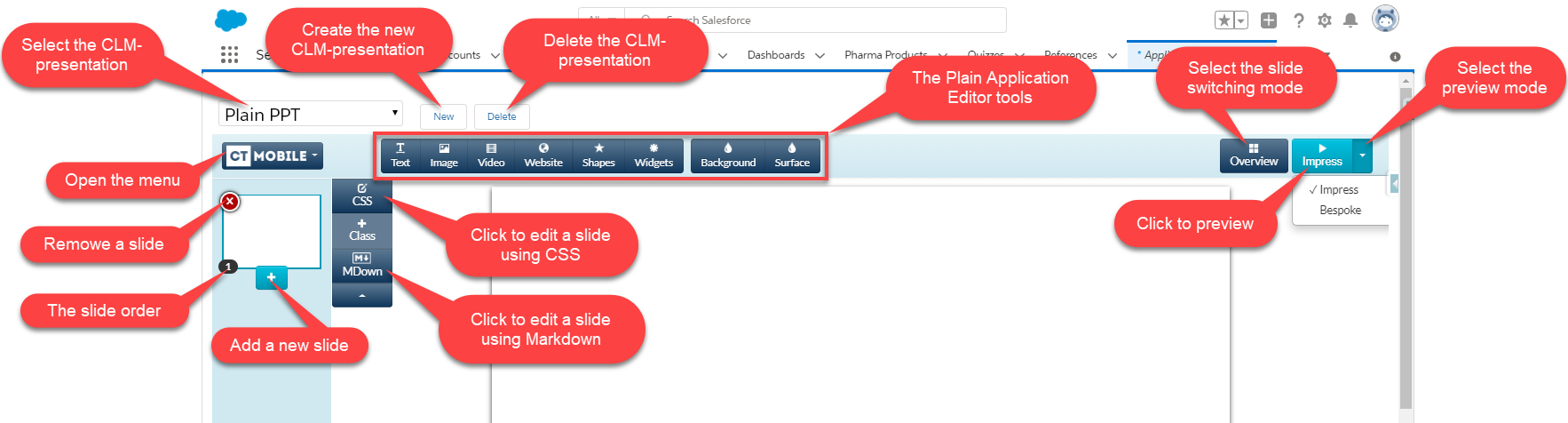
Use the Plain Application Editor tools to create slides.
-
In the CT Mobile menu, click Save.
The CLM presentation is created.
After creating the CLM presentation:
-
Renew slides, wait 2–3 minutes, and publish the CLM presentation.
-
Perform fast or mixed synchronization on the mobile device to download the CLM presentation.
The Plain Application Editor Menu
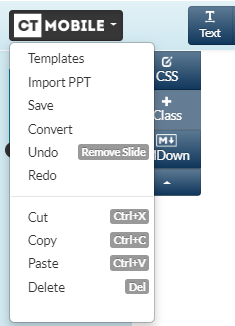
During the CLM presentation editing, click CT Mobile. The Plain Application Editor menu is shown.
The menu options:
|
|
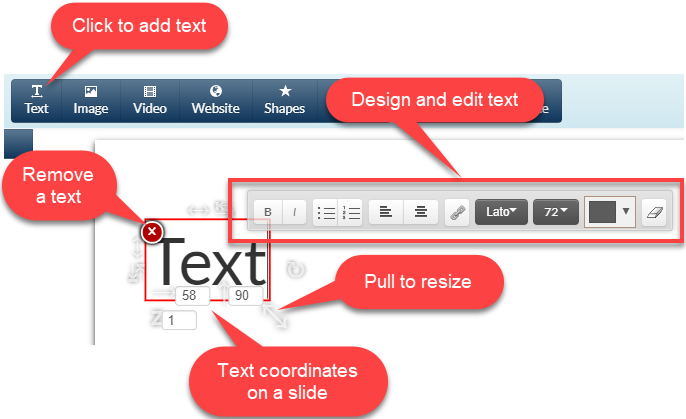
The Plain Application Editor Tools
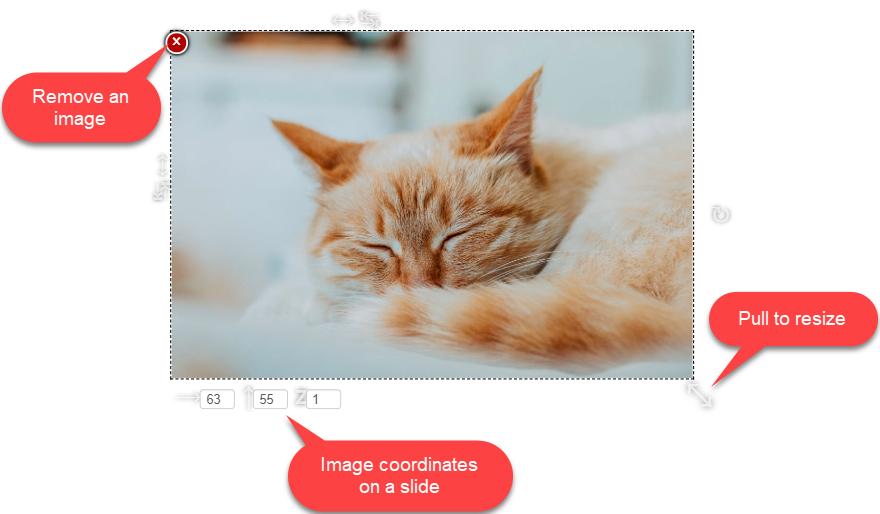
Insert Image
- To add an image:ctmobile-ios
-
-
Click the Image button.
-
In the open window, click Browse and select an image or drop-and-drop an image.
-
Click Insert Image.
-
The image is added.
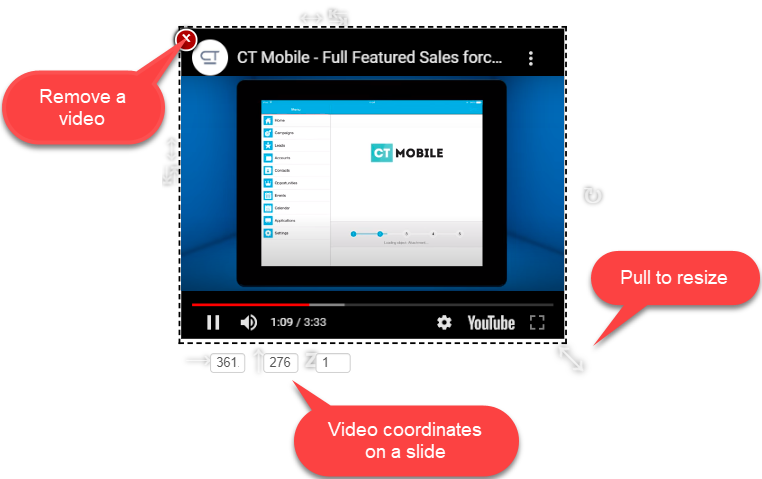
Insert Video
To add a video:
-
Click the Video button.
-
In the open window, enter the URL.
-
Click Insert Video.
The video is added.
Insert Website
To add a website:
-
Click the Website button.
-
Enter the URL.
-
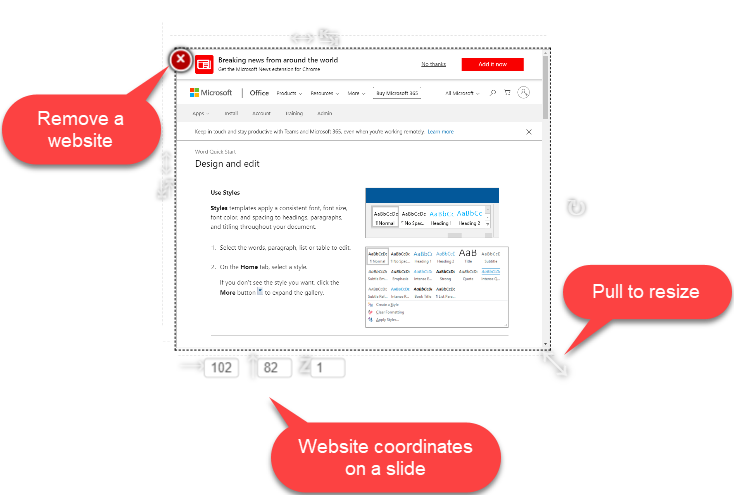
Click Insert Website.
The website is added.
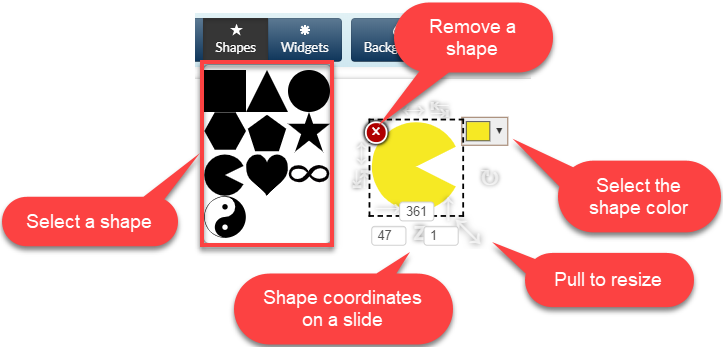
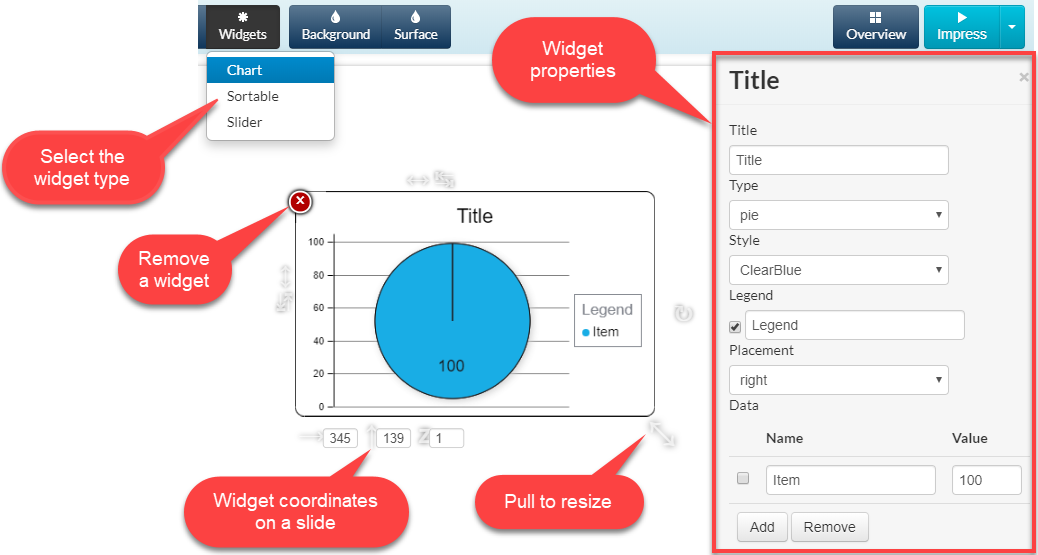
Insert Widget
To insert a widget:
-
Click the Widget button.
-
Select a widget.
The widget is added.
| For each widget type, specify properties. The full description of widget attributes is available here. |