Creating Plain CLM Presentation using Templates
Preconfigured templates can be used for the CLM presentation creation. The slide switching effects will be available in the CT Mobile app.
To create a CLM presentation from a template:
-
Go to Application Editor.
-
Select a plain CLM presentation from the picklist in the upper left corner, or click New to create a new CLM presentation with the Plain Application record type, or click Clone to add a new CLM presentation identical to the selected one.
-
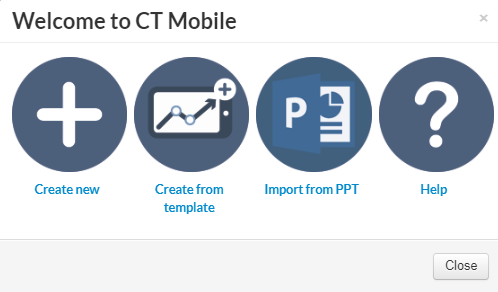
In the Plain Application Editor window, click Create from the template.
-
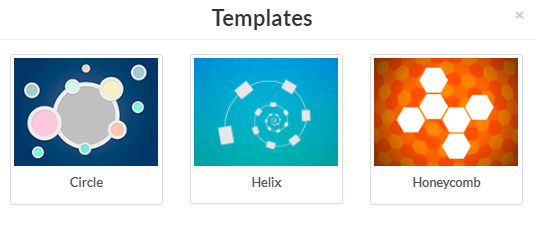
In the Templates window, select a template.
-
Wait a minute and slides with the selected template will be displayed.
-
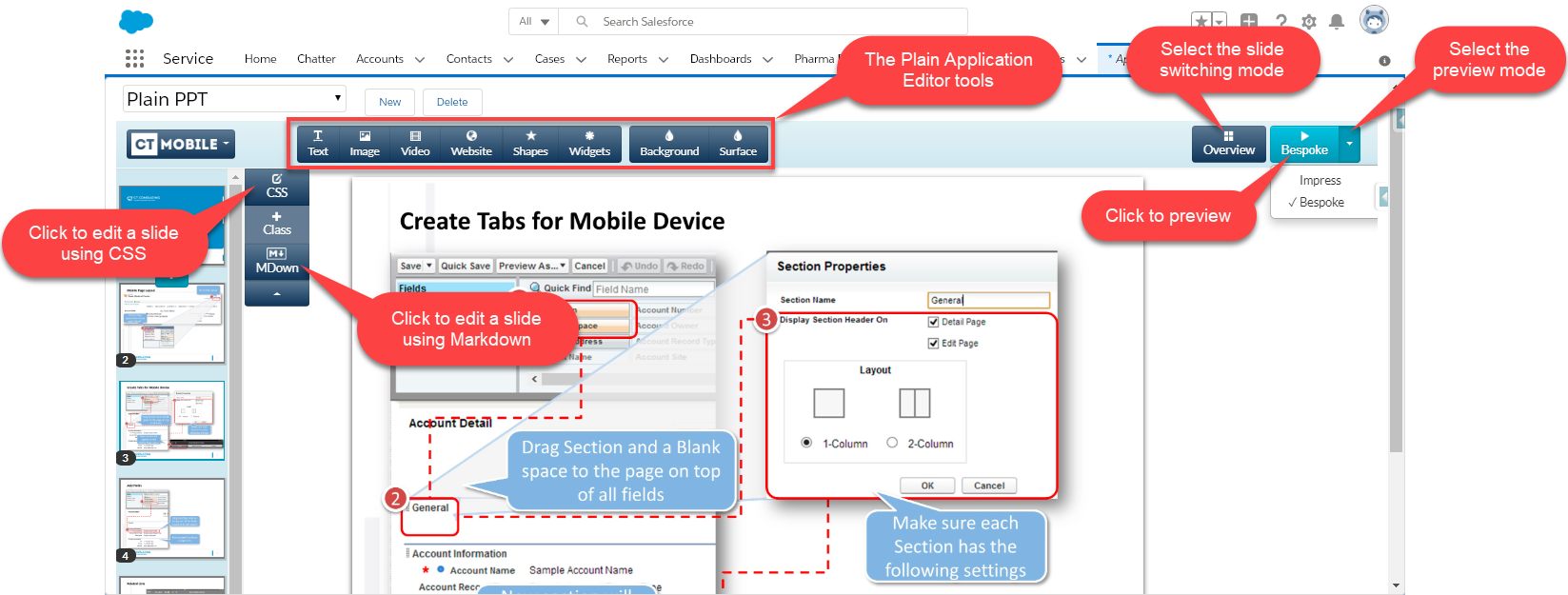
Customize CLM presentation with the Plain Application Editor tools.
The CLM presentation limit is 25 slides. In the case of exceeding the limit, a warning will be displayed. -
Select and click Impress to view the CLM presentation with the impress.js framework. Click the right/left side to switch slides, or use key arrows and the spacebar.
-
Select and click Bespoke to view the CLM presentation with the bespoke.js framework. Use key arrows and a spacebar to navigate.
-
-
In the CT Mobile menu, click Save.
Also, you can create the CLM presentation from a template by clicking Templates in the CT Mobile menu.
The CLM presentation is created.
After creating the CLM presentation:
-
Renew slides, wait 2–3 minutes, and publish the CLM presentation.
-
Perform fast or mixed synchronization on the mobile device to download the CLM presentation.