Creating Plain CLM Presentation from PowerPoint
| The CLM presentation converting from the .ppt(x) file will be displayed against a black background, and slides, which size is less than the screen area, will be aligned to the center of the screen. |
Please refer to Requirements and Media File Formats before converting a PowerPoint file to CLM-presentation.
To convert a PowerPoint file to CLM-presentation:
-
Go to Application Editor.
-
Select a plain CLM presentation from the picklist in the upper left corner, or click New to create a new CLM presentation with the Plain Application record type, or click Clone to add a new CLM presentation identical to the selected one.
-
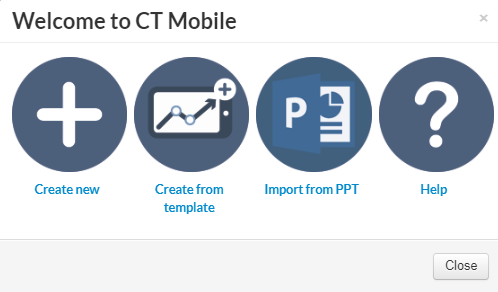
Click Import from PPT.
-
In the Import PPT window, click Browse, select the PowerPoint file, and click Upload.
The CLM presentation limit is 25 slides. In the case of exceeding the limit, a warning will be displayed. The PowerPoint file will not be uploaded. 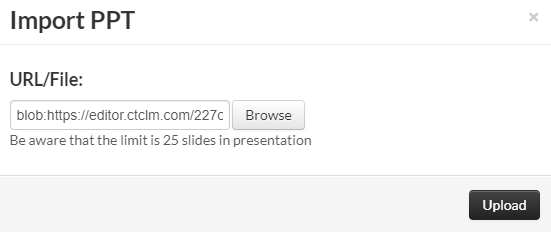
-
Wait a minute and slides converted from the PowerPoint file will be displayed. In the CT Mobile menu, click Save.
Also, you can upload the PowerPoint by clicking Import PPT in the CT Mobile menu.
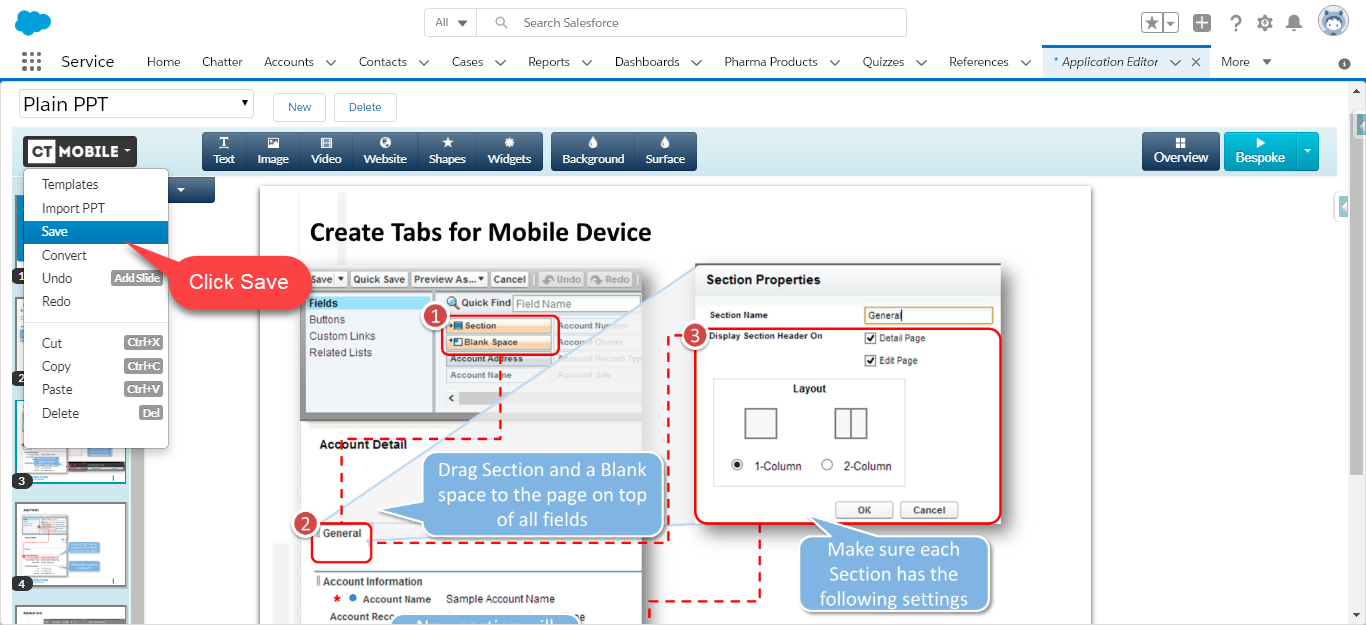
The CLM presentation is created.
After creating the CLM presentation:
-
Renew slides, wait 2–3 minutes, and publish the CLM presentation.
-
Perform fast or mixed synchronization on the mobile device to download the CLM presentation.
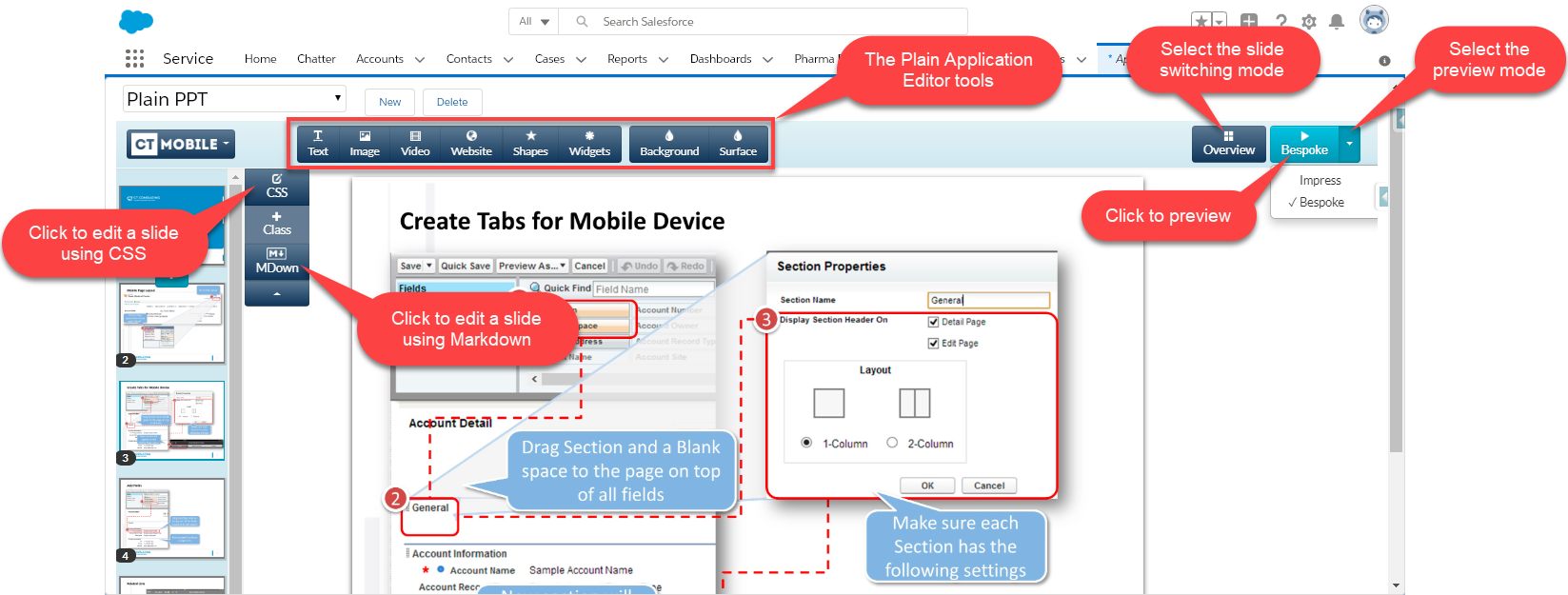
You can customize CLM presentations with the Plain Application Editor tools.
-
Select and click Impress to view the CLM presentation with the impress.js framework. Click the right/left side to switch slides, or use key arrows and a spacebar.
-
Select and click Bespoke to view the CLM presentation with the bespoke.js framework. Use key arrows and a spacebar to navigate.