Sync Logs
Enable sync logs and configure the appropriate reports for efficient management of synchronization statistics: average synchronization duration, the ratio of succeeded synchronizations to failed, and many more.
Sync Log Records
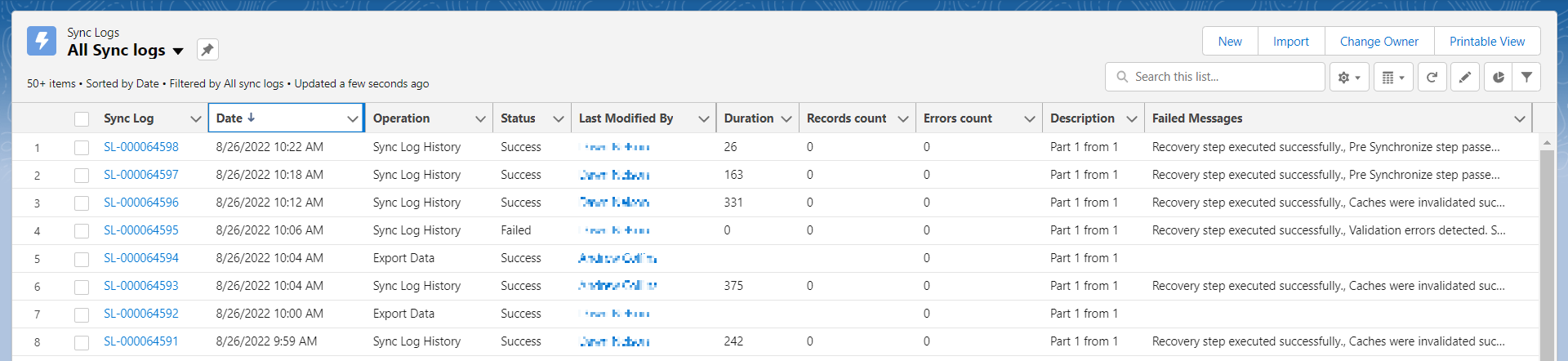
The Sync Log record is created for each synchronization after its completion or interruption due to sync errors.
For more information, refer to Sync Log.
The Sync Log record for the selected synchronization type:
-
Operation
Currently, there are two available types:
-
Sync Log History is used to store statistics for any synchronization
-
Export Data is used to send changes made in the CT Mobile app but is not yet synchronized.
-
Status
-
Date
-
Description
-
Duration
-
The number of transmitted records
-
The number of errors occurred.
-
Failed Messages
-
Enable Sync Logs
To enable and configure Sync Logs:
-
Select the required profile in the Location picklist.
General Settings will be applied to all profiles without individual settings. -
In the Support and logs section, activate the Enable Sync logs switch.
-
In the Debug Level picklist, select the logging level:
-
None. Logging is disabled.
-
Error. A log entry is created only in case of occurred synchronization error.
-
All. Each synchronization is logged as a separate entry irrespectively of whether it contains errors or not.
Enabling the All option for a long time will result in an overflow of the data storage at Salesforce and a significant increase in the CT Mobile synchronization time. 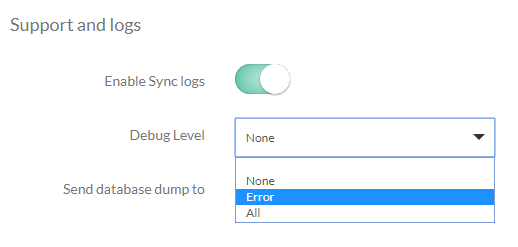
-
-
Click Save.
The sync log functionality is enabled.