App Menu
Configure the main menu items and their order:
-
Select the required profile in the Location picklist.
General Settings will be applied to all the profiles without individual settings. -
Using drag-and-drop add the desired objects from the Available list to the Selected list.
-
The Available list contains all offline objects. You can drag and drop objects between the lists. All objects in the Selected list will be available in the main menu in the same order.
Please make sure that the current profile has at least View permissions for the selected objects. You can review the profile’s permissions in Setup → Users → Profiles. -
Use the search to find the objects in the Available list by typing in the label or API name of the desired object.
-
-
Click the
 button to open the Add menu item tool and select
the desired additional modules.
button to open the Add menu item tool and select
the desired additional modules.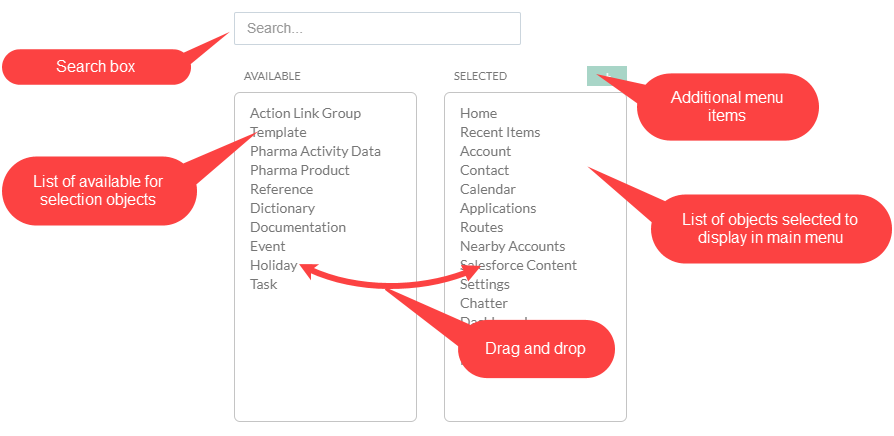
-
Arrange menu items in the Selected section.
-
Click Save.
-
Perform the full synchronization on the mobile device to apply settings.
The setup is complete.
| If a mobile user is using CT Mobile on their smartphone, they can collapse or expand the main menu by swiping left or right. |