Routes
The Routes module allows you to build the optimal routes to the activities.
Requirements
Add the Routes module to the app menu.
-
To use Google Maps, specify the Google Maps API key on the CT Mobile Control Panel: General tab.
-
A field to store an address for the Account object should be specified on the CT Mobile Control Panel: General tab.
-
The Activity object should be specified on CT Mobile Control Panel: Calendar tab. Add a field with the Lookup type from the Activity object to the Account object.
Adding Routes to the Menu
To add the Routes module to the app menu:
-
Select the required profile in the Location picklist.
General Settings will be applied to all the profiles without individual settings. -
Click the
 button to open the Add menu item tool.
 -
Select the Routes item.
-
Click Add to close the Add menu item tool.
-
Click Save.
The setup is complete.
Working with Routes
Left Menu
Records are grouped in alphabetical order.
The available list views:
-
All activities (default list view);
-
List views of each object grouped by the object;
-
All + name of the Activity object for objects without custom list views, e.g., All Events.
Main Screen
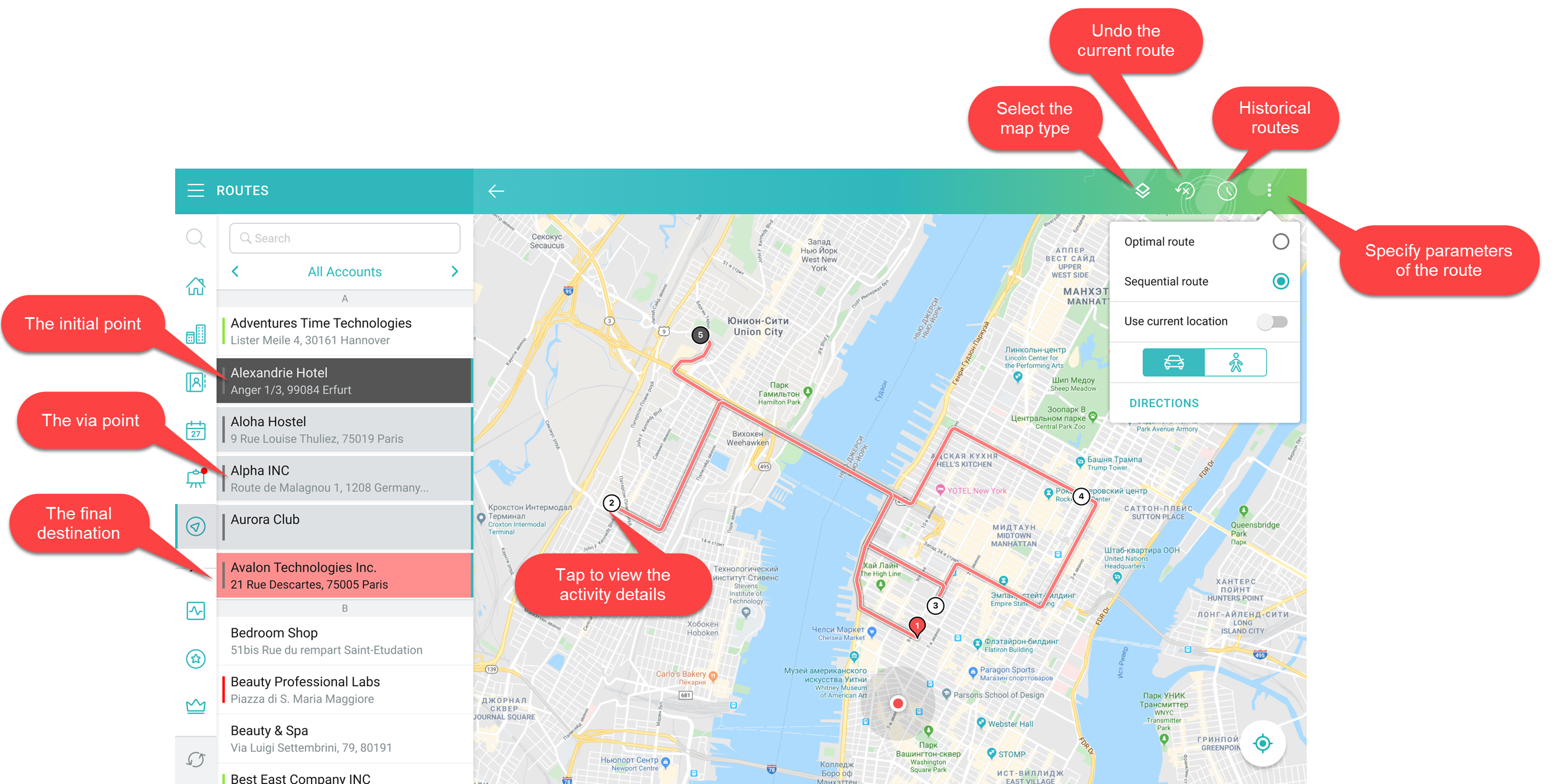
Based or not on the current location, view the location of the selected record on the map.
Available Options
To build a route:
-
Tap Routes in the main menu.
-
Enable Use current location if the current device location will be included in the route.
This option depends on GPS/Wi-Fi. -
Enable Optimal route to use optimized route logic instead of sequential route logic.
This option is only available in Google Maps. -
Specify whether to get directions on foot or by car.
-
Select the activities from the list.
-
For long-distance activities, a route cannot be built.
-
A route cannot be built for the activities in the exact location, and the points will not be displayed.
-
The route is built.
-
Tap a waypoint on the route to view the activity details.
-
Tap the Historical Activities button to view previous routes.
-
Tap the historical route to build it on the map.
-
-
Tap the Undo button to cancel the route.
-
Select another map type, for example, Satellite, if needed.