Application Theme
The application theme affects the application appearance overall, being applied to headings, menu items, timeline view, etc.
To configure the application theme:
-
Select the required profile in the Location picklist.
General Settings will be applied to all profiles without individual settings. -
Click Customize in the User Interface section.
The App Customization window opens.
-
Customize the application theme.
-
Click Save.
-
Launch the fast synchronization on the mobile device.
The setup is complete.
Available settings
In the App Customization window, the settings are located on the left side, and the tablet view with applied settings is on the right side.
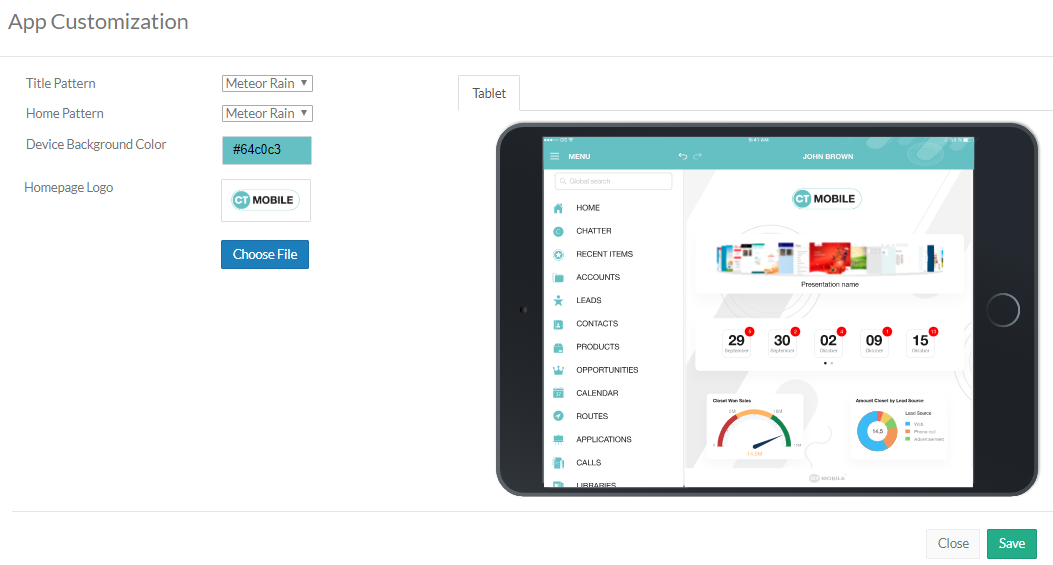
Title Pattern
Select the title pattern from the picklist to add a pattern to the header of the mobile application. Add your title pattern by selecting Own in the picklist and clicking Upload.
The changes will be represented on the tablet view.
Home Pattern
Select the home pattern from the picklist to add a pattern to the background of the mobile application screen. Add your own home pattern by selecting Own in the picklist and clicking Upload.
The changes will be represented on the tablet view.
Device Background Color
Click on the field to select a color from the drop-down palette or enter the color code.
Homepage Logo
The logo is represented on the Home screen. Click Choose file to add a new logo.