Calendar
The Calendar module allows you to create and manage multiple activity objects, viz. Activity, Task, and Event. Configure the Calendar view and apply custom color settings to different activity types.
Calendar Interface
| To learn how to work with the Calendar module, go to the Using Calendar article. |
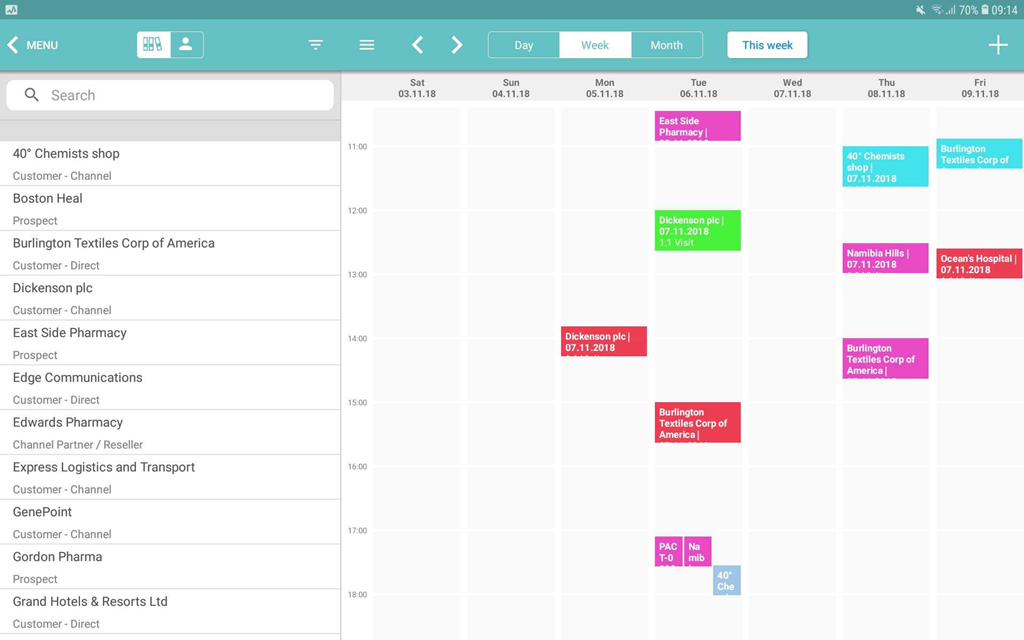
The calendar includes two main sections.
Left menu
Select the appropriate list view with accounts, contacts/references, or the hierarchical view.
-
If the Reference object is not selected in the Reference Object API Name field, records of the Contact object will be displayed in the Calendar left menu. Otherwise, records of the Reference object are displayed.
Main screen
Drag-and-drop one or several records simultaneously from the left menu to plan new activities.
-
If configured, fill in the required fields in the mini layout.
-
The title of the activity in the calendar grid is the value of the first field in the compact layout, and the subtitle is the value of the second field in the compact layout.
Adding Calendar to the Menu
To add the Calendar module to the app menu:
-
Go to CT Mobile Control Panel: App Menu tab.
-
Select the required profile in the Location picklist.
General Settings will be applied to all the profiles without individual settings. -
Click the
 button to open the Add menu item tool.
 -
Select the Calendar item.
-
Click Add to close the Add menu item tool.
-
Click Save.
The setup is complete.
Configuring the Calendar
To configure Calendar:
-
Go to CT Mobile Control Panel: Calendar tab.
-
Select the required profile in the Location picklist.
General Settings will be applied to all the profiles without individual settings. -
Turn on the Enable Activity Planning.
-
Customize the calendar and specify Activity objects.
-
Click Save.
The setup is complete.