Standard Related Lists
Add standard Salesforce related lists, for example, Contacts or Opportunities, to the offline object to work with them in the CT Mobile app.
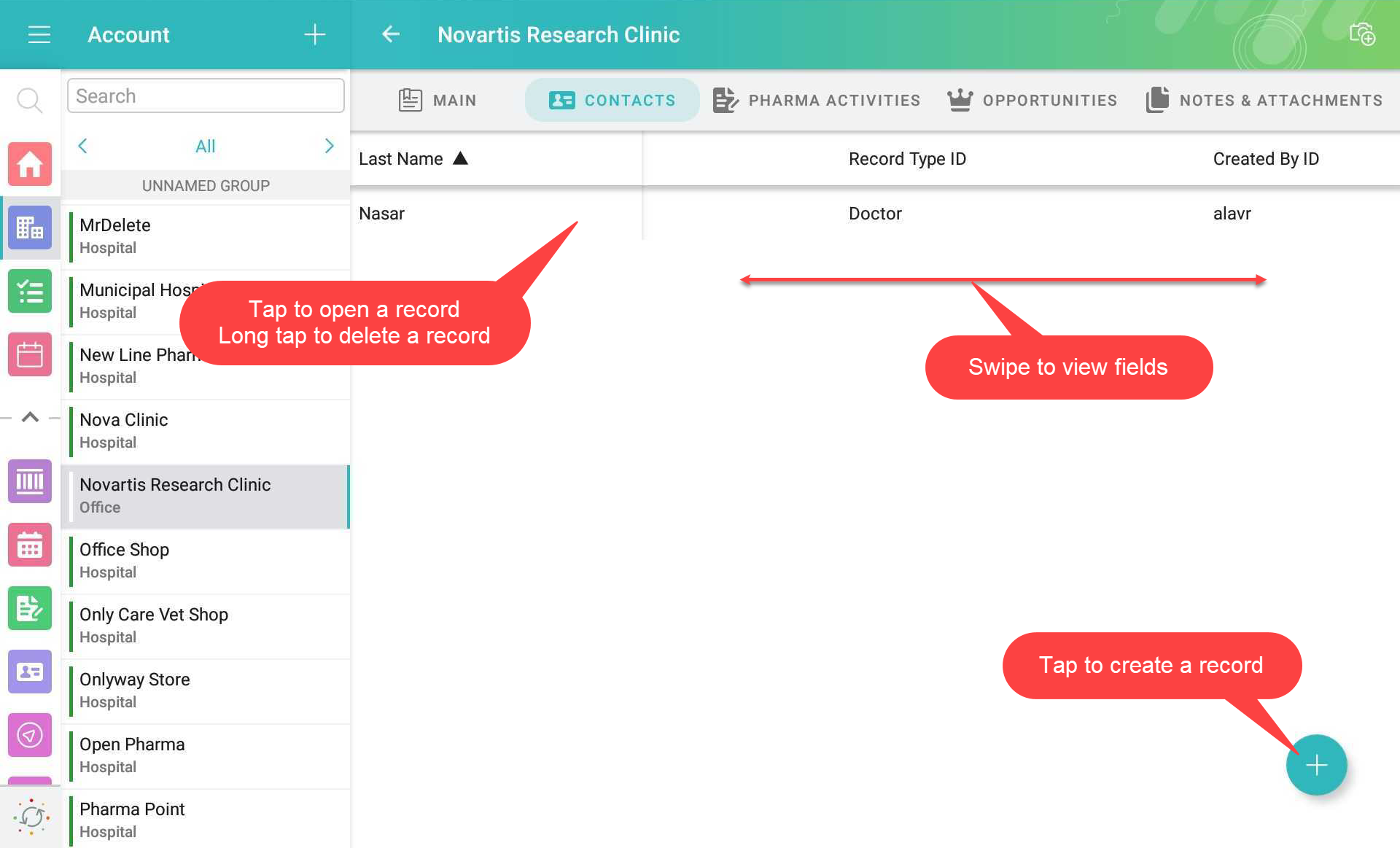
To view a standard related list in the CT Mobile app:
-
Add and customize a standard related list on the page layout of the required object.
-
Select fields to display on the related list;
-
Set up user permissions to fields:
-
If the Updateable attribute has a false value, the field will be read-only even if the Read Only attribute has not been selected.
-
If the Nillable attribute has a false value, the field will be required to fill in even if the Required attribute has not been selected.
-
-
Specify the columns' order;
-
Use filters.
For more information, go to Filters in Related Lists.
-
-
Go to CT Mobile Control Panel: Offline Objects and add the object from step 1 to the Selected list. Click the object in the Selected list to manage permissions and related lists.
You can allow creating or deleting records and specify the SOQL filter to display all records or the required ones in the CT Mobile app. For more information, go to Managing Offline Objects. -
Go to the CT Mobile Control Panel: Offline Objects tab and add the object of the related list to the Selected list, for example, Contacts or Opportunities.
-
Check that the current user profile has permission to read the object from steps 1 and 3.
-
Check that the current user profile has permission to read the reference field that links the offline object and the related list object.
The setup is complete.