CT Mobile Control Panel: General
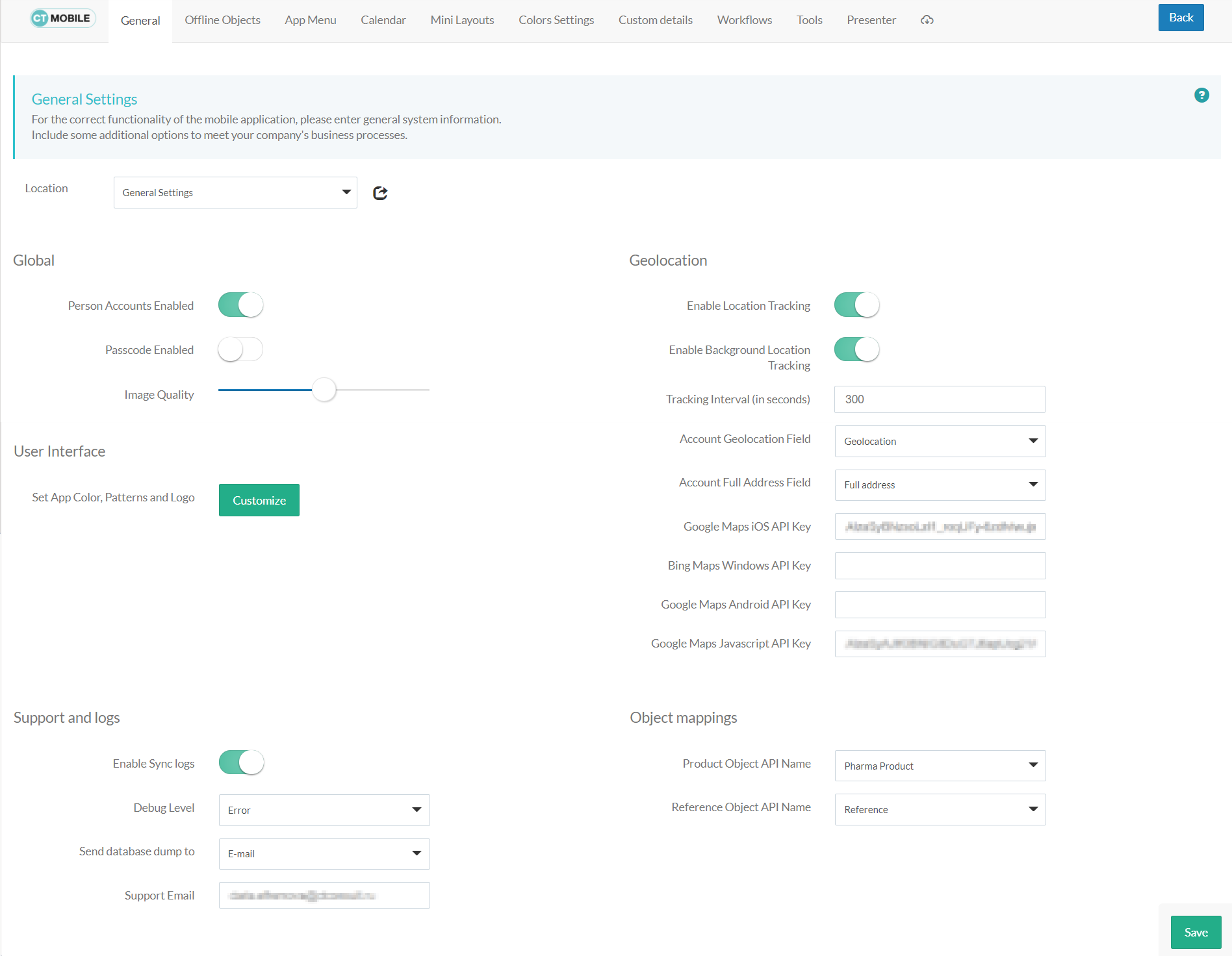
The General tab is intended to specify the main settings which are responsible for the CT Mobile app interface and the CLM package integration with the target system, such as CT Pharma or CT CPG. The tab has the following sections:
| According to the selected profile, settings on this tab will be saved in the corresponding fields of the Mobile Application Setup record. |
Click to view the interface
Location
Location is a picklist containing all configured and unconfigured profiles available in your Salesforce org. To apply settings to all the profiles, select General Settings.
To get started, select the desired profile in the Location field to configure it. To delete the configuration for the selected profile, click the  icon.
icon.

Global
Person Accounts Enabled
This attribute must be set if the client system uses the Person Accounts functionality. If enabled:
-
Person Accounts are displayed in the Contacts menu item and on the Contacts tab of the modules, except for the cases if the Reference object is selected in the Reference Object API Name field.
-
Accounts are displayed in the Accounts menu item and on the Accounts tab of the modules.
Image Quality
The ability to compress images used in the CT Mobile app.
| The quality of the original image depends on the device type and its settings. |
The attached images and taken photos may be compressed to reduce the amount of data sent to Salesforce. Hover over the slider to see the value:
-
0% – the leftmost position, the maximum amount of compression, and minimum image size.
-
100% – the rightmost position, no image compression, the functionality is disabled.
-
The default value is 50%.
User Interface
This section is intended to personalize the CT Mobile interface.
-
Click Customize next to Set App Color, Patterns, and Logo.
-
In the App Customization window, the settings are located on the left side, and the tablet view with applied settings is on the right side.
-
After customizing, click Save.
The setup is complete.
Click to view the App Customization window
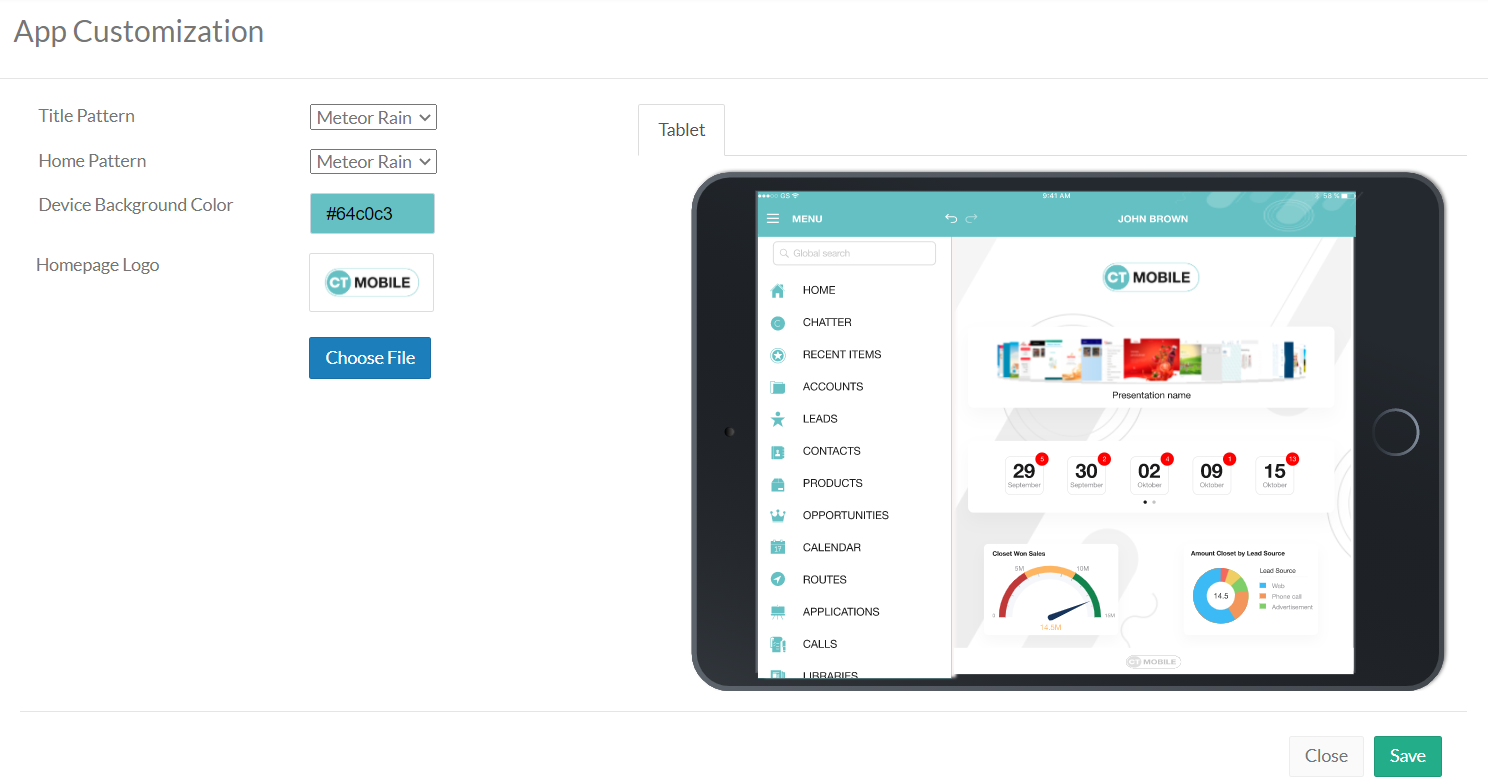
Title Pattern
Manage the title pattern of the application screen. Select one of the configured patterns or upload your pattern by selecting the Own value from the picklist.
-
The file size limit is 2 MB.
-
The file format is limited to PNG.
-
Image dimensions must be in the range from 1024 х 70 to 2732 х 204.
-
To remove any pattern, select None.
Home Pattern
Manage the home pattern for the application screen background. Select one of the configured patterns or upload your pattern by selecting the Own value from the picklist.
-
The file size limit is 2 MB.
-
The file format is limited to PNG.
-
Image dimensions must be in the range from 1024 х 768 to 2732 х 2048.
-
To remove any pattern, select None.
Device Background Color
Select the background color for the CT Mobile screens. Click on the field to select a color from the drop-down palette or enter the color code.
Homepage Logo
Select the homepage logo to display when the Logo widget is added on the Home Screen. Click Choose file to add a new logo.
-
The logo file size limit is 4 MB.
-
The file format is limited to PNG. The logo will be saved in the following format:
-
For General Settings profile: Mobile.Logo.png.
-
For a user profile: Mobile.Logo_{profile.id}.png.
-
-
Large images will be automatically resized.
-
To view the logo in Salesforce, switch Lightning Experience to Salesforce Classic, go to Documents and open the CT CLM folder.
Geolocation
Geolocation data may be used for the Maps widget on a record, in the Routes and Nearby Accounts modules.
Enable Location Tracking
If enabled, geolocation data on the Account and Activity objects will be collected in the Account Geolocation or Account Full Address field according to selection and in the Activity Geolocation Field API Name field.
Enable Background Location Tracking
If enabled, geolocation data continues to collect even if the CT Mobile app runs in background mode.
Tracking Interval (in seconds)
Set up the tracking interval of the geolocation data in seconds. If set to 0, the user’s current location will not be captured.
Account Geolocation Field
To use geolocation, create a field with the Geolocation__c API name and with the Geolocation type on the Account object. Then select this field in the Account Geolocation Field picklist.
| If geolocation data is not specified, the account location will be retrieved from the Account Full Address field. |
Google Maps Android API Key
Obtain and enter your Google Maps API key on this tab for using Google Maps in the CT Mobile Android apps.
Support and logs
Enable Sync Logs
If enabled, the Sync Log records will be created during the sync process on the mobile device.
Debug Level
This attribute defines whether a Sync Log record should be created or not. Select an option:
-
None – sync log record is not created;
-
Error – sync log record is created only in case of a sync error;
-
All – sync log record is created for each synchronization regardless of whether it was successful or not.
In this case, data storage can be overloaded.
Object mappings
Product Object API Name
Select an object that will be used as a product. The Product Object API Name field of the Mobile Application Setup should be correctly specified for each Activity object in the Activity Object API Name field.
Reference Object API Name
Records of the selected object will be displayed on the Contacts menu item, on the Contacts tab in the Nearby Accounts module, and on the Contacts and Hierarchy View tabs in the Calendar module.
As the Reference object, use the junction object between the Account and Contact objects, for example:
-
the standard Account Contact Relationship object if a single contact may be related to multiple contacts
-
CTPHARMA__Reference__c if using CT Pharma solution as the target system,
-
any custom object with the field of the lookup type to the Account and Contact objects
If the many-to-many relationship between the Account and Contact objects is not used in the system, please leave this field blank. For more information, refer to Reference Object.