Ability to Specify Metadata Components or the Number of Entities in One Request
| Available since CT Mobile package v. 3.63. |
Sometimes a request to create a new metadata archive exceeds the 12 MB limit, which means that the transaction will fail due to the heap size being too large. Use Archive Component to specify which additional components to track and collect in the metadata archive.
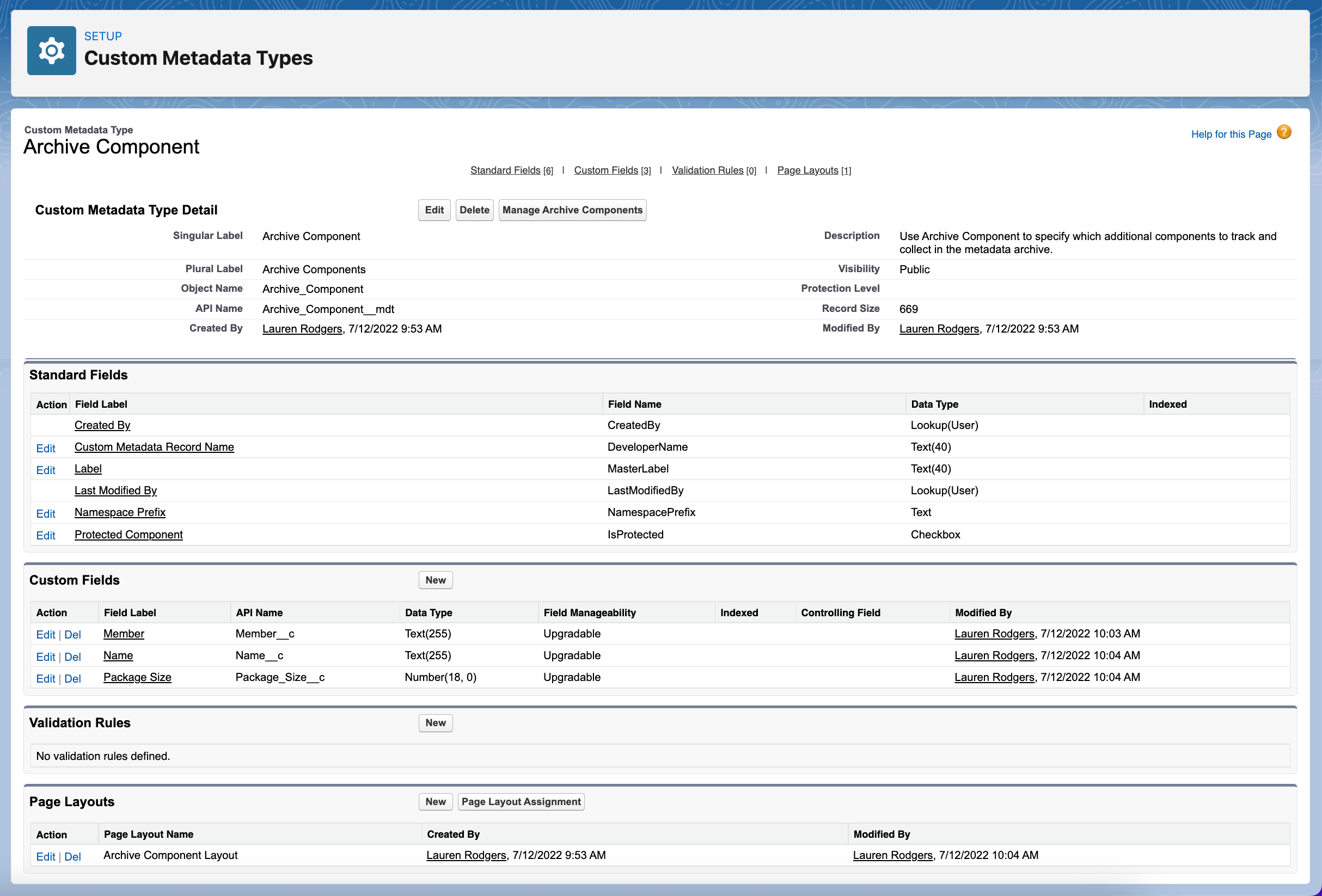
Create Archive Component Custom Metadata Type
The administrator should create the Archive Component custom metadata type. Follow the steps in Salesforce Help to create the custom metadata type with the following fields.
| Field | API Name | Type | Description | ||
|---|---|---|---|---|---|
Member |
Member__c |
Text(255) |
Specify the fullName of the desired component. For more information, refer to Salesforce Developer: Metadata.
|
||
Name |
Name__c |
Text(255) |
Specify the metadata type. The name must match a metadata type that is defined in the Metadata API WSDL. For more information, refer to Salesforce Developer: Metadata Types. |
||
Package Size |
PackageSize__c |
Number(18,0) |
The number of entities in one request. Left empty if the Member__c field contains at least one component name.
|
Create Archive Component Record
Create the Archive Component record with desired components or package size.
-
Go to Setup → Custom Code → Custom Metadata Types.
-
Click Manage Records next t Archive Component.
-
Click New.
-
Fill the following fields in:
-
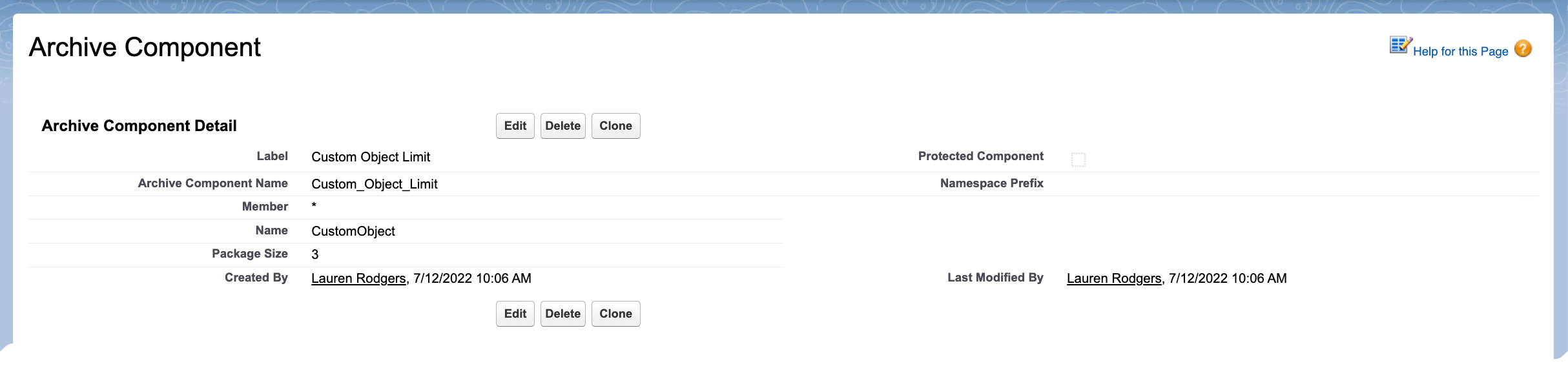
specify a metadata type in Name.
-
specify components in Member or set the size of the request in Package Size, for example, in one request must be 3 objects (entities) of the CustomObject metadata type:
-
-
Click Save & New.
-
Repeat steps 4–5 to create records for dashboards and reports.
The setup is complete. Next, create the metadata archive.
Check Metadata Archive
After creating Archive Component records, the metadata archive must be rebuilt to include component(s) or use requests of a specific size.
-
Go to the CT Mobile Control Panel: Tools tab and click the Refresh metadata archive button to update the metadata archive.
-
When the metadata archive is ready, go to the CT Mobile Control Panel: Tools tab and click the Download metadata archive button to verify if the desired component(s) have been added. If the component(s) have been added, you see the corresponding folder in the metadata archive.
Limits
Salesforce doesn’t allow making more than 101 callouts. If this case will arise during metadata archive creation, the admins should cut creation for several parts.
-
Go to Setup → Custom Settings → Custom Metadata Types → Archive Components.
-
Count records quantity of the following components:
-
offline objects
-
reports
-
dashboards

-
-
For each component, divide its quantity by the number in the Package Size field so that the sum of all entries after division is less than 101.
-
For example:
-
In Salesforce org, the quantity of offline objects equals 150, reports are 90, and dashboards are 25.
-
The Package Size limits are 3 for offline objects, 2 for reports, and 1 for dashboards.
-
To count the number of callouts: 150 ÷ 3 + 90 ÷ 2 +25 ÷ 1 = 120. The limit is exceeded, so admins should change the package size for components, i.e.,150 ÷ 5 + 90 ÷ 2 +25 ÷ 1 = 100.
-
-
The setup is complete.