Using Calendar
Add the Calendar module to the CT Mobile main menu, configure the calendar in CT Mobile Control Panel: Calendar, and optionally set up custom color settings to display activities on the calendar grid.
Permissions
The mobile user can create, update, and delete records if the permissions are granted.
| The object’s permissions specified on the CT Mobile Control Panel: Offline Objects cannot be over the profile’s permissions for objects. |
Calendar Views
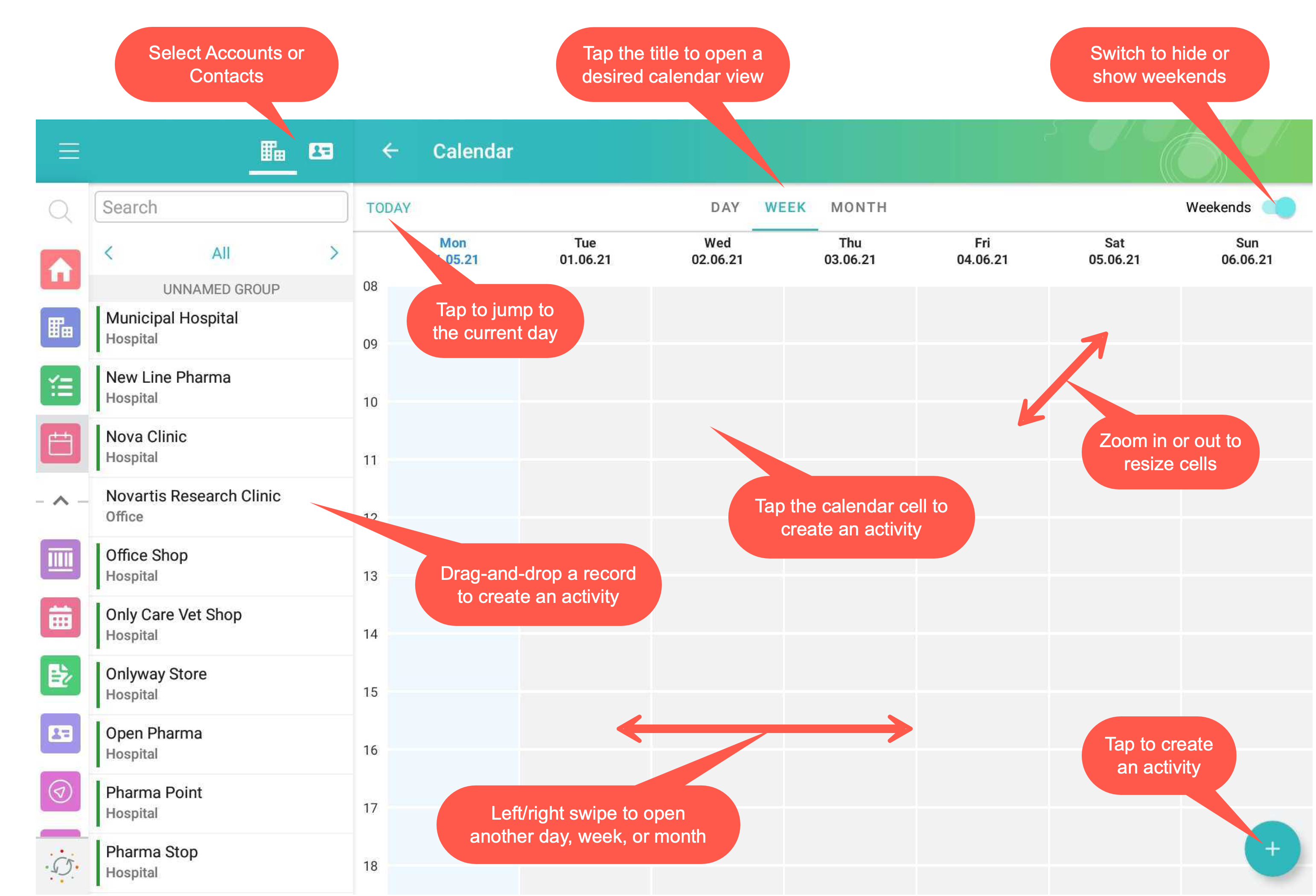
The Calendar has three different views: day, week, and month.
-
The calendar grid is displayed according to specified working hours.
-
Tap the day in the month view to open the day view.
-
Zoom the month view to open a week view.
-
Zoom in and zoom out the day and week view to resize the cells of the calendar grid.
-
Tap the Today button to return to the current day.
-
Tap the Weekends button to hide or display the weekends on the calendar day.
Activity Management
Actions with Activities
Manage activities using the following gestures and taps:
-
Create an activity. If applied, select the record type and fill in a mini-layout:
-
drag-and-drop a record from the left list of records
-
tap the calendar area in a day or week view. If enabled, a mini-layout with the filled-out Start Date and End Date fields according to default duration will be displayed.
-
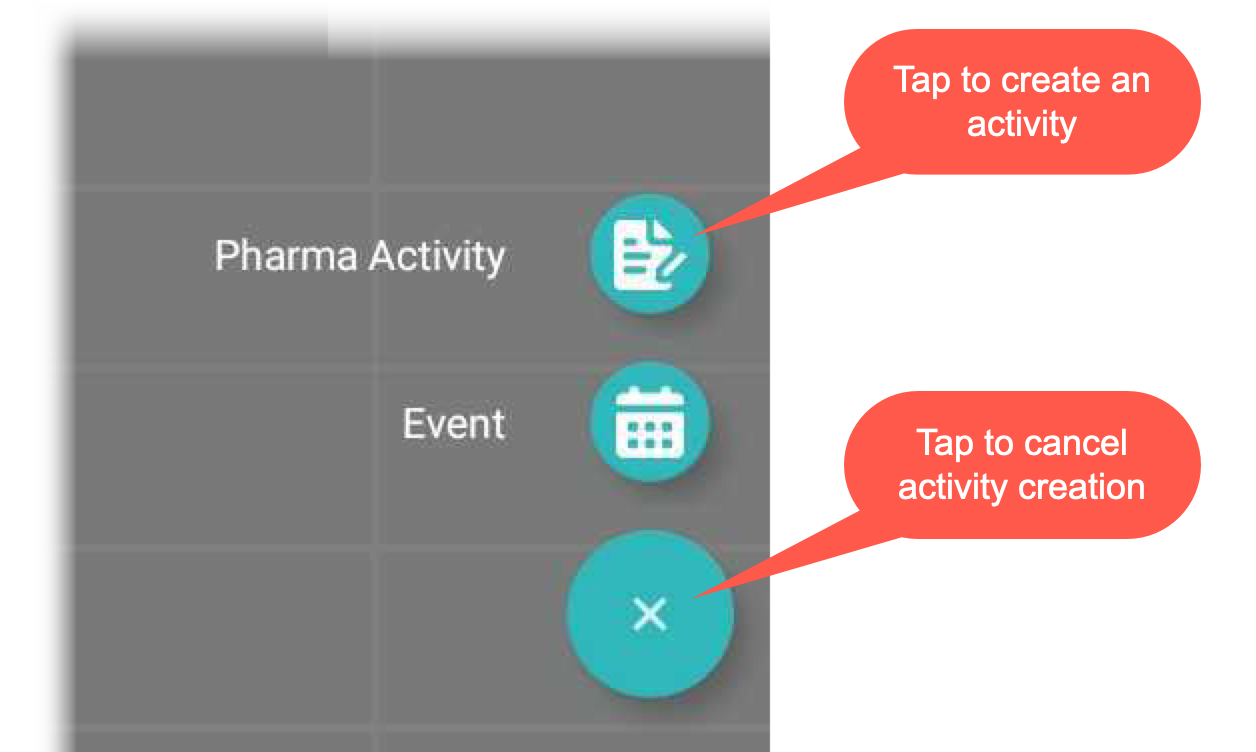
tap the Plus button. If they are more than one Activity object, tap the corresponding button to create an activity
-
-
Copy or move an activity.
-
Long-tap the activity → tap Copy/Move → set the start date and time in the day and time picker → tap OK → tap Copy/Move.
-
-
Delete an activity.
-
Long-tap the activity → tap Delete → confirm the action.
-
-
Tap an activity to open its details.
-
When the mobile user taps the Back button to return to the calendar, the calendar grid opens from the date of the last created activity.
Important notes:
-
If custom colors for the activities are not set, the application theme will be used to display activities in the calendar grid.
-
If the Start/Finish functionality is enabled:
-
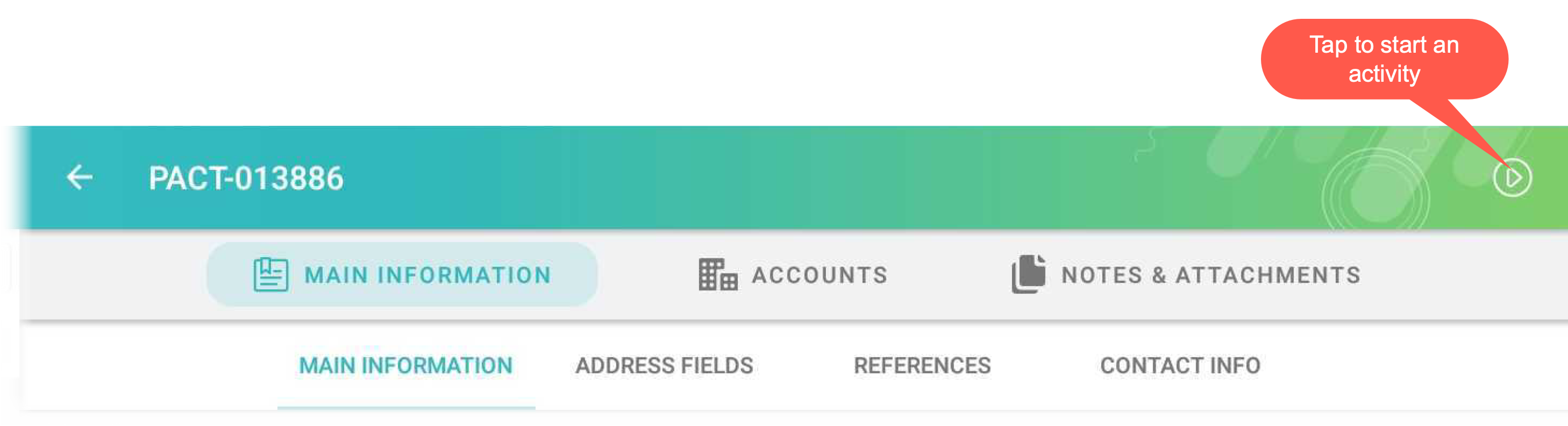
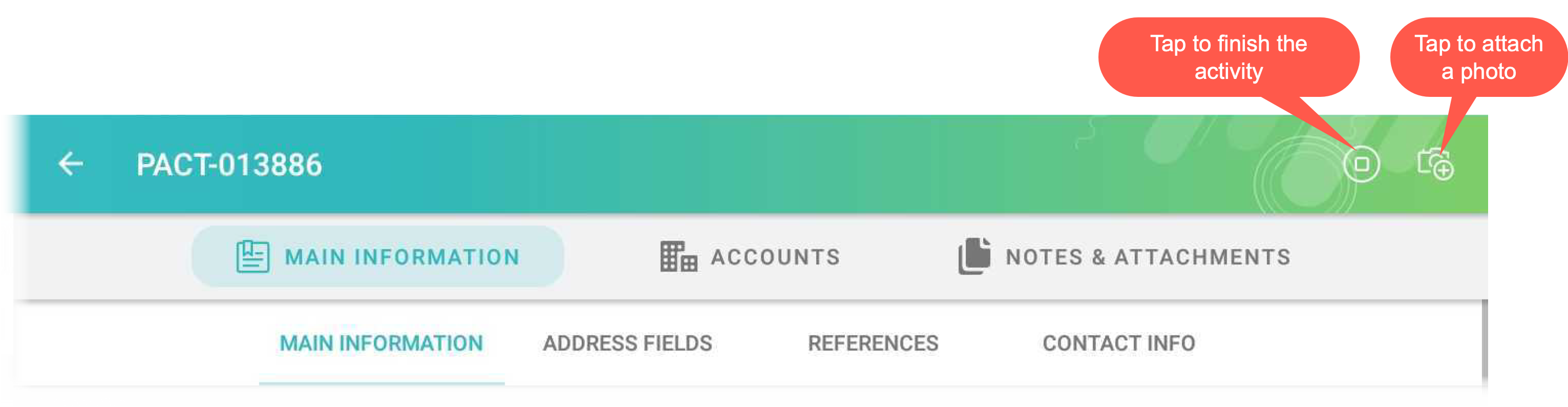
if the Lock/Unlock Record option is enabled, the activity record may be edited (including adding a photo from the Actions menu, if available), moved, or deleted only when an activity has not been finished.
-
if the Update Start/End Date Fields option is enabled, when a mobile user taps the Start or Finish buttons, the Activity Start Date field and Activity End Date field will be updated.
-