Synchronization Launch
Synchronization involves several stages of aligning CT Mobile with Salesforce, during which data and metadata are sent from CT Mobile to Salesforce and vice versa.
Synchronization Modes and Steps
CT Mobile provides several synchronization modes that can be run by the mobile user.
| For the correct operation, the metadata archive must be collected and the cloud token must be valid. |
Important notes
-
During any synchronization, CT Mobile sends updates for the following audit fields of the current User record.
-
Device Token
-
Last Sync Date
-
Mobile MAC
-
Mobile Version
-
Operation System
-
-
The Sync Log records store the information of each synchronization.
Synchronization Modes
-
First Full Synchronization
-
Fast Synchronization
-
Mixed Synchronization
The first full synchronization must be launched after the authorization of the current user.
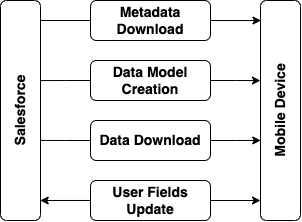
The first full synchronization is intended to download the entire database of the CT Mobile app, metadata components, required objects, and app settings from Salesforce to the mobile device.
The first full synchronization may take a lot of time according to the database size.
Steps:
-
Metadata components are downloaded from the metadata archive.
-
The current data model is created.
-
Records of the custom settings, custom metadata types, offline objects (based on SOQL filters), and objects, which are necessary for activated modules, are downloaded if a record matches the conditions set in Related List Filters.
-
The audit fields of the current User record are updated.
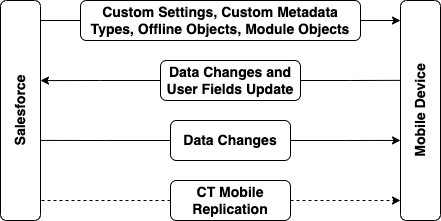
Fast synchronization is the preferred type for daily work with the CT Mobile app. We recommend doing a fast synchronization once a day at the beginning or end of the work day to maintain data consistency in the CT Mobile app and Salesforce.
The fast synchronization is intended to align the records' main information.
-
Data changes, such as deletions, insertions, and updates of records, will be sent from CT Mobile to Salesforce and vice versa.
-
Enable CT Mobile Replication if territory coordinates have been altered to download all actual data on the mobile device.
Steps:
-
Records of the custom settings and custom metadata types are downloaded if the value in the SystemModstamp field is a date later than the date of the last successful synchronization.
-
The audit fields of the current User record are updated and then audit fields and data changes in the application, such as deletions, insertions, and updates, are sent to Salesforce.
-
Data changes of required objects, offline objects (based on SOQL filters), and objects needed for activated modules are downloaded from Salesforce to the mobile device since the date of the last successful synchronization. .* If configured, the records of the specified objects mentioned in the CT Mobile Replication setting are updated.
We recommend running mixed synchronization in case of metadata changes, e.g., updating validation rules, adding new lookup filters, etc.
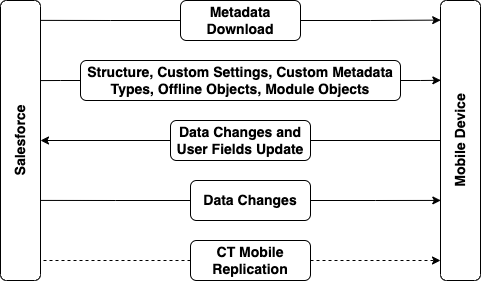
The mixed synchronization is intended to align the records' main information and update metadata since the date of the last successful synchronization.
-
Settings and records are downloaded without re-load of previously downloaded records, which helps to reduce the sync time.
Steps:
-
Metadata components are downloaded from the metadata archive.
-
The structure (if it has been changed) and records of custom settings, custom metadata types, offline objects (based on SOQL filters), and objects, which are necessary for activated modules, are downloaded if the value in the SystemModstamp field is a date later than the date of the last successful synchronization and a record matches the conditions in the Related List Filters.
-
The audit fields of the current User record are updated and then audit fields and data changes in the application, such as deletions, insertions, and updates, are sent to Salesforce.
-
Data changes of required objects, offline objects (based on SOQL filters), and objects needed for activated modules are downloaded from Salesforce to the mobile device since the date of the last successful synchronization.
-
If configured, the records of the specified objects mentioned in the CT Mobile Replication setting are updated.
Launch Synchronization
-
First Full Synchronization
-
Fast Synchronization
-
Mixed Synchronization
To start the first full synchronization, perform one of the following:
-
tap the
 icon in the lower-left corner.
 -
go to the Settings screen and tap the Full Synchronization button.
| The full synchronization will be started only if the mobile user has not previously performed the first full synchronization. |
To start the fast synchronization, tap
the icon
in the lower-left corner.
| The fast synchronization will be started if the mobile user has previously performed the first full synchronization. |
To start the mixed synchronization, go to the Settings screen and tap the Full Synchronization button.
The mixed synchronization will be started if the mobile user has previously performed the first full synchronization.
Status Indicator
When the mobile user launched any synchronization mode, the current status will be displayed in the lower-left corner.

The progress bar displays the current step name, such as updating the database, uploading changes, etc.

When the sync process is complete, the user sees the date of the last synchronization.

Handling Sync Errors
The sync process may be interrupted and the corresponding status will be displayed.

The list of possible errors:
-
loss of connection to the Internet
-
missing metadata archive (for the first full and mixed synchronization)
-
invalid cloud token (for the first full and mixed synchronization)
-
inability to download any metadata due to insufficient access, such as downloading page layouts.
-
etc.
In case of errors related to the records, the sync process continues. When the synchronization is complete, go to the Errors screen and tap a record to correct the error. Then run a fast synchronization.
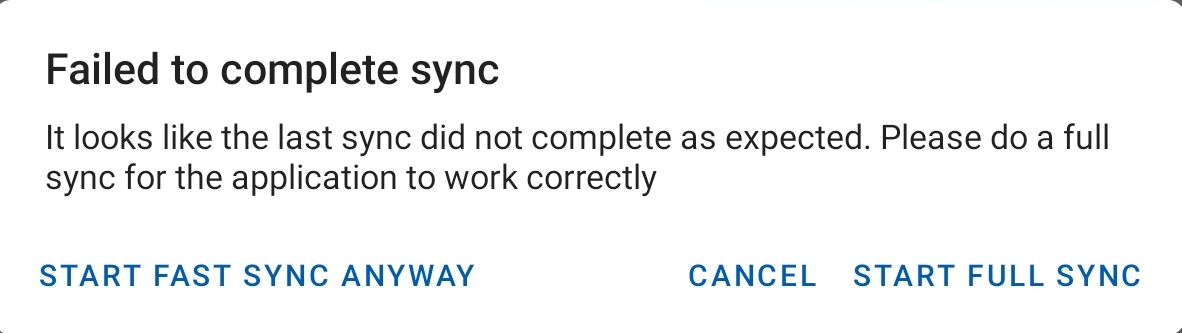
If the sync process was interrupted, tap the
icon. In the following pop-up, tap Start full sync to run the mixed
synchronization or tap Start fast sync anyway to launch the fast
synchronization.
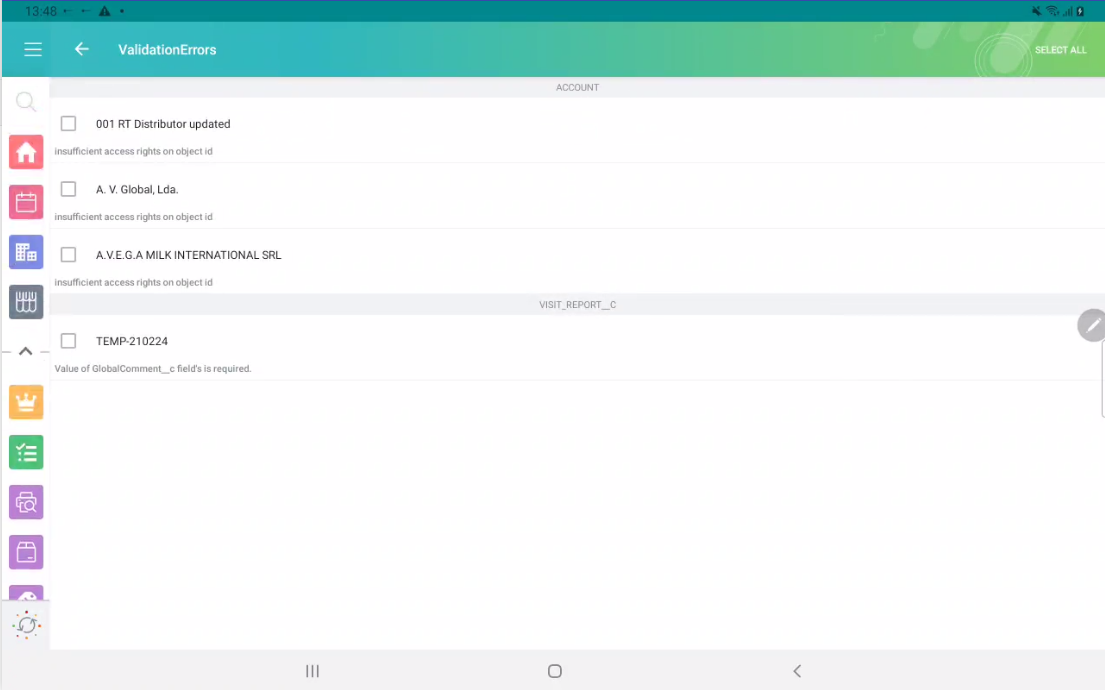
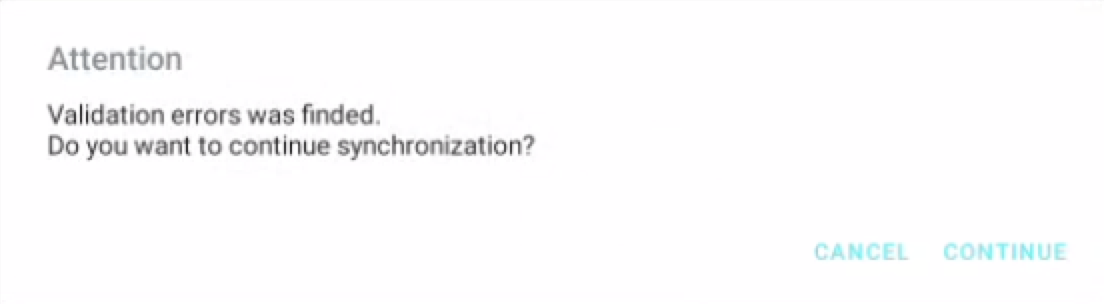
Also, if the mobile user launches the sync process and the validation error is found, she can tap Continue in the pop-up. In this case, the synchronization may be successful, and validation errors will be displayed on the Errors screen.
Errors Screen
The CT Mobile app has two menu items with errors.
Errors
This Errors menu item contains errors that occur during the sync process due to incorrect settings on the Salesforce side.
-
Records are listed under the corresponding title.
-
To correct the error, tap the record and fix it on the record screen.
-
When all records are fixed, run the fast synchronization.
Validation Errors
The Validation Errors menu item is intended to manage errors that occur due to violation of the validation rules and sharing rules or due to insufficient profile access in one place.
| Records with validation errors will not be included in the next synchronization. The following errors will be displayed: |
-
if the user postponed fixing errors on the record screen.
-
the validation rule is violated on a record, and the user leaves the record screen;
-
the start date of an activity record is later than the end date, and the user leaves the record screen;
-
the required field is blank on a record or within the custom related list, and the user leaves the record screen;
-
-
if you launched the sync process and sending changes to some records fails due to:
-
revoked access to some records.
-
insufficient access to a record or a field of the record, the required field is empty, etc.
-
The list of error records is grouped by the object type. Each error record displays the text of the error.