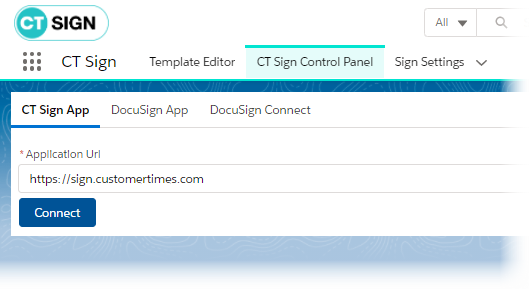
CT Sign Control Panel
CT Sign Control Panel is a Visuaforce page applied to connect the Salesforce organization with the Application Service and an e-signature provider. Get familiar with the architecture o the CT Sign solution to understand the document signing flow.
-
On the CT Sign app tab, connect the Salesforce Instance with the Application Service. This setting is applied only once.
-
On the DocuSign App tab, specify the integration key and OAuth 2.0 tokens of the DocuSign app.
-
On the DocuSign Connect tab, enter your DocuSign Connect credentials to receive statuses of requests, such as Signed, Rejected, etc.
Read the Create and Set Up the DocuSign Account article to create a DocuSign app, obtain the required values and the DocuSign Connect credentials.
|
Please re-enter DocuSign parameters after promoting your integration key from your developer account to a production DocuSign account. Documents sent from the developer DocuSign account are not legally binding and are watermarked. |