3.1 Create and Add the Form Document button to the Custom Object
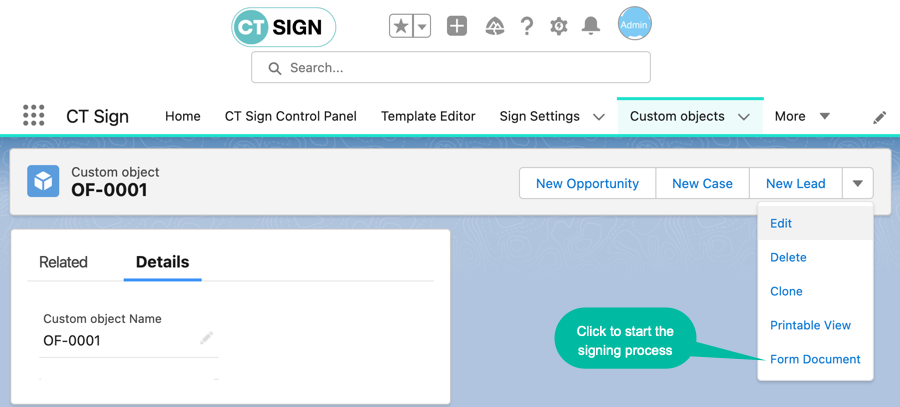
To start document signing, go to the desired object and click the Form Document button. By default, the Form Document button is available for the Account and Contact objects.
Add the Form Document Button to the Custom Object
To add the Form Document button to the Custom Object page layout:
-
Go to Setup → Object Manager.
-
Click the desired custom object.
-
Go to Buttons, Links, and Actions.
-
Click New Button or Link.
-
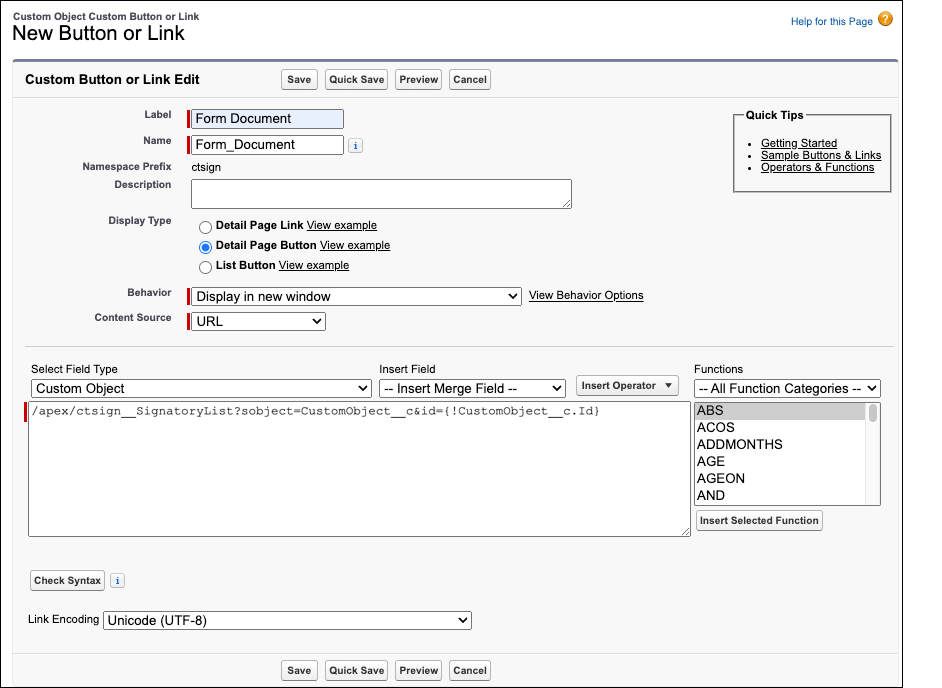
Enter the following:
-
In the Label field, type Form Document.
-
The Name field will be automatically filled out with the Form_Document value.
-
For Display Type choose Detail Page button.
-
In the Select Field Type list select your Custom Object.
-
In the code window, add the code listed below:
/apex/ctsign__SignatoryList?sobject=CustomObject__c&id={!CustomObject__c.Id}Instead of CustomObject__c, specify the API name of the desired custom object. Please note that the ! sign is mandatory before the custom object name.
-
-
Click Save.
-
Go to Setup → Object Manager → *click the desired custom object → Page Layouts → click Edit next to the required page layout.
-
Click Mobile & Lightning Actions and drag and drop the Form Document button on the page layout.
Mobile & Lightning Actions may be locked for editing by Salesforce and prevent. If yes, click the override the predefined actions link.
-
Click Save.
The Form Document button is created and added to the Custom Object page layout.
Add Sign Document object as a Related List to a Custom Object
You can view and share signed documents on the custom object records in the CT Mobile application. To do that, add the Sign Document object as a related list to a custom object.
For example, to work with signed documents in CT Orders records, create a lookup relationship between orders__Order__c and ctsign__SignDocument__c objects. After that, you will see the *Sign Documents * tab in the CT Orders records and will be able to share the documents. Please note that:
-
Documents signed by Simple Sign will be available for sharing immediately.
-
Documents signed by DocuSign online will be available after performing the fast synchronization.
-
Documents signed by DocuSign offline will be available:
-
In Salesforce: as soon as all signatories sign the document.
-
In the mobile application: after all signatories sign the document and after performing the fast synchronization.