CT Sign Description and Deployment
Here you can find the CT Sign solution description and a step-by-step guide to configure your Salesforce organization.
CT Sign
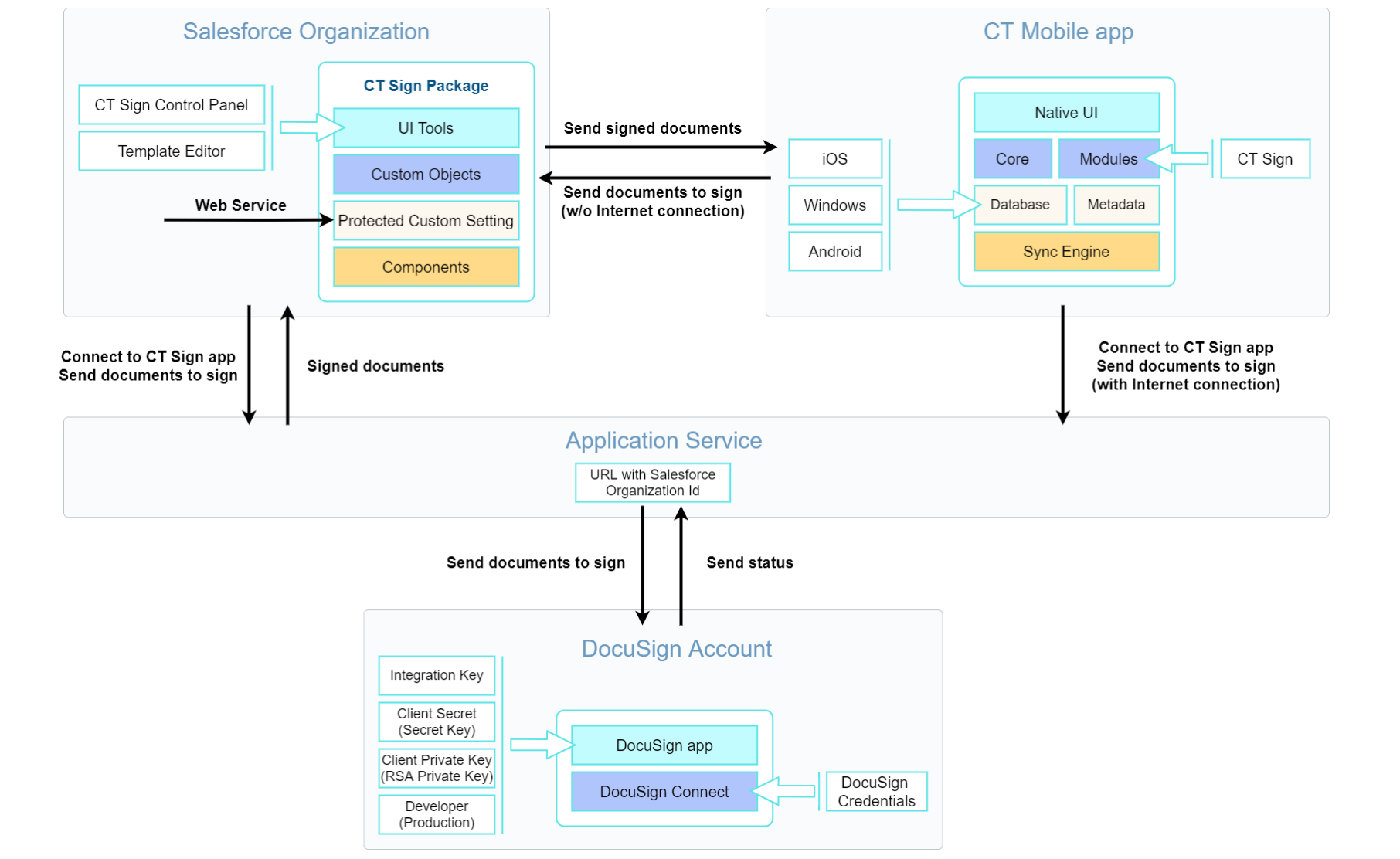
CT Sign is provided as two connected components:
-
The CT Sign managed package.
-
The Application Service, also known as the CT Sign app, is intended to connect with the e-signature provider.
-
The native CT Mobile app for iOS and Windows with added CT Sign module.
CT Mobile Android does not support the CT Sign module.
-
An e-signature provider.
CT Mobile Windows does not support the integration with e-signature providers.
The following scheme covers the case of using a legally binding signature. When using simple signing, data exchange only takes place between the mobile device and Salesforce.
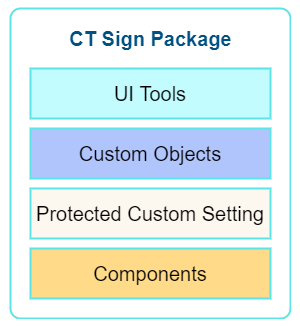
CT Sign Package Description
|
Available for the following Salesforce editions: Enterprise, Unlimited, Force.com, Developer, Performance. |
UI Tools
Custom Objects and Fields
Custom Setting
Components
|
|
Application Service and e-Signature Provider
Users can add handwritten signatures to a document without additional integration.
To use a legally binding e-signature, connect the Salesforce organization with the installed CT Sign package, the Application Service, and the e-signature provider.
-
Application Service, provided by the Customertimes team, is used as a third-party service to connect your Salesforce org or CT Mobile app with an e-signature provider for sending and receiving transactions and signed documents.
-
As the e-signature provider, each customer should prepare the DocuSign account to connect with the Application Service and Salesforce organization.
-
Create the developer account with the configured DocuSign app and the enabled DocuSign Connect to test the e-signature process.
-
Obtain the production account and go live with the DocuSign app to allow the legally binding signing.
-
Deployment Steps
Users may sign documents with legally binding or simple signatures in Salesforce and on a mobile device. Depending on the purpose and the platform of a mobile device, skip the unnecessary steps, for example, if there is no need to give iOS users the ability to sign documents with a legally binding signature.
Deployment of CT Sign solution is performed in the following order:
-
Install the CT Sign package in your Salesforce organization and assign the CT Sign license to the users.
-
Configure the main parameters of the CT Sign package: objects to sign, libraries to store documents, and layouts for a forming document page.
-
Create templates for contracts, e-mails, or any other form.
-
Set up the DocuSign integration if needed.
-
Connect your Salesforce organization with the Application Service and DocuSign account.
-
-
Form and sign documents with legally binding or simple signatures in Salesforce.
-
Add the CT Sign module to the CT Mobile app for signing documents in the CT Mobile app.
-
Form and sign documents with legally binding or simple signatures on a mobile device.