3. Specifying Product Objects and Fields
Specify the product fields to send their values for processing and storing on the server.
Go to the CT Vision app and open the CT Vision Setup tab.
|
Before the first entry to the CT Vision Setup tab, go to CT Mobile Control Panel: Tools / CT Mobile Control Panel 2.0: Tools tab and check that the cloud token is added. Currently, the cloud token may be stored in two custom settings, and the CT Vision IR retrieves it based on the combination of the CT Mobile package version and the used CT Mobile app version. For more information, refer to the CT Mobile Managed Package Update to v. 3.54 description. |
Authorization
If the Salesforce org was not yet registered on the CT Vision service side, click the Authorize button in the General Configuration section to connect to the CT Vision server.
|
In case of any errors, contact the Customertimes team. |

Product Object Setting
To specify the corresponding Product object:
-
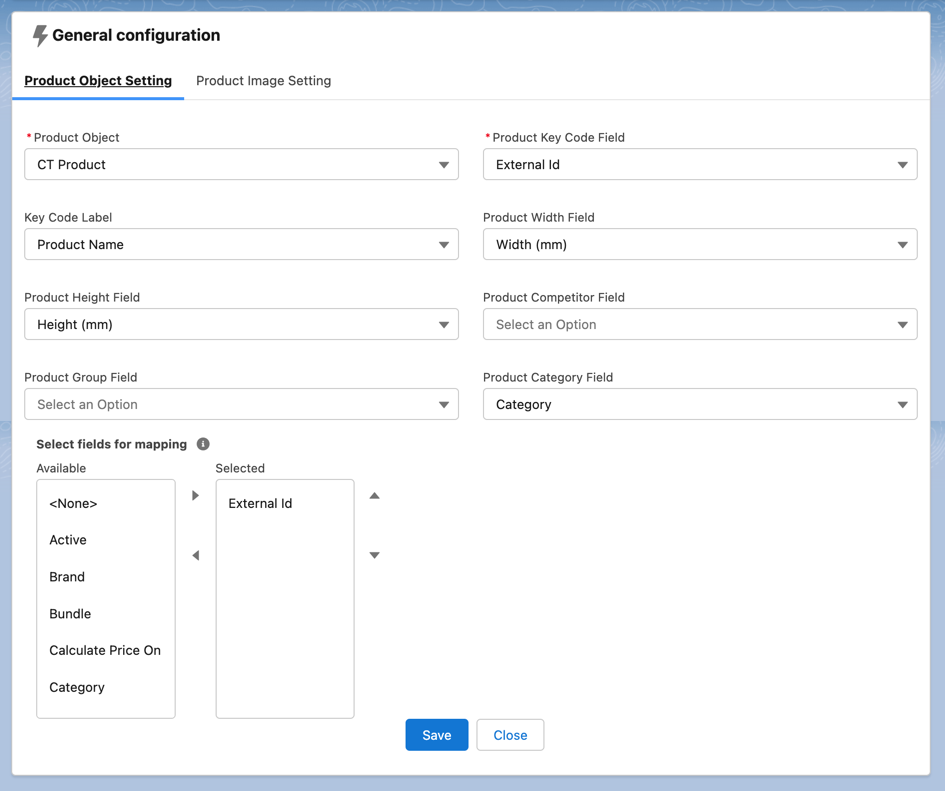
On the Product Object Setting tab, specify the required fields:
-
In the Product Object picklist, select the desired Product object.
-
In the Product Key Code picklist, select the desired field.
Use any suitable field that contains a unique product identifier, such as EAN or CTCPG__ExternalId__c. This field is used for mapping the Product object in Salesforce and the server.
-
-
Click Save.
-
Allow Salesforce to create a field with the Lookup type when prompted for the specified Product object.
The setup is complete. The field with the Lookup type will be automatically created on the Product Image object to relate it with the specified Product object.
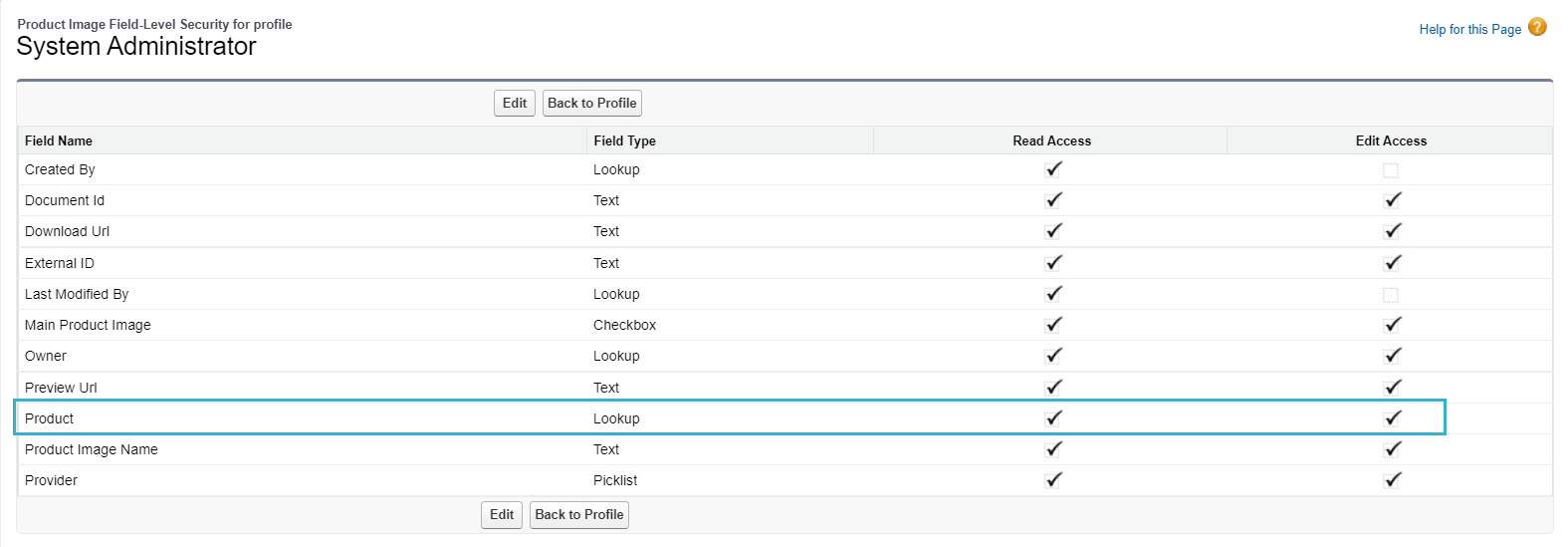
Check the user profile permissions to make sure the newly created lookup is available for all required users: