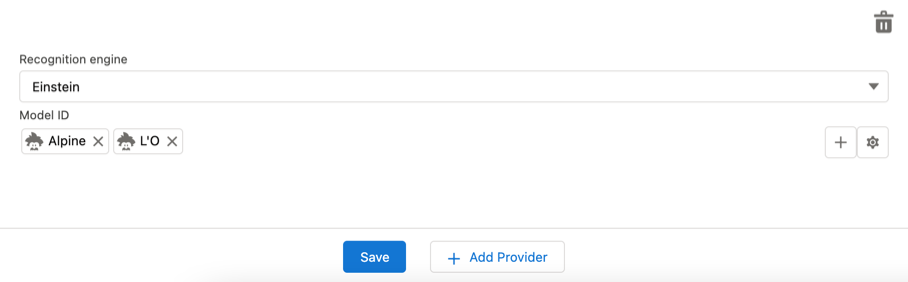
4.1 Setting up the Einstein Provider
To use the Salesforce Einstein provider for product image recognition:
-
Go to the CT Vision Setup tab.
-
In the Provider Configuration section, select Einstein from the Provider picklist.
-
Click the Plus button to add a new Model ID.
-
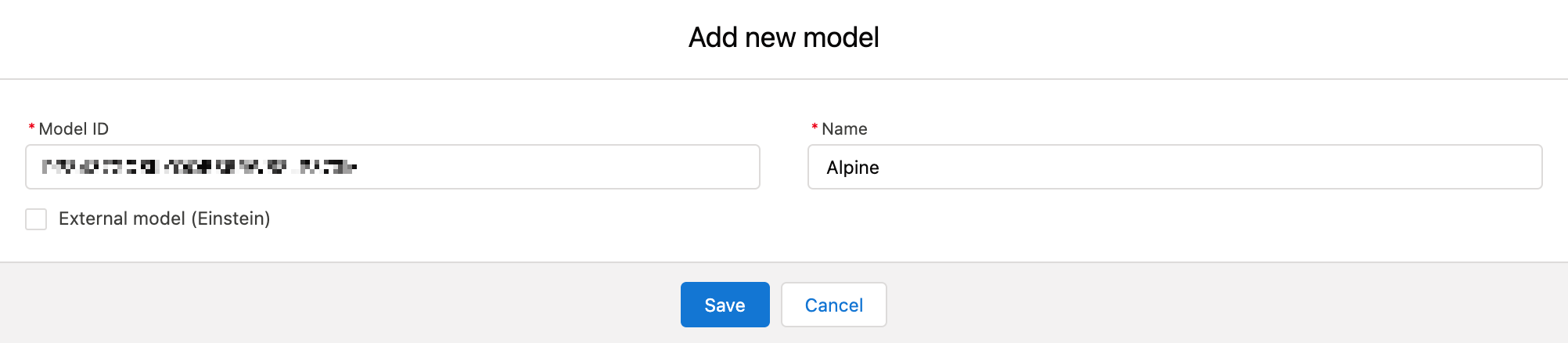
In the Add New Model window:
-
Enter the Model ID.
-
Enter Name.
-
If necessary, activate the External Model (Einstein) checkbox.
-
-
Click Save.
-
Repeat steps 3–5 to add more models if necessary.
-
Click the
 button.
 -
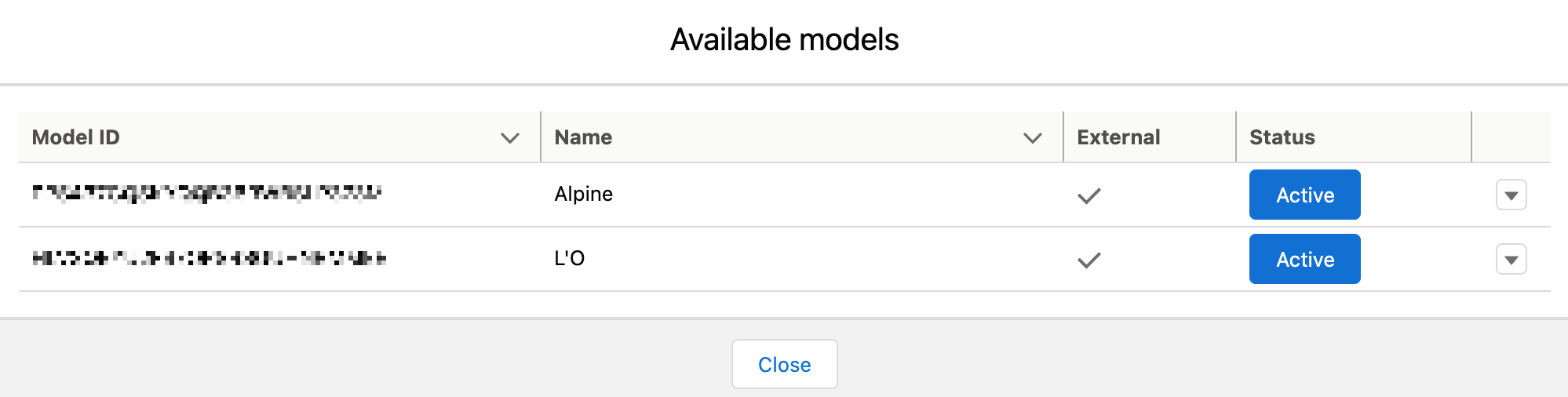
In the Available Models window:
-
Activate the desired models.
-
Click the
 button to Edit or Delete the Model if necessary.
-
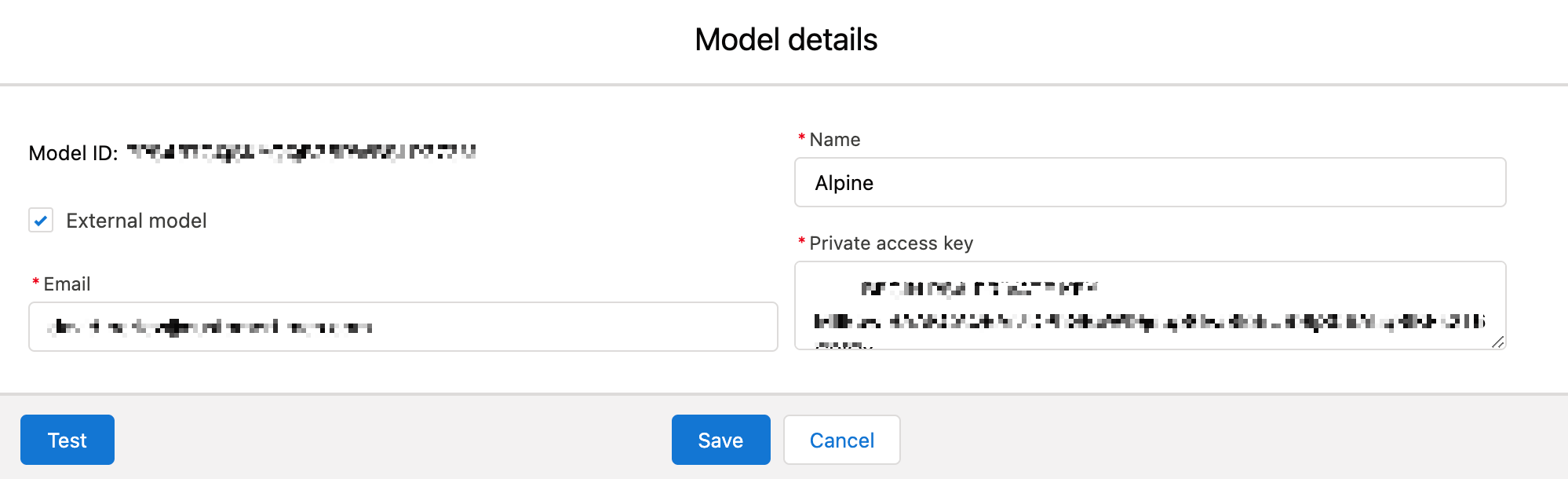
Edit the user Email and the Model name.
-
Activate the External Model checkbox.
Currently, only external models are supported.
-
Verify the Private Access Key.
-
Click on Test to view the indication on top of the screen signaling if the connection was successful or not.
-
-
Click Close.
-
-
Click Save.
The Einstein provider is added.
-
Under the Model Id, only the active models are listed.