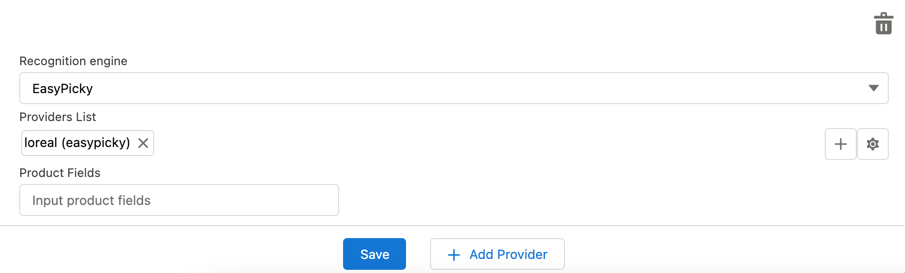
4.2 Setting up a Third Party Provider
To use a third-party provider for product image recognition:
-
Go to the CT Vision Setup tab.
-
In the Provider Configuration section, select the required provider from the Provider picklist.
Select the Vision light provider if image recognition is not required. In this case, there are no settings for the provider list. For better experience with the Vision light, specify photo tags.
-
Click the Plus button to add a new Provider.
-
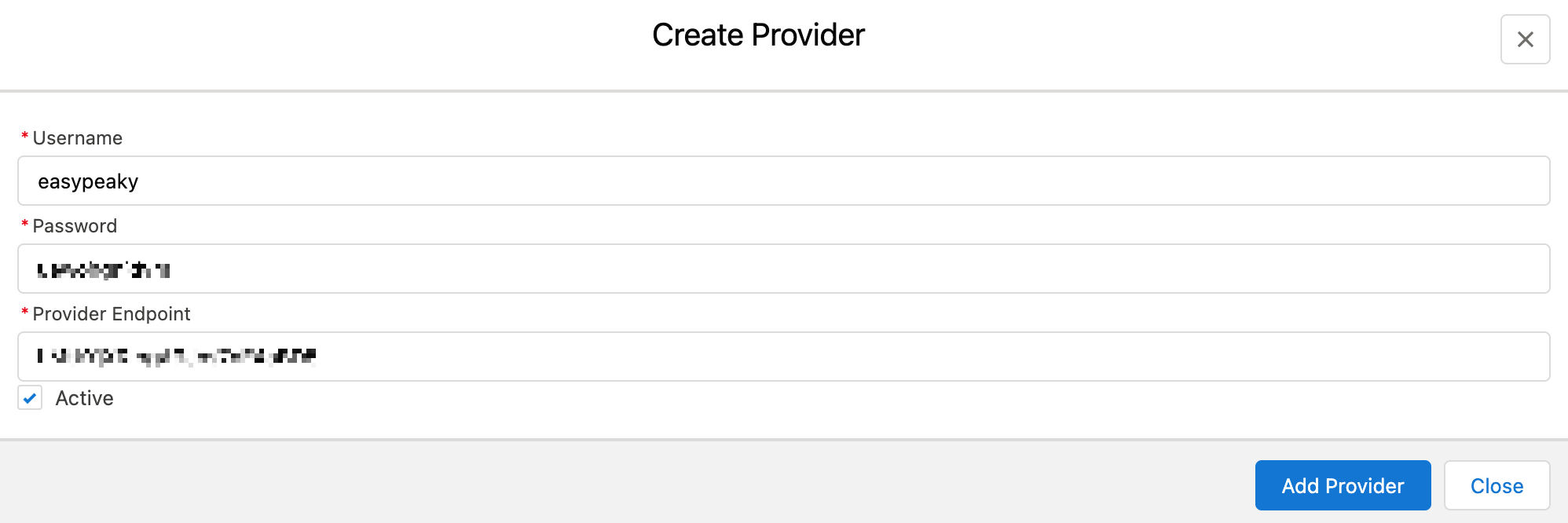
In the Add Provider window:
-
Enter Username and Password.
-
Specify the Provider Endpoint.
-
Activate the provider.
-
-
Click Add Provider
-
Repeat steps 3–5 to add more models if necessary.
-
Click the
 button.
 -
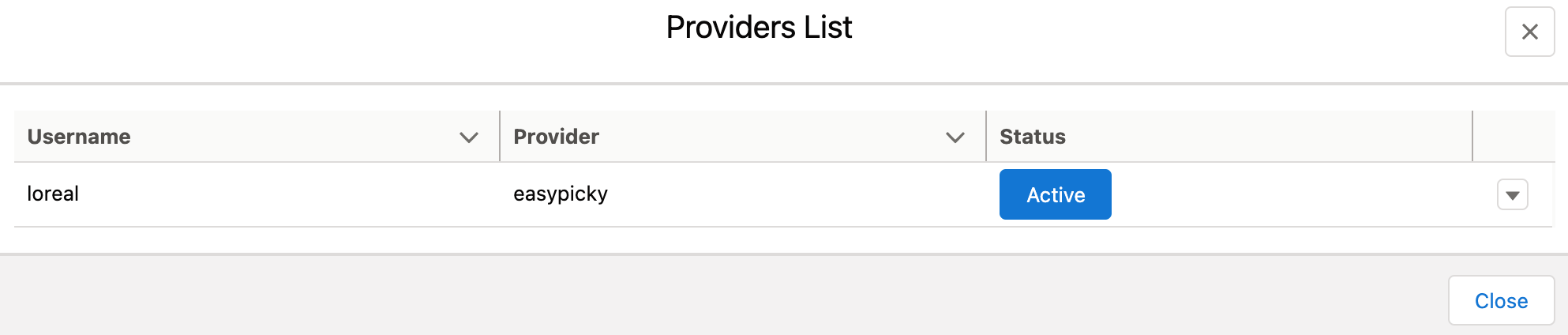
In the Provider List window:
-
Click Active to activate the desired providers.
-
Click the
 button to Change or Delete the Provider if necessary.
-
Edit the Username and Password.
-
Verify the Provider Endpoint.
-
-
Click Close.
-
-
Click Save.
The third-party provider is added.
-
In the Provider List field, only the active providers are listed.
-
Specify product fields.