Working with CT Vision IR in Salesforce

A manager or supervisor reviews the taken photos by the mobile user in Salesforce. Go to the CT Vision app and open the Feedback Loop tab.

Feedback Loop Overview

The taken photos received from the CT Vision server will be displayed on the main screen, and the filters to apply on the right side of the page.

  • One page displays 20 photos. Use page navigation buttons in case of several pages and view the number of the received photos next to Total Records.

    Maximum 500 photos can be loaded at a time. More photos (another 500) will be loaded after clicking on the last page in the navigation panel.
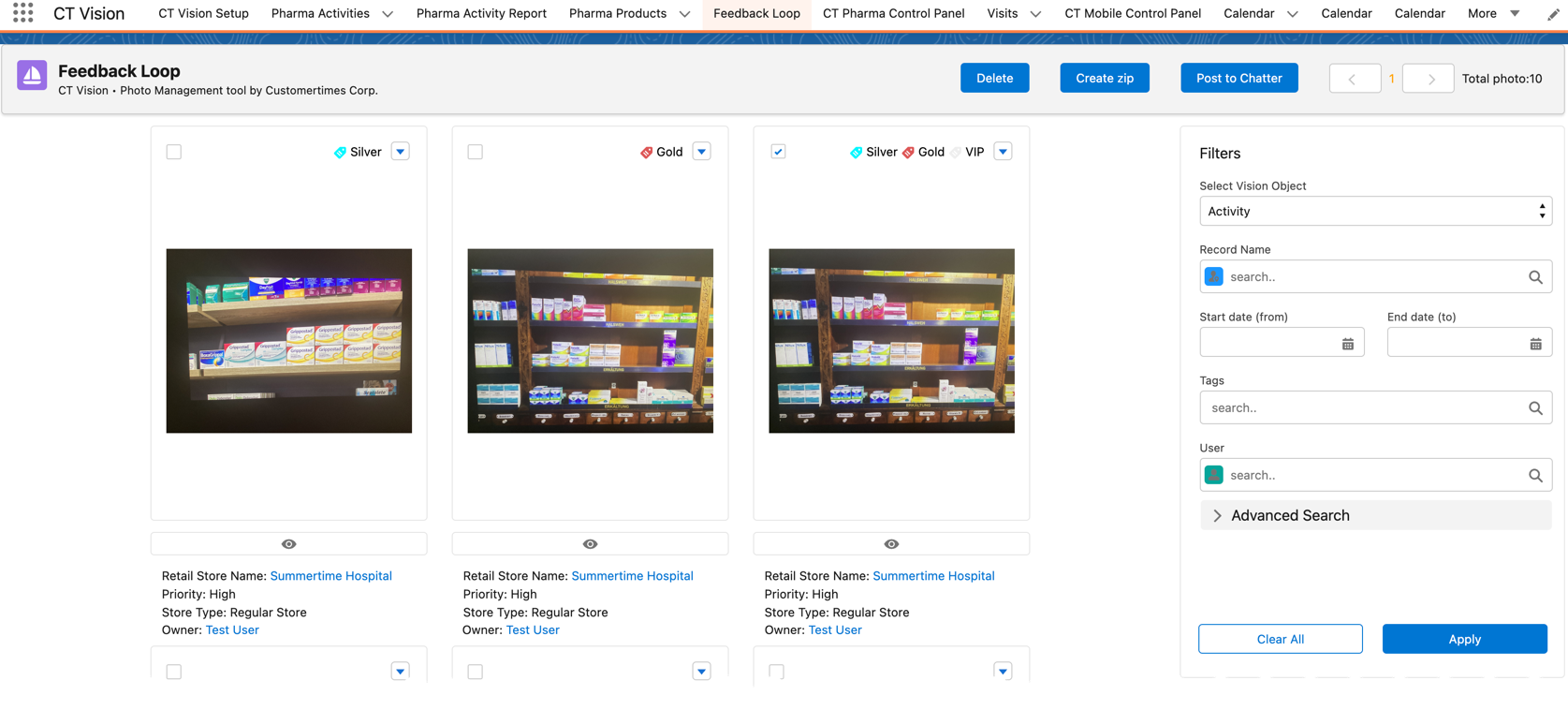
    Feedback Loop Tab v.3

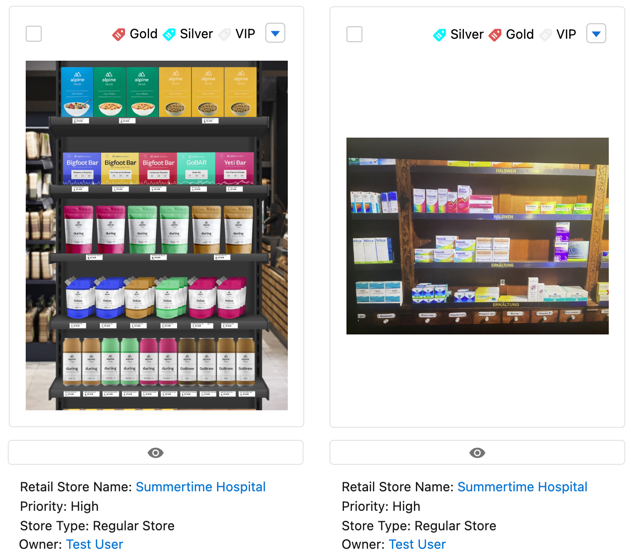
  • Under the photo, the information specified for the Vision object in the Photo Description tab is displayed.

  • Click the realogram icon icon to open a photo for verifying its realogram and recognized products.

  • Click the checkbox above the desired photos and then click the Create zip button to build an archive with the desired photos.

    • The archive will be saved on the user’s device.

    • Images are saved in the .png format.

  • Click the checkbox above the desired photos and then click the Post to Chatter button to send a new message with attached photos to the Chatter. You must select Chatter Group(s) to send the message.
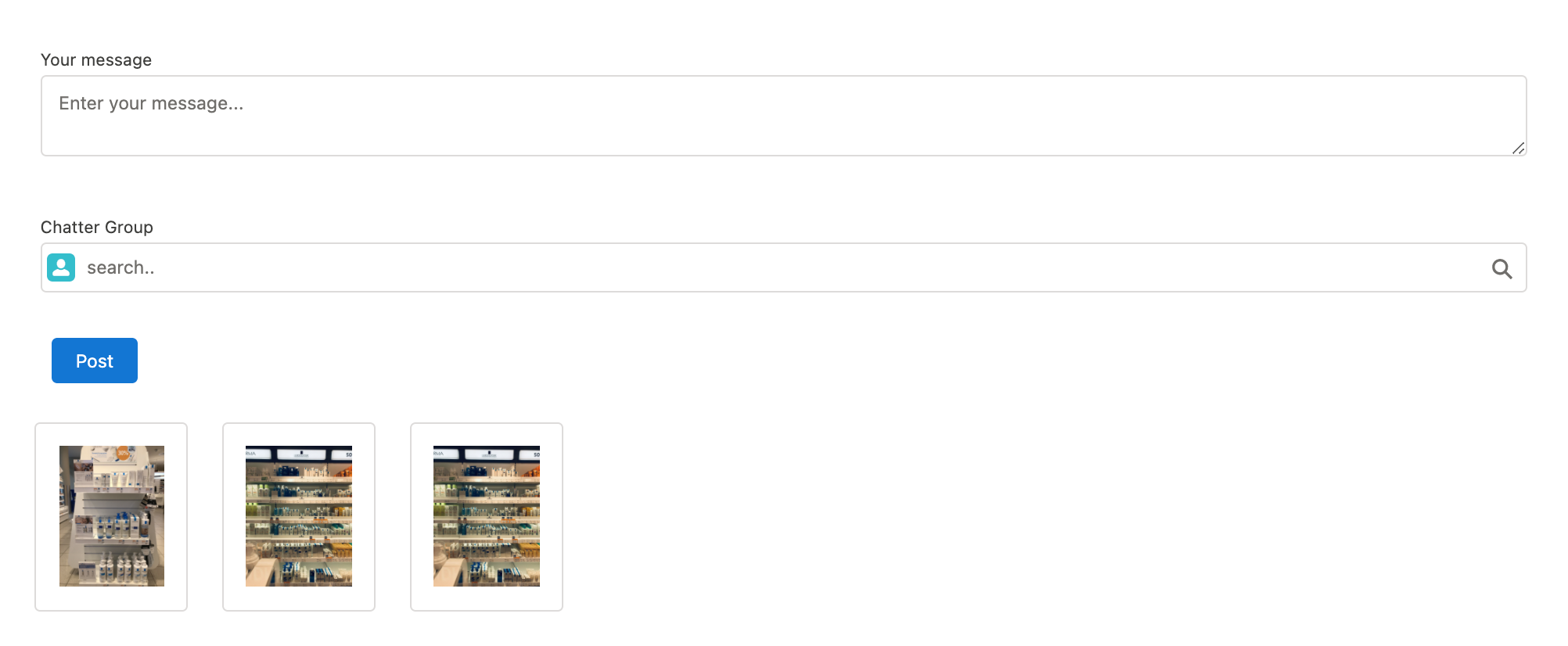
    Feedback Loop Post to Chatter v.2

  • Click the checkbox above the desired photos and then click the Delete button to delete the photo. You can also delete a photo by clicking the 25 icon in the photo gallery.

  • Click the eye icon button to view the desired photo. In the opened viewer, click 25 and 25 buttons to list other photos of the gallery.

  • Click the tag selection icon button and select the desired photo tag.
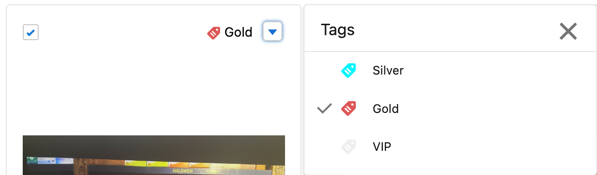
    tags list

Feedback Loop Filters

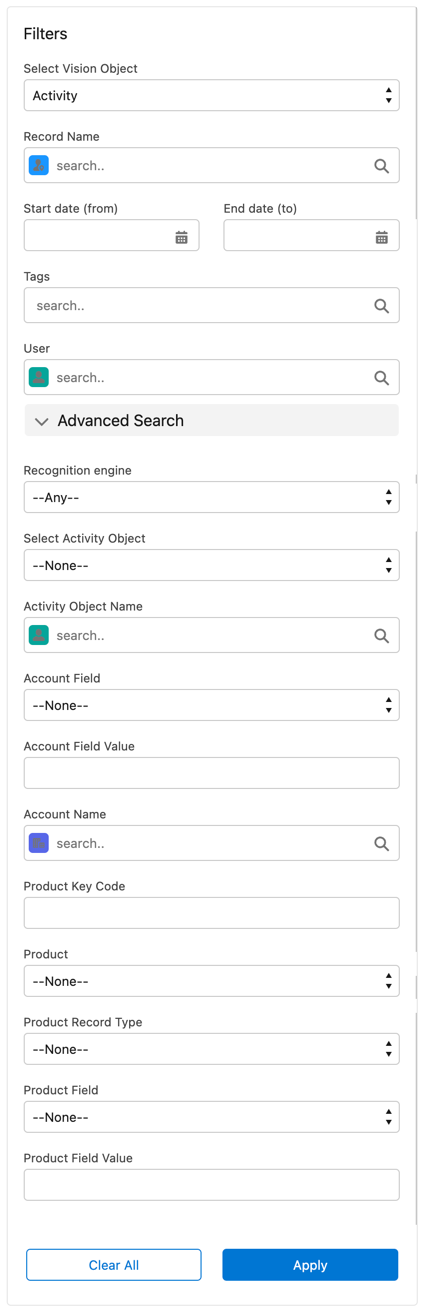
Use filters on the right side of the Feedback Loop page to search the taken photos based on criteria.

To apply a filter, specify the required criteria and click the Apply button.

  • Photos that met the criteria are displayed in a group.

  • To reset the filter and erase all criteria, click the Clear All button.

If the search has too many results, the warning message will be displayed. In this case, try to specify more filter criteria to narrow the search.

Base Filters

  • To search photos by a Vision object, select it in the Select Vision Object field.

  • To search photos by records of the Vision object, select them in the Record Name field.

    Vision objects and their records must be defined in the CTM Settings record with the Vision Visit record type.

  • Specify the Start Date (from) and End Date (to) of the Vision object. These fields are displayed only if in the Select Vision Object field the Activity object is selected (or any object set up as the Activity in the CT Mobile Control Panel: Calendar / CT Mobile Control Panel 2.0: Activities).

  • Use the Tags filter to select the desired photo tag(s) and display only appropriate photos.

  • Add multiple Users of the desired Activity records. The filter uses the OR operator.

Advanced Filters

Click Advanced Search to expand additional filter criteria. Use the following criteria:

  • Select the desired Recognition Engine. Only configured recognition engines are available for selection.

  • Select the specific Activity Object and Activity Object Name.

  • Select an Account that is linked to the Activity records. The filter uses the OR operator.

    • Create a CTM Settings record with the Vision Account record type to add desired accounts to the picklist.

    • Search an organization by a specific Account Field Value in the selected Account Field.

  • Specify the Product criteria:

    • Enter the unique ID of the product in the Product Key Code field.

      For more information, refer to Product Object Settings.

    • Select the Product record.

    • Select the Product Record Type.

    • Search a product by a specific Product Field Value in the selected Product Field.

Feedback Loop Filter v.3

Working with Taken Photos

To make changes to recognized products, refer to Corrections in Shelf Product List.

Photos that met the filter criteria are displayed with the description. To customize the description, refer to Feedback Loop tab in the CT Vision Setup.

The following buttons are available under a photo:

Buttons Description

Salesforce Realogram button v.2

Open a photo for verifying its realogram and recognized products.

Salesforce Shelf Product List Button v.2

Open the Shelf Product List of the recognized products and their number on the shelves.

  • If products details have been edited, the red warning is displayed.

  • If products details have been verified, the green warning is displayed.

Salesforce Shelf Product List Button 2 v.2

Salesforce Shelf Product List Button 3 v.2

checkbox unselected

Select a photo to delete it, to include it in a ZIP archive or send it to the Chatter users.

checkbox selected

tag selection icon

Add a photo tag by clicking in the upper right corner of the taken photo.

You can add only photo tags that are created for the same object and/or its record type. For example, if the photo was created for the Account object, you can add only photo tags that are also created for the Account object. Or, if the photo was created for the Customer record type of the Account object, you can add only photo tags that are also created for the Customer record type.

Photos on the Feedback Loop page v.3

Verify Recognized Products on Realogram

Available only for providers with recognition. If the vision_light provider is selected, the realogram is not available.

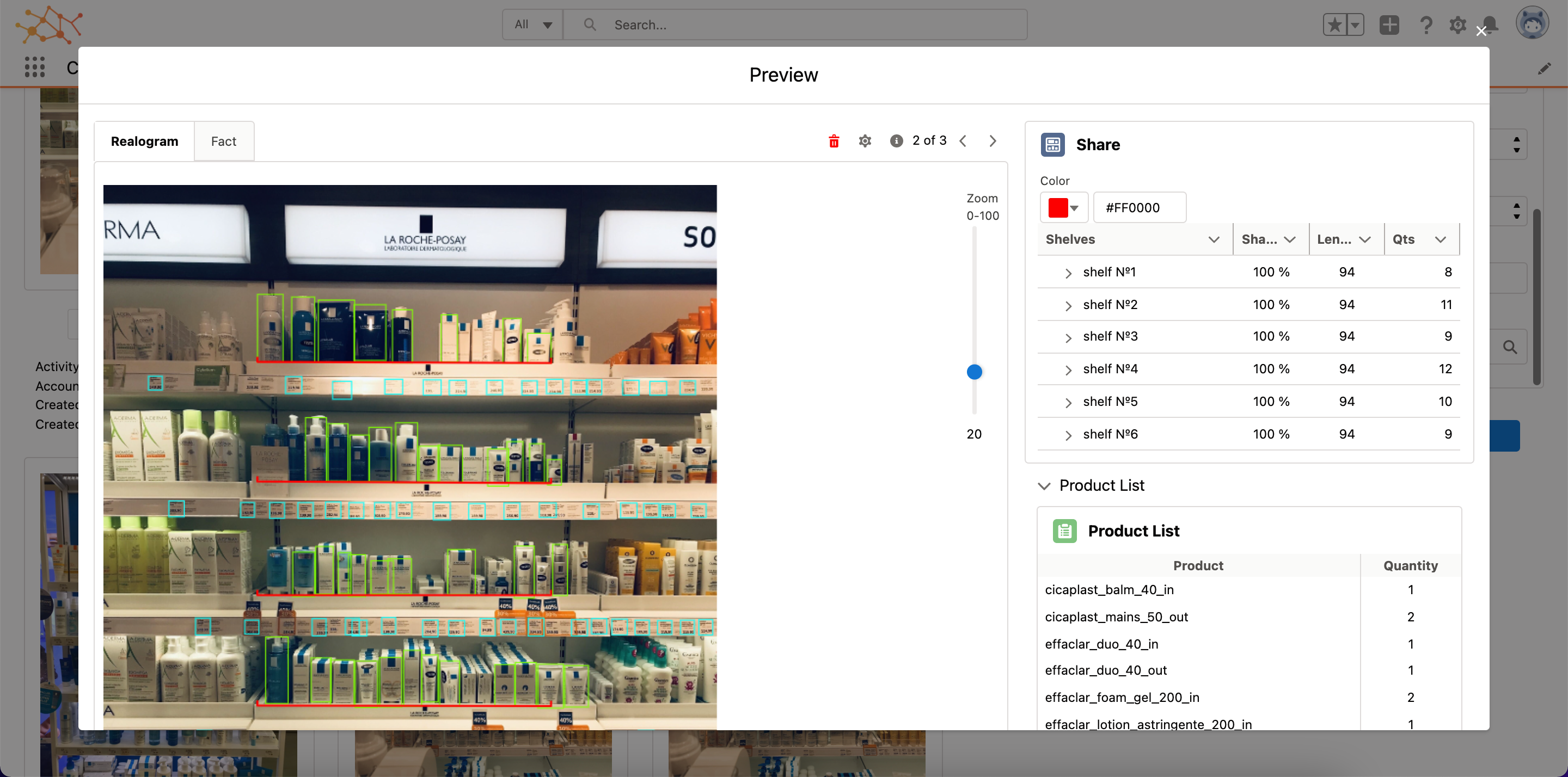
Click the 40 button to open a Preview window.

Use the navigation arrows to scroll photos of the current Activity record.

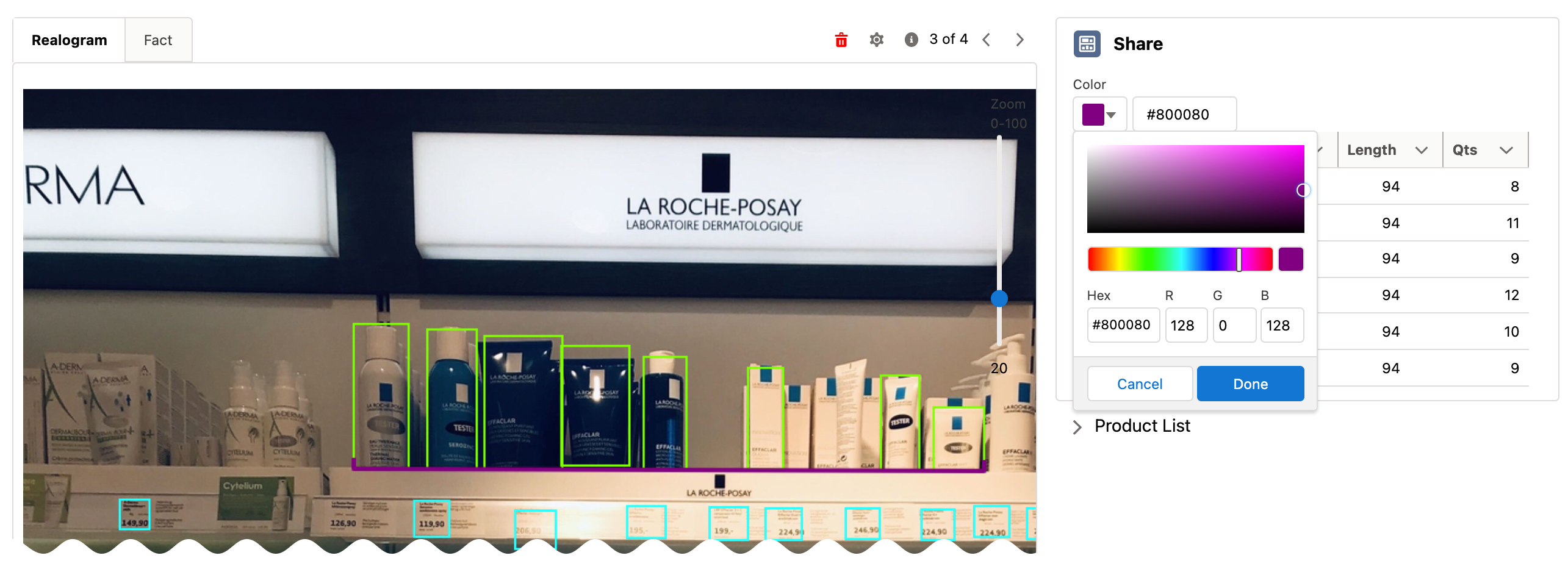
  • View the recognized products and price tags on the Realogram tab.

  • The originally taken photo without any recognition information is located on the Fact tab.

  • Zoom a photo if needed.

The Preview window with the Realogram

The following tools are available:

Tool Example Description

Filters

FBL Realogram Filters

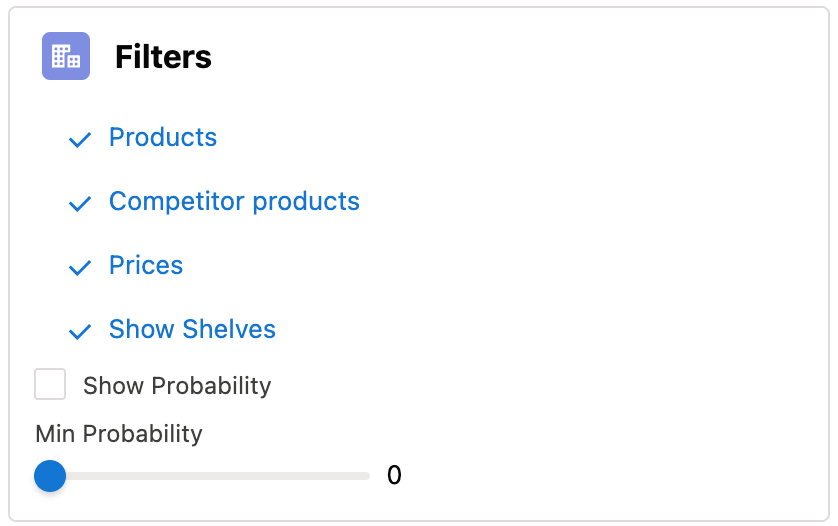
Click the 15 button and select details to display.

  • Recognized Products

  • Competitor Products

  • Prices

  • Shelves

Select the Show Probability button to display the percentage of probability that the product was recognized correctly.

  • Use the slider to select the required percentage of probability.

  • Only the product with the same or higher probability will be framed on a realogram.

Information

FBL Realogram Information

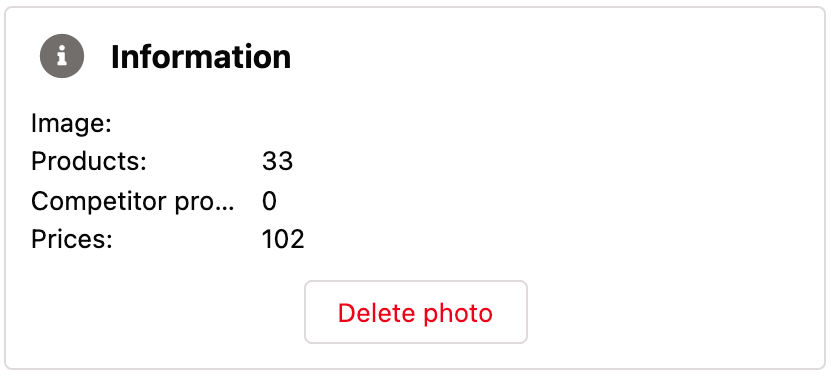
Click the 15 button to review the total number of recognized products and prices.

Delete a photo

Click the 15 button to remove a photo from the CT Vision server.

Share

FBL Realogram Product Share v.2

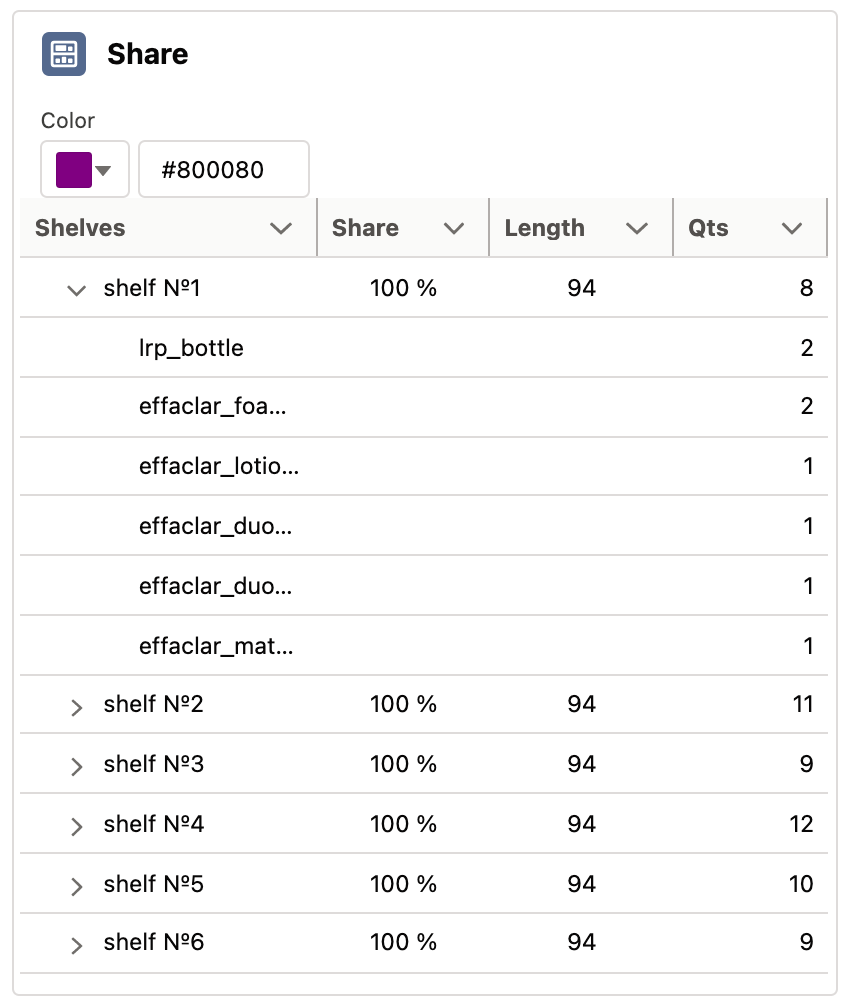
Verify the shelf share.

  • Specify the color that highlights a shelf on a realogram in Salesforce and the CT Mobile app. Shelf Color

  • Expand the shelf to review products. Only the selected shelf will be highlighted on the realogram.

Product List

FBL Realogram Product List

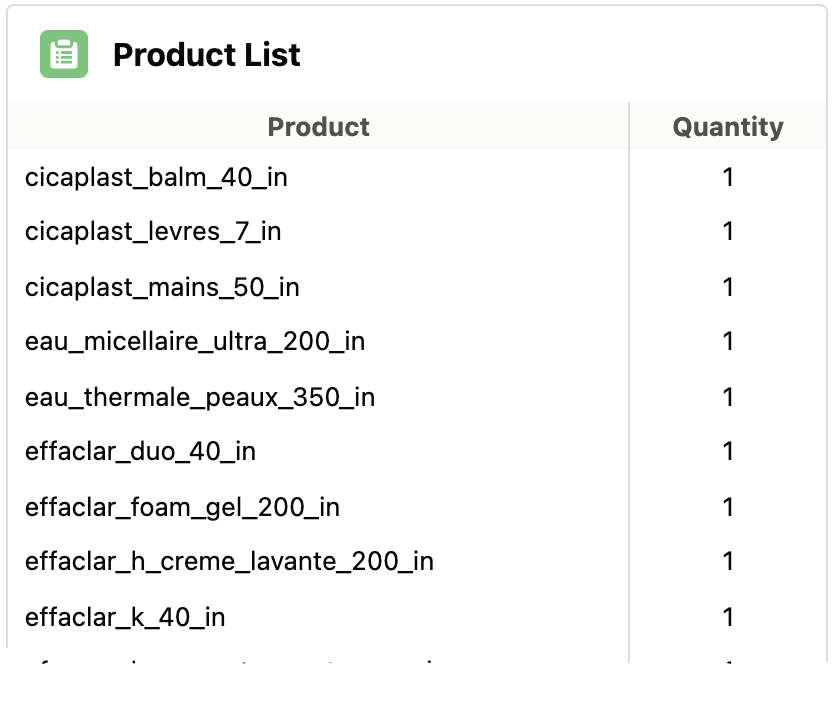
Review the list of recognized products and their number on shelves.

``